


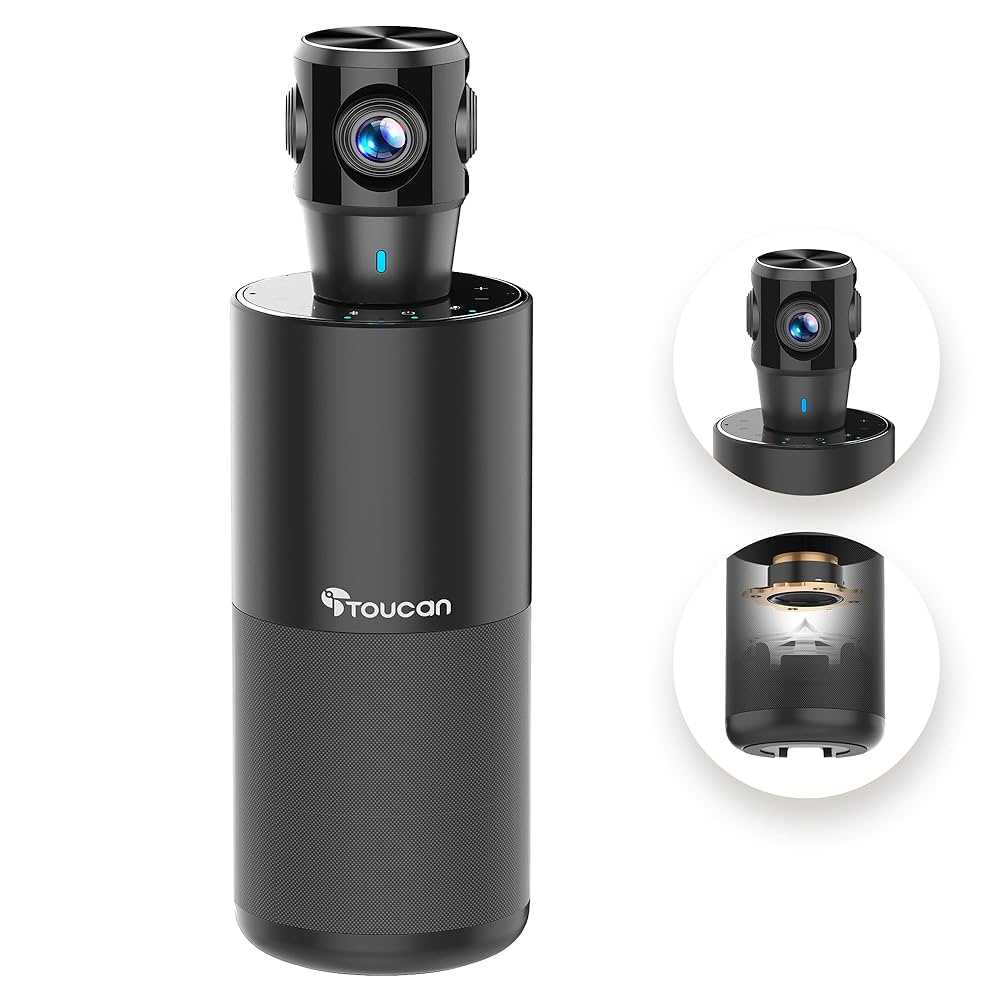
Yes, a webcam can work on both Zoom and Teams at the same time, but it requires some setup. To do this, you need to use virtual camera software that creates a single camera feed accessible to both platforms simultaneously. This way, your webcam can be shared across multiple apps without switching devices or disconnecting.
If you’re wondering whether you can use your webcam on Zoom and Teams simultaneously, the short answer is yes, but with a little workaround. Typically, your physical webcam isn’t designed to feed multiple programs at the same time, so you’ll need a virtual camera tool to route the video stream. This setup is especially useful if you’re multitasking, hosting multiple meetings, or wanting to streamline your setup. Keep reading to discover how to get your webcam working seamlessly on both platforms at once and make your virtual meetings more efficient.

Can Webcam Work on Zoom and Teams Together?
Many users wonder if it’s possible to use the same webcam for both Zoom and Microsoft Teams at the same time. The short answer is that it’s generally not straightforward to run one physical webcam across two video conferencing apps simultaneously. However, there are workarounds and solutions that can make this happen.
This section explores whether you can use a single webcam on both Zoom and Teams during the same meeting or session. We’ll look at device limitations, software options, and setup procedures. Understanding these elements helps you decide the best approach for your needs.
Can You Use the Same Webcam for Zoom and Teams Simultaneously?
By default, most webcams connect to your computer through drivers that only allow one application to access the device at a time. This means that if you are using Zoom, Microsoft Teams may not be able to access the same webcam unless specific configurations are made.
However, some third-party tools enable virtualization or sharing of webcam feeds across multiple applications. This setup allows users to run a single physical webcam on both Zoom and Teams at once, although it may involve some technical steps.
Why Is It Difficult to Use One Webcam on Multiple Apps?
The main challenge stems from how Windows and other operating systems handle camera permissions. They typically lock the device to one application at a time to prevent conflicts and ensure smooth operation.
Additionally, even if the operating system allows multiple applications to access a webcam, the hardware might not support simultaneous streaming. Safety and security settings in your system can also restrict multiple application access.
Advantages of Using the Same Webcam Across Zoom and Teams
- Cost-effective: You don’t need to buy additional cameras.
- Consistency: Use the same camera for all your meetings to maintain video quality.
- Simplicity: Manage only one device rather than switching devices between apps.
Common Challenges and Limitations
While sharing a webcam is possible, users often encounter issues such as lag or poor video quality. Some applications might switch the camera automatically if they detect conflicts. It’s essential to understand potential hiccups before setting up your system.
How to Use One Webcam on Both Zoom and Teams
There are mainly two methods to achieve this. Each method has its benefits and limitations depending on your technical skills and resources.
Method 1: Using Virtual Camera Software
Virtual camera software creates a virtual device that acts as a webcam. You can connect your physical camera to this software and then select the virtual device in both Zoom and Teams.
Popular virtual camera tools include ManyCam, OBS Studio (with OBS-VirtualCam plugin), and Snap Camera. Setting these up involves installing the software, configuring the virtual camera, and selecting it as your video source in both apps.
Step-by-Step Guide:
- Download and install virtual camera software such as OBS Studio or ManyCam.
- Configure the software to capture your real webcam feed and output to a virtual device.
- Open Zoom and go to Video Settings. Select the virtual camera as your camera source.
- Open Teams, navigate to Device Settings, and choose the same virtual camera.
- Start your meetings and ensure the virtual camera is active.
Pros and Cons:
- Pros: Works well, flexible, allows combining multiple video sources.
- Cons: May require system resources, some setup complexity, potential delay or lag.
Method 2: Using Hardware Splitters or Capture Cards
If you want to avoid the complexity of virtual cameras, hardware splitters or capture cards provide a physical solution. These devices duplicate your camera feed into multiple outputs, which can then be connected to different computers or applications.
For example, an HDMI splitter can take the output of a capture card connected to your webcam and send signals to two separate computers running Zoom and Teams.
Setup Steps:
- Connect your webcam to a capture card that supports multiple outputs.
- Connect the capture card to two separate computers or devices.
- Configure each device to use the connected capture card as the webcam source.
- Run Zoom on one device and Teams on the other, selecting the capture card as the source.
Advantages and Disadvantages:
- Advantages: Reliable, low latency, high-quality video.
- Disadvantages: Costly, requires extra hardware, more setup space.
Software Solutions for Running Multiple Meetings
If you’re looking to attend meetings in both Zoom and Teams simultaneously, separate software solutions are available to help. These tools enable you to manage multiple video streams and even record or stream content across platforms.
Using Multiple Instances of Video Conferencing Apps
Modern operating systems allow running multiple instances of the same application. You can open Zoom and Teams on different user profiles or instances, then select your virtual webcam as the video source.
This method requires adequate computing power and proper configuration to avoid conflicts or resource issues.
Best Practices for Seamless Video Sharing Across Apps
- Update your drivers and software: Keep your webcam, operating system, and conferencing apps current.
- Test setups before important meetings: Perform trial runs to troubleshoot issues.
- Use a reliable virtual camera tool: Select software known for stability and compatibility.
- Optimize your hardware: Ensure your PC or Mac has sufficient RAM and processing power for multiple streams.
Additional Tips and Tricks
Controlling Privacy and Permissions
Be sure to grant camera access to all applications in your system settings. This ensures your webcam can be shared across Zoom, Teams, and virtual camera software.
Managing Video Quality
Adjust resolution and frame rate settings within your software to balance quality and performance. Lowering these can reduce lag during multi-application use.
Using External Devices for Better Performance
External microphones or webcams with higher specifications can improve your video experience when sharing across multiple platforms.
While using one webcam on both Zoom and Teams simultaneously presents some technical challenges, solutions like virtual camera software and hardware splitters make it feasible. Setting up these tools correctly ensures you can enjoy consistent video quality across your meetings. Understanding your setup and selecting the appropriate method will help you meet your needs effectively.
Virtual Camera for Zoom and Teams (using OBS or Ecamm Live)
Frequently Asked Questions
Can I use the same webcam for both Zoom and Microsoft Teams at the same time?
No, you cannot use the same physical webcam simultaneously for both Zoom and Microsoft Teams without additional software. The operating system recognizes the webcam as a single device, so running two applications that access the webcam at once requires virtual camera software that can share the feed between the apps.
What tools can I use to enable my webcam to work with multiple video conferencing platforms simultaneously?
You can utilize virtual camera applications like OBS Studio with the VirtualCam plugin, ManyCam, or Snap Camera. These tools create a virtual webcam that captures your physical webcam’s feed and allows multiple applications to access it concurrently. Installing and setting up these tools helps you use your webcam seamlessly across Zoom, Teams, and other programs.
Are there any potential issues when using virtual cameras across different conferencing apps?
Yes, virtual cameras can sometimes cause conflicts, such as lag or connectivity issues. Some applications might not recognize the virtual camera immediately and require you to restart the app or system. Additionally, updates to conferencing platforms or virtual camera software may introduce compatibility problems, so keeping both updated ensures smoother operation.
Does switching between Zoom and Teams affect the webcam setup?
Switching between Zoom and Teams can sometimes cause the webcam to disconnect temporarily or revert to a default camera. To manage this, ensure you select the correct camera within each application’s settings before joining a meeting. Using virtual camera software can help maintain a consistent video source across both platforms.
Can I record my webcam feed used in both Zoom and Teams sessions simultaneously?
Recording the webcam feed involves the applications’ built-in recording features or third-party screen recording tools. If you’re using a virtual camera for both platforms, you can record the output via screen recording software. However, recording multiple streams at once requires careful setup to avoid performance issues. Always check the recording policies and storage capacity before proceeding.
Final Thoughts
Webcam can work on Zoom and Teams together, but not simultaneously within the same app. You need to use third-party software like ManyCam or OBS to share your webcam feed across both platforms. This setup allows you to participate in meetings via Zoom and Teams with a single camera.
In conclusion, can webcam work on zoom and teams together? Yes, with the right tools, you can use one webcam for both platforms, making your video calls more efficient and flexible.



