


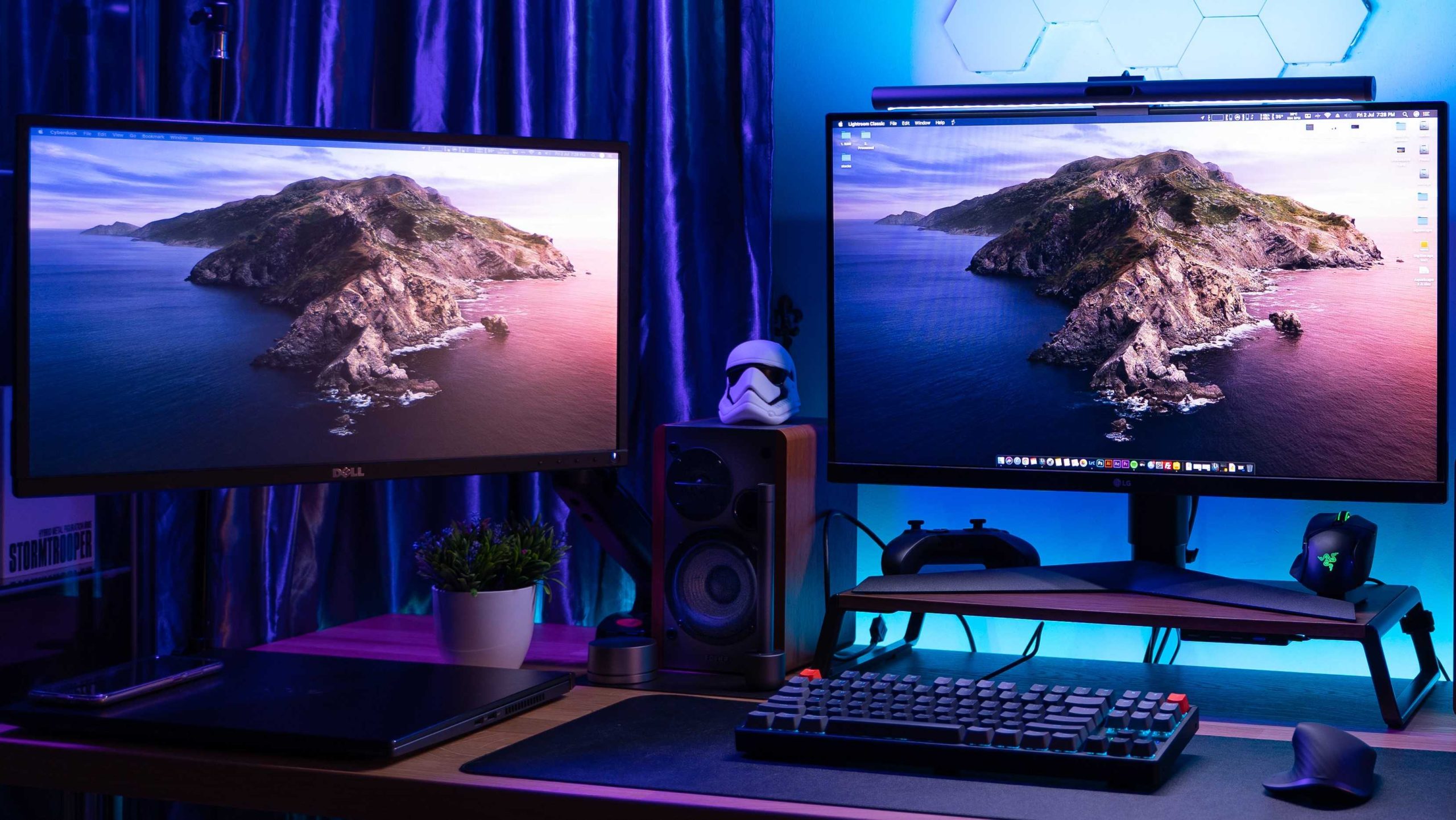
Yes, monitors can significantly impact the sharpness of your editing work. A high-quality monitor with good resolution and color accuracy ensures your images and videos look crisp and detailed. Conversely, a subpar display may make your edits appear blurry or pixelated, leading to less precise results.
In short, the monitor you use plays a crucial role in the sharpness of your edits, as it directly influences how you perceive fine details. Choosing the right display with proper calibration, resolution, and color accuracy can make a world of difference in achieving sharp, professional-quality edits.
When it comes to digital editing, what you see on your screen is everything. A monitor isn’t just a visual aid; it’s a critical tool that shapes your entire workflow. If you’re serious about high-quality, sharp edits, investing in a good monitor is essential. Many factors like resolution, pixel density, and color accuracy dictate how clearly details are rendered. A low-quality or poorly calibrated monitor can make your images look less sharp than they truly are, causing you to miss important details or over-edit pixels. Whether you’re retouching photos, color grading videos, or creating detailed graphics, your monitor’s quality directly impacts the final output. So, in essence, the choice of monitor isn’t just about aesthetics; it’s about ensuring your edits are as sharp, precise, and professional as possible.

Do monitors affect sharpness in editing?
Many people wonder if the type of monitor they use can influence how sharp their images and videos appear during editing. The short answer is yes, monitors can significantly affect sharpness because of their resolution, screen size, and overall quality. Choosing the right monitor helps ensure that your edits are accurate and your images look crisp and clear.
Understanding Sharpness in Video and Photo Editing
Sharpness refers to how clear and detailed an image appears. In editing, maintaining sharpness is essential because it helps you see fine details. If your monitor isn’t sharp enough, you might miss important aspects of your work, leading to incorrect adjustments.
When editing, you want to see true colors and details without distortion. A monitor with high sharpness ensures that shadows, highlights, and textures show correctly. This helps you produce high-quality images and videos that look great on all screens.
How Monitor Resolution Affects Sharpness
Resolution is the number of pixels that make up the display. Common resolutions include Full HD (1080p), Quad HD (1440p), 4K (2160p), and 8K. The higher the resolution, the more pixels a monitor has, resulting in sharper images and finer details.
A 4K monitor, for example, displays four times the pixels of a Full HD screen, offering much more detail. When editing high-resolution photos or videos, using a higher resolution monitor ensures that the details are not lost or blurry.
Low-resolution monitors may make images appear softer or pixelated, especially when working with large files. Therefore, investing in a higher-resolution monitor improves your ability to see and edit sharp, detailed visuals.
Screen Size and Its Impact on Sharpness
Large Screens and Detail Visibility
Screen size influences how easily you can see details. Larger monitors, such as 27 inches or more, allow for a more comfortable and detailed view of your work. They make it easier to spot small imperfections or subtle changes.
Balancing Size and Resolution
However, larger screens need higher resolution to maintain sharpness. A 27-inch 1080p monitor might look less sharp compared to a 27-inch 4K display. Combining a large screen with high resolution ensures sharp images across the entire surface.
For most editing tasks, a monitor between 24 and 32 inches with at least 1440p resolution offers a good balance of size and sharpness.
The Role of Display Technology in Image Clarity
Types of Monitor Panels
- TN (Twisted Nematic): Usually less expensive, offers fast response times, but lower color accuracy and sharpness.
- IPS (In-Plane Switching): Provides better color accuracy, wider viewing angles, and sharper images, making them ideal for editing.
- VA (Vertical Alignment): Offers good contrast and decent sharpness, but sometimes slower response times.
Color Accuracy and Sharpness
Monitors with high color accuracy, like IPS panels, display images more sharply and vividly. They help you spot minute details in color gradients and textures, which is crucial for professional editing.
Choosing a monitor with good panel technology improves overall image clarity and ensures your work looks consistent across different devices.
Calibration and Its Effect on Sharpness
Calibrating your monitor corrects color, contrast, and brightness settings. Proper calibration ensures that the images you see are true to life and detailed.
A poorly calibrated monitor can make images look overly soft or too sharp, leading to misjudgments in editing. Regular calibration maintains the monitor’s ability to display accurate detail and sharpness.
Using professional calibration tools or software can improve your editing precision and prevent issues caused by hardware inaccuracies.
Contrast Ratio and Brightness: Enhancing Visual Clarity
Contrast ratio measures the difference between the darkest black and brightest white on the screen. A higher contrast ratio improves the perception of sharpness by making edges more defined.
Brightness levels also influence how details are perceived. A bright, high-contrast display reveals subtle textures and shadows, which is vital for precise editing tasks.
Choosing a monitor with a high contrast ratio and adequate brightness helps produce sharper, more detailed visuals during editing.
Refresh Rate and Response Time in Editing Monitors
While refresh rate and response time are more critical for gaming, they also influence editing workflows. A higher refresh rate (such as 120Hz or 144Hz) allows smoother viewing of motion graphics or video editing.
Response time impacts how quickly pixels change, which can affect the sharpness of moving images. Low response times prevent motion blur, keeping fast-moving visuals crisp.
For static images and detailed photo editing, these factors are less critical but still contribute to a smoother overall editing experience.
Additional Considerations for Maintaining Sharpness in Editing Monitors
- Anti-glare Coatings: Reduce reflections and improve clarity in bright environments.
- Viewing Angles: Monitors with wide viewing angles ensure sharpness remains consistent, regardless of your seating position.
- Connectivity and Compatibility: Ensure your monitor supports high-resolution inputs for maximum sharpness without compression or scaling issues.
Tips for Optimizing Monitor Settings for Editing
- Use factory calibration or professional tools to set color accuracy.
- Adjust brightness and contrast to highlight details without washing out the image.
- Enable features like sharpened modes judiciously to avoid artifacts.
- Keep your monitor’s firmware and drivers up to date for optimal performance.
Comparing Different Monitor Types for Editing Accuracy
| Monitor Type | Advantages | Disadvantages |
|---|---|---|
| TN | Fast response, inexpensive | Lower color accuracy, poor sharpness |
| IPS | Excellent color reproduction, sharp images, wide viewing angles | More expensive, slightly slower response times |
| VA | Good contrast, decent sharpness | Slower response times, color accuracy varies |
The answer to whether monitors affect sharpness in editing is a clear yes. The combination of resolution, screen size, panel technology, and calibration all play vital roles in how sharp your images appear during editing. Choosing the right monitor helps you see details accurately, produce high-quality visuals, and avoid mistakes caused by poor display quality. Investing in a high-resolution, well-calibrated monitor with good panel technology will significantly improve your editing precision and the overall quality of your work.
7 Settings I Change on Every Monitor
Frequently Asked Questions
Can monitor resolution impact the perceived sharpness during editing?
Yes, monitor resolution plays a significant role in how sharp and detailed your images appear. Higher resolutions such as 4K or 5K provide more pixel information, enabling you to see finer details and make more precise edits. Conversely, lower resolution screens may make images look less sharp and can limit your ability to accurately assess fine details, potentially affecting the quality of your work.
How does monitor refresh rate influence the clarity of motion in editing videos?
While refresh rate primarily affects the smoothness of motion, a higher refresh rate can also enhance the clarity of fast-moving visuals. This results in less motion blur and sharper transitions when editing dynamic footage. A monitor with a sufficient refresh rate helps you better evaluate motion clarity, ensuring your edits look crisp and professional in the final output.
What role does color accuracy and calibration play in determining image sharpness?
Accurate color representation and proper calibration impact how sharp details appear on your screen. When a monitor is well-calibrated, the contrast and color differences are more precise, making fine details stand out clearly. Poor calibration can cause images to look dull or overly sharp, which may mislead your editing decisions and reduce overall image quality.
Does screen size affect the perceived sharpness in a workspace?
Screen size influences how easily you can see detail without zooming in or out excessively. Larger monitors allow you to view images at their actual size with greater detail, making it easier to identify fine nuances. Smaller screens might require more zooming to examine details, which can affect your perception of sharpness and accuracy during editing.
How important is the pixel density when considering a monitor for detailed editing tasks?
Pixel density, measured in pixels per inch (PPI), directly impacts the clarity and sharpness of images on a monitor. Higher pixel density means more pixels fit into the same space, resulting in sharper, more detailed images. A monitor with a high PPI helps you see subtle details more clearly, improving the precision of your editing work.
Final Thoughts
Monitors influence the sharpness of images during editing. A high-quality display offers better clarity, making details stand out. Conversely, lower-end monitors may distort sharpness, leading to less precise edits.
Proper calibration ensures accurate color and sharpness representation. Users should check monitor settings regularly to maintain optimal editing conditions.
In conclusion, do monitors affect sharpness in editing? Yes, they play a crucial role in the precision of visual adjustments. Selecting a good monitor ensures your edits are sharp and true to your vision.



