


Yes, many USB-C monitors do support HDR, but not all. The level of HDR support varies depending on the monitor’s specifications, with some offering impressive HDR performance and others only basic compatibility. If you want stunning visuals with vibrant colors and deep contrast, it’s important to check the HDR capabilities of a monitor before buying.
Most USB-C monitors can support HDR, but the quality and standards they adhere to can differ greatly. To enjoy true HDR effects, look for monitors that support common HDR formats like HDR10 or Dolby Vision. Choosing the right monitor can enhance your viewing experience, whether for gaming, editing photos, or watching movies. Keep reading to learn what features to look for and whether your current USB-C monitor can deliver stunning HDR visuals.

Do USB C Monitors Support HDR?
Many people wonder whether USB C monitors can display high dynamic range (HDR) content. HDR greatly improves the picture quality by making colors more vivid and contrast more striking. Understanding if and how USB C monitors support HDR helps you choose the right display for your needs.
What Is HDR and Why Is It Important?
HDR stands for High Dynamic Range. It enhances the range of colors and brightness levels that a monitor can show. This results in images that look more realistic and appealing, especially for movies, games, and creative work.
HDR makes dark areas darker and bright areas brighter without losing detail. It creates more depth in images, making scenes more lifelike. For users who value picture quality, HDR support is a key feature in a monitor.
How Do USB C Monitors Transmit HDR Content?
USB C connections are versatile and can carry data, power, and video signals all at once. To support HDR, a USB C monitor needs compatible hardware and standards that allow high-quality video transmission.
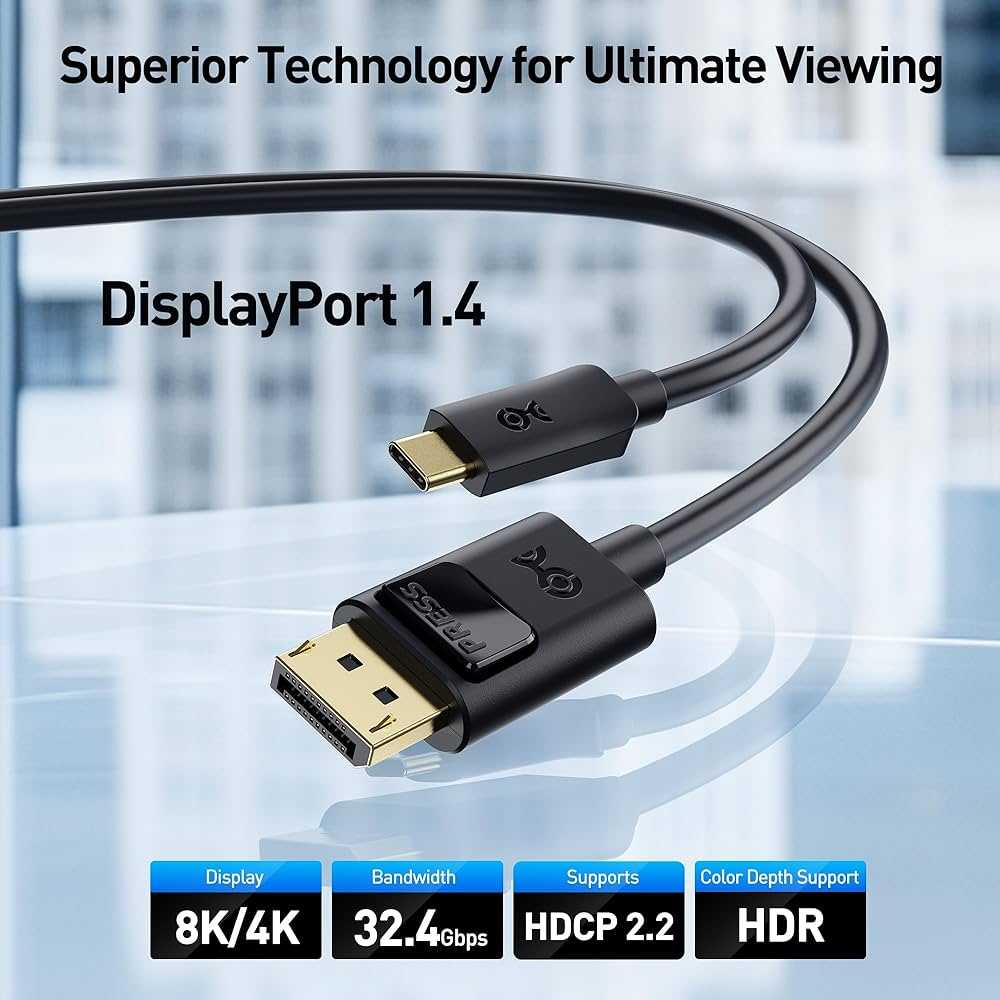
Most modern USB C ports support DisplayPort Alternate Mode, which enables video output. For HDR, the port must support higher bandwidth standards, such as DisplayPort 1.4 or later. These standards can transmit HDR signals effectively.
Does the Display Technology Matter for HDR Support?
Yes, the display technology of a monitor plays a crucial role in HDR support. Different panel types—like IPS, OLED, or VA—offer varying levels of contrast, color accuracy, and brightness.
For optimal HDR performance, a monitor should have high peak brightness, usually above 600 nits, and a wide color gamut like DCI-P3 or Adobe RGB. These features enable the monitor to display HDR content accurately and vividly.
What Are the Key Features to Look for in a USB C HDR Monitor?
- HDR Certification: Look for monitors with HDR certifications such as HDR10 or Dolby Vision to ensure genuine HDR support.
- High Brightness: A peak brightness of at least 600 nits is recommended for vibrant HDR images.
- Wide Color Gamut: Supports color spaces like DCI-P3 or Adobe RGB for richer colors.
- High Contrast Ratio: Contrasts deeper blacks and bright whites for better HDR image quality.
- Display Technology: OLED or IPS panels typically deliver superior HDR experiences compared to TN panels.
Compatibility of USB C Monitors with HDR Content
Even if a monitor supports HDR input via USB C, it must also be compatible with your device’s output capabilities. Laptops and computers need to support HDR through their USB C ports.
Some devices may require specific settings enabled in the operating system or graphics card software to output HDR content. Always check device compatibility before purchasing a monitor for HDR use.
Benchmarks and Performance Expectations
Not all USB C monitors perform equally in displaying HDR content. Performance often depends on factors like peak brightness, color accuracy, and local dimming capabilities.
For instance, a monitor with 1000 nits peak brightness and 600 local dimming zones provides a superior HDR experience. Monitors with lower brightness levels may only support basic HDR or tone-mapped images.
Popular USB C Monitors Supporting HDR
| Monitor Model | Peak Brightness | HDR Support | Panel Type | Additional Features |
|---|---|---|---|---|
| Dell UltraSharp U2723QE | 400 nits | HDR10 | IPS | 4K resolution, USB C charging |
| LG UltraFine 27MD5KL | 600 nits | HDR10, Dolby Vision | IPS | Retina display, Thunderbolt 3/USB C |
| Asus ProArt Display PA32UCX | 1000 nits | HDR10, Dolby Vision, HLG | IPS | High color accuracy, factory calibrated |
| Sony Inzone M9 | 600 nits | HDR10, Dolby Vision | OLED | Gaming features, HDMI compatibility |
Limitations and Challenges of HDR over USB C
While many USB C monitors support HDR, there are limitations to consider. Some monitors may only support SDR (Standard Dynamic Range) content despite claiming HDR support.
Bandwidth restrictions of some USB C ports can limit HDR quality. Also, not all devices can output HDR signals through USB C, which might prevent you from getting the full HDR experience.
Future Trends in USB C and HDR Technology
As technology advances, we expect more monitors to support higher HDR standards like HDR10+ and Dolby Vision. Bandwidth improvements in newer USB C standards will make transmitting HDR content easier and more reliable.
Meanwhile, displays are becoming brighter, with better color accuracy, and local dimming techniques. These trends will improve the overall HDR experience for users relying on USB C connections.
Additional Tips for Getting the Best HDR Experience
- Ensure your device supports HDR output via USB C. Check the specifications.
- Use compatible high-quality cables and adapters to achieve maximum bandwidth.
- Calibrate your monitor for accurate colors and peak brightness levels.
- Update your graphics drivers and operating system for optimal HDR support.
- Adjust monitor settings to enable HDR mode and optimize picture quality.
Related Topics
- Difference Between HDR10 and Dolby Vision
- Best Monitors for Gaming with HDR Support
- How to Calibrate Your HDR Monitor for Best Results
- USB C Versus HDMI for External Displays
- Understanding Color Gamut and Its Role in HDR
In summary, most modern USB C monitors can support HDR, provided they meet certain technical standards and specifications. The key is to ensure your device, cable, and monitor are all compatible with HDR standards like HDR10 or Dolby Vision. High peak brightness, wide color gamut, and proper calibration contribute to the best HDR experience. As technology continues to evolve, HDR support over USB C is expected to become even more widespread and better integrated into everyday displays.
The USB-C Cables You NEED for External Displays
Frequently Asked Questions
Can all USB-C monitors display HDR content effectively?
No, not all USB-C monitors support HDR. The ability to display HDR depends on the monitor’s specifications, including HDR compatibility standards like HDR10 or Dolby Vision, and its hardware capabilities such as brightness levels and color gamut. Always check the monitor’s specifications to confirm HDR support before purchasing.
What should I consider regarding HDR support when choosing a USB-C monitor?
Look for monitors with specific HDR certifications like HDR10 or Dolby Vision to ensure genuine HDR performance. Additionally, consider the maximum brightness (measured in nits), color accuracy, and contrast ratio, as these factors significantly impact the HDR viewing experience. Compatibility with your device’s output is also essential.
Does connecting via USB-C limit HDR performance compared to other connections?
Connecting through USB-C generally does not limit HDR performance if the port and cable support the necessary data transfer rates and video standards. However, some older or lower-quality cables may not support higher bandwidths required for HDR content. Use certified, high-quality USB-C cables compatible with DisplayHDR standards for optimal results.
Are there specific USB-C monitor models known for high-quality HDR display?
Yes, certain models are renowned for their HDR performance, featuring high brightness levels, wide color gamuts, and comprehensive HDR support. Research monitor reviews and specifications to identify models that deliver great HDR visuals and meet your personal requirements for color accuracy and contrast.
Final Thoughts
Do USB-C monitors support HDR? Yes, many USB-C monitors do support HDR, but features vary among models. HDR enhances image quality by providing a wider range of colors and contrast. However, not all USB-C monitors offer true HDR support; check specifications carefully.
Understanding the HDR capability helps you choose the right monitor for your needs. Some models may only support basic HDR or marketing terms. Always verify the HDR standards supported before making a purchase.



