


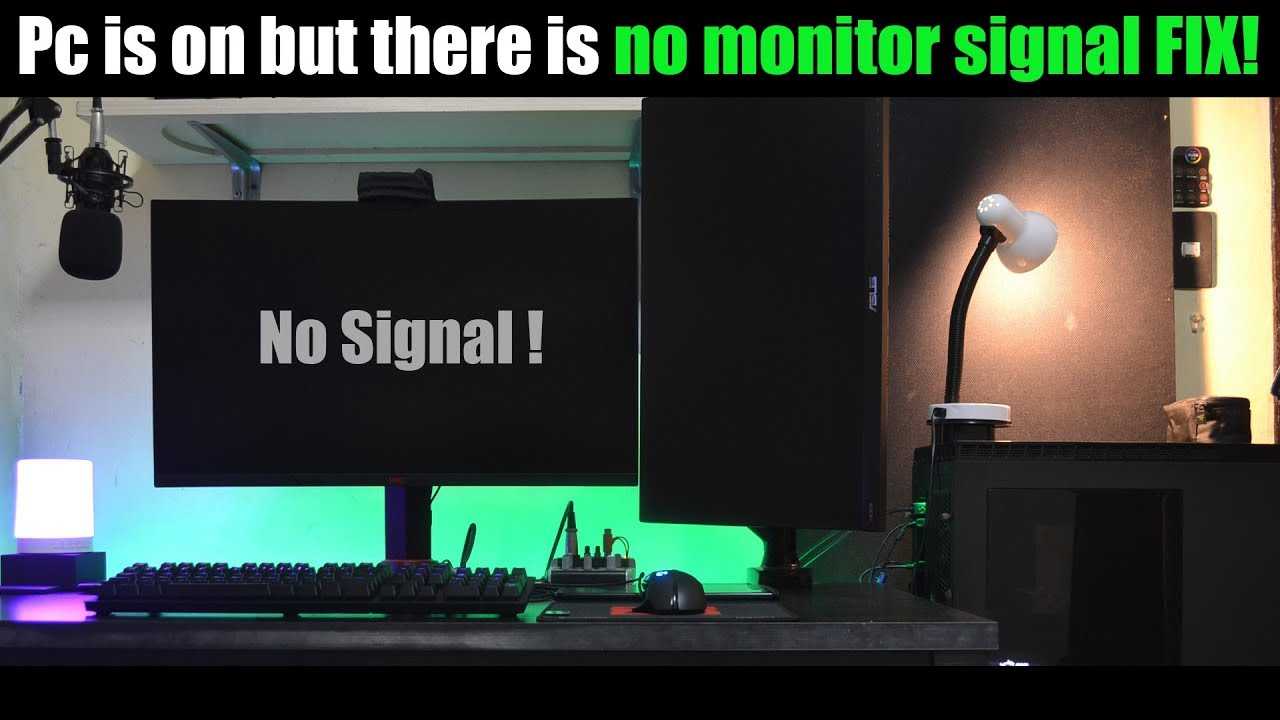
If your monitor suddenly shows no signal, don’t panic—there’s a good chance you can fix it quickly. Check your cables, ensure your monitor is powered on, and confirm your computer’s settings are correct. Connecting issues are common and often easily resolved with a few simple steps.
To fix a monitor with no signal, start by inspecting and reconnecting your display cables, making sure they are securely plugged in. Then, verify that your monitor is turned on and set to the correct input source. Finally, restart your computer and update your graphics drivers if necessary. By systematically troubleshooting these elements, most no-signal issues can be resolved in minutes.
When your monitor suddenly displays a “No Signal” message, it can be frustrating and confusing. This problem often stems from loose connections, incorrect input settings, or graphics card issues. Troubleshooting is straightforward—by checking your cable connections first, then ensuring your monitor input is set correctly, and finally restarting your system, you can often resolve the issue swiftly. Understanding the common causes helps you diagnose and fix the problem without needing professional help. Whether you’re using a desktop or laptop, these simple steps can save you time and get your display working again in no time.

How Do I Fix Monitor No Signal? A Complete Guide
If your monitor shows a “no signal” message, it can be confusing and frustrating. This issue means your computer isn’t sending a picture to your display, but the cause could be anything from a loose cable to a hardware problem. Luckily, most “no signal” errors can be fixed with a few simple steps. In this article, you’ll find detailed instructions to troubleshoot and resolve this common problem effectively.
Check the Basic Connections
The first step is to make sure all cables are securely connected. A loose or unplugged cable is often the reason behind a “no signal” message. Carefully examine the connection between your monitor and computer.
- Ensure the video cable (HDMI, DisplayPort, VGA, or DVI) is firmly plugged into both the monitor and the computer.
- Verify that the power cable is connected properly and the monitor is turned on.
- Look for any damage or bent pins on the cables or connectors.
If you find loose connections or damaged cables, replace or re-seat them. Sometimes, simply unplugging and plugging cables back in can resolve the issue.
Test the Monitor with a Different Device
To determine if the problem is with the monitor itself, connect it to another device such as a laptop or a different desktop. This helps confirm whether the monitor is functioning properly.
- Use the same cable type to connect to the alternate device.
- If the monitor displays correctly, the problem is likely with your original computer.
- If it still shows “no signal,” the monitor might be faulty and needs repair or replacement.
Switch Cables and Ports
Sometimes, the cable or port might be faulty. Try switching to a different cable or using another port on your computer. This step can identify connection issues.
- Use a different video cable to see if the issue persists.
- Test all available video output ports on your computer.
- Make sure the cable types are compatible with your monitor and computer.
Checking different combinations can often pinpoint a defective port or cable, saving you time and effort.
Check Display Input Settings
Your monitor might be set to the wrong input source. Many models have multiple input options like HDMI, VGA, or DisplayPort.
- Use the monitor’s menu buttons to access input settings.
- Select the input that matches your connected cable.
- Ensure the monitor is set to the correct input before proceeding.
If the input source isn’t set correctly, the monitor won’t receive signals from your computer.
Verify the Computer Connection and Power
Ensure your computer is turned on and properly booted. Sometimes, the issue is with the computer rather than the monitor.
- Check if the computer’s power indicator lights are on.
- Listen for startup sounds or check the display on your PC to confirm it is on and functioning.
- If your computer is in sleep mode or turned off, the monitor will show “no signal.”
Try restarting your computer and see if the display appears.
Update or Reinstall Graphics Drivers
Problems with outdated or corrupt graphics drivers can cause display issues, including “no signal” errors.
- Access your device manager through your computer’s control panel.
- Locate your display adapters, right-click, and select “Update Driver.”
- If needed, uninstall the drivers and download the latest version from the manufacturer’s website.
After updating or reinstalling, restart your computer and check if the problem is resolved.
Adjust the Display Resolution and Refresh Rate
If your monitor isn’t compatible with your current display settings, it might show “no signal.”
- Boot into Safe Mode if necessary, especially if you can’t see anything on the display.
- Navigate to display settings and lower the resolution or refresh rate.
- Apply changes and gradually increase settings to find a compatible configuration.
This step helps if the issue is caused by incompatible or unsupported display settings.
Perform a Hardware Reset of the Monitor and PC
Sometimes, a simple reset can clear temporary glitches causing “no signal” errors.
- Turn off your monitor and unplug it from the power source.
- Press and hold the power button for about 10 seconds to discharge residual power.
- Reconnect everything and turn on your monitor and computer.
This reset process can resolve minor hardware conflicts that block signals.
Test with a Known Good Monitor and Cable
If possible, borrow a working monitor and cable to test your setup. This confirms whether your existing hardware is faulty.
- Connect your computer to the known good monitor with the tested cable.
- If the display shows correctly, your monitor or cable might need replacing.
- If the problem persists, focus on your computer’s hardware or settings.
Check for Hardware Issues in the Computer
Problems with the graphics card or motherboard can also cause no signal errors.
- Open the computer case and ensure the graphics card is seated properly.
- Look for any signs of damage or loose connections inside the PC.
- If you’re comfortable, test with a different graphics card if possible.
If hardware issues are suspected, consult a professional technician for repairs.
Seek Professional Help if Needed
If you’ve tried all the above steps and still see “no signal,” it might be time to get expert assistance. Hardware replacements or repairs may be required.
Contact your device manufacturer or trustworthy repair shops for further diagnosis and support.
Fixing a monitor with a “no signal” message often involves systematic troubleshooting. By carefully checking connections, settings, and hardware components, you can usually resolve the issue quickly. Remember to test your monitor and cables with other devices whenever possible to avoid unnecessary replacements. With patience and the right approach, your display can be back up and running smoothly in no time.
How to Fix Black Screen or No Signal On Gaming PC🔧
Frequently Asked Questions
What steps can I take to ensure my monitor is properly connected?
Start by checking all cable connections between your monitor and computer. Ensure that the video cable is securely plugged into both devices and that you are using the correct input port. If you have multiple display outputs, verify you are connected to the active port. Restart your computer and monitor after confirming the connections. If possible, try using a different cable or port to rule out faulty hardware.
How do I reset my monitor to troubleshoot a no signal issue?
Locate the reset or factory reset option in your monitor’s menu settings, usually accessible via buttons on the monitor itself. Perform the reset by navigating through the menu and selecting the reset option. This action restores the default settings, which can resolve any misconfiguration causing the no signal problem. After resetting, turn off the monitor, then turn it back on to see if the signal is restored.
What should I do if my graphics card isn’t displaying output?
First, ensure that your graphics card is properly seated in its slot on the motherboard. Remove and re-insert the card if necessary. Check for any loose power cables connected to the graphics card. Connect your monitor to the integrated graphics port if your CPU has one, to determine whether the issue lies with the dedicated card. Updating your graphics driver or reinstalling it may also help resolve display issues.
How can I test whether the monitor or the computer causes the no signal problem?
Use a different monitor with your computer to see if the issue persists. Similarly, connect your monitor to another computer or device, such as a laptop, to verify its functionality. If the second device displays a signal on your monitor, the problem might be with your original computer. If the monitor remains unresponsive, it could indicate a hardware failure within the monitor itself.
What troubleshooting steps can I take if my display shows a “no signal” message only after startup?
Check if your computer is booting correctly by listening for the usual startup sounds or observing indicator lights. Enter safe mode or BIOS settings to see if the display activates during these stages. If the monitor remains blank after startup, update your graphics driver and check for any available system updates. Additionally, examine your display settings in your operating system to ensure your monitor is selected as the primary display.
Final Thoughts
To fix monitor no signal, start by checking all cable connections and ensure they are securely plugged in. Restart your computer and monitor to see if the issue clears. Verify that the correct input source is selected on your monitor. If problems persist, update your graphics driver or test the monitor with a different device.
In conclusion, how do I fix monitor no signal? Follow these steps to troubleshoot connectivity, settings, or hardware issues effectively. Addressing these common problems can help restore your display quickly and confidently.



