


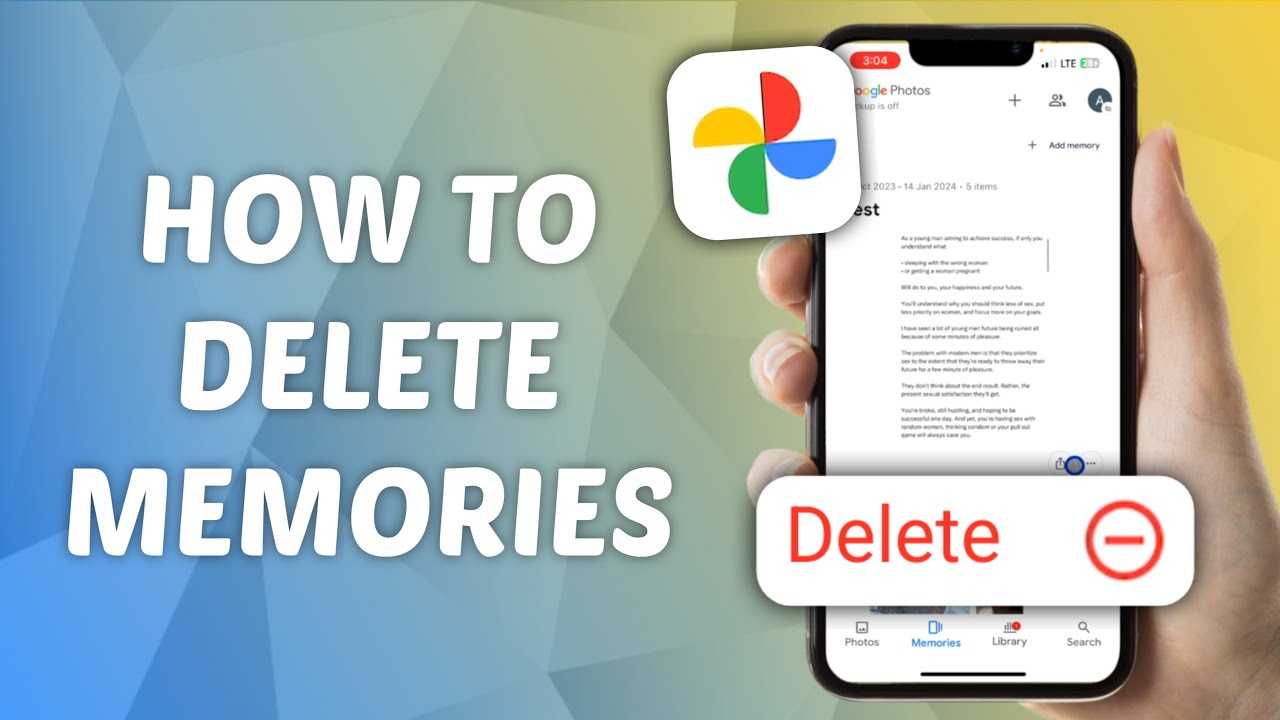
If you’re looking to unsync your Google Photos memory, the process is pretty straightforward. Simply open the Google Photos app on your device, go to Settings, and find the option that manages backup and sync. You can toggle this feature off, which will prevent your photos from being automatically uploaded to your Google Photos account. Unsyncing can give you better control over your storage and privacy, allowing you to manage your photos locally without them being stored in the cloud.
Now, let’s dive into a step-by-step guide on how to completely unsync Google Photos memory so you can have a clearer idea of your options. Whether you want to free up storage or simply prefer to keep things local, we’ve got you covered!

How do I unsync Google Photos memory?
Unsyncing Google Photos memory can be a helpful step for many users who want to manage their photo storage effectively. When you sync Google Photos, it automatically backs up photos from your device to the cloud. However, this may not be what you want. Let’s explore how to unsync Google Photos memory and what it means for your photo storage.
Understanding Google Photos Synchronization
Google Photos synchronization is a feature that automatically uploads photos and videos from your device to your Google account. This feature is useful for those who want to ensure their memories are backed up. However, it can take up storage space in your Google Drive.
Many users find themselves needing to unsync Google Photos memory for various reasons. They might want to preserve their device’s storage or simply prefer to manage their photos manually.
Why Unsync Google Photos?
There are several reasons someone might choose to unsync Google Photos:
- Storage Concerns: Syncing can fill up your Google Drive space quickly.
- Data Usage: Automatic uploads can use a lot of data, especially with mobile data plans.
- Privacy: Some users may prefer to keep their photos off the cloud for privacy reasons.
- Device Performance: Unsyncing can improve device performance by reducing background activity.
Understanding these reasons can help you make a more informed decision about managing your Google Photos.
Steps to Unsync Google Photos on Mobile Devices
If you’re using a mobile device, follow these steps to unsync Google Photos:
Step 1: Open the Google Photos App
First, locate the Google Photos app on your mobile device. Tap to open it.
Step 2: Access Settings
Next, tap on your profile picture in the top-right corner. A menu will appear. Select “Photos settings” from this menu.
Step 3: Backup & Sync Settings
In the Settings menu, find the option that says “Backup & sync.” Tap on it to access the settings.
Step 4: Turn Off Backup & Sync
You will see a toggle switch at the top of the screen. Turn this toggle off to unsync Google Photos memory. Once it’s off, your pictures will no longer be backed up automatically to Google Photos.
Step 5: Confirm Your Choice
A message may pop up confirming that you want to turn off backup & sync. Confirm your choice by tapping “Turn Off.”
Steps to Unsync Google Photos on Desktop
Unsyncing Google Photos on a desktop is just as easy. Here’s what to do:
Step 1: Open Google Photos Website
Start by navigating to the Google Photos website on your browser. Log in to your account if prompted.
Step 2: Access Settings
Click on the gear icon located at the top right corner of the page. This will take you to the settings menu.
Step 3: Manage Backup Settings
In the settings, look for the “Backup” section. Here, you can see your current backup settings.
Step 4: Turn off Backup
You might find an option labeled “Backup” or “Upload size.” You will need to uncheck or toggle off any settings that enable backup functions.
Step 5: Confirm the Change
Make sure to confirm any changes you make. This ensures your settings have been updated successfully.
Managing Google Photos After Unsyncing
Once you’ve unsynced Google Photos, you might want to manage your photos differently. Here are some tips:
Organize Photos Manually
Without synchronization, you will need to organize your photos manually. This means labeling albums, creating folders, and sorting images based on different criteria like date or event.
Use External Storage
Consider using external storage options, such as an SD card or USB drive. This can help keep your photos safe without relying on cloud services.
Backup Photos Occasionally
Instead of automatic backups, you can back up your important photos periodically. Use the Google Photos app or another service to upload select photos whenever you choose.
Explore Alternative Photo Management Apps
If you find Google Photos no longer meets your needs, consider using other photo management apps. Some people prefer apps that offer more robust features or different organizational tools.
Common Issues After Unsyncing
Sometimes, users experience issues after unsyncing Google Photos. Here’s what to watch for:
Missing Photos
After unsyncing, you may notice some photos seem to be missing. However, they are likely still on your device. You might have just turned off the view option in Google Photos.
Storage Not Improving
Unsyncing Google Photos doesn’t immediately free up storage space. You may need to manually delete the backed-up photos from Google Drive to see immediate results.
Confusion Over New Settings
You might feel confused about the new settings after unsyncing. Take time to explore the app and understand how your photos are managed now.
Keeping Your Photos Safe
It’s essential to ensure your photos remain secure after unsyncing. Here are some protective measures:
Regular Backups
Even without Google Photos, consider regular backups. Store your photos in multiple locations to avoid losing them.
Use Passwords and Encryption
If storing photos on your devices or external drives, use passwords and encryption. This adds an extra layer of protection for your memories.
Be Mindful of Public Sharing
When sharing photos online, be mindful of privacy. Only share with trusted individuals to keep your images secure.
Exploring Other Google Services
If you decide that Google Photos isn’t right for you anymore, you can explore other Google services.
Google Drive
Google Drive can be a great alternative for storage. You can manually upload and manage your photos here without syncing.
Google One
Consider Google One for additional storage options. It can give you more space for photos, videos, and other files in one convenient area.
Gmail for Sharing
Use Gmail to share photos with friends and family directly. This provides a simple way to send pictures without cloud storage.
Unsyncing Google Photos memory can simplify photo management. By following the steps outlined, you can easily take control of your photo storage preferences. Remember to explore various organizing methods and backup processes to keep your memories safe. With careful management, your photos can remain organized and accessible without relying on automatic synchronization.
How To Delete Photos From Google Photos Without Deleting From Phone
Frequently Asked Questions
How can I disable automatic backup in Google Photos?
To disable automatic backup in Google Photos, open the app on your device. Go to the ‘Photos’ tab, then tap on your profile picture in the top right corner. Select ‘Photos settings,’ then choose ‘Back up & sync.’ Toggle the ‘Back up & sync’ switch off to stop automatic backups of your photos and videos.
What steps should I take to remove photos from Google Photos without deleting them from my device?
If you want to remove photos from Google Photos without deleting them from your device, open the Google Photos app and select the photos you want to remove. Tap the three-dot menu in the upper right corner and choose ‘Remove from album’ or ‘Remove from device’ as needed. This action will remove them from the Google Photos view while keeping them on your device.
Can I prevent specific albums from syncing with Google Photos?
Yes, you can prevent specific albums from syncing. Open the Google Photos app and go to ‘Albums.’ Select the album you want to manage, tap on the three-dot menu, and choose ‘Edit album.’ Here, you can adjust the backup settings for that album, allowing you to turn off sync for specific content.
How do I manage my Google Photos storage settings?
To manage your Google Photos storage settings, open the app and tap on your profile picture in the upper right corner. Select ‘Photos settings’ and then tap ‘Manage storage.’ Here, you can review how much space you have left, as well as the option to free up space by removing backed-up photos or videos that you no longer need.
What happens to my shared albums if I unsync Google Photos?
If you unsync Google Photos, your shared albums will remain intact. Unsyncing prevents additional photos from being uploaded or backed up to Google Photos, but it won’t affect any albums that you’ve already shared with others. You and other users will still be able to access the shared content as long as the albums remain active.
Final Thoughts
To unsync Google Photos memory, you need to adjust your sync settings. Open the Google Photos app, go to Settings, and select Backup & sync. Toggle the switch off to stop syncing photos and videos.
Additionally, you can manually delete photos from your device without affecting your Google Photos library. This method ensures you keep your memories safe online while managing local storage effectively.
In summary, if you’re wondering, “How do I unsync Google Photos memory?” simply turn off the Backup & sync feature to manage your photos according to your preferences.



