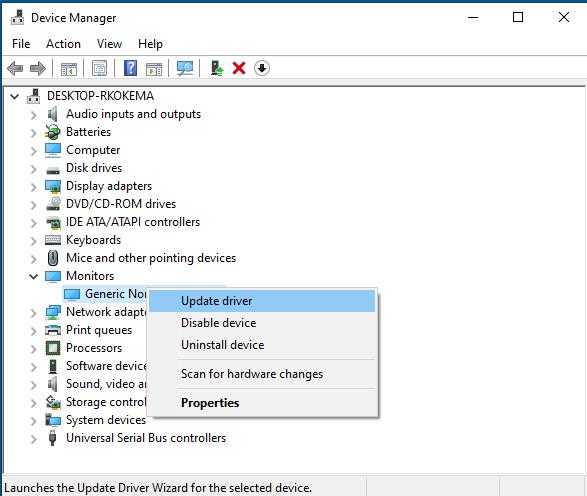
To quickly update your monitor drivers, go to your device manager, locate your monitor under Display Adapters or Monitors, right-click, and select Update Driver. Follow the prompts to let Windows search for and install the latest driver version automatically. If needed, visit the monitor manufacturer’s website for the most recent driver download.
Updating your monitor drivers might seem tricky, but it’s actually straightforward once you know where to look. If your display is acting up, showing glitches, or not looking quite right, updating those drivers can often fix the issue and improve performance. The process is simple—whether you prefer letting Windows handle it or visiting the manufacturer’s site for the latest version, a quick update can make a world of difference for your viewing experience. Keep reading to find out step-by-step how to ensure your monitor drivers are always up to date and working smoothly.

How Do I Update Monitor Drivers: A Complete Guide
Understanding Monitor Drivers and Why They Matter
Updating monitor drivers is an important step to keep your display working perfectly. These drivers help your computer communicate with your monitor, ensuring images appear clear and colors look right. Without updated drivers, your monitor might show blurry images, flickering, or even refuse to display correctly.
Updating drivers also solves problems caused by software bugs or compatibility issues. It can improve the overall performance of your display and prevent problems before they happen. Knowing when and how to update monitor drivers keeps your system running smoothly and helps you get the best visuals from your monitor.
Signs That Indicate You Need to Update Your Monitor Drivers
You might need to update your monitor drivers if you notice certain problems. These signs include:
- Flickering or flashing images on the screen
- Colors not appearing accurately or looking faded
- Display resolution issues or inability to change resolution settings
- Black or blank screens when turning on the monitor
- Problems with connecting new peripherals or devices
If you experience any of these, updating the drivers might solve the issues.
How to Check Your Current Monitor Driver Version
Before updating, it’s useful to know your current driver version. To do this:
- Right-click the Start button and select Device Manager
- Locate and expand Display adapters
- Right-click your monitor device and choose Properties
- Go to the Driver tab to see the driver version and date
This information helps you determine if your drivers are outdated or current.
Ways to Update Monitor Drivers
You have several methods to update your monitor drivers. The most common are:
- Automatic updates through Device Manager
- Using Windows Update
- Downloading drivers directly from the monitor manufacturer’s website
- Using third-party driver update tools
Each option has pros and cons, so choose the one that fits your comfort level and situation best.
Updating Monitor Drivers via Device Manager
Using Device Manager is a straightforward method for updating drivers. Follow these steps:
- Open Device Manager from the Start menu
- Locate your monitor under Display adapters
- Right-click the monitor device and select Update driver
- Choose Search automatically for updated driver software
Windows will scan for new drivers online and install them if available. This process is quick and easy for most users.
What If Windows Can’t Find a Driver?
Sometimes Windows does not find the latest driver automatically. In this case:
- Visit the monitor manufacturer’s official website
- Look for the support or downloads section
- Enter your model number to find the correct driver
- Download and install the driver manually
Manual installation ensures you get the most recent and compatible driver.
Updating Drivers from Windows Update
Windows Update can also deliver driver updates along with system updates. To check:
- Open Settings from the Start menu
- Click on Update & Security
- Select Windows Update and then click Check for updates
If updates are available for your monitor drivers, Windows will download and install them automatically.
Downloading Drivers Directly from Manufacturer Websites
For the latest driver versions, visit your monitor’s manufacturer. Popular brands like Dell, ASUS, Samsung, or LG provide driver downloads on their websites. To do this:
- Find your monitor’s model number, usually on a label on the back
- Go to the official support website of the manufacturer
- Search for your model and locate the driver download section
- Download the correct driver for your operating system
After downloading, run the installer and follow on-screen instructions to update your driver.
Using Third-Party Driver Update Tools
Some users prefer third-party tools that simplify driver updates. These programs scan your system for outdated drivers and update them automatically. Common options include Driver Booster, SlimDrivers, or DriverPack Solution. When using these:
- Download and install a trusted driver update tool
- Run the program and let it scan your system
- Follow prompts to update your monitor driver
Always ensure you download from reputable sources to avoid malware or incompatible drivers.
After Updating Your Monitor Driver
Once the driver updates:
- Restart your computer to apply changes
- Check your monitor for improvements in display quality
- Verify the driver version in Device Manager to confirm the update
If issues persist, consider rolling back to a previous driver or contacting technical support.
Tips for a Successful Driver Update
Keep these tips in mind:
- Back up your current drivers before updating, in case you need to revert
- Ensure your operating system is up to date for better compatibility
- Download drivers only from official or trusted sources
- Follow instructions carefully during manual installations
These precautions help prevent problems and ensure your monitor works properly after updates.
Common Problems During Driver Updates and How to Solve Them
Sometimes, updating drivers can cause issues. Common problems include:
- Display driver crashes or black screens: Try rolling back to a previous driver version
- Drivers failing to install: Use the Device Manager to uninstall old drivers before reinstalling
- Compatibility issues: Make sure the driver matches your operating system and monitor model
Resolving these problems quickly avoids disruptions to your display experience.
Keeping Your Monitor Drivers Up to Date
Regularly checking for driver updates prevents problems and improves performance. Set reminders to update periodically, especially after major Windows updates. Staying current ensures your monitor functions optimally and helps prevent display issues.
Related Topics to Consider
While updating monitor drivers is important, other related topics include:
Updating Graphics Card Drivers
Keeping your graphics card drivers current also impacts display quality and performance. Often, updating both drivers together yields the best results.
Adjusting Monitor Settings for Better Performance
Tweaking color calibration, resolution, and refresh rate settings complements driver updates, giving you a sharper and more stable display.
Understanding Display Troubleshooting Steps
Learning basic troubleshooting steps helps resolve common display problems quickly, saving you time and frustration.
By following these detailed steps and tips, updating your monitor drivers becomes a simple process. Proper updates ensure your display remains vibrant, sharp, and free from glitches, giving you the best possible visual experience every day.
How To Update Monitor Drivers on Windows 10 / 11 – Full Guide 2024
Frequently Asked Questions
What are the steps to manually update my monitor driver on Windows?
To manually update your monitor driver, start by opening the Device Manager on your Windows computer. Locate the “Display adapters” section and right-click on your monitor device. Select “Update driver” from the menu. Choose “Search automatically for updated driver software” to allow Windows to find and install the latest driver. If Windows doesn’t find an update, visit your monitor manufacturer’s website, download the latest driver compatible with your model, and install it following their instructions. Restart your computer to complete the process.
How can I identify which monitor driver version I am currently using?
Open Device Manager and expand the “Display adapters” section. Right-click on your monitor device and select “Properties.” Navigate to the “Driver” tab, where you will see details about the driver provider, version, and date. This information helps you determine whether your driver is up-to-date or if an update might be available from the manufacturer’s website. Keeping track of your driver version ensures you maintain optimal display performance.
Are there tools or software that can help me update monitor drivers automatically?
Yes, several third-party tools are available that can scan your system and automatically identify outdated drivers, including monitor drivers. Programs like Driver Booster, Driver Easy, or SlimDrivers can simplify this process by detecting necessary updates and installing them for you. However, ensure you download such tools from reputable sources to avoid potential security risks. Always back up your system or create a restore point before updating drivers with third-party software.
What should I do if Windows cannot find a new driver for my monitor?
If Windows cannot locate a newer driver, first visit the monitor manufacturer’s official website. Search for your monitor model and check if they provide downloadable drivers or firmware updates. Download the latest file, and follow their instructions for manual installation. If no updates are available, consider contacting the manufacturer’s support team for assistance or exploring compatibility modes to resolve display issues.
How often should I check for monitor driver updates?
Check for monitor driver updates at least once every few months or whenever you experience display issues, such as flickering, resolution problems, or color inaccuracies. Keeping your drivers current helps ensure compatibility with system updates and maintains optimal display performance. Regular maintenance can prevent potential issues from affecting your viewing experience.
Final Thoughts
To update monitor drivers, start by visiting the manufacturer’s website or using Device Manager on your PC. Locate your monitor model and download the latest driver update. Follow installation prompts to complete the process.
Regularly updating drivers ensures optimal display performance and compatibility with new software. If questions arise, consult the support resources provided by your monitor’s manufacturer.
Ultimately, knowing how do I update monitor drivers helps maintain your PC’s display efficiency. It’s a straightforward task that keeps your system running smoothly.

I specialize in process engineering and system optimization. I enjoy writing guides that simplify troubleshooting and help improve efficiency in everyday tech use.