


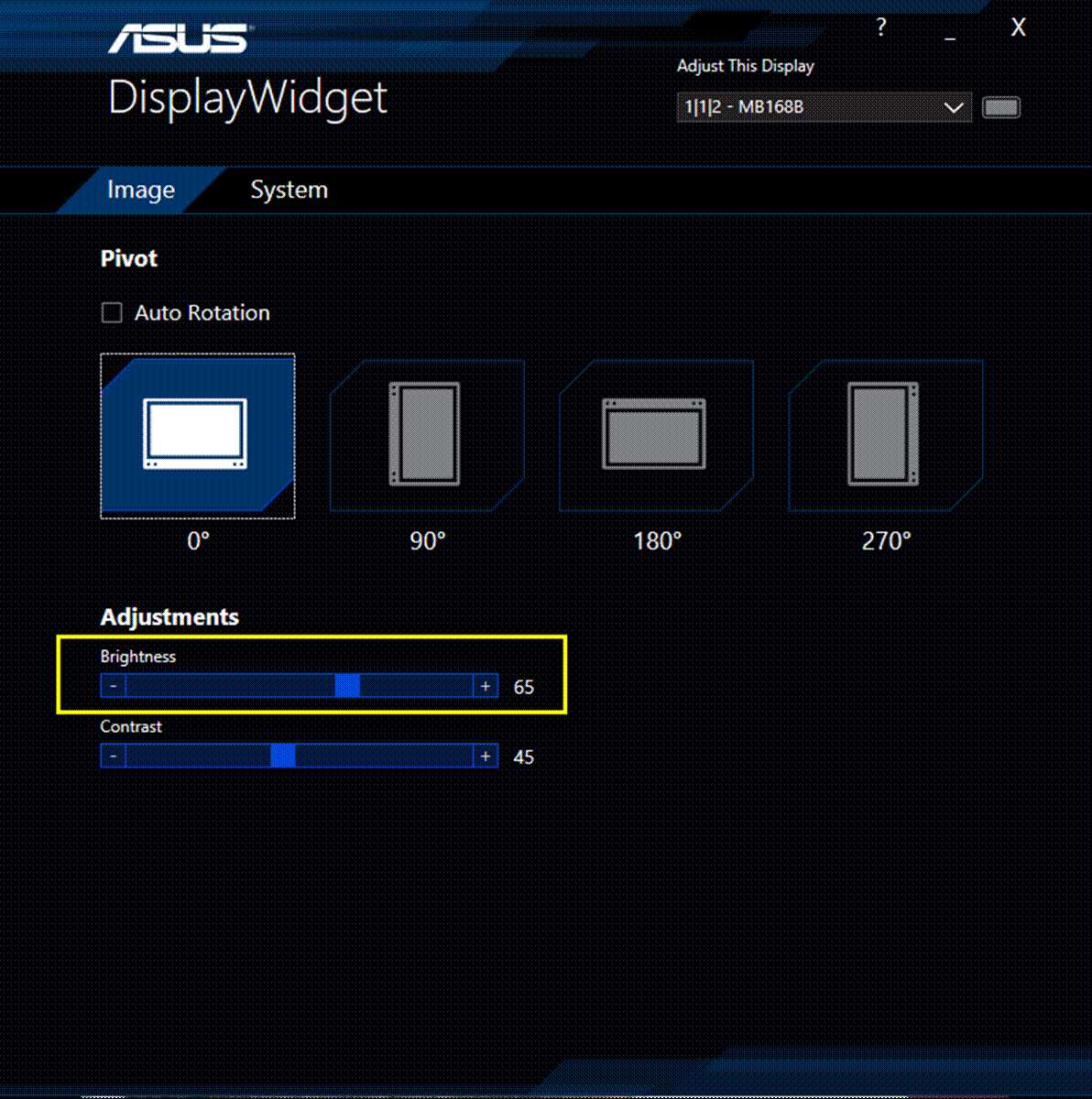
To quickly adjust the brightness on your portable monitor, simply locate the brightness buttons or menu settings on your device and use them to increase or decrease the level according to your preference. If your monitor doesn’t have dedicated buttons, you can often adjust brightness through the on-screen display (OSD) menu or via software connected to your device.
In brief, adjusting brightness on a portable monitor typically involves pressing physical buttons, navigating through the OSD menu, or using software settings. These methods are usually straightforward and allow you to customize your viewing experience for comfort and visibility in different lighting conditions.
Looking for a way to make your portable monitor more comfortable to look at? Brightness adjustment is the key! Portable monitors are fantastic for working on the go, but managing their display settings can sometimes be tricky if you’re new to them. Whether you’re working outdoors or in a dim room, optimizing brightness can reduce eye strain and improve image clarity. Luckily, most portable monitors offer simple ways to tweak brightness—either through physical buttons located on the device or through software menus on your connected computer or smartphone. Knowing how to quickly find and use these controls means you can easily adapt your screen to any environment, ensuring a comfortable and productive viewing experience wherever you are.

How to Adjust Brightness on Portable Monitor
Understanding Why Brightness Adjustment Matters
Adjusting the brightness on your portable monitor is essential for comfortable viewing and eye health. Too much brightness can cause eye strain, especially during long use, while too little can make the screen hard to see. Finding the right brightness level improves clarity and reduces fatigue.
Common Methods to Adjust Brightness on Portable Monitors
Most portable monitors offer multiple ways to change brightness. These include physical buttons, software controls, and sometimes remote adjustments. Knowing these options helps you quickly find and set the perfect brightness level for your environment.
Using Physical Buttons
Many portable monitors have dedicated buttons on the side or bottom edge. These buttons often include symbols like a sun or a plus and minus sign. To adjust brightness:
- Locate the brightness or menu button on your monitor.
- Press the button to activate the on-screen menu if necessary.
- Use the volume or arrow buttons to increase or decrease brightness.
- Confirm or exit the menu once desired brightness is set.
This method provides immediate control without needing a computer or app connection.
Adjusting via Software Settings
Some portable monitors can be adjusted through system settings or dedicated software:
- Open your device’s display settings in the control panel or system preferences.
- Look for brightness controls—these may be sliders or numeric inputs.
- Adjust the slider until the display reaches your preferred brightness level.
- Some monitors include custom apps or drivers, so check if manufacturer software is available for more precise control.
This method is especially useful if your monitor is connected to a laptop or desktop with adjustable display options.
Remote or Mobile App Controls
Certain portable monitors designed for mobile devices can be adjusted via dedicated apps:
- Download the manufacturer’s app from the app store.
- Connect your device to the monitor via Bluetooth or Wi-Fi as instructed.
- Open the app and navigate to display or brightness settings.
- Use on-screen sliders or buttons to control brightness remotely.
This option offers convenience, especially when the monitor is difficult to reach.
Technical Aspects of Brightness Adjustment
Understanding how brightness is adjusted technically can help in troubleshooting or fine-tuning your device. Monitors typically use LED or LCD backlights whose intensity can be increased or decreased electronically.
Backlight Control vs. Pixel Brightness
Adjusting brightness usually involves changing the backlight intensity rather than individual pixel brightness. Increasing backlight makes the entire screen brighter, while decreasing it dims the display evenly.
How Firmware and Drivers Affect Brightness Control
Firmware updates from the manufacturer can improve or add new brightness controls. Ensure your device drivers are current for optimal performance and compatibility.
Tips for Effective Brightness Adjustment
Here are some tips to help you set the best brightness level:
- Adjust brightness based on ambient lighting—brighter in sunlight, dimmer in dark rooms.
- Use auto-brightness feature if available; it automatically adapts to changing light conditions.
- Remember that excessive brightness can drain your monitor’s battery faster.
- Try to find a balance that reduces eye strain without washing out the display.
How Environmental Factors Influence Brightness Settings
Your surrounding environment plays a significant role in determining the ideal brightness. Bright outdoor conditions require higher settings, while indoors or at night, lower levels are more comfortable.
Adjusting Brightness for Outdoor Use
In sunlight or bright outdoor light:
- Set the brightness to maximum if possible.
- Use shading or positioning to minimize glare on the screen.
Some portable monitors feature anti-glare coatings to help in such conditions.
Indoor Brightness Settings
In dimly lit rooms:
- Lower brightness to avoid glare and eye strain.
- Combine with adjustable contrast for optimal viewing quality.
Adjusting the brightness in accordance with the environment enhances visibility and comfort.
Maintaining and Troubleshooting Brightness Issues
Sometimes, your portable monitor may not respond to brightness adjustments properly. Common issues include unresponsive buttons, software glitches, or hardware malfunctions.
Steps to Troubleshoot Brightness Problems
Try the following:
- Check for firmware updates from the manufacturer.
- Restart the device and attempt adjustment again.
- Verify that drivers are properly installed and up to date.
- Reset the monitor settings to factory defaults if available.
If problems persist, contact customer support or consider hardware repairs.
When to Seek Professional Help
Persistent issues indicate potential hardware failures. If your monitor’s brightness controls are unresponsive despite troubleshooting, professional servicing may be necessary. Proper calibration or repair ensures your display remains effective and comfortable.
Related Topics for Better Display Management
To further improve your visual experience:
- Adjusting Contrast: Enhances image clarity and detail.
- Color Calibration: Ensures accurate colors for photo editing or viewing.
- Reducing Eye Strain: Use blue light filters and proper ambient lighting.
- Battery Saving Tips: Dim brightness settings to extend usage time.
Summary
Adjusting brightness on a portable monitor is straightforward once you understand your device’s controls, whether physical, software-based, or via remote app. Consider your environment and personal comfort to set the optimal brightness level. Regular maintenance and troubleshooting help keep your display functioning smoothly and ensure you enjoy a clear, comfortable viewing experience at all times.
How to Change Arzopa Z1FC Brightness Level
Frequently Asked Questions
What are the common methods to adjust the brightness on a portable monitor?
Most portable monitors allow you to change brightness through physical buttons located on the device. Typically, these buttons include a dedicated brightness up and brightness down control, or a menu button that brings up on-screen display options. Using these controls, you can easily increase or decrease the brightness to your preferred level. Some monitors may also support touch controls or have a dedicated app if connected via USB or Bluetooth, enabling you to adjust brightness digitally.
How can I quickly change the brightness setting when working in different lighting conditions?
Many portable monitors feature shortcuts on the physical buttons, allowing you to swiftly modify brightness without navigating through menus. For rapid adjustments, locate the brightness increase or decrease buttons and press them repeatedly until you reach the desired level. If your monitor supports an on-screen menu, access it with a dedicated button and use the navigation controls to modify the brightness setting quickly. This approach helps you adapt to changing lighting environments without hassle.
Are there software options available to control brightness on my portable monitor?
Some portable monitors come with companion software or drivers installed on your computer that enable digital control of display settings, including brightness. Check the manufacturer’s website for any available software downloads. Once installed, you can adjust brightness through the software interface, offering more precise control than physical buttons, especially if the monitor supports such features. Keep in mind that not all portable monitors support software adjustments, so consult your user manual for specific capabilities.
Final Thoughts
Adjusting brightness on a portable monitor is simple and quick. Most models have dedicated buttons or touch controls that allow you to change brightness levels easily. If your monitor lacks physical buttons, check the settings menu within the display options.
Consult your device’s user manual for specific instructions if needed. Remember, knowing how to adjust brightness on portable monitor helps reduce eye strain and improves viewing comfort.



