


To easily adjust your webcam brightness for streaming, access your camera settings either through your streaming software or your computer’s control panel, and tweak the brightness slider until your image looks just right. Make sure your lighting environment matches your camera’s settings for the best results. Regularly preview your feed while adjusting to get the perfect balance, so your viewers see you clearly and brightly.
In short, you can change the webcam brightness either through built-in software or system settings, often during your streaming setup. Play with the controls to find the ideal brightness level that enhances your video quality without overexposing or darkening your image.
Getting your webcam brightness just right might seem tricky, but it’s easier than you think. Whether you’re a seasoned streamer or just starting out, adjusting your webcam’s brightness ensures your face is always well-lit and professional-looking. Brightness adjustments are simple: open your streaming software or system settings, locate the camera controls, and fine-tune the slider until your video appears vibrant and clear. Proper lighting plays a crucial role in how your audience perceives you, so taking a few moments to optimize this setting can make a big difference in your overall streaming quality. Don’t be afraid to experiment, as small tweaks can greatly improve your visual presentation, making your streams more engaging and enjoyable for your viewers.

How to Adjust Webcam Brightness for Streaming
Adjusting your webcam brightness ensures your video looks clear and appealing during streaming sessions. Brightness issues can make your face look washed out or too dark, impacting viewer experience. Let’s explore simple ways to optimize your webcam brightness for better streaming quality.
Understanding Why Brightness Matters in Streaming
Proper brightness enhances visibility and highlights your facial features. When the brightness is off, viewers may struggle to see your expressions clearly. Balanced brightness makes your stream professional and engaging.
Incorrect brightness settings can cause problems such as overexposure or underexposure. Overexposed videos look washed out, while underexposed videos are too dark. Adjusting brightness helps prevent these issues.
Factors That Affect Webcam Brightness
Several factors influence how your webcam displays brightness. These include ambient lighting, webcam hardware capabilities, and software settings. Understanding these helps you make better adjustments.
- Ambient lighting: The light in your room impacts how your camera perceives brightness. Bright rooms require different settings than dim environments.
- Webcam hardware: Different webcams have varying low-light and brightness features. Higher-end models may offer advanced controls.
- Software controls: The software used for streaming often provides options to tweak brightness manually.
How to Adjust Webcam Brightness Through Device Settings
On Windows
Most webcams can be adjusted via Windows Camera app or device settings. Here’s how to do it:
- Open the Camera app from the Start menu or search bar.
- Click on the gear icon Settings in the upper right corner.
- Look for options such as Brightness or Exposure. Adjust the slider to increase or decrease brightness.
- Test your webcam feed to see if the appearance improves.
On MacOS
Mac users can adjust webcam settings using third-party apps or native settings compatible with their camera. Examples include ManyCam or OBS Studio.
- Download and install a webcam control app like ManyCam.
- Open the app and select your webcam from the device list.
- Locate the Brightness controls and adjust accordingly.
- Preview your video to ensure brightness is optimal.
Using Streaming Software for Brightness Adjustment
OBS Studio
OBS Studio offers comprehensive controls to modify your webcam’s appearance, including brightness adjustments. Here’s how:
- Open OBS Studio and add your webcam as a source.
- Right-click on your camera source and select Filters.
- Click on the + button and choose Color Correction.
- Adjust the Brightness slider until your image looks right.
- Close the settings and check your live preview to assess the changes.
Streamlabs OBS
Streamlabs provides similar functionality for brightness adjustment:
- Open Streamlabs and select your video capture device.
- Click on the gear icon to access settings.
- Go to Filters and add a Color Correction filter.
- Modify the Brightness slider and view updates in real-time.
Adjusting Brightness in Webcam Software
Many webcams come with dedicated software for easy control of settings. Using that software often provides the best results and straightforward adjustments.
- Download the official software from your webcam manufacturer.
- Open the software and locate the brightness or exposure controls.
- Experiment with sliding scales to find the optimal brightness level.
- Save your settings for consistent streaming quality.
Manual Adjustments Using Physical Camera Controls
If your webcam has physical controls, you can tweak brightness manually. This method is helpful when digital adjustments don’t yield desired results.
- Locate the focus and brightness control knobs or buttons on your webcam.
- Adjust these while viewing the live feed to find the right setting.
- Make small changes and check repeatedly to avoid over-adjusting.
- Once satisfied, lock the settings and use during streaming.
Tips for Achieving the Best Brightness Settings
Here are some practical tips to help you get perfect brightness for streaming:
- Ensure your room has even lighting to prevent glare or shadows.
- Use soft, diffused light sources to avoid harsh highlights.
- Adjust your camera’s position relative to your lighting sources.
- Test different brightness levels and observe how they affect your video quality.
- Combine brightness adjustments with contrast and saturation settings for a natural look.
Dealing with Overexposure and Underexposure
If your image appears overexposed or underexposed, focus on balancing brightness. Overexposure results in washed-out images, while underexposure makes everything too dark.
Most software allows you to tweak additional settings such as contrast and exposure to fine-tune your video. Experiment with these controls alongside brightness adjustments.
Optimizing Lighting Environment for Better Brightness Control
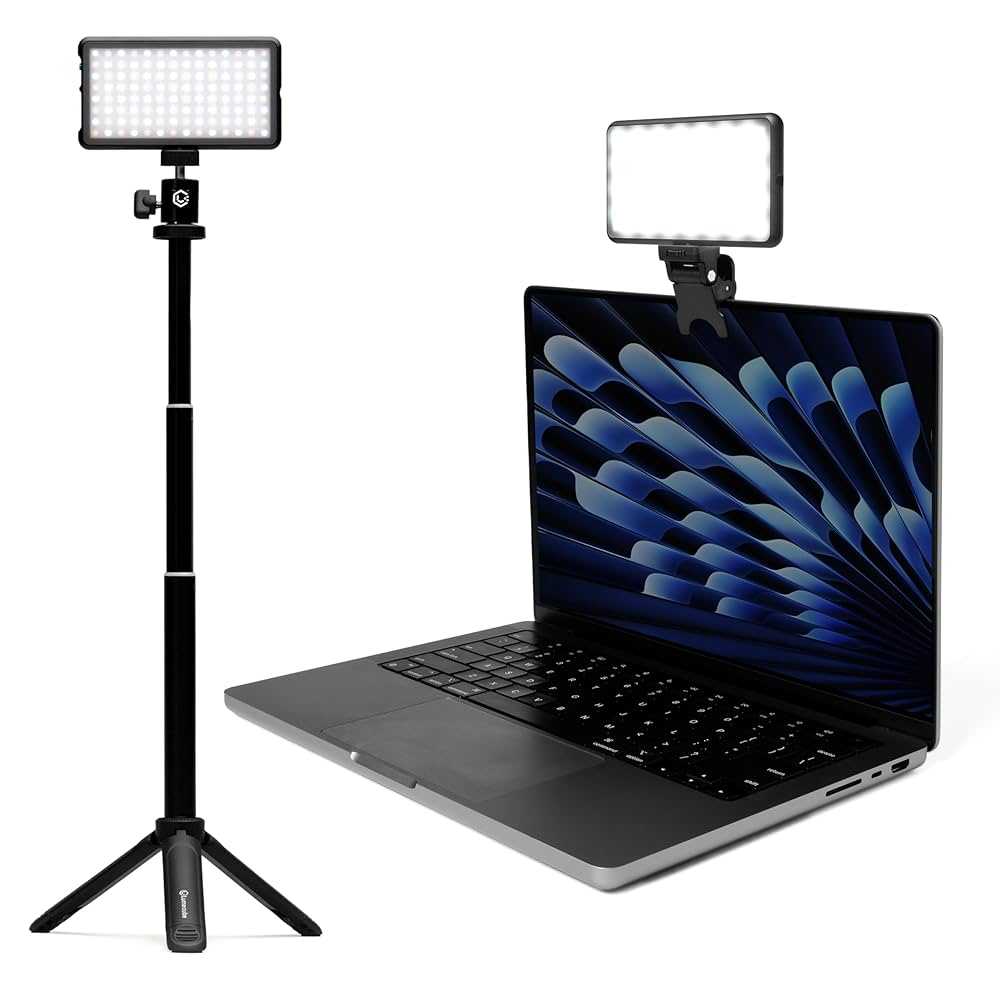
Creating the right lighting environment simplifies brightness adjustments. Consider investing in a ring light or softbox to evenly illuminate your face.
- Place light sources at eye level for natural skin tones.
- Avoid placing bright lights directly behind you, which causes silhouette effects.
- Adjust ambient lighting to complement your webcam’s settings.
- Use curtains or blinds to control sunlight during daytime streams.
Adjusting your webcam brightness for streaming is an essential step toward creating high-quality content. Whether you prefer software controls, device settings, or physical adjustments, options are plentiful. Regularly testing and fine-tuning your settings ensures your video looks natural and professional, making your streams more enjoyable for viewers.
How to setup $10 1080p Aukey Webcam #tech #setup #desksetup #aukey #webcam #camera
Frequently Asked Questions
What steps should I follow to manually adjust my webcam’s brightness during a live stream?
To manually adjust your webcam’s brightness, access the camera settings either through your streaming software or the webcam’s control panel. Once there, look for the brightness option and adjust it by moving the slider until the image appears clear and well-lit. Test your view after each adjustment to find the optimal brightness level for your environment.
How can I ensure consistent brightness levels across different streaming sessions?
Consistently achieve the same brightness by saving your preferred settings within your webcam software or streaming application if possible. Additionally, set up your lighting environment to remain steady across sessions, avoiding changes in ambient light. Regularly check your webcam’s settings before streaming to prevent variations in brightness.
Are there specific lighting conditions I should consider when adjusting my webcam brightness?
Yes, ensure your room has even, diffused lighting to prevent shadows and glare. Avoid strong backlighting or direct sunlight that can cause your webcam to compensate by darkening the image. Adjust your camera’s brightness settings in conjunction with your lighting setup for the best image quality.
Can software updates impact the ability to control your webcam’s brightness?
Software updates can sometimes improve or change the way your webcam’s settings are controlled. After updating, check if your camera software still offers manual brightness adjustments. If the feature is missing or behaves differently, consult the software documentation or consider reinstalling the driver to restore full control over your camera settings.
Final Thoughts
Adjusting your webcam brightness for streaming ensures clear, professional footage. First, access your webcam settings through the streaming software or device control panel. Use the brightness slider to increase or decrease brightness until your image looks natural. Remember, small adjustments can make a big difference.
Testing different levels helps find the perfect balance for your environment. If your camera has automatic settings, consider disabling them for more precise control. Proper brightness settings enhance the viewer experience, making your stream more engaging.
In conclusion, knowing how to adjust webcam brightness for streaming helps improve your video quality. Follow simple steps to fine-tune the brightness, ensuring your content looks its best.



