


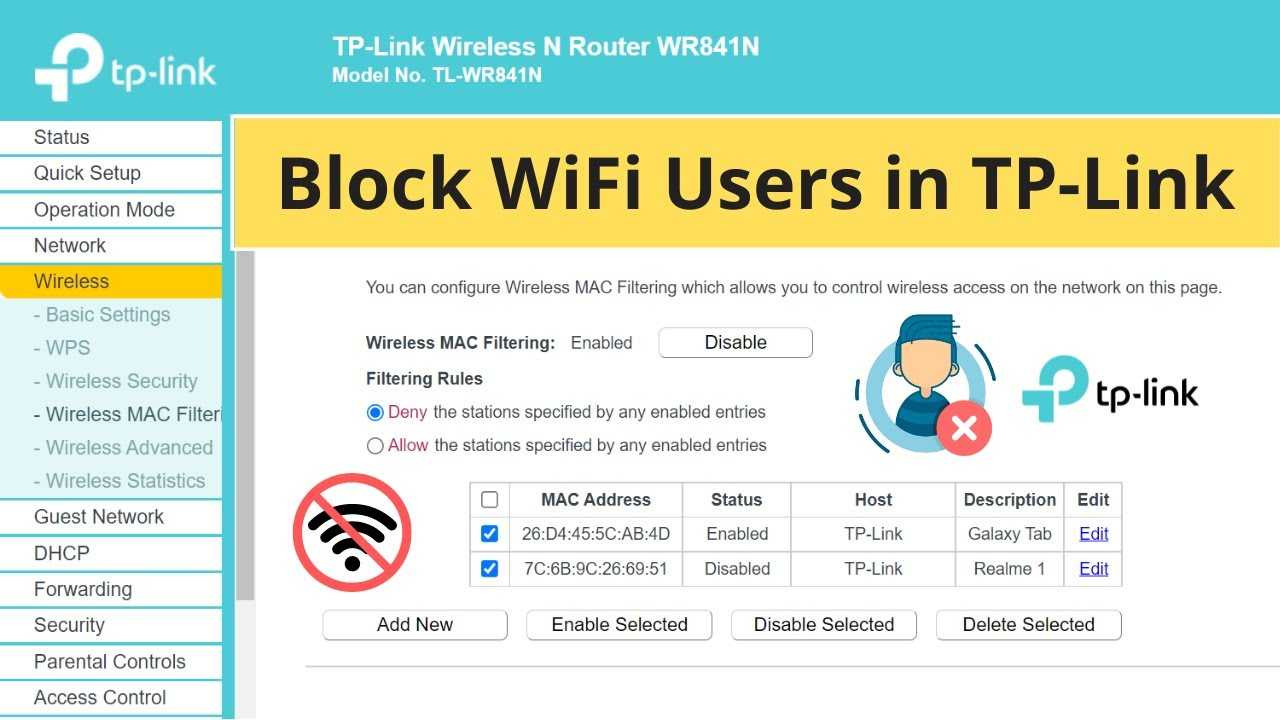
To keep your WiFi secure, swiftly identify and block any unknown devices trying to connect. Use your router’s admin panel to review connected devices and change your WiFi password regularly for added protection. Enable network encryption and turn on MAC address filtering to prevent unauthorized access effectively.
If you notice unfamiliar devices on your network, quickly take action by changing your WiFi password and enabling security features like MAC filtering. Regularly monitoring your connected devices also helps alert you to potential intruders and keeps your WiFi safe from unauthorized users.
Hacking into unsecured WiFi networks has become a common problem, putting your personal information at risk. Fortunately, you can protect your network by blocking unknown devices that shouldn’t have access. Understanding how to monitor and control who’s on your network is essential for maintaining your online security and peace of mind. This article will guide you through simple yet effective steps to identify and block any unwanted devices from your WiFi, ensuring your connection remains private and protected.

How to Block Unknown Devices from Your WiFi
Understanding Your WiFi Network and Its Devices
Knowing your WiFi network is essential before blocking unknown devices. Your router keeps a list of connected devices, often called a “client list” or “connected devices list.” This list shows all devices currently using your WiFi, including smartphones, laptops, tablets, and any other gadgets. Recognizing which devices belong to you helps you spot unfamiliar and potentially unwanted devices.
It’s common for some devices to connect automatically, such as smart home gadgets or printers. Making a habit of regularly reviewing your device list helps you stay aware of your network activity. This process is the first step to keeping your WiFi secure from unknown or malicious devices.
The Risks of Unknown Devices on Your WiFi
Unknown devices can pose several threats to your network. They might gain access to your personal information, steal data, or use your bandwidth for their own purposes. Some malicious devices could even try to exploit security vulnerabilities in your network.
These risks highlight the importance of actively managing who connects to your WiFi. Blocking unknown devices not only protects your data but also maintains the speed and reliability of your internet connection. It’s a simple but crucial step to prevent unauthorized access.
How to Identify Unknown Devices
Identifying unfamiliar devices involves examining your router’s device list carefully. Look for device names and MAC addresses, which are unique identifiers for each device. Usually, your router’s dashboard displays this information in a clear format.
Compare the device names with your household gadgets. If a device name is strange or unfamiliar, it might be from an unknown device. You can also check the MAC address against a database online to verify the device’s manufacturer and determine if it’s legitimate.
Using MAC Address Filtering
MAC address filtering lets you control which devices connect based on their unique addresses. You can add your devices’ MAC addresses to an approved list, blocking any others automatically. This method is effective but requires you to know your devices’ MAC addresses beforehand.
To find a device’s MAC address, check the device’s settings or network information. After gathering these addresses, access your router’s admin panel to add them to the whitelist. Remember, MAC addresses can be spoofed, so this method isn’t foolproof but adds an extra layer of protection.
Accessing Your Router’s Admin Panel
To manage your WiFi devices, you first need to log into your router. Most routers can be accessed through a web browser by entering their IP address, often something like 192.168.1.1 or 192.168.0.1.
Use your admin username and password to sign in. If you haven’t changed these, they might still be set to defaults, which you should update for security. Once logged in, locate the section showing connected devices or a client list.
Finding Your Router IP Address
On Windows, open Command Prompt and type “ipconfig” then press Enter. Look for the “Default Gateway” IP address; this is your router’s IP. For Mac users, go to System Preferences, click Network, and select your network. The router’s address will be listed there.
Mobile device users can check their WiFi settings to find the gateway IP address. Knowing this information allows you to access your router’s configuration page easily.
Blocking Devices via Router Settings
After logging in, locate the section called “Device Management,” “Connected Devices,” or “Client List.” Here, you will see all currently connected gadgets. Identify any unknown devices you want to block based on their MAC address or device name.
Many routers offer options to create a blacklist or block list. Simply select the unknown devices and add them to this list. This action will prevent these devices from reconnecting in the future.
Using the Block or Deny Feature
Some routers include a feature called “Access Control” or “Parental Controls.” This feature allows you to block specific devices by their MAC address. Simply select the device from the list and click “Block” or “Deny.”
Depending on your router model, you might be able to schedule these blocks or set up automatic rules. Always save your settings to ensure the blocks are active.
Changing Your WiFi Passwords
Changing your WiFi password is a simple yet effective way to disconnect all devices and start fresh. After changing your password, only devices with the new password can connect.
To do this, access your router’s admin panel, find the wireless or WiFi settings, and update the password. Choose a strong password using a combination of letters, numbers, and symbols. This method helps immediately cut off any unauthorized devices.
Creating a Guest Network
Many routers allow you to set up a separate guest network. This isolates visitors from your main network, reducing the risk of unknown devices connecting to your primary WiFi.
Create a unique password for your guest network and share it only with trusted visitors. This way, you keep your main network secure while providing internet access to guests.
Implementing Strong Security Measures
Securing your WiFi involves more than just blocking devices. Use WPA3 or WPA2 encryption to protect your network data from interception. Avoid using default passwords and change them regularly.
Enable network encryption, disable WPS, and turn off remote management unless needed. These steps significantly lower the chances of unauthorized access through hacking or spoofing.
Enabling Network Encryption
Navigate to your WiFi security settings in the router’s admin panel. Select WPA3 if supported, or WPA2 as a backup. Then, set a complex password that’s hard to guess. This encrypts your network traffic, safeguarding your data.
Regularly updating your router’s firmware also helps fix security vulnerabilities. Check the manufacturer’s website for updates and follow their instructions carefully.
Using Third-Party Security Apps and Software
Some third-party apps can scan your network for connected devices and alert you to unknown gadgets. These tools often provide more detailed device information and easier management.
Popular options include Fing, Netgear Genie, and Advanced IP Scanner. Download and install one that’s compatible with your device and use it regularly to monitor your network’s activity.
Benefits of Network Monitoring Tools
Network monitoring tools offer real-time alerts whenever a new device connects. They help you quickly identify suspicious activity. Many tools also support blocking or whitelisting devices directly.
Using these tools adds an extra layer of security without requiring advanced technical knowledge. Set up notifications and review device lists often to keep your WiFi safe.
Additional Tips for Securing Your WiFi
Keep your router’s firmware updated to patch security flaws. Regularly change your WiFi password and avoid sharing it with untrusted people. Disable remote management features unless absolutely necessary.
Create a strong, unique SSID name that doesn’t reveal personal information. Consider hiding your network name (SSID) to make it less visible to outsiders.
How to Hide Your WiFi Network
Access your router’s settings and look for the option to disable SSID broadcast. Save your changes, and your network won’t appear in standard scans, making it less detectable.
Remember, hiding your SSID doesn’t stop determined hackers but adds an extra hurdle for casual intruders. Always combine this with other security measures for best protection.
By actively managing your WiFi network, using MAC filtering, changing your passwords regularly, and enabling strong encryption, you can keep unauthorized devices off your WiFi. Staying vigilant ensures your connection remains private, fast, and safe for everyone in your household.
How to Disconnect Unknown Devices From Wifi (Simple Solution)
Frequently Asked Questions
What steps can I take to identify unauthorized devices connected to my WiFi?
To identify unauthorized devices, log into your router’s admin panel and check the list of connected devices. Look for unfamiliar device names or IP addresses. You can also use network scanning tools like Fing or Angry IP Scanner to detect all devices on your network and verify their legitimacy. Regularly monitoring these connections helps you spot any unauthorized access early.
How can changing my WiFi password improve security against unknown devices?
Changing your WiFi password resets access and ensures only trusted devices connect. Choose a strong, unique password that includes a mix of letters, numbers, and symbols. After updating it, reconnect your authorized devices. This process disconnects any unknown devices that may have previously connected, effectively blocking their access.
Are there specific router settings I can configure to block unknown devices automatically?
Yes, most routers offer features like MAC address filtering and device blocking. You can create a list of allowed devices by their MAC addresses and block others automatically. Enable network security protocols like WPA3 or WPA2 to ensure encrypted connections. Regularly updating your router’s firmware also helps fix known vulnerabilities that could be exploited by unauthorized devices.
How often should I review connected devices on my WiFi network?
Make it a habit to review connected devices at least once a month. Frequent checks help you quickly identify any unfamiliar devices trying to access your network. If you notice any unknown connections, take immediate action by changing passwords or blocking specific devices. Regular reviews strengthen your network’s security and prevent unauthorized access.
What additional security measures can I implement to prevent unknown devices from connecting?
Enable network encryption with WPA3 or WPA2 protocols to secure your WiFi. Use a strong, unique password and disable WPS, which can be vulnerable. Consider setting up a guest network for visitors, keeping your main network private. Regularly update your router’s firmware and disable remote management features unless necessary. These steps significantly reduce the risk of unknown devices gaining access to your WiFi.
Final Thoughts
Pour protéger votre réseau WiFi, commencez par changer régulièrement votre mot de passe et utilisez une clé complexe. Consultez l’interface d’administration de votre routeur pour voir la liste des appareils connectés. Si vous repérez des appareils inconnus, bloquez-les via les options de sécurité.
En bloquant des appareils non autorisés, vous empêchez toute utilisation indésirable de votre réseau. La prévention des accès non autorisés renforcera la sécurité de votre WiFi. En résumé, savoir comment bloquer unknown devices from your WiFi est essentiel pour protéger votre vie privée et vos données.



