


Protecting your privacy is more important than ever. This guide shows you how to block webcam access using various methods, ensuring no unauthorized eyes can watch you. You’ll learn simple physical solutions, step-by-step operating system settings for Windows, macOS, and Linux, and how security software can add an extra layer of protection to safeguard your personal space.
How to Block Webcam Access
Your webcam is a powerful tool for connecting with others. It lets you video chat with family, attend online meetings, and create content. But it also presents a potential privacy risk. In today’s digital world, unauthorized webcam access is a real concern. Hackers, malware, and even overly intrusive apps can sometimes peek into your private life without your knowledge. This is why learning how to block webcam access is so important.
This comprehensive guide will walk you through various methods to protect your privacy. We will cover everything from simple physical solutions to detailed software settings on different operating systems. You will learn practical tips and gain the knowledge to secure your webcam effectively. By the end, you’ll feel confident in your ability to block webcam access and maintain your digital peace of mind. Let’s get started and take control of your camera’s privacy.
Key Takeaways
- Physical Blocking is Simplest: Using a webcam cover or even a piece of opaque tape offers the most direct and foolproof way to block webcam access visually.
- Operating System Settings Provide Control: Windows, macOS, and Linux all offer built-in privacy settings that allow you to manage which applications can access your camera, or even disable the camera entirely.
- Manage Browser Permissions: Websites and web applications often request camera access. Always review and revoke these permissions in your browser settings when they are no longer needed to effectively block webcam access in web environments.
- Security Software Adds Layered Defense: Many reputable antivirus and security suites now include dedicated webcam protection features that notify you of access attempts and allow you to block them.
- Regular Updates are Crucial: Keeping your operating system, browsers, and applications updated helps patch security vulnerabilities that could otherwise be exploited to gain unauthorized camera access.
- Awareness is Your Best Tool: Always be cautious about the apps you install and the links you click. Phishing and malware are common ways attackers try to gain control over your devices, including your webcam.
Method 1: Physical Blocking (The Simplest Solution)
The easiest and often most effective way to block webcam access is by physically covering your camera lens. This method works 100% of the time. No software trickery can bypass a physical barrier.
Use a Webcam Cover
Webcam covers are small, sliding devices designed specifically for this purpose. They are widely available and inexpensive. These covers typically adhere to your device’s frame. You can slide them open when you need your camera and slide them closed when you want to block webcam access.
- Choose the Right Cover: Make sure the cover fits your device without obstructing the screen or closing the laptop. Some are universal, while others are designed for specific models.
- Installation: Simply peel off the adhesive backing and carefully place the cover over your webcam lens.
- Benefits: They are neat, reusable, and won’t damage your device. They provide a clear visual reminder that your camera is blocked.
Use Opaque Tape or a Sticker
If you prefer a free or quick solution, a small piece of opaque tape or a sticker can also do the trick. This is a very straightforward way to block webcam access.
- Material: Use electrical tape, painter’s tape, or even a sticky note. Avoid duct tape or anything too strong that might leave residue.
- Application: Carefully place a small piece of tape directly over the camera lens. Make sure it’s completely covered.
- Considerations: While effective, tape can leave sticky residue over time. It can also look less professional than a dedicated webcam cover.
Method 2: Blocking Webcam Access Through Software and OS Settings
Beyond physical barriers, your operating system and various software offer settings to control webcam access. These methods are crucial for preventing unauthorized software from using your camera.
Blocking Webcam Access on Windows
Windows offers several ways to manage camera access, from disabling the device entirely to controlling app permissions. This allows you to block webcam access systematically.
Visual guide about How to Block Webcam Access
Image source: bitsdujourblob.blob.core.windows.net
Disable the Webcam in Device Manager
This method completely disables your webcam at the hardware level. No application will be able to use it.
- Open Device Manager: Right-click the Start button (Windows icon) and select “Device Manager” from the list.
- Locate Your Webcam: Expand the “Cameras” or “Imaging devices” section. Your webcam will likely be listed here (e.g., “Integrated Webcam,” “USB Camera”).
- Disable the Device: Right-click on your webcam’s name. Select “Disable device.”
- Confirm: A warning might appear asking if you’re sure. Click “Yes.”
- Re-enable (if needed): To use your webcam again, repeat steps 1-3, but this time, select “Enable device.”
Tip: Disabling in Device Manager is a strong way to block webcam access. Remember to re-enable it for video calls.
Manage Camera Privacy Settings
Windows also allows you to control which applications can access your camera. This is less drastic than disabling the device but still very effective.
- Open Windows Settings: Click the Start button, then click the gear icon (Settings).
- Navigate to Privacy: Click on “Privacy” (or “Privacy & security” on Windows 11).
- Select Camera: In the left-hand menu, scroll down and select “Camera” under “App permissions.”
- Turn Off Camera Access (Optional): You can toggle “Camera access” (for Windows 11) or “Allow apps to access your camera” (for Windows 10) to “Off.” This will block webcam access for almost all apps.
- Control Individual App Access: Scroll down to “Choose which apps can access your camera.” Here, you can review and toggle access for specific desktop and Microsoft Store apps. Turn off access for any app you don’t trust or don’t want using your camera.
Tip: Regularly review these settings. New apps might request camera access. This is a key step to effectively block webcam access for specific applications.
Blocking Webcam Access on macOS
macOS has robust privacy controls, making it easy to manage which apps can access your built-in camera.
Manage Camera Privacy Settings
Similar to Windows, macOS allows you to review and revoke camera permissions for individual applications. This helps you to block webcam access for apps you don’t want using it.
- Open System Settings: Click the Apple menu in the top-left corner, then select “System Settings” (or “System Preferences” on older macOS versions).
- Navigate to Privacy & Security: Click on “Privacy & Security” in the sidebar.
- Select Camera: Scroll down and click on “Camera” in the list of privacy options.
- Review App Access: You will see a list of applications that have requested or been granted camera access.
- Revoke Permissions: Uncheck the box next to any application you do not want to have camera access. You might need to click the padlock icon in the bottom-left and enter your password to make changes.
Note: macOS does not typically have a direct “disable webcam” button in the same way Windows does via Device Manager. Instead, its privacy controls are designed to manage app permissions. If no apps have permission, the camera generally won’t activate. This is your primary way to block webcam access on a Mac.
Blocking Webcam Access on Linux
Linux distributions offer flexibility in managing hardware and software permissions, though the exact steps might vary slightly depending on your desktop environment (e.g., GNOME, KDE).
Manage Camera Privacy Settings (GNOME Example)
Many popular Linux distributions use the GNOME desktop, which includes privacy settings for your camera.
- Open Settings: Click on the “Activities” overview, search for “Settings,” and open it.
- Navigate to Privacy: In the sidebar, click on “Privacy.”
- Select Camera: Click on “Camera” from the privacy options.
- Toggle Camera Access: You can toggle the “Camera” switch to “Off” to universally block webcam access for applications.
- Review App Permissions: Some distributions or applications might also list individual app permissions here, allowing you to fine-tune access.
More Advanced: Blacklist the Webcam Module (for Advanced Users)
For a more permanent software block on Linux, you can prevent the kernel from loading the webcam driver module. This is an advanced method to block webcam access.
- Identify Webcam Module: Open a terminal and type
lsmod | grep uvcvideo. If you see ‘uvcvideo’, that’s likely your webcam module. - Create a Blacklist File: Type
sudo nano /etc/modprobe.d/blacklist-webcam.conf. - Add Blacklist Entry: In the editor, add the line:
blacklist uvcvideo. Save and exit (Ctrl+X, Y, Enter for Nano). - Update initramfs: Type
sudo update-initramfs -u. - Reboot: Restart your system for the changes to take effect. Your webcam should now be disabled.
- Re-enable: To enable it again, remove the
blacklist-webcam.conffile and runsudo update-initramfs -u, then reboot.
Caution: This method requires comfort with the Linux terminal. Use it only if you are familiar with Linux system administration. It is a very effective way to block webcam access at a low level.
Manage Browser Permissions for Webcams
Many websites and web applications (like Google Meet, Zoom web client, or online photo booths) request access to your camera. It’s crucial to manage these permissions within your browser to block webcam access when not needed.
- When Prompted: When a website asks for camera access, you usually get a pop-up. Always click “Block” or “Don’t Allow” unless you specifically need the camera for that site at that moment.
- Review and Revoke Permissions (Chrome Example):
- Open Chrome Settings (three dots in the top-right corner).
- Go to “Privacy and security” > “Site Settings.”
- Click on “Camera.”
- You’ll see a list of sites that are allowed or blocked. You can remove permissions for specific sites or set the default behavior to “Ask before accessing” or “Blocked.” This is vital to block webcam access on a per-site basis.
- Similar Steps for Other Browsers: Firefox, Edge, and Safari have similar settings. Look for “Site Permissions,” “Privacy,” or “Security” within their settings to manage camera access.
Always be mindful of what you allow. If a site you don’t fully trust asks for camera access, it’s best to deny it to block webcam access.
Method 3: Using Security Software with Webcam Protection
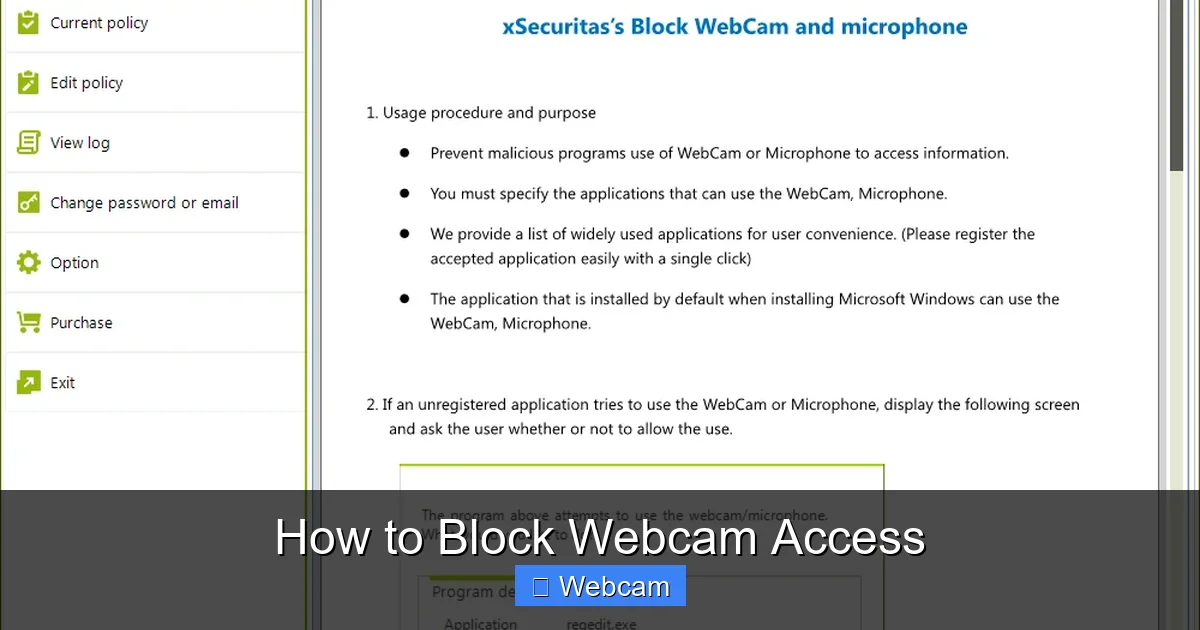
Many modern antivirus and internet security suites now include dedicated webcam protection features. These tools add an extra layer of security. They can actively monitor for attempts to access your webcam and alert you, allowing you to block webcam access in real-time.
How Security Software Helps
- Real-time Monitoring: The software continuously checks for any process trying to access your camera.
- Alerts: If an unknown or suspicious application tries to use your webcam, you’ll receive an immediate notification.
- Blocking Options: You can often choose to allow or block the access attempt directly from the alert.
- Application Control: Some suites allow you to create rules, permitting specific trusted applications (like Zoom or Skype) to use the camera while blocking all others.
Check your security software’s features. Look for terms like “Webcam Protection,” “Camera Guard,” or “Privacy Shield” in its settings. Reputable brands like Bitdefender, Kaspersky, ESET, and Avast often include these functionalities, enhancing your ability to block webcam access.

Visual guide about How to Block Webcam Access
Image source: bitsdujourblob.blob.core.windows.net
Tips for Enhanced Webcam Security

Visual guide about How to Block Webcam Access
Image source: windows-cdn.softpedia.com
Beyond the direct methods to block webcam access, adopting good security habits can further protect your privacy.
- Keep Software Updated: Regularly update your operating system, web browser, and all applications. Updates often include critical security patches that fix vulnerabilities attackers could exploit.
- Use Strong, Unique Passwords: Protect your user accounts with complex passwords. If a hacker gains access to your account, they might be able to control your device or access cloud services connected to your camera.
- Be Wary of Suspicious Links and Emails: Phishing attempts are common. Clicking on malicious links or opening infected attachments can lead to malware installation, potentially giving attackers control over your webcam.
- Download Apps from Trusted Sources: Only download software from official app stores or the developer’s legitimate website. Third-party download sites can bundle malware.
- Regularly Scan for Malware: Use a reputable antivirus program to perform full system scans periodically. This helps detect and remove any hidden threats that might be trying to access your camera.
- Unplug External Webcams: If you use an external USB webcam, simply unplugging it when not in use is a simple, effective way to block webcam access.
Troubleshooting: What if My Webcam is Still Active?
Even after trying these steps, you might find your webcam light still on or an application unexpectedly accessing it. Here’s what to do:
- Check All Settings: Double-check all privacy settings on your operating system (Device Manager, Privacy Settings on Windows; Privacy & Security on macOS/Linux) and browser settings. Ensure you haven’t missed a permission.
- Restart Your Device: Sometimes, changes to settings require a reboot to take full effect.
- Check for Background Apps: Open your task manager (Ctrl+Shift+Esc on Windows, Activity Monitor on macOS) and look for unfamiliar processes that might be running. End suspicious tasks.
- Scan for Malware: Run a full, deep scan with your antivirus software. Persistent unauthorized webcam access is a strong indicator of malware.
- Identify the App: If you see the webcam light on but aren’t sure which app is using it, some security software can help identify the culprit. On Windows 10/11, you can sometimes see recent camera usage in Settings > Privacy & security > Camera.
- Review Extensions: Browser extensions can also request camera access. Go through your browser’s extension list and remove any you don’t recognize or trust.
Conclusion
Taking control of your webcam’s privacy is an essential part of digital security. By understanding how to block webcam access, you empower yourself against potential privacy breaches. Whether you choose the simplicity of a physical cover, the control offered by operating system settings, or the advanced protection of security software, you have many options to keep your camera secure.
Remember to combine these methods for the strongest defense. A physical cover provides ultimate peace of mind, while software settings ensure that even when uncovered, only trusted applications can use your camera. Stay vigilant, keep your software updated, and always be aware of the permissions you grant. With these steps, you can confidently use your devices knowing that your private space remains truly private. Block webcam access today and reclaim your digital security!



