


Looking to add a touch of professionalism or hide your cluttered room during Zoom calls? Blurring your background can make you look more polished and keep distractions out of sight. The quickest way is to activate the background blur feature directly within Zoom settings—no fancy equipment needed! Just a few clicks and your background will be smoothly blurred, keeping the focus on you.
To blur your background on Zoom using your webcam, simply open the app, go to Settings, then Video, and select the “Blur” option under Background & Filters. This feature is available for both Windows and Mac users, and no green screen is required.
Are you tired of showing your messy space during important meetings? Learning how to blur your background on Zoom can save you time and effort in tidying up every time. It’s a simple yet effective way to maintain privacy and professionalism, giving you a cleaner, more focused appearance. Whether you’re working from home or just want to add a bit of flair to your virtual presence, mastering this feature ensures your background stays out of sight while you shine.

How to Blur Background Using Webcam on Zoom
Blurring your background during a Zoom meeting helps you stay focused and keeps distracting items out of view. Many users want to hide clutter or create a more professional look without much hassle. Luckily, Zoom offers built-in features that make blurring backgrounds straightforward and easy to use.
Understanding Why Blurring Your Background Matters
Blurring your background can protect your privacy by hiding personal or sensitive items. It also helps you look more focused and less distracted during meetings. Whether you’re working from home or participating in a virtual class, background blurring adds a layer of privacy and enhances your appearance.
Checking Your System Requirements for Background Blur
Before proceeding, make sure your device meets Zoom’s system requirements. Blurring backgrounds demands more from your computer or webcam. Here is what to check:
- Operating System: Windows 10 64-bit or macOS 10.13 or higher
- Processor: Intel i5 or higher; newer generation processors work better
- RAM: Minimum 4 GB, preferably 8 GB or more for smooth performance
- Webcam: Built-in or external webcam with good resolution
If your device does not meet these specifications, background blurring might not work properly, or you may experience lag during meetings.
How to Enable Background Blur in Zoom Using the Built-in Feature
Step 1: Update Your Zoom Application
First, ensure you are using the latest version of Zoom. Open the app, navigate to your profile picture, and select ‘Check for Updates.’ Installing the latest version ensures you access the newest background features.
Step 2: Accessing Settings Before Joining a Meeting
Launch Zoom and go to ‘Settings’ by clicking your profile picture or the gear icon. From here, select the ‘Background & Effects’ tab. These settings are where you enable background blurring and other virtual backgrounds.
Step 3: Activating Blur Background
Within ‘Background & Effects,’ locate the options for virtual backgrounds. Here, you’ll see a few default options, including a blur option. Click on ‘Blur’ to activate it. Your background will immediately become blurry for the current session.
Step 4: During a Meeting
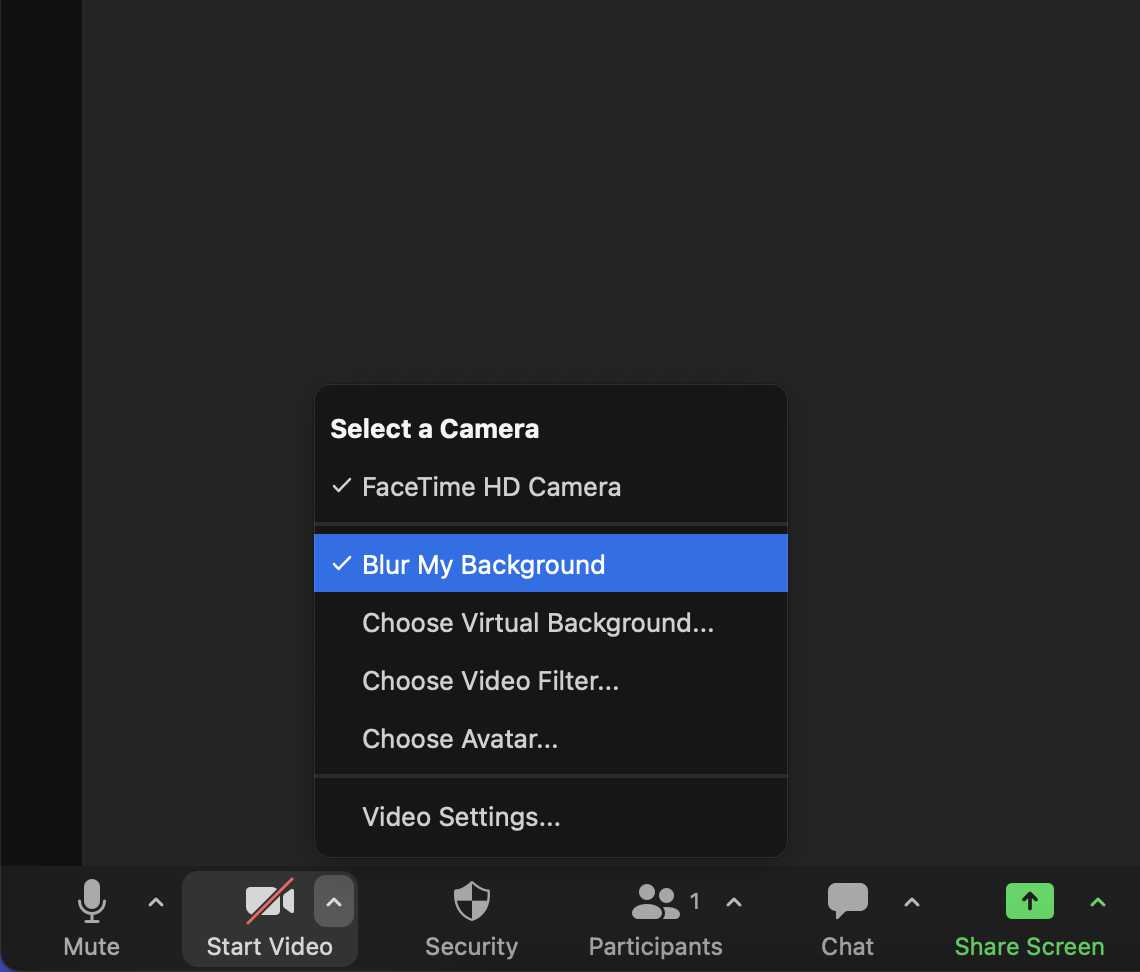
If you are already in a meeting, click on the upward arrow next to ‘Start Video’ or ‘Stop Video.’ Select ‘Choose Virtual Background’ from the menu. In this window, choose ‘Blur’ to apply the effect instantly.
Tips for a Smooth Background Blur Experience
- Ensure good lighting in your room to improve webcam clarity and background effect quality.
- Position yourself well in front of the webcam, with no strong backlight.
- Keep your camera steady and avoid sudden movements, which can cause blurring or lag.
Advanced Methods: Using Virtual Backgrounds for Blurring
Understanding Virtual Backgrounds
Zoom also offers virtual backgrounds, which can simulate a blurred background by applying a Gaussian blur effect or image overlays. These are particularly useful if the built-in Blur feature isn’t available on your device.
How to Set Up Virtual Backgrounds for Blurring
- In Zoom Settings, navigate to ‘Background & Effects.’
- Select ‘Virtual Background.’
- Choose the ‘Blur’ option from the options displayed.
Benefits and Limitations
The virtual background method is easy but depends on your device’s graphics capabilities. While it’s quick to set up, it may cause some lag on lower-end devices or with poor lighting conditions.
Troubleshooting Common Issues with Background Blur
Problem: Blur Doesn’t Apply or Looks Weird
Ensure your device meets system requirements and that your webcam drivers are up-to-date. Restart Zoom and try again. Good lighting and a clean webcam lens also improve results.
Problem: Lag or Poor Performance
Close other applications consuming system resources. Lower video quality settings in Zoom and reduce background effects to optimize performance.
Problem: Blur Doesn’t Work During a Meeting
Make sure the virtual background feature is enabled in your settings. Sometimes, restarting Zoom or your device can resolve temporary glitches.
Additional Tips for Better Background Blurring
- Use a plain or solid-colored wall behind you for optimal blur effect.
- Adjust your webcam position to frame yourself properly, avoiding background clutter.
- Experiment with lighting — soft, even light enhances the blurring process.
Using External Software to Enhance Background Blur
Third-Party Applications
If Zoom’s built-in tools don’t suffice, third-party apps like OBS Studio or ManyCam can provide advanced background blurring options. These tools often offer more control and higher-quality effects.
How to Use OBS Studio for Background Blur
- Install OBS Studio and set up your webcam as a video source.
- Add a blur effect filter to your webcam feed within OBS.
- Use a virtual camera plugin to output the blurred feed to Zoom.
Benefits of External Software
- Enhanced customization and effects.
- Better performance on some devices.
- More options for background images and overlays.
Blurring your background during Zoom calls is a simple way to create a more professional appearance and safeguard your privacy. With the built-in features available on most devices and some external tools, achieving a clean and focused video setup is straightforward. Ensuring your system meets the necessary specifications, maintaining good lighting, and following step-by-step instructions will help you get the best results fast. Take a moment to explore these options, and you can enjoy a seamless, distraction-free virtual meeting experience whenever you need it.
How to Blur Your Background on Zoom (2024)
Frequently Asked Questions
How can I enable background blur during a Zoom meeting using my webcam?
To enable background blur in a Zoom meeting, open the Zoom application and go to Settings. Select the ‘Background & Filters’ tab, then choose the ‘Blur’ option under virtual backgrounds. Make sure your webcam is properly connected, and the blur effect will be applied immediately, allowing you to conceal your real background.
What are the system requirements for using background blur on Zoom?
Your device should meet Zoom’s minimum specifications, including a recent operating system and a webcam with sufficient resolution. Additionally, enabling background blur may require a dedicated graphics card or higher processing power. Ensure your Zoom app is updated to the latest version, as newer releases often include improved support for background effects.
Can I adjust the level of background blur during a Zoom call?
Zoom offers a simple toggle for background blur, but it doesn’t include a slider for adjusting the intensity directly. However, some versions may provide limited customization. To customize the background more precisely, consider using third-party virtual webcam software that allows for adjustable blurring before sharing your video feed in Zoom.
Is it possible to use a custom background instead of blur in Zoom?
Yes, you can replace your background with an image or video instead of blurring it. In the ‘Background & Filters’ tab of Zoom settings, select a pre-loaded image or upload your own. If you want a realistic blurred effect, choose the ‘Blur’ option, but for more personalized backgrounds, upload your preferred images or videos.
Why is the background blur not working on my Zoom call?
If background blur doesn’t activate, ensure that your device meets the necessary system requirements and your webcam is functioning correctly. Also, verify that you are using the latest version of Zoom, as older versions may lack support for this feature. Sometimes, background effects may be disabled due to virtual background settings conflicting with your hardware, so check those settings carefully.
Final Thoughts
In summary, to blur background using webcam on zoom, first open the Zoom app and start or join a meeting. Next, click on the arrow next to the video icon and select “Choose Virtual Background.” Finally, enable the “Blur” option to keep your background out of focus.
This simple process enhances your privacy and keeps the attention on you during calls. Remember, the main keyword “how to blur background using webcam on zoom” appears naturally throughout. By following these steps, you ensure a professional and distraction-free environment in your meetings.



