


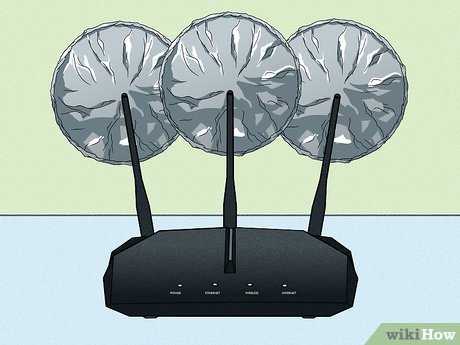
To boost your WiFi signal quickly, try repositioning your router to a central, open spot, away from obstructions and electronic interference, and upgrade to a stronger antenna or a WiFi extender if necessary. These simple tweaks can dramatically improve your connection speed and coverage.
In short, boosting your router’s WiFi signal involves strategic placement, minimizing interference, and using devices like extenders or mesh systems to extend coverage. By optimizing these aspects, you’ll enjoy faster, more reliable internet throughout your home or office.
Struggling with weak WiFi signals can be frustrating, especially when you’re trying to stream, work, or connect multiple devices. Luckily, improving your router’s performance isn’t complicated. It all starts with understanding that placement is key—placing your router in a central, elevated location helps distribute the signal evenly. Avoid hiding it behind furniture or near thick walls, which can block WiFi waves. Also, reducing interference from other electronics like cordless phones or microwaves can make a big difference. If your coverage still falls short, consider upgrading your router or adding extenders, mesh networks, or powerline adapters to blanket your space with a stronger, more stable signal. These simple steps can significantly boost your WiFi, making your online experience smoother and more reliable.

How to Boost Router WiFi Signal: Effective Tips and Tricks
Improving your WiFi signal can make a big difference in how smoothly your internet works. Weak signals cause slow speeds, dropped connections, and frustration. Luckily, there are simple steps you can take to enhance your WiFi coverage and strengthen your connection across your home or office.
Understanding WiFi Signal Strength and Range
WiFi signals travel through the air, but obstacles like walls and furniture can weaken them. The closer your devices are to the router, the stronger the signal you’ll get. The signal’s strength depends on factors like router placement, interference, and the type of router you own.
It’s helpful to know the difference between signal strength and bandwidth. Signal strength determines how well your device connects, while bandwidth impacts how much data can flow at once. Improving signal strength can often lead to better overall internet performance.
Optimal Router Placement
Choose a Central Location
Place your router in a central spot in your home to maximize coverage. Avoid corners or basement locations, which can block signals. Elevated positions, like on a shelf or high table, also help spread WiFi evenly.
Avoid Obstructions and Interference
Keep your router away from metal objects, microwaves, cordless phones, and other electronic devices that can cause interference. Thick walls or floors made from brick or concrete can block WiFi signals, so position your router accordingly.
Keep It Elevated
Storing your router on a high shelf instead of on the floor improves signal distribution. Distance from large objects also helps prevent signal degradation.
Update Router Firmware and Settings
Keeping your router’s firmware up to date ensures optimal performance and security. Visit your router manufacturer’s website for instructions on updating firmware.
Adjusting your router’s settings can also improve coverage. Switch to the least congested WiFi channel, especially if many nearby networks are in use. Use a WiFi analyzer app to identify the best channel for your environment.
Choose the Right WiFi Band
2.4 GHz vs. 5 GHz
- 2.4 GHz: Offers better range but may be more crowded and slower due to interference.
- 5 GHz: Provides faster speeds and less interference but has a shorter range.
Select the band that suits your needs. Use 2.4 GHz for larger areas and devices that don’t need high speed. Use 5 GHz for devices nearby that require fast internet.
Use WiFi Extenders or Mesh Systems
WiFi Range Extenders
Extenders boost your existing WiFi signal by repeating it to distant areas. Place them halfway between your router and the weak signal zone for best results.
Mesh WiFi Systems
Mesh systems create a network with multiple access points, providing seamless coverage across large spaces. They are easy to set up and maintain, making them ideal for large homes or offices.
Upgrade Your Router
Investing in a new, modern router can significantly improve your WiFi coverage and speed. Look for routers supporting the latest standards like WiFi 6, which offers better performance and capacity.
Consider routers with multiple antennas or beamforming technology, which direct WiFi signals toward devices, strengthening connections.
Optimize Your Network Security
Secure your WiFi with a strong password to prevent unauthorized users from consuming bandwidth. Use WPA3 encryption if available, as it offers better security.
Limiting the number of connected devices can also improve signal quality and internet speeds for all users.
Additional Tips for Better WiFi Signal
- Reduce interference: Keep your router away from Bluetooth devices and appliances that emit radio waves.
- Use Quality Cables: If your setup involves wired connections, use high-quality Ethernet cables for better performance.
- Restart Your Router Regularly: Restarting your router can clear glitches and improve overall function.
Testing and Monitoring WiFi Signal
Use tools like speed tests or WiFi analyzer apps to check your network’s performance after making adjustments. Regular testing helps you identify weak spots and areas needing improvement.
Monitoring your WiFi can reveal patterns and interference sources, guiding further optimization efforts. Aim for consistent high-speed connection throughout your space.
Boosting your WiFi signal involves a combination of strategic placement, device updates, and smart equipment choices. Implementing these tips can enhance your internet experience and provide reliable coverage across your entire home or office. By understanding how WiFi works and applying these simple techniques, you can enjoy faster, more stable internet with less frustration.
DON'T Buy A Wi-Fi Range Extender!
Frequently Asked Questions
How can I optimize the placement of my router to improve Wi-Fi signal strength?
Place your router in a central location within your home, ideally elevated on a shelf or wall mount, to maximize coverage. Avoid placing it near thick walls, metal objects, or electronic devices that can cause interference. Keep it away from large appliances like refrigerators or microwaves, as these can disrupt the signal. Proper positioning ensures better signal distribution throughout your space.
What steps can I take to reduce Wi-Fi interference from other devices?
Identify devices that may interfere with your Wi-Fi, such as cordless phones, baby monitors, or Bluetooth gadgets, and keep them away from the router. Switching your Wi-Fi to a less congested channel, often 1, 6, or 11 on the 2.4 GHz band, can also minimize interference. Additionally, upgrading to a dual-band router allows you to switch to the 5 GHz band, which is less crowded and offers better performance.
How can I update my router’s firmware to enhance signal quality?
Access your router’s admin settings through a web browser and check for firmware updates. Follow the manufacturer’s instructions to download and install the latest version. Firmware updates often include performance improvements and bug fixes that can lead to a stronger, more stable Wi-Fi signal. Regularly updating ensures your router operates efficiently and securely.
Final Thoughts
To boost router wifi signal, start by placing your router in a central location away from walls and electronic devices. This improves coverage and reduces interference. Additionally, updating your router’s firmware ensures optimal performance and security. Using a Wi-Fi extender or mesh network can also enhance signal strength in larger spaces.
In summary, knowing how to boost router wifi signal involves strategic placement, keeping firmware current, and considering additional hardware if needed. These simple steps help maintain a faster, more reliable internet connection.



