


To quickly switch your keyboard language or layout, simply use the shortcut keys like Alt + Shift or Windows + Spacebar, or customize your settings for easier access. Changing your keyboard language can be a game-changer for multilingual users or those learning a new language, making typing smoother and more efficient. If you’re wondering how to do it, no worries—it’s easier than you think! In just a few clicks, you can add a new language or change your existing keyboard layout so it fits your needs perfectly, whether you’re working, chatting, or studying. This guide will walk you through simple steps to adjust your keyboard settings on different devices, ensuring you can type comfortably in any language or layout you desire without hassle.

How to change keyboard language or layout settings
Changing your keyboard language or layout is a simple process that can make typing in different languages easier and faster. Whether you want to switch to a language you are learning or need to type special characters, knowing how to adjust these settings is useful.
Understanding Keyboard Layouts and Languages
Different languages often require different keyboard layouts. These layouts organize keys to include characters and symbols unique to each language. For example, the French keyboard layout, called AZERTY, differs from the QWERTY layout used in English.
Choosing the correct language and layout ensures that your keys produce the right characters. It also helps prevent mistakes when typing unfamiliar characters like accented vowels or special symbols.
Why Change Your Keyboard Settings?
Switching keyboard language or layout helps you type more efficiently in multiple languages. It also allows you to access symbols or characters not available on your default keyboard.
Some common reasons to change keyboard settings include learning a new language, communicating with someone who uses a different language, or typing documents that require specific characters.
How to Change Keyboard Language on Windows
Adding a New Language
Open the Windows Start menu and click on Settings. Then select Time & Language.
Click on Language from the sidebar and then choose Add a language. Search for the language you want to add, such as French or Spanish, and click Install.
Switching Between Languages
Once the language is installed, a language icon appears on your taskbar. You can click on this icon to switch between different keyboards.
Alternatively, use the keyboard shortcut Windows key + Spacebar to toggle between your available languages quickly.
Adjusting Keyboard Layouts
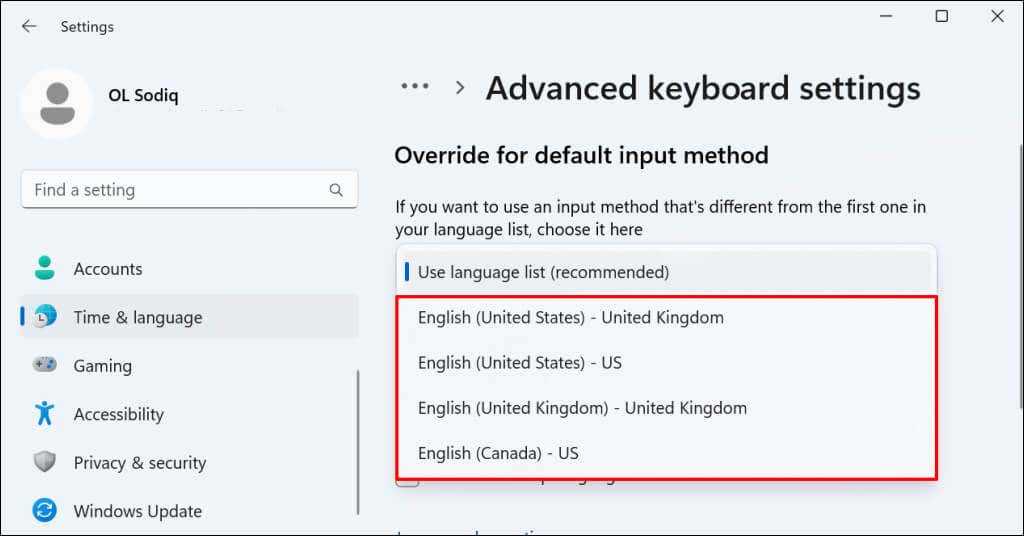
If a language has multiple layouts, you can select the preferred one in the Settings under Language options. This allows you to choose between, for example, US QWERTY or French AZERTY layouts.
Changing Keyboard Language on Mac
Add a New Input Source
Open System Preferences from the Apple menu. Click on Keyboard, then go to the Input Sources tab.
Click the plus (+) button to add a new language. Browse through the list and select the desired language or layout. Click Add to include it.
Switching Input Sources
Enable the input menu in the menu bar to quickly switch between languages by clicking the icon. You can also use the shortcut Control + Spacebar to toggle between your selected input sources.
Using Shortcuts to Change Languages Quickly
Most operating systems allow assigning custom shortcuts to switch keyboard languages. This feature helps streamline your workflow when working across multiple languages.
For example, on Windows, pressing Windows key + Ctrl + Spacebar switches to the next input language, while on Mac, Command + Spacebar can be customized for this purpose.
Customizing Keyboard Layouts
Creating a Custom Layout
If existing layouts do not meet your needs, some tools allow creating custom keyboard layouts. For Windows, the Microsoft Keyboard Layout Creator helps modify key mappings.
On Mac, software like Ukelele lets you design personalized layouts that suit your typing preferences.
Assigning Hotkeys to Switch Layouts
Custom hotkeys speed up language switching. Both Windows and Mac offer settings to configure these shortcuts for quick access.
Helpful Tips for Managing Multiple Keyboard Languages
- Keep your most-used languages easily accessible in your taskbar or menu bar.
- Regularly review your language settings to ensure they stay up-to-date.
- Practice switching between languages to enhance your typing speed.
- Use visual cues like keyboard icons to identify which layout is active.
Common Issues and Troubleshooting
Keyboard Not Changing Language
If your keyboard doesn’t switch languages as expected, check if the hotkeys are enabled and correctly assigned. Restart your computer if necessary.
Incorrect Characters or Symbols
This may happen if the wrong layout is selected. Confirm you are using the intended layout and switch if needed.
Language Not Appearing in the List
Ensure your operating system is fully updated and the language pack is installed correctly. Reinstall the language if issues persist.
Additional Tools and Resources
Several third-party applications enhance language switching and keyboard customization options. Examples include AutoHotkey for Windows and Karabiner-Elements for Mac users.
Online tutorials and community forums can provide helpful tips for advanced customization and troubleshooting.
Understanding how to change your keyboard language or layout settings effectively allows for smoother multilingual typing experiences. Taking the time to set up and familiarize yourself with these options helps prevent common problems and boosts your productivity when working in different languages.
Quickest way to change keyboard language on Windows
Frequently Asked Questions
What are the steps to add a new language to my keyboard options?
To add a new language, navigate to your device’s language settings. On Windows, go to Settings > Time & Language > Language, then click “Add a language” and select your desired language from the list. On macOS, open System Preferences > Keyboard > Input Sources and click the “+” button to choose the language you want to add. Follow the prompts to complete the process, and the new language will be available for quick switching.
How can I quickly switch between different keyboard layouts during typing?
You can set up a keyboard shortcut to switch between layouts quickly. On Windows, press Windows key + Spacebar or Alt + Shift. On macOS, press Control + Space or Command + Space, depending on your settings. These shortcuts allow you to toggle between the available input methods without navigating through menus, making it easier to switch layouts on the fly.
Is it possible to customize the layout of my existing keyboard in any way?
Yes, you can customize your keyboard layout by using third-party software or built-in tools. On Windows, tools like Microsoft PowerToys let you remap keys or create custom shortcuts. On macOS, you can modify keyboard layouts with Ukelele or similar apps. These options help you assign functions or change key positions to suit your preferences and improve your typing experience.
Final Thoughts
To change keyboard language or layout settings, start by accessing your device’s settings menu. Locate the language or keyboard options to view available layouts. Select your preferred language or layout to apply the changes instantly.
This process varies slightly across devices, but generally, it is straightforward to adjust. Just follow the specific instructions for your operating system to customize your keyboard settings effectively.
How to change keyboard language or layout settings is simple once you understand the essential steps. Proper configuration helps ensure smooth typing across different languages and layouts.



