


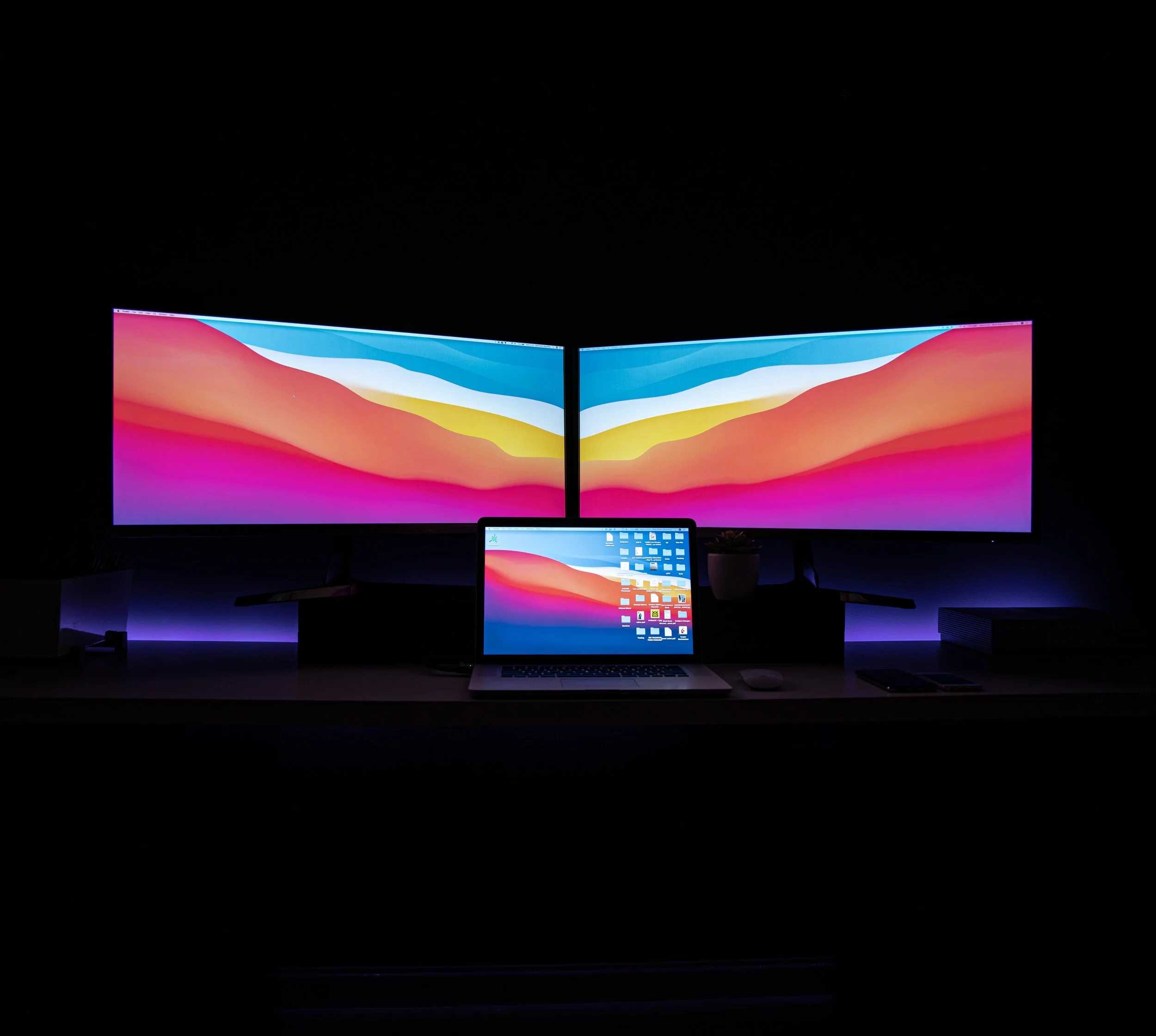
Choosing the right monitor for color grading can elevate your creative work to professional standards, ensuring your colors are accurate and consistent across all devices. To pick the perfect display, focus on key features like color accuracy, resolution, and calibration options. Remember, investing in a good monitor makes a noticeable difference in the quality of your final project and saves time in post-production.
For an excellent color grading monitor, prioritize excellent color accuracy with wide color gamuts like AdobeRGB or DCI-P3, high resolution for detailed work, and reliable calibration options. It’s essential to match the monitor’s capabilities with your workflow needs to achieve the best results.
When selecting a monitor for color grading, you want a display that shows true-to-life colors and details. This means looking beyond just size or resolution, and understanding the importance of color accuracy, calibration, and panel technology. A good color grading monitor can be a game-changer for videographers and editors aiming for professional, polished visuals. Whether you’re working on short films, commercials, or personal projects, choosing the right monitor ensures your colors look perfect on every device, helping your creative vision come to life with precision.

How to Choose Monitor for Color Grading: A Complete Guide
Understanding the Importance of a Proper Color Grading Monitor
Choosing the right monitor is essential for achieving accurate color grading results. An ideal monitor displays consistent and true-to-life colors, allowing you to see the footage exactly as intended. Without a good monitor, color adjustments may look perfect on one device but appear off on others.
Key Features to Look for in a Color Grading Monitor
Selecting a monitor for color grading requires paying attention to specific features that influence color accuracy. Important specifications include color gamut, resolution, panel type, calibration capabilities, and bit depth. Each feature impacts the quality and reliability of your color work.
Color Gamut and Coverage
Color gamut refers to the range of colors a monitor can display. For professional color grading, look for monitors with high coverage of industry-standard gamuts like DCI-P3 and Adobe RGB. A monitor covering at least 99% of sRGB is the minimum, but high-end options aim for full Adobe RGB or DCI-P3 coverage.
Resolution and Screen Size
Higher resolution monitors provide sharper images and finer detail. Common resolutions include 4K (3840×2160) and 5K. Screen size depends on your workspace, but a 27-inch monitor offers a good balance between detail and comfort without overwhelming your desk.
Panel Type and Its Impact
IPS panels are preferred for color grading because they offer superior color accuracy and wider viewing angles. VA panels provide better contrast, while TN panels tend to have narrower viewing angles and less accurate colors.
Color Calibration Capabilities
A monitor with hardware calibration support or built-in calibration tools ensures that your display maintains accurate colors over time. This reduces the need for frequent recalibrations and keeps your work consistent.
Bit Depth and Color Precision
Look for monitors with at least 10-bit color depth, which allows for smoother gradients and less banding. This is especially important when working on color grading projects with subtle color transitions.
Understanding Color Spaces and Standards
Knowing the differences between color spaces helps you choose a monitor compatible with your workflow. Key standards include sRGB, Adobe RGB, DCI-P3, and Rec. 2020, each suited for different types of media and output.
Standard Color Spaces Explained
- sRGB: Most common for web and consumer content.
- Adobe RGB: Wider gamut suitable for professional print and photo editing.
- DCI-P3: Industry standard for digital cinema and high-end video production.
- Rec. 2020: Used mainly for 4K and HDR content; less common.
Matching Monitors to Your Workflow
Choose a monitor that supports the color spaces you work with most. For example, if you produce content for cinema, a DCI-P3 compatible monitor is a must. For print work, Adobe RGB is more appropriate.
Color Calibration and Consistency
Regular calibration ensures your monitor displays colors accurately. Both hardware and software calibration tools can help you maintain precision over time, preventing drift and ensuring consistent results.
Hardware vs. Software Calibration
Hardware calibration uses a colorimeter or spectrophotometer attached to the monitor, providing the most accurate results. Software calibration relies on adjusting settings via calibration profiles but is less precise.
Calibration Frequency
Calibrate your monitor at least once a month, especially if you work daily on color grading. Consistent calibration helps avoid color shifts that can mislead your editing process.
Understanding Display Bit Depth and Dynamic Range
A higher bit depth allows for a broader dynamic range and smoother color gradients. Monitors with 10-bit or higher are recommended for professional color correction tasks, minimizing artifacts like banding.
HDR and Its Significance
High Dynamic Range (HDR) displays offer increased contrast and brightness, making them valuable for grading HDR content. Ensure your monitor’s HDR capabilities meet your project requirements, with support for standards like HDR10 or Dolby Vision.
Panel Technology and Its Effects on Color Grading
Panel technology influences color performance, contrast, and viewing angles. IPS panels dominate the professional sphere due to their consistent color accuracy, while OLED panels offer stunning contrast and deep blacks.
Advantages of OLED Panels
OLED screens provide perfect black levels and incredible contrast ratios, which can be highly beneficial for grading HDR content. However, they may be more expensive and susceptible to burn-in.
Choosing Based on Brightness and Contrast
High brightness levels (at least 350 nits) are needed for HDR work. Contrast ratios also matter; a higher ratio (1000:1 or more) results in more vibrant images with richer blacks.
Connectivity Options and Ergonomics
Ensure your monitor has the right ports such as HDMI, DisplayPort, and USB-C for seamless connection to your editing system. Ergonomics features like adjustable height, tilt, and swivel improve comfort during long editing sessions.
Recommended Input Types
Use DisplayPort for reliable high-bandwidth connections supporting 4K and above. HDMI is versatile but verify the version supports your resolution and color depth needs. USB-C can provide power and data transfer with compatible devices.
Adjustability and Comfort
Choose a monitor with adjustable height, tilt, and swivel functions. Screen hood or glare reduction features also support better viewing conditions and color accuracy.
Pricing and Budget Considerations
High-quality color grading monitors can vary significantly in price. Set a budget that aligns with your professional needs, but remember that investing in a good monitor impacts your work’s quality.
Budget-Friendly Options
Entry-level monitors suitable for learning or hobbyist projects include models with decent color accuracy and resolution. Look for monitors with at least 8-bit color and 99% sRGB coverage.
Mid-Range and High-End Monitors
Professional-grade monitors with broader color gamuts, higher bit depths, and better calibration features are more expensive but necessary for critical work. Consider models like the ASUS ProArt series or Dell UltraSharp line.
Additional Factors to Consider
Other important factors include color Uniformity, viewing angles, and after-sales support. Uniformity ensures consistent color and brightness across the entire panel, while good warranty support adds peace of mind.
Color Uniformity and Viewing Angles
A monitor with excellent uniformity displays evenly lit colors, avoiding patches or shifts. Wide viewing angles prevent color shifts when viewing from different positions.
Warranty and Support
Professionals rely heavily on their monitors, so a solid warranty and responsive customer support are vital. Check manufacturer reviews and service options before making your decision.
Final Tips for Picking the Perfect Monitor for Color Grading
Always test a monitor before purchase if possible, especially for color accuracy. Read reviews, compare specifications, and ensure it meets your project requirements. Remember, investing in the right display enhances your workflow and elevates your video quality.
Choosing a monitor that aligns with your workflow, budget, and project demands is crucial for accurate and consistent color grading. Take your time to research and select a display that offers the features, calibration capabilities, and reliability needed for professional editing.
How to Pick the Right Monitor for Photo Editing / Color Grading
Frequently Asked Questions
What display features should I prioritize for accurate color grading?
When selecting a monitor for color grading, focus on features like a wide color gamut (such as Adobe RGB or DCI-P3), high resolution (at least 4K), and support for color calibration. A monitor with a high bit-depth (10-bit or more) ensures smoother color transitions, which is crucial for precise adjustments. Additionally, look for hardware calibration options to maintain color accuracy over time.
How does monitor calibration impact color grading quality?
Regular calibration ensures that the colors displayed on your monitor align with industry standards. Proper calibration minimizes color discrepancies and ensures consistency throughout your editing process. Using a hardware calibration tool can help you maintain accurate color balance, gamma, and luminance levels, leading to more reliable and professional results.
Why is contrast ratio important when choosing a monitor for color grading?
A high contrast ratio enhances the monitor’s ability to display deep blacks and bright highlights, which is essential for evaluating image details in shadow and highlight areas. This level of detail helps you work more accurately during color grading, especially in projects that demand precise tonal adjustments and a wide dynamic range.
Should I consider size and resolution together for a color grading monitor?
Yes, larger screen sizes combined with high resolutions like 4K or 6K improve workspace and image detail. A bigger monitor makes it easier to see subtle differences in colors and shades, while higher resolution ensures sharpness and clarity. Balance your workspace needs with your budget to select a size and resolution that facilitate precise editing without compromising comfort.
What role does viewing angle play in monitor selection for color grading?
Wide viewing angles allow you to see consistent colors from different positions, which is vital when collaborating or working in a team setting. Monitors with IPS panels typically offer better viewing angles and color consistency compared to TN panels. Choosing a monitor with good viewing angles helps maintain color accuracy regardless of your viewing position.
Final Thoughts
To choose monitor for color grading, focus on color accuracy and resolution. Ensure the display covers a wide color gamut like AdobeRGB or DCI-P3. Calibration capability is crucial for maintaining consistent colors over time.
Consider panel type; IPS screens typically offer better color precision and viewing angles. Check for hardware calibration options and reliable software support. Brightness and contrast ratios also influence image detail and depth.
In conclusion, how to choose monitor for color grading involves assessing color accuracy, calibration features, and panel quality. A well-chosen monitor ensures precise color work, making your workflow more effective and your final output more professional.



