To set up your router for fiber internet quickly, connect the router to your fiber modem, access the router’s settings via a web browser, and input the provided ISP credentials. Make sure to update the firmware, configure Wi-Fi security, and customize your network name for optimal performance. With these simple steps, you’ll enjoy fast, reliable internet in no time!
Configuring your router for fiber internet might seem daunting, but it’s straightforward once you understand the key steps. First, connect your router to the fiber modem using an Ethernet cable. Then, access the router’s admin panel through a browser, usually by entering an IP address like 192.168.1.1. From there, you’ll need to input your ISP’s connection details, update firmware if necessary, and set a strong Wi-Fi password. This ensures your network runs smoothly and securely, giving you high-speed internet without interruptions. Whether you’re a tech novice or a seasoned user, these simple instructions will help you optimize your fiber connection efficiently.

How to Configure Router for Fiber Internet: A Step-by-Step Guide
Setting up your router for fiber internet might seem challenging at first, but it’s actually quite straightforward. Proper configuration ensures you get the fastest speed, the best signal, and a secure connection for all your devices. This guide will walk you through every step to help you optimize your router for fiber internet.
Understanding Your Fiber Internet Connection
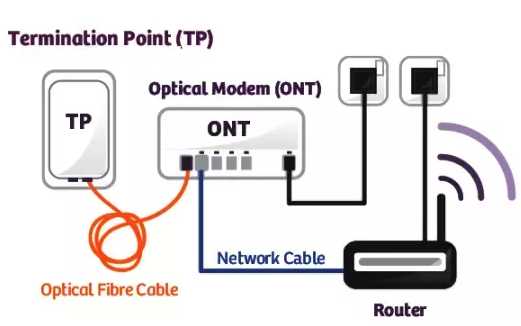
Before configuring your router, it’s important to understand the type of fiber connection you have. Most fiber providers use an Optical Network Terminal (ONT) that connects to your router.
The ONT acts as the gateway between the fiber line and your local network. It converts fiber signals into Ethernet, which your router uses to distribute internet access.
Knowing this setup helps you identify where to connect your router and what settings need to be adjusted for optimal performance.
Unpacking Your Router and Connecting to the ONT
Start by unplugging your existing router if you have one. Use an Ethernet cable to connect the WAN port of your router to the Ethernet port on the ONT. This link carries the internet from the fiber line into your router.
Ensure your router is plugged into power and turned on. The connection should be stable, with indicator lights showing active internet access.
Once connected, your router will be ready to be configured for fiber internet setup.
Accessing Your Router’s Web Interface
Open a web browser on a device connected to your router. Enter the default IP address, often 192.168.1.1 or 192.168.0.1, into the address bar. Check your router’s manual if unsure.
Login credentials are typically set to admin for username and password for password, unless you changed them during setup or the manufacturer specifies differently.
Accessing the web interface allows you to modify your settings for fiber internet connectivity and security.
Configuring Internet Connection Settings
Navigate to the network or WAN settings in your router’s interface. Here, you’ll specify the connection type provided by your fiber service.
Most fiber providers use PPPoE (Point-to-Point Protocol over Ethernet), DHCP, or static IP configuration. Check your provider’s instructions for the correct setup.
If using PPPoE, enter your username and password provided by your fiber provider. For DHCP, generally, no additional info is needed.
Setting Up PPPoE Authentication
- Locate the PPPoE settings in your router’s interface.
- Enter the username and password provided by your internet provider.
- Save changes and test your connection.
This setup authenticates your router to receive internet access via the fiber network.
Configuring Wi-Fi Settings for Optimal Performance
Access the wireless or Wi-Fi section in your router’s web interface. Here, you can customize your network name (SSID) and password.
Choose a unique SSID to identify your network easily, and set a strong password using a mix of letters, numbers, and symbols to ensure security.
For better coverage, consider enabling dual-band Wi-Fi (2.4 GHz and 5 GHz). Use the 5 GHz band for faster, short-range connections, and the 2.4 GHz band for longer-range devices.
Optimizing Wireless Security
- Use WPA3 encryption if available; if not, WPA2 is secure enough.
- Disable WPS for security reasons.
- Update your router’s firmware regularly to patch security vulnerabilities.
These steps help protect your network from unauthorized access and keep your data safe.
Enabling Quality of Service (QoS) Settings
QoS allows you to prioritize bandwidth for specific devices or applications, such as streaming or gaming.
Navigate to QoS settings, and assign higher priority to critical devices or services, ensuring smooth operation and minimizing lag.
Adjust QoS based on your internet usage patterns for the best experience.
Updating and Securing Your Router
Check for the latest firmware updates in your router’s interface to enhance performance and security.
Change default admin passwords to complex, unique passwords to prevent unauthorized access.
Enable network firewall and other security features offered by your router for additional protection.
Testing Your Setup and Troubleshooting
Once configured, test your internet speed using online tools to confirm you’re getting the expected fiber speeds.
If you encounter issues, reset your router and verify all cables and settings. Reboot your ONT and router if needed.
Consult your ISP’s customer support if problems persist, as they can guide you through specific configurations or troubleshooting steps.
Additional Tips for Better Fiber Internet Setup
- Place your router in a central location to maximize coverage.
- Avoid obstructions like thick walls and metal objects near the router.
- Use a wired Ethernet connection for devices that require high speeds and stability, such as gaming consoles or desktop computers.
- Consider mesh Wi-Fi systems if you have a large home to extend coverage seamlessly.
Configuring your router for fiber internet ensures you get the most out of your high-speed connection. By following these detailed steps, you will enjoy faster, more reliable, and secure internet access across your home network.
Fiber Internet Setup Gpon Fiber Converter, Mikrotik hex Router 6
Frequently Asked Questions
What are the initial steps to set up a router for fiber internet connection?
Begin by connecting your fiber optic modem to the fiber outlet provided by your service provider. Then, plug your router into the power source and connect it to the modem using an Ethernet cable. Turn on both devices and ensure that they are powered properly. Access the router’s configuration page by entering its default IP address into a web browser, usually found on the device or in the user manual. Follow the on-screen instructions to set up the basic network settings, such as the network name (SSID) and password.
How do I configure the router’s settings to optimize fiber internet performance?
Login to your router’s admin panel and navigate to the wireless settings. Use a strong, unique password to secure your network. Enable the latest Wi-Fi security protocols like WPA3 or WPA2. Change the default network name to avoid confusion. Adjust the channel settings based on your environment to minimize interference; most routers can automatically select the best channel. Also, check for firmware updates regularly to ensure your router has the latest features and security patches.
What should I do if my fiber internet connection isn’t working properly after setup?
Verify that all cables are connected correctly, and restart both your modem and router. Check if your service provider’s status indicates any outages in your area. Make sure your router’s configuration matches the specifications provided by your ISP. If necessary, reset your router to factory settings and reconfigure it. You can also try connecting a device directly to the modem via Ethernet to see if the internet works properly, which helps identify if the issue lies with the router or the connection itself.
Final Thoughts
Configuring your router for fiber internet involves accessing the admin panel and entering your ISP details. Make sure to update the firmware to ensure compatibility and security. Set up your Wi-Fi network with a strong password to protect your connection. Following these steps helps optimize your internet setup effectively.
In summary, knowing how to configure router for fiber internet ensures a seamless and secure connection. Focus on precise configuration, and your network will perform reliably.

I specialize in process engineering and system optimization. I enjoy writing guides that simplify troubleshooting and help improve efficiency in everyday tech use.