


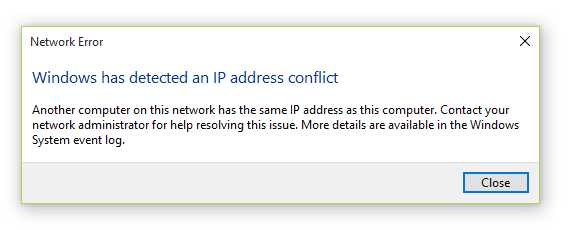
A quick restart or resetting your IP address can often resolve conflicts quickly. To fix a router IP address conflict, simply renew the IP address through your device’s network settings or reboot your router. Ensuring each device has a unique IP prevents network issues and keeps your internet running smoothly.
If your network is experiencing an IP address conflict, don’t worry—it’s a common issue that can be fixed easily. By renewing your device’s IP address or adjusting your router settings, you ensure every device on your network has a unique identifier, preventing connection drops or slow speeds. In this article, we’ll guide you through simple steps to troubleshoot and resolve IP conflicts, so your internet stays fast and reliable. Whether you’re a tech novice or a seasoned user, these tips will help you get your network back on track quickly and effortlessly.

Router IP Address Conflict Fix: How to Resolve and Prevent IP Conflicts
Understanding what an IP address conflict is
Every device on your network needs a unique IP address to communicate effectively. When two devices share the same IP address, a conflict occurs, leading to connection issues. This problem is common and can be frustrating but is often simple to fix.
Why IP address conflicts happen
IP conflicts happen for several reasons. The most common cause is static IP assignments overlapping with DHCP server allocations. Other causes include network misconfigurations or devices failing to renew their IP addresses.
Symptoms of IP address conflicts
Devices may experience:
- Intermittent or complete loss of internet connection
- Frequent disconnections from Wi-Fi
- Unable to access certain websites or services
- Notifications or error messages about IP conflicts
Detecting these symptoms early helps resolve issues before they escalate.
How to detect an IP address conflict on your network
You can identify conflicts through:
- Checking device notifications for IP conflict alerts
- Accessing your router’s admin panel to see connected devices and their IP addresses
- Using network scanning tools that display IP address assignments
Being aware of the signs makes troubleshooting faster and easier.
Common causes of router IP address conflicts
Key causes include:
Static IP assignment conflicts
When devices are manually assigned static IPs that overlap with DHCP ranges, conflicts happen. Always double-check static IPs configured on devices.
DHCP range overlaps
If your DHCP server’s IP address range overlaps with other static IPs, conflicts result. Setting clear ranges helps prevent this.
Rebooting devices improperly
Sometimes, devices improperly renew IP addresses, leading to conflicts. Proper reboot procedures can avoid these issues.
Steps to fix router IP address conflicts
Resolving conflicts involves systematic troubleshooting. Follow these steps:
1. Restart your router and affected devices
A simple reboot often resets IP addresses and resolves conflicts temporarily.
2. Release and renew IP addresses
Using command prompts (like ipconfig /release and ipconfig /renew on Windows) helps devices request new IPs.
3. Check and adjust DHCP settings
Access your router’s admin panel to verify DHCP ranges. Ensure they don’t overlap with static IPs.
4. Assign static IPs outside DHCP range
Manually set static IPs outside the DHCP range to prevent overlap.
5. Update device network configurations
Ensure devices are set to obtain IP addresses automatically when appropriate.
6. Reset router to default settings
If conflicts persist, restoring factory settings can clear misconfigurations.
How to configure your router to prevent IP conflicts
Prevention is key to avoiding future issues.
Set proper DHCP range
Choose a DHCP range that does not include static IP addresses.
Reserve IP addresses for static devices
Use DHCP reservation features to assign fixed IPs to certain devices, ensuring they don’t conflict.
Update firmware regularly
Keep your router’s firmware current to fix bugs that could cause conflicts.
Use a consistent network naming scheme
Organizing device naming helps identify devices easily and manage IPs better.
Implement VLANs if needed
For advanced networks, VLANs can separate device groups to reduce conflicts.
Tools to troubleshoot IP address conflicts
Several tools simplify conflict detection:
- Network scanners like Fing or Nmap
- Router diagnostic tools
- Command line utilities (ipconfig, ping, tracert)
Using these tools provides a clear picture of IP allocations and conflicts.
Best practices for managing IP addresses
Establishing good management habits helps prevent conflicts:
- Use DHCP reservation for important devices
- Avoid static IP assignments within DHCP ranges
- Regularly check connected devices
- Keep your router firmware up-to-date
- Document network IP plans for future reference
Consistent management reduces the chance of conflicts reoccurring.
Dealing with complex network setups
In larger or segmented networks, conflicts can be trickier.
Implementing subnetting
Breaking your network into smaller subnets can help isolate conflicts.
Using multiple routers or access points
Separate routers with their own DHCP ranges prevent overlaps.
Engaging professional support
For very complex setups, consulting a network specialist ensures proper configuration.
Fixing a router IP address conflict involves a combination of understanding causes, systematic troubleshooting, and proactive management. By adjusting DHCP ranges, assigning static IPs carefully, and using appropriate tools, you can keep your network stable and free of conflicts. Staying vigilant with regular checks and updates will help prevent future problems and maintain smooth connectivity for all your devices.
HOW TO RESOLVE IP ADDRESS CONFLICT | CHANGE ROUTER DEFAULT IP ADDRESS | FIND ROUTER IP ADDRESS
Frequently Asked Questions
What steps can I take if my router’s IP address keeps conflicting with another device on my network?
If your router’s IP address conflicts with another device, set a static IP address outside the DHCP range or enable DHCP reservation for your device. Restart your router and device to ensure the new settings take effect. This prevents multiple devices from attempting to use the same IP address.
How can I identify which IP address is causing a conflict on my network?
Use network scanning tools or the router’s admin panel to check connected devices and their IP addresses. Look for duplicate addresses or devices that show connectivity issues. Identifying the affected devices helps you correct IP conflicts efficiently.
Is changing the router’s IP address a good solution for resolving conflicts?
Yes, changing your router’s IP address can resolve conflicts when the current address overlaps with another device. Select an IP outside the common DHCP range, typically in the private IP address space like 192.168.1.1. Save the new setting and restart your router to apply the change.
Can resetting my router help fix IP address conflicts?
Resetting your router to factory settings can sometimes resolve IP conflicts, especially if configuration errors cause the issue. However, this resets all custom settings, so ensure you note down important configurations before performing a reset. Afterward, reconfigure your network with unique IP settings to prevent future conflicts.
What role does DHCP play in preventing IP address conflicts?
DHCP automatically assigns unique IP addresses to devices on your network, reducing the chance of conflicts. Ensuring DHCP is enabled and configured correctly helps prevent overlapping IP addresses. You can also set DHCP reservations for specific devices to keep their IP addresses consistent.
Final Thoughts
A router IP address conflict can disrupt your network connectivity. To fix this issue, restart your router and devices to refresh IP assignments. Assign static IP addresses or change the DHCP range to prevent conflicts. Addressing the router IP address conflict fix ensures a stable and reliable network connection for all devices.



