


To boost your WiFi speed instantly, start by updating your router’s firmware, choosing a less congested channel, and enabling Quality of Service (QoS) settings. These simple tweaks can significantly improve your connection without needing to buy new equipment. Regularly repositioning your router to a central, open spot and reducing interference from other devices also makes a big difference.
In essence, optimizing your router involves updating software, adjusting channel settings, and placing it strategically for better coverage. These straightforward steps can lead to faster, more reliable WiFi, helping you stream, game, or work smoothly. No need for complex setups—just a few quick changes can transform your online experience.
If your WiFi feels sluggish, don’t worry. You can enhance your internet speed by tweaking your router’s settings, minimizing interference, and positioning it optimally. This article will guide you through simple tips to help you enjoy faster, more stable internet at home. Whether you’re working remotely or enjoying streaming marathons, these tips will make a noticeable difference.

How to optimize router settings for faster wifi
Understanding Your Router’s Capabilities
Knowing what your router can do is the first step towards improving your internet speed. Many routers come with advanced features that are often underused. Check your router’s manual or online specifications to identify supported wifi standards like 802.11ac or 802.11ax, which are essential for faster connections. Understanding these features helps you to tweak settings more effectively.
Accessing Your Router’s Admin Panel
To change your router settings, you need to log into its admin panel. Usually, this involves opening a web browser and entering the router’s IP address, such as 192.168.1.1 or 192.168.0.1. Use your admin username and password—often found on the router label or manual. Familiarize yourself with this interface as it controls all configuration options.
Updating Router Firmware
Firmware updates keep your router running smoothly and fix bugs that could slow down your wifi. Visit the router manufacturer’s website periodically to check for the latest firmware version. Follow the update instructions carefully to avoid any issues that could interrupt your network connection.
Choosing the Optimal Wifi Band
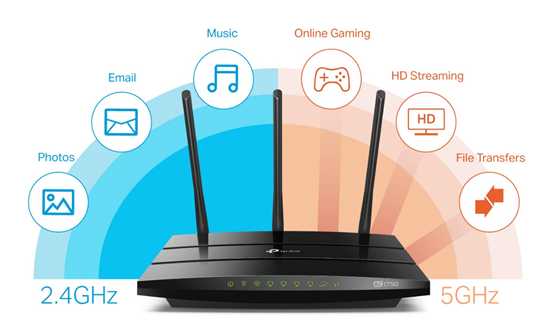
Most routers operate on two main bands: 2.4 GHz and 5 GHz. The 2.4 GHz band offers wider coverage but slower speeds, while 5 GHz supports faster data rates over shorter distances. Use the 5 GHz band for high-bandwidth activities like streaming and gaming. Connect devices to the right band to maximize speed and reduce interference.
Differences Between 2.4 GHz and 5 GHz
- 2.4 GHz: Greater range; more interference from devices like microwaves and Bluetooth.
- 5 GHz: Faster speeds; less interference; shorter range.
Choosing the correct band depends on your environment and device requirements.
Changing Wifi Channel Settings
Interference from nearby networks can slow down your wifi. Access your router’s settings to change the channel. Use tools like Wifi Analyzer apps to identify the least congested channels. Switching to a less crowded channel can lead to an instant performance boost.
Selecting the Best Wifi Channel
- On 2.4 GHz, channels 1, 6, and 11 are most common and least overlapping.
- On 5 GHz, there are more channels available, typically less crowded.
Experiment with different channels to see which one offers the best connection quality.
Optimizing Wifi Security Settings
Secure your network with strong encryption to prevent unauthorized users from slowing your connection. Use WPA3 or at least WPA2 security protocols. Avoid WEP, which is outdated and vulnerable. A secure setup reduces network congestion caused by unwanted users.
Changing Your Wifi Password
Create a strong, unique password for your network. Regularly updating this password keeps unwanted users out. This simple step ensures your bandwidth is used only by trusted devices.
Adjusting Transmission Power
Lowering or increasing the transmission power can improve speed and coverage. Access your router settings to find transmission power options. Increase power for larger homes or reduce it to minimize interference in dense environments.
When to Adjust Transmission Power
- Increase: if you experience dead zones or weak signals.
- Decrease: in crowded areas to reduce interference and improve overall network performance.
Enabling Quality of Service (QoS)
QoS settings allow you to prioritize bandwidth for important devices or applications. For example, prioritize video calls or gaming traffic to prevent lag. Access your router’s QoS menu and set rules based on device MAC addresses or application types.
Steps to Set Up QoS
- Identify critical devices or applications.
- Assign higher priority to these devices in the QoS settings.
- Save your configuration and test performance.
This ensures your most important activities always have sufficient bandwidth.
Disabling Unused Features
Many routers come with features like WPS, guest networks, or IPv6 enabled by default. These features can sometimes cause security issues or interfere with performance. Turn off features you do not use. This reduces unnecessary network load and potential vulnerabilities.
Reviewing and Disabling Unnecessary Settings
- WPS: Disable unless you need it; it can be a security risk.
- Guest Network: Turn it off when not in use to prevent slowdowns.
- IPv6: Disable if not needed, as it can create network complexities.
Positioning Your Router for Optimal Performance
Physical placement impacts wifi speed. Place your router in a central, elevated location away from thick walls or metal objects. Keep it away from electronic devices that emit interference, like microwaves or cordless phones.
Best Router Placement Tips
- Position the router at a high point in your home.
- Avoid placing it near metal appliances or thick walls.
- Ensure your router is unobstructed for better signal distribution.
Using Wi-Fi Extenders or Mesh Networks
If your home is large, a single router might not be enough. Wi-Fi extenders rebroadcast the signal to cover dead zones. Alternatively, mesh networks create a seamless wifi system across your entire home.
Choosing the Right Solution
- Wi-Fi Extenders: Easy to set up; may reduce speed slightly.
- Mesh Networks: Provide more consistent coverage; ideal for larger homes.
Investing in these devices can significantly improve your wifi experience.
Regularly Rebooting Your Router
Sometimes, simply restarting your router can resolve temporary slowdowns. Schedule regular reboots or turn off your router for a few minutes to clear memory and improve speed. Many routers can be set to reboot automatically at scheduled times.
Benefits of Rebooting
- Closes unnecessary processes consuming bandwidth.
- Refreshes network connections.
- Fixes minor glitches that slow down your wifi.
Monitoring Network Performance
Use network monitoring tools to track your wifi speed and identify issues early. Many routers provide built-in diagnostics, or you can use external apps. Keeping an eye on performance helps you make informed decisions about further optimizations.
Helpful Tools for Monitoring
- Speed test apps like Ookla Speedtest.
- Router admin dashboards with real-time stats.
- Network analyzer apps for channel interference.
Implementing Additional Tips for Faster WiFi
Apart from adjusting router settings, consider limiting connected devices during heavy usage or disconnecting devices not in use. Use wired Ethernet connections for devices that require high bandwidth. Keep your device’s software and drivers updated for optimal performance.
Additional Tips
- Limit background downloads or uploads.
- Use wired connections when possible for desktops and gaming consoles.
- Update device software to ensure compatibility and speed.
Making these adjustments and keeping your setup maintained can lead to noticeable improvements in wifi speed. Regularly reviewing your network settings and environment helps sustain fast, reliable internet for all your needs.
Boost Your Internet Speed: The Ultimate WiFi Guide
Frequently Asked Questions
How can I select the best wireless channel for faster Wi-Fi?
Identify the least congested channel in your area by using Wi-Fi analyzer tools or apps. Many routers allow you to manually switch channels. Choosing a less crowded channel reduces interference from neighboring networks, resulting in a more stable and faster Wi-Fi connection. Experimenting with different channels can help determine which provides the best performance for your setup.
What router settings should I adjust to optimize Wi-Fi speed?
Enable the latest wireless standards your router supports, such as 802.11ac or 802.11ax (Wi-Fi 6), to benefit from higher data rates. Disable any unused features like QoS or guest networks if unnecessary, as they may cause congestion. Also, adjust the transmission power settings for better coverage and ensure your router is using the appropriate band (2.4 GHz or 5 GHz) based on your distance from the device.
How does firmware update impact Wi-Fi performance?
Regularly updating your router’s firmware fixes bugs and improves compatibility with new devices. Manufacturers often release updates that optimize network performance and security. Check your router’s admin panel frequently for firmware updates and install them promptly to maintain optimal Wi-Fi speeds and stability.
Final Thoughts
To optimize router settings for faster wifi, start by updating your firmware regularly to ensure performance and security. Choose the best channel and frequency band to reduce interference and improve speed. Adjusting Quality of Service (QoS) settings prioritizes bandwidth for essential devices.
Secure your network with a strong password to prevent unauthorized access, which can slow your connection. Position your router centrally and elevate it to enhance coverage.
How to optimize router settings for faster wifi involves these simple steps to boost your internet experience efficiently.



