


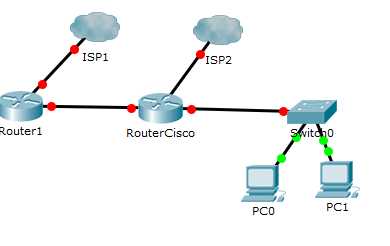
To configure your router for multiple ISPs, start by setting up a dual WAN or multi-WAN feature in your router’s settings, then configure each connection and prioritize traffic accordingly. Using load balancing or failover modes ensures seamless internet connectivity if one ISP fails. Properly configuring your router to handle multiple providers helps maximize uptime and enhance network performance.
In essence, configuring a router for multiple ISPs involves enabling multi-WAN features, assigning appropriate priorities or load balancing rules, and ensuring your network devices can switch seamlessly between providers when needed. This setup enhances reliability and optimizes your internet experience.
Getting your router ready for multiple ISPs might sound complex, but it’s quite achievable with the right approach. Whether you’re looking to increase bandwidth or ensure continuous internet during outages, this process involves a few key steps. First, ensure your router supports multi-WAN or load balancing features—many modern routers do. Then, connect each ISP’s modem to different ports on the router, and access the router’s admin interface to configure each connection. You’ll need to specify which connection is primary and set rules for failover or load sharing. Once configured properly, your network will automatically switch between providers or distribute traffic evenly, providing a more reliable and faster internet experience.

How to Configure Router for Multiple ISPs
Setting up a router to work with multiple Internet Service Providers (ISPs) can improve your internet reliability and increase bandwidth. It allows your network to switch between ISPs seamlessly or use both simultaneously for load balancing. In this guide, we’ll walk through the key steps to configure your router for multiple ISPs effectively.
Understanding Dual and Multi-WAN Configurations
Before diving into setup, it’s important to understand what dual or multi-WAN means. Dual-WAN setups involve connecting two ISPs to a single router for redundancy or increased speed. Multi-WAN extends this idea to support more than two connections. These configurations help prevent internet outages and improve overall network performance.
Redundancy vs. Load Balancing
Redundancy ensures your internet stays connected if one ISP fails. Load balancing distributes internet traffic across multiple connections to optimize speed and reduce congestion. Deciding which setup works best depends on your needs and your router’s capabilities.
Checking Your Router Compatibility
Not all routers can handle multiple ISP connections. Ensure your router supports multi-WAN or load balancing features. Look for specifications or consult the user manual. Enterprise-grade routers or those with advanced firmware like DD-WRT or Tomato often support multiple WAN inputs.
Features to Look For
- Multiple WAN ports
- Support for failover and load balancing
- Advanced routing features
- Customizable firmware options
Gathering Equipment and ISP Details
To begin, assemble necessary equipment and information. You need at least two internet connections, which may be from different ISPs. Collect details such as IP addresses, subnet masks, default gateways, DNS servers, and login credentials if your ISP uses PPPoE.
Essential Equipment Checklist
- Router supporting multi-WAN or third-party firmware
- Modems or gateways for each ISP
- Cables and connection adapters
- Computer for configuration access
Connecting Your Routers
If you’re using a router with multiple WAN ports, connect each internet source to a separate port. For routers with only one WAN port, you may need to configure a secondary connection via LAN or use a secondary device. Ensure all connections are secure before proceeding.
Setting Up Physical Connections
- Connect the first ISP’s modem to WAN port 1
- Connect the second ISP’s modem to WAN port 2
- Connect your local network devices to the LAN ports
Accessing Your Router’s Configuration Interface
Use a web browser to log into your router’s admin panel. Enter the IP address, typically 192.168.1.1 or 192.168.0.1, and log in with admin credentials. Find the multi-WAN or load balancing section, usually under Advanced Settings or similar menus.
Default Credentials and Custom Passwords
If you haven’t changed the default password, do so immediately for security. For better management, create a strong, unique password.
Configuring Multi-WAN Settings
This step involves setting up the multiple internet connections within your router’s firmware. The process varies based on router brand and firmware type, but general principles remain similar.
Configuring Failover Mode
Failover mode switches your internet connection to the backup link if the primary fails. Set primary and secondary WANs, enable failover, and specify detection methods such as ping tests or heartbeat signals.
Setting Up Load Balancing
Load balancing distributes traffic across both connections to optimize speed. Assign weights or ratios to each WAN based on bandwidth or priority. Some routers allow dynamic balancing that adapts to network conditions automatically.
Inputting Connection Details
- Enter IP address, subnet mask, and gateway for each ISP if they are static.
- For dynamic IPs, select DHCP or auto IP assignment.
- If your ISP uses PPPoE, enter login credentials.
Configuring Routing Rules and Policies
Routing policies determine how traffic flows across your multiple connections. You can set rules based on source IP, destination, or application type. This level of control ensures critical applications use specific links for reliability or speed.
Creating Policy-Based Routing
Define rules that direct certain traffic through a specific WAN. For instance, voice calls might go through a low-latency connection while general browsing uses the faster link.
Maintaining Quality of Service (QoS)
Enable QoS to prioritize essential traffic, such as work calls or streaming, over less critical data. Proper configuration ensures smooth operation across your network, even during heavy usage.
Testing and Troubleshooting the Setup
After configuration, verify your setup by testing internet connectivity, failover switching, and load balancing. Use ping tests, speed tests, and connection logs to identify issues.
Common Issues and Solutions
- Internet not working after setup: check cable connections, IP settings, and firmware compatibility.
- Failover not activating: verify detection rules and thresholds.
- Unequal bandwidth usage: adjust load balancing weights or rules.
Advanced Tips for Optimal Performance
For advanced users, consider scripts or custom firmware to fine-tune routing policies. Monitor network performance regularly and adjust settings as needed. Keep your firmware up to date to ensure security and compatibility.
Implementing Traffic Monitoring
Use built-in tools or third-party software to analyze how your bandwidth is utilized. This insight helps refine routing rules and improve overall network efficiency.
Security Considerations
Enable firewall features on your router to protect multiple connections. Use strong passwords and update firmware to defend against threats and vulnerabilities.
Summary of Best Practices
- Choose a router compatible with multi-WAN or custom firmware.
- Gather complete ISP connection details beforehand.
- Secure physical connections and router access.
- Carefully configure failover and load balancing settings.
- Regularly test and monitor your network for issues or improvements.
Configuring a router for multiple ISPs can seem complex at first, but following these steps ensures a smoother experience and a more resilient network. With proper setup, you can enjoy seamless internet connectivity, faster speeds, and better reliability for your home or business.
How to Set Up Multiple Static IP Addresses from your ISP
Frequently Asked Questions
What settings should I review to ensure proper load balancing across multiple ISPs?
To achieve effective load balancing, verify that your router supports multi-WAN functionality. Check the configuration of the load balancing rules, such as round-robin or weighted distribution. Ensure that each ISP’s connection is configured with correct IP addresses, gateway, and DNS settings. Adjust session persistence settings if needed to prevent disruptions for ongoing connections. Regularly monitor traffic distribution to confirm that the load balances evenly across both connections.
How can I set up failover between two ISP connections on my router?
Configure the primary and secondary WAN interfaces with their respective connection details. Enable failover mode in the router’s settings, specifying the criteria for switch-over, such as link failure detection or loss of connectivity. Set the secondary ISP as a backup that activates only when the primary connection drops. Test the setup by disconnecting the primary connection to ensure the router switches seamlessly to the backup link, maintaining uninterrupted internet access.
What steps are needed to assign specific devices to different ISPs in my network?
Use the router’s advanced features like policy routing or static routing rules to assign traffic from specific devices to a particular ISP. Identify devices by their IP or MAC addresses, and create rules that direct their data flow through the desired WAN interface. This setup helps optimize bandwidth and improve performance for critical devices or applications, ensuring they use the preferred ISP link.
How do I configure DNS settings for multiple ISPs to avoid conflicts?
Assign distinct DNS servers for each ISP connection within the router settings. When setting up load balancing or failover, specify which DNS servers should be used depending on the active connection. Some routers allow setting DNS per WAN interface. Using reliable DNS providers and setting them correctly prevents resolution issues and maintains internet stability across different links.
What should I consider when upgrading my router to support multiple ISPs?
Choose a router that explicitly supports multiple WAN connections, with features like load balancing and failover capabilities. Check the firmware version and update it if necessary to access the latest features. Consider the number of ports available and the ability to handle the bandwidth of your ISP plans. Ensure that the router offers easy configuration options for managing multiple connections and provides detailed logs for troubleshooting.
Final Thoughts
To configure a router for multiple ISPs, begin by accessing the router’s admin panel. Set up each ISP connection with distinct settings such as IP addresses and gateways. Use load balancing or failover features to manage traffic efficiently.
Ensure that routing rules direct data flow appropriately between ISPs. Test the setup by disconnecting one provider to verify seamless switching. Proper configuration ensures reliable internet access and optimal performance.
In conclusion, understanding how to configure router for multiple ISPs helps achieve better connectivity. It’s essential to correctly set up each connection and routing rules for smooth operation.



