


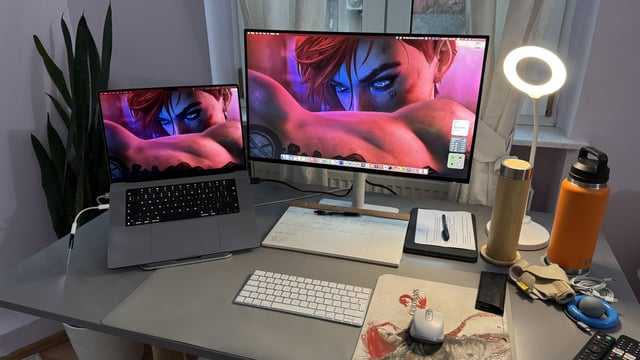
To connect your 27-inch monitor to your laptop, simply identify the available ports on both devices, use the appropriate cable (HDMI, DisplayPort, or VGA), and adjust your display settings. It’s a straightforward process that can enhance your workspace quickly and easily. Just ensure your laptop supports external displays and select the correct input source on the monitor for a seamless setup.
Connecting a 27-inch monitor to your laptop can significantly boost your productivity, gaming experience, or creative work. Whether you’re upgrading your home office or setting up a dual-screen workstation, the process is simple but varies depending on your laptop’s ports and the monitor’s inputs. The key is to identify the right cables and settings, making your transition smooth and hassle-free. This article will guide you through the steps to connect your large display, ensuring you get the most out of your setup.

How to Connect a 27 Inch Monitor to Your Laptop
Connecting a 27 inch monitor to your laptop might seem tricky at first, but it is actually quite simple once you understand the steps involved. This guide will walk you through everything you need to know, from choosing the right cables to setting up your display for the best experience. Whether you want to increase productivity or enjoy a larger screen for gaming or entertainment, this article covers all aspects thoroughly.
Understanding Your Laptop’s Video Output Ports
Before connecting your monitor, you need to identify which video output ports your laptop has. Most modern laptops include several options, each with different compatibility and capabilities.
Common Laptop Video Ports
- HDMI: The most common port, supports high-definition video and audio.
- DisplayPort: Offers higher bandwidth, suitable for 4K or higher resolutions.
- Mini DisplayPort: Smaller version of DisplayPort, often found on MacBooks and some Windows laptops.
- VGA: An older, analog connection, less common but still available on some laptops.
- USB-C / Thunderbolt 3: Modern multi-functional port that supports video output, power delivery, and data.
Knowing which port your laptop has is crucial to selecting the right cable or adapter for the connection.
Selecting the Right Cable or Adapter
Matching your laptop’s video output with your monitor’s input ensures a seamless connection. Let’s look at the most common types.
Choosing the Correct Cable
| Port Type on Laptop | Compatible Monitor Input | Recommended Cable |
|---|---|---|
| HDMI | HDMI | HDMI cable |
| DisplayPort / Mini DisplayPort | DisplayPort | DisplayPort cable or Mini DisplayPort to DisplayPort cable |
| USB-C / Thunderbolt 3 | HDMI or DisplayPort (via adapters) | USB-C to HDMI or USB-C to DisplayPort adapter |
| VGA | VGA | VGA cable (less common, older monitors) |
If your laptop’s port doesn’t match your monitor input, you will need an appropriate adapter.
Using Adapters for Compatibility
Adapters help bridge connection gaps, especially with newer laptops that rely on USB-C or Thunderbolt ports. For example, a USB-C to HDMI adapter allows connection to monitors with HDMI inputs. When choosing an adapter, ensure it supports the resolution and refresh rate you need for your 27 inch monitor.
Hooking Up Your 27 Inch Monitor to Laptop
Now that you have the right cable or adapter, it is time to physically connect your monitor.
Step-by-step Connection Process
- Turn off both your laptop and monitor to prevent any electrical issues during connection.
- Connect one end of your cable or adapter to the appropriate port on your laptop.
- Plug the other end into your monitor’s input port.
- Turn on the monitor first, then your laptop.
- Your laptop should automatically detect the monitor and display an extended or duplicated screen.
If your screen remains blank, check the cable connections or try reconnecting after a restart.
Configuring Display Settings for the Best Experience
Once your monitor is connected, adjusting display settings ensures optimal clarity and arrangement.
Accessing Display Settings
On Windows: right-click on your desktop and select Display Settings.
On Mac: open System Preferences and then Displays.
Adjusting Resolution and Orientation
Your 27 inch monitor should support resolutions like 1920×1080 or higher, depending on the model. Ensure the resolution is set to its native value for the sharpest image.
For best viewing, keep the display in a landscape orientation. Adjust scaling options if text or icons appear too large or too small.
Choosing between Duplicate and Extend Mode
- Duplicate Mode: Shows the same content on both screens, ideal for presentations.
- Extend Mode: Extends your workspace across both screens, great for multitasking.
Select the mode that best suits your workflow. For detailed work or gaming, extend mode usually provides more space.
Additional Important Tips for Connecting a 27 Inch Monitor
Ensuring Compatibility with Your Laptop’s Hardware
Make sure your graphics card or integrated GPU supports the resolution and refresh rate of your monitor. Most modern laptops handle 27 inch monitors easily, but checking specifications avoids surprises.
Using Multiple Monitors
If you want to connect more than one monitor, verify your laptop’s video output capacity. Some laptops support multiple external displays through a single port using hubs or docking stations.
Setting Up a Docking Station
A docking station can simplify connections, especially if you need to connect multiple devices. It provides additional ports and makes switching between setups easier.
Troubleshooting Common Connection Issues
- Monitor not detected? Restart your laptop or recheck the cable connections.
- No display on the monitor? Verify that the input source on your monitor is set correctly.
- Low resolution or blurry display? Confirm resolution settings in your display configuration.
If problems persist, update your graphics drivers or consult your laptop’s support documentation.
Optimizing Your Workspace with a 27 Inch Monitor
A larger monitor like a 27 inch allows better multitasking and reduces eye strain. Place the monitor at eye level to promote good posture.
Consider using an adjustable stand or mount for optimal positioning. Adjust brightness and contrast for comfortable viewing.
Summary of Key Points
- Identify your laptop’s video output ports before choosing cables or adapters.
- Select compatible cables or adapters based on port types.
- Connect your monitor securely and turn devices on in the correct sequence.
- Adjust display settings to optimize resolution, orientation, and mode.
- Use docking stations for multiple monitors or easier management.
- Troubleshoot common issues like detection problems or resolution errors.
Connecting a 27 inch monitor to your laptop opens up a range of possibilities from enhanced workspaces to immersive entertainment. With the right cables, proper setup, and configuration, you can enjoy a larger, clearer, and more productive display environment.
How To Connect A Laptop To A Monitor
Frequently Asked Questions
What cables are needed to connect a 27-inch monitor to a laptop?
To connect a 27-inch monitor to your laptop, you need a cable compatible with both devices. Common options include HDMI, DisplayPort, USB-C, or VGA. Check the ports available on your laptop and monitor, then select the appropriate cable. Ensure the cable supports the resolution and refresh rate you want for optimal display quality.
How do I adjust my laptop settings after connecting a larger monitor?
Once you connect your 27-inch monitor, go to your laptop’s display settings. On Windows, right-click on the desktop and select ‘Display settings.’ On Mac, open ‘System Preferences’ and click ‘Displays.’ From there, you can choose to extend or mirror your display, set the resolution, and adjust the arrangement to fit your workspace comfortably.
Can I connect multiple monitors to my laptop with a 27-inch display?
Yes, most laptops support connecting multiple monitors, but it depends on the available ports and graphics capabilities. Use multiple compatible cables or docking stations to connect additional displays. Adjust display arrangements in your system settings to create a seamless multi-monitor workspace.
What should I do if my monitor is not detected after connecting?
First, ensure all cables are securely connected and compatible. Restart your laptop to refresh the system detection. Check your display settings to see if the monitor appears and select the correct input source on the monitor. If it still doesn’t work, update your graphics drivers or try using a different cable or port.
Final Thoughts
Connecting a 27 inch monitor to your laptop is straightforward with the right cables. Use HDMI, DisplayPort, or USB-C if your devices support these ports. Ensure your laptop’s graphics card can handle the monitor’s resolution.
Adjust your display settings to extend or mirror your screen. This step improves productivity and enhances your viewing experience.
In summary, how to connect 27 inch monitor to laptop involves selecting the appropriate cable and configuring your display settings correctly. This simple process boosts your workspace efficiently.



