


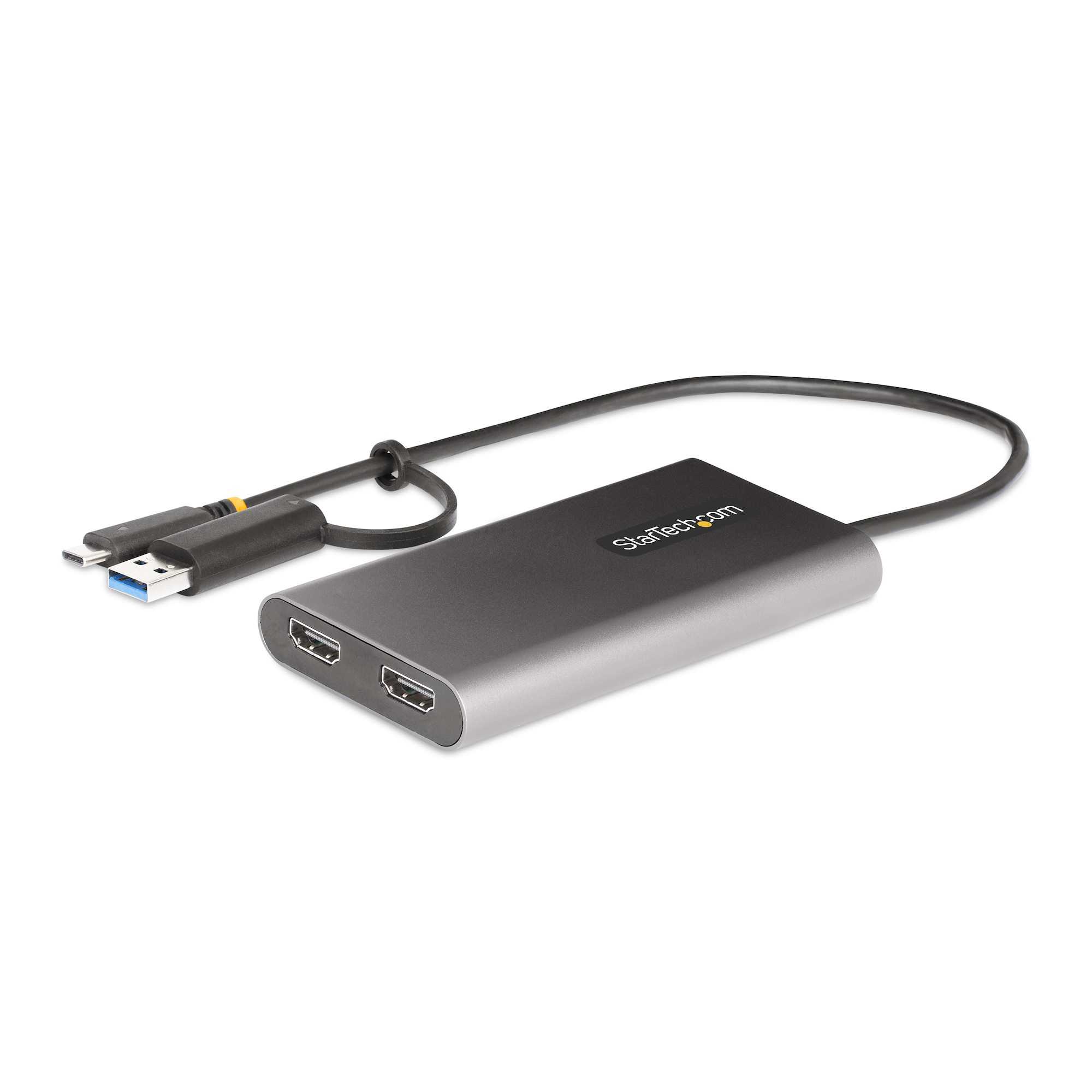
To connect a 4K monitor to a USB-C port, you’ll typically need a compatible USB-C to HDMI or DisplayPort adapter or cable. Ensure your device supports video output over USB-C, then simply connect the monitor using the appropriate cable and set your display settings. It’s an easy process that unlocks stunning high-resolution visuals for your workspace or gaming setup.
Connecting a 4K monitor to a USB-C port might sound tricky, but it’s actually straightforward once you know what to look for. Modern laptops and desktops often come with USB-C ports capable of transmitting video signals, making it convenient to expand your display with just a compatible cable or adapter. The key is to check your device’s specifications to confirm support for video output over USB-C and then choose the right connection type—like HDMI or DisplayPort—to enjoy crisp, sharp visuals. Whether you’re upgrading your home office or enhancing your gaming experience, a simple cable swap can unlock incredible 4K clarity.

How to connect a 4K monitor to a USB C port
Connecting a 4K monitor to a USB C port might seem tricky at first, but it’s really straightforward once you understand what equipment you need. This guide will walk you through each step, covering everything from choosing the right cables to setting up your display properly. Whether you’re using a laptop or desktop, the process is similar and simple with the right tools.
Understanding USB C and 4K Displays
USB C is a versatile port that can transfer data, power, and video signals all at once. It uses the Thunderbolt 3 or USB 3.1 standards, which support 4K video output. A 4K display offers ultra-high resolution, providing sharp images and vibrant colors, making it perfect for work or entertainment. To connect these devices properly, you need to know the capabilities of your USB C port and your monitor.
Checking your USB C port capabilities
- Thunderbolt 3 or Thunderbolt 4: These ports support 4K video at 60Hz and beyond.
- USB 3.1 or 3.2: These standards can support 4K video but often at lower refresh rates like 30Hz.
- Power Delivery: Some USB C ports also provide power to your device, which means fewer cables needed.
Verifying your monitor specifications
- Ensure your monitor explicitly supports 4K resolution (3840 x 2160 pixels).
- Check the monitor’s input options, such as USB C, HDMI, or DisplayPort.
- Look for a monitor that supports 60Hz refresh rate for smooth video playback.
Choosing the Right Cable or Adapter
Using the correct cable or adapter is essential for a successful connection. Not all USB C cables support video transmission, so select high-quality, approved options. There are different types of cables and adapters tailored for specific scenarios, which we will explore below.
Direct USB C to USB C cable
This is the simplest method if your monitor supports USB C input. Make sure the cable explicitly supports video and power delivery, with specifications like “USB C with DisplayPort Alt Mode.”
USB C to HDMI adapter or cable
If your monitor lacks a USB C port, you can opt for a USB C to HDMI adapter. Look for adapters that support 4K at 60Hz to ensure video quality and smooth display.
USB C to DisplayPort adapter or cable
DisplayPort offers higher bandwidth than HDMI, making it ideal for 4K at higher refresh rates. Choose an adapter that supports DisplayPort Alt Mode for compatibility.
Connecting Your Devices Step-by-Step
Step 1: Power down your devices
Before connecting, turn off both your computer and monitor. This prevents any potential electrical issues or damage.
Step 2: Connect the cable or adapter
Use your chosen cable or adapter to link your computer’s USB C port with the monitor’s input port. Ensure both connections are secure.
Step 3: Power on devices and configure display settings
Switch on both your monitor and computer. Your computer should automatically detect the new display. If not, go to display settings to manually detect and configure the monitor.
Optimizing Display Settings for 4K
To get the best visual experience, adjust your display settings properly. Windows and macOS offer easy-to-use options for configuration.
Windows users
- Right-click on the desktop and select Display settings.
- Scroll to Multiple displays and click Detect if the monitor isn’t recognized.
- Set the resolution to 3840 x 2160.
- Choose a refresh rate of 60Hz for smooth motion.
Mac users
- Open System Preferences and go to Displays.
- Hold the Option key and click on Scaled.
- Select the resolution labeled as 4K or 3840 x 2160.
- Ensure the refresh rate is set at 60Hz for optimal performance.
Additional Tips for Connecting 4K Monitors to USB C Ports
Check for compatibility issues
- Make sure your device supports video output via USB C.
- Review the specifications of your cables and adapters for 4K support.
Consider using a docking station
If you have multiple devices or need extra ports, a docking station with USB C support can simplify connections. Choose one with HDMI, DisplayPort, or USB C outputs supporting 4K at 60Hz.
Addressing common issues
- If your monitor isn’t detected, try reconnecting or restarting both devices.
- Update your graphics drivers to ensure compatibility and performance.
- Check your cable and port for damage or loose connections.
Related Topics
- Best USB C cables for 4K gaming and professional use
- Top-rated USB C docking stations for multi-monitor setups
- Differences between HDMI and DisplayPort for 4K displays
- Tips for extending the lifespan of your USB C cables and adapters
By following these guidelines, you can easily connect your 4K monitor to a USB C port and enjoy crisp, vibrant visuals. Whether it’s for work, gaming, or entertainment, the combination of the right equipment and setup steps guarantees a smooth experience.
How to Get 4K at 60Hz via USB-C, HDMI, DisplayPort, or Thunderbolt (No Lag!)
Frequently Asked Questions
What type of USB-C cable do I need to connect my 4K monitor?
To connect a 4K monitor via USB-C, you should use a Thunderbolt 3 or Thunderbolt 4 cable, or a USB-C cable that supports DisplayPort Alt Mode and Power Delivery. Ensure the cable is rated for 4K video transmission to maintain high resolution and refresh rates.
How can I verify if my USB-C port supports video output?
Check your device’s specifications or user manual to see if the USB-C port supports DisplayPort Alt Mode or Thunderbolt. You can also look for symbols next to the port, such as a DisplayPort icon or Thunderbolt logo. Using software tools or device manager can help confirm the port’s capabilities.
What steps should I follow to connect my 4K monitor to a USB-C port on a laptop?
First, connect the appropriate USB-C cable from your laptop to the monitor. Then, select the correct input source on the monitor if needed. Your device should automatically detect the display. If not, go to display settings on your computer and choose to extend or mirror your screen.
What should I do if my 4K monitor isn’t displaying properly when connected via USB-C?
Ensure the cable supports 4K resolution and is securely connected. Update your device’s graphics drivers and check for any system updates. Verify that your monitor’s input source is set to USB-C or the corresponding port. Adjust display resolution settings if necessary to match 4K specifications.
Can I connect multiple monitors to my device using the USB-C port?
Yes, but it depends on your device’s capabilities. Some USB-C ports support multi-stream transport (MST) or Thunderbolt, allowing you to connect multiple displays. You may need a compatible hub or dock that splits the signal to multiple monitors. Always check your device’s specifications to confirm support for multiple displays.
Final Thoughts
Connecting a 4k monitor to a USB C port is straightforward. Ensure your USB C port supports video output (DisplayPort Alt Mode) to achieve high-quality visuals. Use a compatible USB C to HDMI or DisplayPort cable to maintain optimal resolution.
Check your monitor’s input options and choose the right cable accordingly. Test the connection by selecting the correct input source on your monitor.
In summary, knowing how to connect 4k monitor to USB C port helps create a seamless setup, making your workspace more efficient.



