


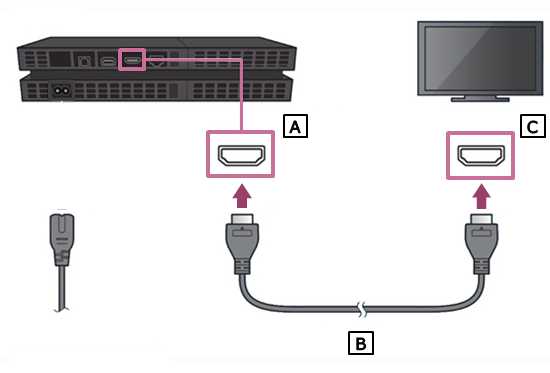
To connect your gaming console to your TV quickly and effortlessly, simply plug the HDMI cable from your console into the HDMI port on your TV, turn on both devices, and select the correct input source on your TV. For older consoles, you might need to use AV or component cables. Ensuring your console and TV are compatible and properly connected will give you a seamless gaming experience.
Connecting a gaming console to your TV might seem straightforward, but a few simple steps can make it even easier. Whether you’re setting up a new PlayStation, Xbox, or Nintendo Switch, the process generally involves using HDMI cables for the best picture and sound quality. First, locate the appropriate port on your TV—HDMI is the most common for modern consoles. Then, connect the console’s HDMI output to your TV’s HDMI input. Power on your devices, switch your TV to the correct input source, and you’re ready to dive into your favorite games. Don’t worry if it’s your first time; once connected, you’ll be gaming in no time!

How to connect a gaming console to your TV
Connecting your gaming console to your TV might seem tricky at first, but with the right steps, it becomes simple and quick. Whether you have a PlayStation, Xbox, Nintendo Switch, or another console, this guide will show you exactly how to set it up properly. Let’s walk through each step together so you can enjoy your favorite games without any hassle.
Understanding the different types of connections
Before starting, it’s helpful to know the types of connection options available. Most modern gaming consoles support HDMI, which provides the best picture and sound quality. Older consoles might use component or composite cables. Familiarizing yourself with these options helps you choose the right setup.
HDMI connection
The HDMI (High-Definition Multimedia Interface) cable transmits both high-quality video and audio signals. It’s the standard for most current gaming consoles and TVs. Using an HDMI cable ensures you get crisp images and clear sound.
Component and composite cables
Older consoles like PlayStation 2 or Nintendo Wii can use component cables, which separate video signals into different parts for better quality than composite. Composite cables are usually yellow for video and red and white for audio. These are less common today but still useful for older equipment.
Preparing your gaming console and TV for connection
Before connecting, turn off your TV and console. This prevents any electrical issues and helps the setup go smoothly. Make sure you have the necessary cables ready and understand where your console’s ports are located.
Gathering the cables and accessories
Keep all cables close by, including HDMI, component, or composite cables. If you’re using an HDMI cable, ensure it’s in good condition without frays or bends. You may also need an adapter if your TV or console has different port types.
Checking your TV’s input ports
Look at the back or side of your TV to identify the input ports. Most modern TVs have multiple HDMI ports labeled as HDMI 1, HDMI 2, etc. Older models might have component or composite inputs. Make a note of which ports are available for your setup.
Connecting your gaming console using HDMI
This is the easiest and most common method for most users. Follow these clear steps for a successful connection.
Step 1: Plug the HDMI cable into your console
Locate the HDMI output port on your console, usually labeled as HDMI Out. Insert one end of the HDMI cable securely into this port. Make sure it clicks into place.
Step 2: Connect the HDMI cable to your TV
Insert the other end of the HDMI cable into an available HDMI port on your TV. If your TV has multiple HDMI inputs, choose one that you’ll remember for the console. Labeling the port can help if you often switch devices.
Step 3: Power on both devices
Turn on your TV and then your gaming console. Use your remote or power button to switch the TV to the HDMI input you connected the console to.
Step 4: Adjust your TV settings
Use your TV remote to change the input source to the HDMI port where your console is connected. Your console’s home screen should appear on the TV display. If it doesn’t, double-check connections or try another HDMI port.
Connecting your console with component or composite cables
If your console or TV does not support HDMI, use component or composite cables.
Using component cables
Connect the red, green, and blue cables into their respective color-coded ports on both the console and TV. Attach the red and white audio cables for sound. Switch your TV to the appropriate input for component connections.
Using composite cables
Plug the yellow cable into the video input and the red and white cables into the audio inputs on your TV. Change the TV input to the composite or AV setting, typically labeled as AV or Video.
Troubleshooting common connection issues
Sometimes, despite following the steps, your console might not display correctly. Here are quick solutions to common problems.
No picture or sound
Ensure all cables are securely connected. Check that your TV input is set correctly. Try switching to another HDMI port or verify that your console is powered on.
Poor picture quality
Use the highest quality cable available, such as HDMI. Make sure your TV supports the resolution your console outputs. Adjust display settings on your console if necessary.
Compatibility problems with older TVs
If your TV lacks HDMI inputs, connect via component or composite cables. Be aware of the limitations in picture quality and resolution.
Optimizing your gaming experience
Once connected, there are ways to maximize your setup for the best gaming experience.
Adjust display settings
Go into your console’s settings menu to set the optimal resolution, such as 1080p or 4K, depending on your TV. Enable features like HDR if your TV supports them for richer visuals.
Improve sound quality
Use audio outputs compatible with external speakers or soundbars for better sound. Optical or HDMI ARC can connect your console to external audio systems easily.
Positioning your console and TV
Place your console near the TV, avoiding clutter or cables that could cause damage. Keep air vents unobstructed to prevent overheating.
Additional tips for seamless setup
Here are some extra pointers to make your connection process smooth and straightforward.
Use cable management tools
Organize cables with clips or ties to prevent tangling. Proper cable management keeps your setup tidy and safe.
Update firmware and system software
Ensure your console and TV have the latest updates for optimal compatibility and access to new features.
Refer to manuals and support resources
If you encounter issues, consult your console’s or TV’s user manual. Manufacturer websites often offer troubleshooting guides and videos.
Connecting multiple devices
If you have several gaming consoles or media devices, consider using an HDMI switch or splitter. This allows easy switching without unplugging cables repeatedly.
Using an HDMI switch
Connect multiple devices to the switch, then connect the switch to your TV. Use the switch’s remote or buttons to select the device you want to play.
Benefits of using an HDMI splitter
A splitter duplicates the signal to multiple displays. Useful if you want to play on two TVs or monitor your gameplay on a larger screen.
Summary of connection options for different setups
| Console Type | Preferred Connection | Alternative Connection |
|---|---|---|
| PlayStation 5 / Xbox Series X | HDMI | None, limited options |
| PlayStation 4 / Xbox One | HDMI | None, limited options |
| Nintendo Switch | HDMI (via dock) | None, HDMI is standard |
| Older systems (PlayStation 2, Wii) | Component or composite | AV or RF adapters |
Following these detailed steps ensures you set up your gaming console correctly and enjoy gaming without interruptions. Remember to double-check connections and adjust your TV settings to get the best possible picture and sound quality. Happy gaming!
How to connect the Retro Game Stick Pro on your HDMI with POV #shorts #retrogamer #retrogamestick
Frequently Asked Questions
What types of cables are necessary to connect a gaming console to a TV?
Most gaming consoles require HDMI cables to connect to your TV, as they provide high-definition video and audio transmission. Some older consoles may use component or composite cables, which are typically included with the device. Ensure that your TV has the appropriate input ports that match the cable type you plan to use.
How do I properly set up my gaming console for the first time on my TV?
Start by connecting the console’s HDMI output to an available HDMI input on your TV. Turn on both your console and TV. Use your TV remote to select the corresponding HDMI input. Follow the on-screen instructions to proceed with initial setup, which may include selecting display settings and connecting to the internet.
What should I do if my console isn’t displaying on the TV screen?
First, verify that all cables are securely connected and that your TV is set to the correct input source. If you’re still not seeing a display, try connecting the console to a different HDMI port or use a different HDMI cable. Restart both your console and TV to refresh the connection. If problems persist, check your console’s output settings and consult the user manual for troubleshooting tips.
Can I connect my gaming console wirelessly to my TV?
Most gaming consoles connect to TVs using physical cables for the best performance. However, newer consoles and some smart TVs support wireless streaming or screen mirroring options. You can use technologies like Miracast or built-in streaming features to mirror your console’s display wirelessly, but keep in mind that these methods may introduce some latency or reduce video quality.
How do I optimize audio output when connecting my gaming console to my TV?
Check the audio output settings on your console and ensure it matches your preferred setup, such as HDMI audio or optical output. If your TV has external speakers or a sound system, connect them using the appropriate cable—such as optical or HDMI ARC—to enhance sound quality. Adjust your TV’s audio settings to select the correct output source for an optimal listening experience.
Final Thoughts
To connect a gaming console to your TV, first identify the available ports on both devices. Use an HDMI cable for the best picture and sound quality, inserting one end into the console and the other into your TV’s HDMI port. Turn on your console and select the corresponding HDMI input on your TV.
Ensure your TV settings are correctly adjusted to display the connected device. Once set, you can enjoy gaming seamlessly. How to connect a gaming console to your TV is straightforward with these simple steps, providing an optimal gaming experience every time.



