


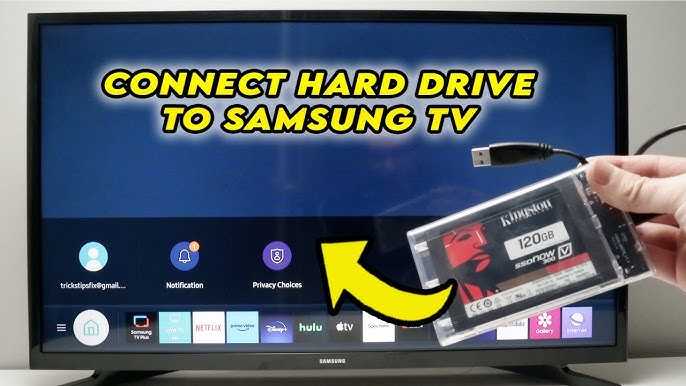
Quick answer: Simply locate the USB port on your TV, plug in your device, and follow on-screen prompts if necessary. Many modern TVs support plug-and-play, making it easy to access your files instantly.
Connecting external devices like USB drives or hard disks to your TV is a straightforward process that can greatly expand your entertainment options. Whether you want to view photos, watch movies, or listen to music, most TVs today come with the necessary ports and compatibility features. Just find the appropriate port, connect your device, and use your remote to navigate to the media options. Some TVs might require you to select the input source or scan for new devices, but overall, the process is simple and user-friendly. Knowing how to do this can save you time and add convenience when managing your media collection directly on your TV screen.

How to connect external devices like USB or hard drives to your TV
Connecting external devices such as USB flash drives or external hard drives to your TV is a simple process that can significantly expand your entertainment options. Whether you want to watch videos, view photos, or listen to music stored on these devices, understanding how to connect them properly is essential. In this guide, you’ll learn step-by-step methods to connect different types of external storage devices to various TV models.
Understanding the types of external devices compatible with your TV
Before connecting any device, it’s important to know what your TV supports. Most modern TVs are compatible with USB flash drives, external hard drives, and sometimes even SD cards. Check your TV’s user manual or manufacturer’s website for details on supported file formats and storage sizes.
- USB flash drives: Small, portable, and easy to use, these are perfect for quick media transfers.
- External hard drives: Larger capacity devices, ideal for storing extensive media libraries.
- SD cards: Some TVs have SD card slots for viewing photos or videos stored on SD cards.
Make sure the devices you plan to connect are formatted correctly, usually in FAT32 or exFAT formats, which are widely supported.
Checking your TV’s USB port(s) and other connection options
Most TVs are equipped with one or more USB ports. These ports are usually located on the side or back of the TV. Look for a port labeled ‘USB’ or with a symbol resembling a trident.
Some older TVs may not have USB ports but might support other connection options such as HDMI or Ethernet. Confirm your TV’s specifications to determine the best method of connection.
If your TV has multiple USB ports, check if they support different functions. For example, some ports might be designated for service updates while others are for media playback.
Preparing your external device for connection
Before connecting, ensure your device is properly formatted and has the media files you want to access. Use a computer to format the device if necessary, selecting FAT32 or exFAT formats supported by most TVs.
Remove any unnecessary files or duplicate data to save space and avoid confusion during playback. Safely eject the device from your computer before connecting it to your TV to prevent data corruption.
Connecting your USB flash drive or external hard drive to the TV
The process is straightforward:
- Locate the USB port on your TV.
- Plug the USB device into the port firmly. You should feel slight resistance but no forcing is necessary.
- Wait for your TV to automatically recognize the device. Some TVs display a message confirming detection.
In some cases, your TV may automatically open a media browser or file explorer. If not, proceed to the next sections to manually access your device.
Accessing media files from your external device
Once connected, your TV may prompt you to select the device. Use your remote to navigate to the media menu or input source, and choose the external device.
You can browse through folders or files stored on your device directly on the TV screen. If your device contains multiple media types, select the appropriate media player option, such as Photos, Music, or Videos.
Some TVs automatically detect supported media files and display them in organized categories, making browsing easier.
Using your TV’s media player to view or listen to files
Most smart TVs include pre-installed media players or support popular apps. These allow you to play videos, view pictures, or listen to music stored on your external device.
Select the desired file and press ‘Play‘ or ‘Open. Adjust the playback settings as needed, such as subtitles, audio tracks, or playback speed. Remember, some file formats might not be supported, so check compatibility beforehand.
Troubleshooting common connection issues
If your device is not recognized, try these simple solutions:
- Ensure the device is properly formatted and compatible with your TV.
- Remove and reinsert the USB device, or try a different port.
- Restart your TV after connecting the device.
- Try connecting the device to a computer to verify it functions correctly.
- Update your TV’s firmware to support newer media formats or devices.
If problems persist, consult your TV’s user manual or contact customer support.
Connecting external devices via other methods: HDMI and network options
In cases where USB connection isn’t sufficient or supported, consider alternative methods:
Using HDMI cables
Some external media players or computers can connect to your TV via HDMI cable. This allows you to display content from devices like laptops or media boxes directly on your TV screen.
Ensure the external device has an HDMI port; then connect one end of the cable to the device and the other to an available HDMI port on your TV. Switch your TV input source to the corresponding HDMI input to view the device’s content.
Connecting over a network
Many smart TVs support media sharing over Wi-Fi or Ethernet. Use media server apps like DLNA, Plex, or Samsung’s Smart View to stream content from your computer or mobile device.
Set up the media server on your device, ensure both devices are connected to the same network, and follow the app instructions to browse and play media files on your TV.
Tips for optimal external device connection and usage
To enhance your experience:
- Keep your external devices updated and free of malware.
- Use high-quality USB cables and ports to prevent connectivity issues.
- Avoid disconnecting devices during data transfer to prevent corruption.
- Regularly back up your media files to avoid data loss.
- Label your media folders for easier navigation.
Maintaining proper device formatting and ensuring your TV firmware is current can prevent many common issues.
Additional considerations for different TV brands and models
Not all TVs are the same. Some may have unique settings or limitations.
For example, Samsung Smart TVs often support specific media formats and may have a dedicated media hub. LG WebOS models might require specific app downloads for media sharing.
Always consult your TV’s manual for model-specific instructions, supported formats, and troubleshooting tips to ensure a smooth connection process.
Connecting external devices like USB drives and hard disks to your TV is straightforward once you understand the process. By following these instructions, you can enjoy your favorite media with minimal effort. Remember to check compatibility, properly format your devices, and use the correct ports and connections. This will ensure a seamless experience and expand your entertainment options significantly.
How to Connect Portable Hard Drive to Your TV's HDMI Port | Simple & Easy Tutorial
Frequently Asked Questions
What types of external storage devices are compatible with most TVs?
Most modern TVs support USB flash drives and external hard drives formatted with FAT32, NTFS, or exFAT file systems. Check your TV’s user manual to see which formats are compatible and ensure your device’s storage capacity is within the supported limits.
How do I properly connect my external device to my TV’s USB port?
Plug your external device directly into an available USB port on your TV. Make sure the connection is secure and that the device is powered on if necessary. Once connected, your TV should detect the device automatically or prompt you to select it from the input menu.
What steps should I take if my TV doesn’t recognize the connected external device?
If your TV doesn’t detect your device, first unplug and reconnect it. Verify that the device is functioning correctly on another device. Check your TV’s input menu or source list to ensure the correct port is selected. Also, consider formatting the device to a compatible file system if it isn’t recognized.
Can I use external devices to play media files on my TV?
Yes, most TVs allow you to play media files directly from external storage devices. Insert the device, navigate to the media or USB input option on your TV, and browse through your files. Select the media you wish to view, and your TV will play it accordingly.
Are there any precautions I should take when connecting external drives to my TV?
Ensure you disconnect external devices properly to avoid data loss or corruption. Use devices formatted with compatible file systems. Avoid unplugging the device during data transfer or media playback. Also, keep your device free from physical damage and dust for optimal performance.
Final Thoughts
Connecting external devices like USB or hard drives to your TV is simple. Locate the USB port on your TV, which is usually on the side or back panel. Plug your device into the port, and your TV should recognize it automatically. Use your remote to select the input source if needed.
In summary, understanding how to connect external devices like USB or hard drives to your TV makes media access easier. Follow these straightforward steps to enjoy your files without hassle and enhance your viewing experience.



