


To connect your TV box to a sound bar quickly, use an HDMI ARC or optical cable for the simplest setup. Just plug one end into your TV’s HDMI ARC port and the other into your sound bar’s HDMI ARC input, then enable ARC on your TV settings. Alternatively, you can use an optical cable for a straightforward connection if HDMI ARC isn’t available, or connect via Bluetooth if both devices support wireless pairing. These methods ensure you enjoy enhanced audio quality with minimal hassle.
Connecting your TV box to a sound bar can dramatically improve your TV viewing experience by delivering richer, clearer sound. If you’re tired of the built-in speakers and want more immersive audio, it’s easier than you might think to set up. Whether you prefer wired connections like HDMI ARC or optical, or want to go wireless with Bluetooth, this guide will walk you through the steps to get your sound system working seamlessly with your TV box, so you can sit back and enjoy movies and shows with superior sound.

How to Connect TV Box to Sound Bar: A Complete Guide
Connecting your TV box to a sound bar can significantly improve your entertainment experience. Proper setup ensures better audio clarity and richer sound quality. This guide walks you through different methods to connect your TV box to your sound bar, making the process simple and straightforward.
Understanding the Basics of Your Devices
Before connecting, it’s crucial to understand the connection options available on your TV box and sound bar. Most devices support various connection methods, each with its own advantages.
- HDMI (High-Definition Multimedia Interface): Supports both high-quality audio and video. Ideal for most setups.
- Optical Audio (Toslink): Uses fiber optic cables for clear digital sound. Suitable when HDMI is unavailable.
- RCA (Red and White Cables): Traditional analog audio connection. Less preferred due to lower sound quality.
- 3.5mm Audio Jack: Common in small sound bars and older devices. Provides basic stereo sound.
Knowing which ports your devices have will guide you to pick the best connection method.
Connecting via HDMI Cable
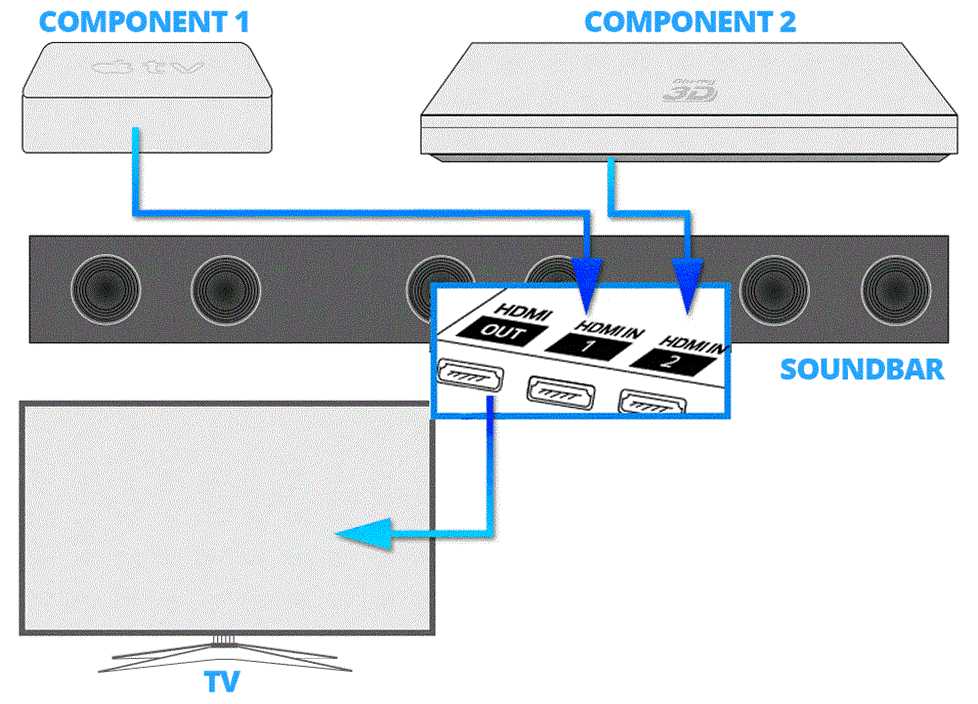
HDMI is the most recommended method for connecting a TV box to a sound bar because it carries both audio and video signals.
Steps for HDMI Connection
- Plug one end of the HDMI cable into the HDMI output port on your TV box. Usually labeled as “HDMI Out”.
- Insert the other end of the HDMI cable into the HDMI input port on your sound bar, often labeled “HDMI IN”.
- Use an additional HDMI cable to connect your TV to the sound bar if your TV supports ARC (Audio Return Channel).
- Ensure your sound bar is set to the correct HDMI input source.
- On your TV, activate the HDMI ARC setting in the menu if using ARC.
Benefits of HDMI Connection
- High-quality audio and video with minimal lag.
- Simplifies setup with fewer cables.
- Supports advanced audio formats like Dolby Atmos and DTS:X if compatible.
Connecting with Optical Audio Cable
If HDMI ARC isn’t available, optical audio offers a reliable digital connection.
Steps for Optical Connection
- Connect the optical cable to the optical output port on your TV box.
- Plug the other end into the optical input port on your sound bar.
- Switch your sound bar to optical input mode using its remote control.
- Adjust your TV audio settings to output sound via optical.
Advantages of Using Optical Audio
- Delivers clearer sound than analog connections.
- Less susceptible to interference.
Using RCA Cables for Connection
For older devices or sound bars without digital inputs, RCA cables are an option.
Steps for RCA Connection
- Connect the red and white RCA cables to the corresponding red and white audio output ports on your TV box.
- Insert the other ends into the matching RCA input ports on your sound bar.
- Set your sound bar to the RCA or analog input mode.
- Adjust your TV’s audio output settings to ensure the sound is sent through RCA.
Considerations for RCA
- Lower sound quality compared to digital options.
- Good for basic audio needs but not ideal for high-fidelity sound.
Connecting Through 3.5mm Audio Jack
This method is common in small sound bars or when other options are unavailable.
Steps for 3.5mm Connection
- Plug the 3.5mm audio cable into the headphone or audio output port on your TV box.
- Connect the other end to the audio input port on your sound bar.
- Set your sound bar to the auxiliary or line-in mode.
- Ensure your TV is configured to output audio through the headphone jack.
Limitations of 3.5mm Connection
- Lower sound quality compared to digital options.
- Possible audio delay or lag.
Additional Tips for Proper Setup
Achieving the best sound experience involves more than just making the physical connections. Here are some helpful tips:
- Check device compatibility: Ensure your TV box and sound bar support the connection method you choose.
- Update firmware: Keep your devices’ software up to date for optimal performance and new features.
- Configure audio settings: Access your TV’s audio menu to select the correct output and enable features like ARC.
- Test the connection: Play content to verify sound is coming through your sound bar properly.
- Use quality cables: Invest in good-quality HDMI or optical cables to prevent signal issues.
Special Considerations for Different Setups
Depending on your specific equipment, some adjustments might be necessary.
Using HDMI ARC or eARC
- Ensure both your TV and sound bar support ARC or eARC.
- Enable ARC in the TV’s audio settings.
- Use an HDMI cable connected to the HDMI ARC port on both devices.
- Set the sound bar to the ARC input mode.
Connecting Multiple Devices
- Use a AV receiver or HDMI switcher to manage multiple inputs.
- Connect your devices to the switcher, then connect the switcher to your TV and sound bar.
- Configure input selection through remote controls for smooth operation.
Troubleshooting Common Connection Problems
Even with proper setup, issues can arise. Here are common problems and solutions:
- No sound: Double-check cable connections and input source settings.
- Lag or delay: Use high-quality cables and configure audio delay settings if available.
- Poor sound quality: Switch to digital connections like HDMI or optical for better clarity.
- No picture when using HDMI: Verify HDMI cable is properly connected and set to the correct input source.
Summary of Connection Methods and Their Best Uses
| Connection Method | Best For | Advantages | Limitations |
|---|---|---|---|
| HDMI (ARC/eARC) | Modern setups with high-quality audio/video | Supports high-fidelity audio formats, simple setup | Requires compatible devices |
| Optical Audio | Devices lacking HDMI ARC | Clear digital sound, reliable | Limited to stereo or Dolby Digital |
| RCA | Older devices or basic audio needs | Easy to use, widely available | Lower sound quality, analog signals |
| 3.5mm Jack | Small sound bars, basic audio | Simple connection, inexpensive | Lower quality, potential lag |
Connecting your TV box to a sound bar can seem complicated, but by choosing the right method and following proper steps, you can enjoy a much better sound experience. Take your time to identify the best connection option for your devices, ensure all cables are securely plugged in, and adjust your settings accordingly. With these tips, you’ll be able to set up your audio system efficiently and enjoy impressive sound quality for all your favorite shows and movies.
Soundbar Setup – How to Connect a Soundbar to a TV with HDMI, HDMI ARC, Optical, Bluetooth, etc.)
Frequently Asked Questions
What are the different types of connections I can use to link my TV box to a sound bar?
You can connect your TV box to a sound bar using various methods such as HDMI ARC, optical (TOSLINK), or 3.5mm auxiliary cables. HDMI ARC provides high-quality audio and simplifies the setup by using a single cable. Optical cables also deliver excellent sound quality, especially for digital audio signals. The auxiliary cable is a straightforward option for basic audio connections but may offer lower sound fidelity.
How do I set up my TV box to ensure audio plays through the sound bar?
First, connect your TV box to the sound bar using your chosen cable type. Next, turn on both devices and access your TV settings. Set the audio output to the port you used for the connection, such as HDMI ARC or optical. Ensure that the sound bar is selected as the default audio output in your TV settings. Test the connection by playing content to confirm that sound comes through the sound bar properly.
What should I do if I experience no sound when connecting my TV box to the sound bar?
Check that all cables are securely plugged into the correct ports. Verify that your TV audio output settings specify the connection type you are using. Make sure the sound bar is powered on and set to the correct input source. If the problem persists, try restarting both devices and testing with a different cable. Consulting your TV and sound bar manuals can also help troubleshoot specific settings or compatibility issues.
Can I connect my TV box to a sound bar wirelessly?
Yes, some sound bars support wireless connections via technologies like Bluetooth or Wi-Fi. To do this, enable Bluetooth pairing on the sound bar and your TV box, then follow the pairing instructions. Keep in mind that wireless connections may introduce slight latency or quality differences compared to wired connections. Check your sound bar’s compatibility and follow the manufacturer’s instructions for wireless setup.
Final Thoughts
Connecting your TV box to a sound bar enhances your viewing experience by providing better audio clarity. Use an HDMI ARC port if available for simple and high-quality sound transfer. Alternatively, connect via optical cable for a reliable connection.
Ensure your TV and sound bar are set to the correct input source to enjoy seamless audio. Double-check cable connections and settings to avoid sound issues.
In summary, how to connect TV box to sound bar depends on your available ports. Follow these steps for clear, immersive sound during your favorite shows.



