


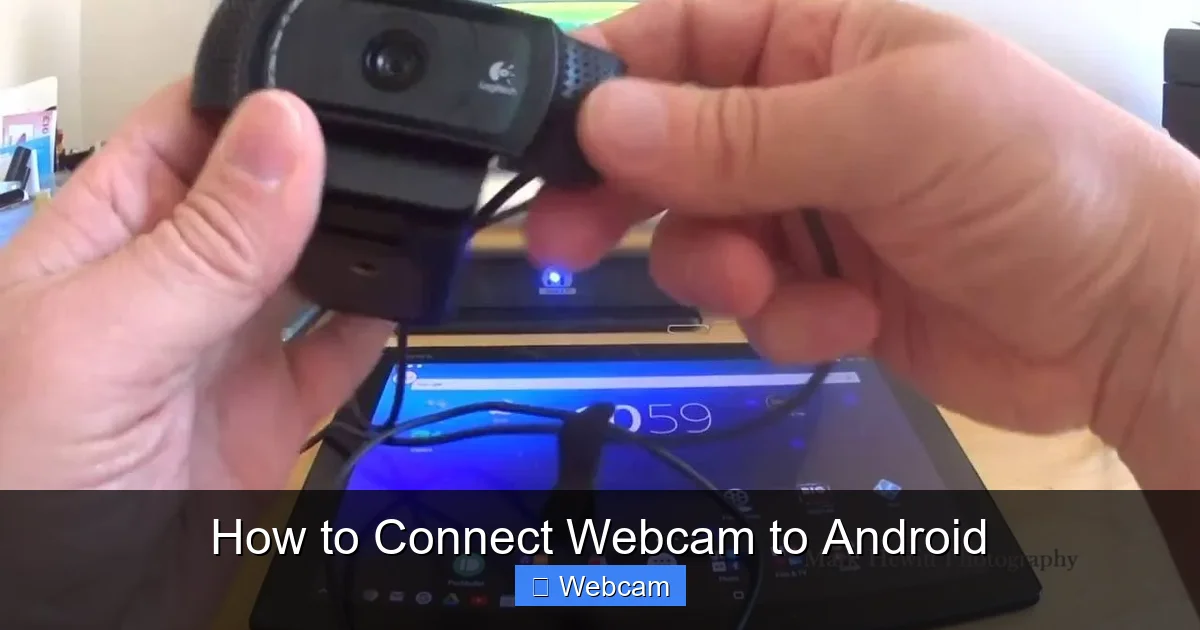
Connecting a webcam to your Android device can significantly enhance its capabilities, turning it into a powerful tool for various applications like security monitoring, high-quality video calls, or vlogging. This guide will walk you through the essential steps, primarily focusing on wired USB OTG connections, ensuring you understand the hardware, software, and configuration needed. You’ll learn how to overcome common hurdles and leverage your webcam for a seamless Android experience.
How to Connect Webcam to Android
Have you ever wished your Android phone or tablet could boast a higher-quality camera, or perhaps you need a versatile monitoring tool for your home or office? Connecting a webcam to Android devices opens up a world of possibilities, from enhancing your video calls and live streaming to creating a makeshift security system. While it might seem like a niche tech trick, it’s actually quite accessible with the right information and tools.
This comprehensive guide will walk you through everything you need to know about how to connect webcam to Android. We’ll cover the essential hardware requirements, recommend suitable software, provide step-by-step instructions for wired connections, and even offer practical troubleshooting tips to get you up and running smoothly. By the end of this guide, you’ll be able to transform your Android device into a powerful video capturing and streaming station using an external webcam.
Let’s dive in and explore how you can connect webcam to Android and unlock its full potential!
Key Takeaways
- USB OTG Compatibility is Crucial: Your Android device must support USB On-The-Go (OTG) functionality for a direct wired connection, allowing it to act as a host for external USB peripherals like webcams.
- UVC Webcams are Recommended: For optimal compatibility, choose a webcam that is UVC (USB Video Class) compliant, as these are typically plug-and-play and don’t require specific drivers on Android.
- You’ll Need an OTG Adapter: A physical USB OTG adapter or cable is required to bridge the connection between your webcam’s USB-A plug and your Android device’s USB-C or Micro-USB port.
- A Dedicated App is Essential: Standard Android camera apps usually won’t recognize an external webcam. You’ll need to download a third-party application like “USB Camera” or “CameraFi Live” from the Google Play Store.
- Power Considerations for Reliability: Some webcams, especially those with higher resolution or features, may require more power than your Android device can supply. Using a powered USB hub can resolve stability and connection issues.
- Troubleshooting is Straightforward: Most issues, such as the webcam not being detected or app crashes, can be resolved by checking OTG compatibility, ensuring UVC compliance, restarting devices, or trying different apps.
Step 1: Understand the Basics and Gather Requirements
Before you attempt to connect webcam to Android, it’s vital to understand the underlying technology and ensure you have everything you need. This initial preparation will save you a lot of time and frustration later on.
1.1 Check Android Device USB OTG Compatibility
The cornerstone of connecting most USB peripherals, including webcams, to an Android device is **USB On-The-Go (OTG)** functionality. USB OTG allows your Android device to act as a “host,” rather than just a “device,” enabling it to power and communicate with external USB accessories. Most modern Android smartphones and tablets support OTG, but it’s always best to verify.
To check for OTG compatibility:
- Consult your device’s manual: The specifications usually list USB OTG support.
- Use an OTG checker app: Download a free app like “USB OTG Checker” from the Google Play Store. These apps can quickly scan your device and tell you if it’s OTG compatible.
- Test with another OTG device: If you have a USB flash drive and an OTG adapter, try connecting them. If your phone can read the flash drive, it supports OTG.
Without OTG support, a direct wired connection to connect webcam to Android simply won’t work.
1.2 Choose a Compatible Webcam (UVC Compliant)
Not all webcams are created equal when it comes to Android compatibility. The key term you’re looking for is **UVC (USB Video Class) compliance**. UVC-compliant webcams are standardized and generally don’t require specific drivers to function, making them plug-and-play with many operating systems, including Android.
Tips for selecting a webcam:
- Look for UVC certification: Check the product specifications or packaging. Many popular brands like Logitech, Microsoft (LifeCam series), and affordable no-name brands are often UVC compliant.
- Avoid older or proprietary webcams: Webcams that require custom drivers for Windows or macOS are unlikely to work with Android.
- Consider power consumption: Some higher-resolution or feature-rich webcams might draw more power than your Android device can reliably supply, leading to instability. We’ll address this in troubleshooting.
1.3 Acquire the Right Hardware: USB OTG Adapter/Cable
This is your physical link between the webcam and your Android device.
- USB-C OTG adapter: If your Android device has a USB-C port (most modern devices).
- Micro-USB OTG adapter: If your Android device has a Micro-USB port (older devices).
Ensure the adapter is a reputable brand to guarantee good quality and a stable connection. You can find these easily online or at electronics stores.
1.4 Download a Suitable Camera Application
Standard Android camera apps are designed to work only with your device’s built-in cameras. To connect webcam to Android and utilize it, you’ll need a third-party app from the Google Play Store that supports external USB cameras.
Popular and recommended apps include:
- USB Camera (CameraFi, Live USB Camera): Often listed under variations of this name, these apps are specifically designed to detect and manage USB webcams. They usually offer features like recording, snapshots, and sometimes even streaming.
- CameraFi Live: A robust option for live streaming directly from your webcam connected to Android to platforms like YouTube, Facebook Live, etc.
- IP Webcam: While primarily for turning your *phone* into an IP camera, some versions or related apps might have features to view external USB cameras. However, the first two are generally better for direct connection.
Download and install your chosen app before attempting the connection.
Step 2: Wired Connection via USB OTG (The Primary Method)
Visual guide about How to Connect Webcam to Android
Image source: imag.malavida.com
This is the most common and direct way to connect webcam to Android. Follow these steps carefully to ensure a smooth setup.
2.1 Prepare Your Devices
Make sure your Android device is sufficiently charged. While a webcam doesn’t consume a huge amount of power, a low battery could exacerbate any power-related issues. Close any unnecessary apps on your Android device to free up resources.
2.2 Connect the USB OTG Adapter to Your Android Device
Plug the appropriate end of your USB OTG adapter (USB-C or Micro-USB) into the charging/data port of your Android phone or tablet.
2.3 Connect the Webcam to the OTG Adapter
Take the standard USB-A plug from your webcam and insert it into the USB-A female port on the OTG adapter. The connection should feel snug.
2.4 Launch the USB Camera Application
Once the webcam is physically connected to your Android device via the OTG adapter, open the camera app you downloaded (e.g., USB Camera, CameraFi Live).
2.5 Grant Permissions and Select the External Camera
The app will likely ask for permissions to access your camera, microphone, and storage. Grant these.
Upon launching, the app should automatically detect the external webcam. If your app has multiple camera options, look for a “switch camera” icon or a setting that allows you to select the external USB camera. Some apps might even prompt you with a message like “USB device detected” or “Open app ‘USB Camera’ when this device is connected?”. Confirm or allow this.
2.6 Test the Connection
You should now see the live feed from your webcam displayed on your Android device’s screen. Try moving the webcam around, checking the focus, and ensuring the audio (if your webcam has a built-in mic) is also working through the app’s settings.
- Take a picture: Use the app’s capture button.
- Record a video: Start and stop a short recording.
This confirms that you have successfully managed to connect webcam to Android!
Step 3: Troubleshooting Common Issues
Visual guide about How to Connect Webcam to Android
Image source: imag.malavida.com
Even with all the right steps, you might encounter some hiccups. Here are solutions to common problems when you connect webcam to Android.
3.1 Webcam Not Detected or No Video Feed
- Check OTG Compatibility: Re-verify your Android device supports USB OTG.
- Verify Physical Connections: Ensure all cables and adapters are firmly plugged in. Try unplugging and replugging them.
- Restart Everything: Sometimes a simple reboot of your Android device can resolve detection issues.
- Try a Different App: If one app isn’t working, uninstall it and try another reputable USB camera app from the Play Store.
- Test the Webcam on a PC: Plug the webcam into a Windows or macOS computer to ensure the webcam itself is functional.
- Use a Different OTG Adapter: A faulty adapter can prevent detection. Try another one if possible.
- Ensure UVC Compliance: If your webcam is old or obscure, it might not be UVC compliant. Try a known UVC webcam.
3.2 App Crashes or Freezes
- Clear App Cache: Go to your Android settings, find the problematic camera app, and clear its cache and data. Then restart the app.
- Update the App: Make sure you have the latest version of the USB camera app.
- Free Up RAM: Close other background apps on your Android device.
- Check Device Resources: Ensure your Android device has enough free storage space and RAM to handle video processing.
3.3 Poor Video Quality or Lag
- Check Webcam Resolution: Some apps might default to a lower resolution. Check the app’s settings for video resolution options.
- Lighting Conditions: Ensure adequate lighting for your webcam. Poor lighting often leads to grainy images.
- Webcam Quality: A cheap or very old webcam naturally won’t provide HD quality.
- Android Device Performance: Older or lower-end Android devices might struggle to process high-resolution video streams smoothly. Try a lower resolution setting in the app.
3.4 Power Issues (Webcam Connects Then Disconnects)
This is a common issue, especially with higher-power webcams or when connecting multiple USB devices through an unpowered hub.
- Use a Powered USB Hub: If your webcam requires more power than your Android device can supply, the connection might be unstable or fail. Connect your webcam to a **powered USB hub**, and then connect the hub (via an OTG adapter) to your Android device. The powered hub will supply the necessary external power to the webcam. This is one of the best solutions to connect webcam to Android reliably with power-hungry models.
- Minimize Other Peripherals: Disconnect any other USB devices from your Android device.
Step 4: Advanced Tips and Use Cases
Visual guide about How to Connect Webcam to Android
Image source: imag.malavida.com
Now that you know how to connect webcam to Android, let’s explore some advanced applications.
4.1 External Power for Stability
As mentioned in troubleshooting, a powered USB hub is a game-changer for stability, especially if you plan to use your setup for extended periods or with power-hungry webcams. It ensures the webcam receives consistent power, preventing random disconnections or poor performance, making it easier to reliably connect webcam to Android for any task.
4.2 Multi-Webcam Setups (App Dependent)
Some advanced USB camera applications might support connecting multiple webcams via a powered USB hub. This is highly app-dependent and typically requires a powerful Android device to handle multiple video streams. If your app supports it, you could set up a simple multi-camera monitoring system.
4.3 Specific Use Cases
- Security Camera: Combine an old Android phone/tablet with a USB webcam, connect webcam to Android, and use a suitable app to create a low-cost, effective security camera. Many apps offer motion detection and cloud storage integration.
- Live Streaming: Apps like CameraFi Live allow you to stream directly from your external webcam to platforms like YouTube, Facebook, or Twitch, offering better video quality than your phone’s front camera.
- Vlogging/Content Creation: Use a higher-quality webcam for better video recordings, especially if your phone’s built-in cameras aren’t up to par, or if you need a specific angle.
- Remote Work/Video Conferencing: For calls on a larger tablet screen, a webcam can provide a better field of view and potentially superior image quality than the tablet’s front camera.
- Microscope/Endoscope Connectivity: While not strictly “webcams,” many USB microscopes and endoscopes are UVC compliant and can be connected and viewed on Android using the same method.
Conclusion
Connecting a webcam to your Android device is a fantastic way to extend its functionality, whether for improved video calls, home security, or creative projects. By understanding the core requirements – USB OTG compatibility, UVC webcams, and a dedicated camera app – you’re well on your way to success. Remember to use a reliable OTG adapter and consider a powered USB hub if you encounter power issues.
Don’t be afraid to experiment with different webcams and applications to find the perfect setup for your needs. With this guide, you now have all the knowledge to confidently connect webcam to Android and unlock a new level of versatility for your mobile device. Happy connecting!



