


If your Bluetooth sound box suddenly stops responding, don’t panic—there’s usually a simple fix! First, turn off and restart both your device and the sound box, ensure they are within range, and check for Bluetooth updates or interference. Resetting the device or re-pairing it often solves the problem quickly.
To fix a Bluetooth sound box that’s not responding, start by turning both devices off and then on again. Ensure your sound box is charged or connected properly. Check for any software updates or interference from other devices. If needed, reset your sound box to factory settings or re-pair it with your device. These steps resolve most connectivity issues swiftly and get your music playing again.
Dealing with a Bluetooth sound box that refuses to respond can be frustrating, especially when you’re eager to enjoy your favorite tunes. Connectivity issues are common and usually easy to fix with a few simple steps. The problem often stems from a lost connection, outdated software, or interference from other devices. By following some basic troubleshooting methods like restarting devices, checking connections, updating firmware, or resetting the sound box, you can have it responding in no time. This guide will walk you through the most effective solutions, helping you get your sound system back in action quickly and hassle-free.

How to Fix Bluetooth Sound Box Not Responding
Understanding Why Your Bluetooth Sound Box Isn’t Responding
Knowing the reasons behind your Bluetooth sound box not responding can help you fix the problem faster. Common issues include connectivity problems, device compatibility, low battery, or settings errors. Recognizing these signs early means you can act quickly to resolve them.
Check the Power and Battery Level
A simple yet often overlooked step is checking if your sound box is powered on. Make sure it is plugged in or has enough charge. Low battery levels can cause the device to disconnect or stop responding altogether.
How to Check Battery Status
- Look for an LED indicator on your sound box that shows battery status.
- Charge the device for at least 30 minutes if the battery is low.
- Reconnect your device to power and try turning it on again.
Ensure the Bluetooth is Properly Turned On
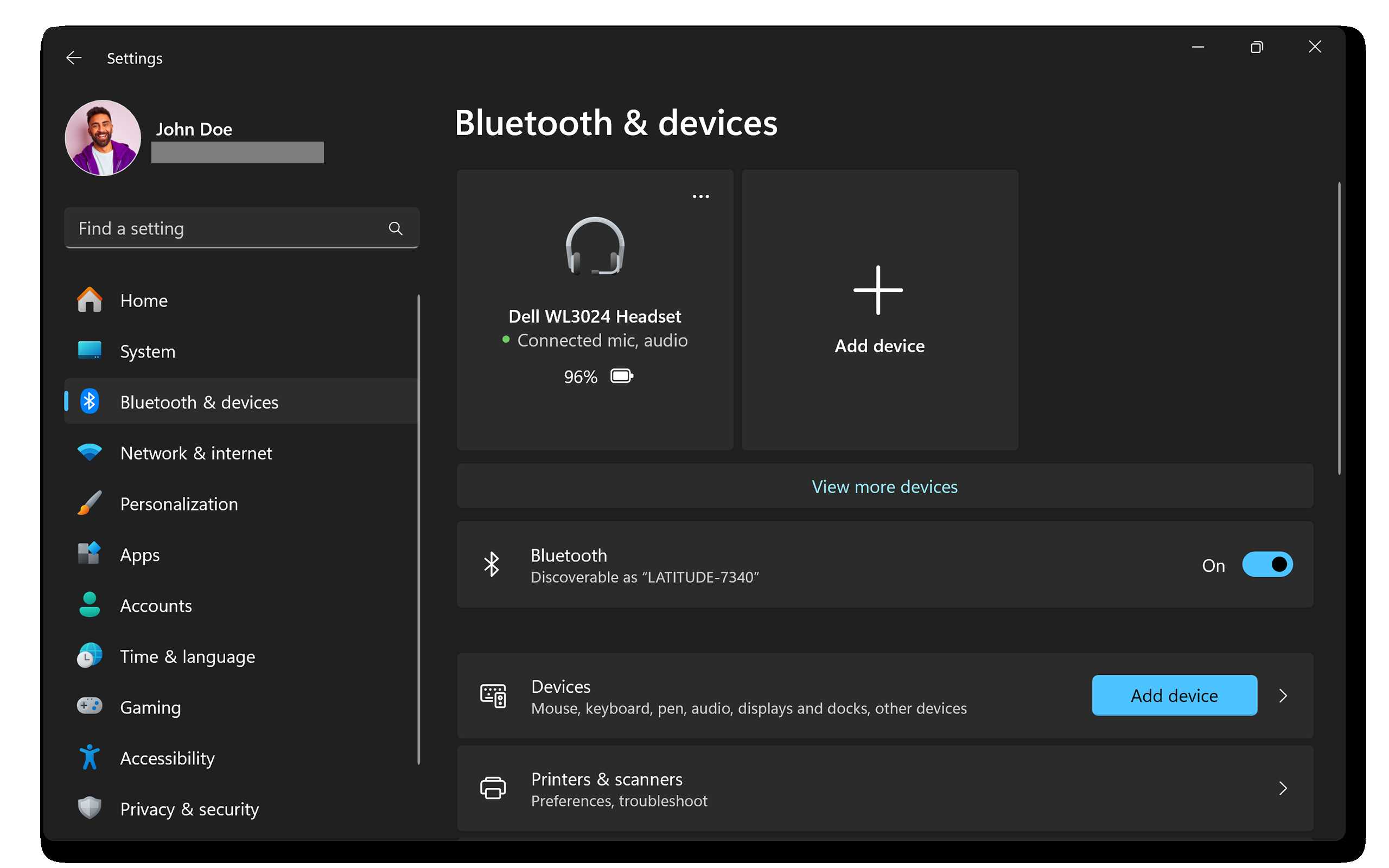
Sometimes, the problem may be as simple as Bluetooth being turned off on either your device or sound box. Double-check both to ensure Bluetooth is enabled.
Steps to Turn On Bluetooth
- Go to the settings menu on your device.
- Find the Bluetooth option and toggle it on.
- On your sound box, press the Bluetooth button if available, or turn on the device to automatically activate Bluetooth.
Make Sure Your Device is Paired Correctly
Pairing issues are common. If your sound box is not responding, it might not be paired correctly with your device.
How to Re-pair Your Devices
- Remove your sound box from the Bluetooth device list on your smartphone or tablet.
- Turn off Bluetooth on your device, then turn it back on.
- Put your sound box into pairing mode—usually done by holding down the power or Bluetooth button until a blinking light appears.
- Select your sound box from the list of available devices and pair again.
Reset Your Bluetooth Sound Box
Resetting the device can resolve many connectivity issues. It restores factory settings and clears any glitches causing the problem.
How to Reset Your Device
- Consult your user manual for specific reset instructions.
- Commonly, you hold down the power and Bluetooth buttons simultaneously for several seconds.
- Wait for the device to turn off and restart, then try pairing again.
Update Firmware or Software
Outdated firmware can lead to compatibility problems or bugs. Checking for updates is essential for optimal performance.
Steps to Update Firmware
- Visit the manufacturer’s website or app.
- Follow instructions for downloading and installing the latest firmware.
- Ensure your device is connected to power during the update process.
- Restart the sound box after updating and test the response.
Check for Interference and Distance Issues
Wireless signals can be disrupted by other electronic devices or physical obstructions. Ensure your sound box is within a good range and free from interference.
Tips to Minimize Interference
- Keep your sound box and device within 10 meters of each other.
- Avoid walls, metal objects, or other electronics between the devices.
- Turn off other Bluetooth or Wi-Fi devices nearby if they’re causing interference.
Try Connecting to a Different Device
Sometimes, the problem isn’t your sound box but the device you’re trying to connect from. Test pairing with another smartphone, tablet, or computer.
Why Test with Another Device?
- Rules out device-specific issues.
- Helps identify whether the problem is with the sound box or your original device.
If the sound box responds to multiple devices, your original device may need troubleshooting.
Clean Connection Ports and Contacts
Dirt or debris in charging ports or contact points can cause connectivity issues. Regular cleaning can help.
Cleaning Tips
- Use a soft brush or compressed air to gently remove dust or dirt.
- Ensure the charging port is dry and free of corrosion.
- Avoid using liquids which might damage internal components.
Check for Hardware Damage
If none of the above steps work, your device may have hardware issues such as broken Bluetooth modules or internal wiring problems.
Signs of Hardware Damage
- Physical damage or cracks.
- Unusual sounds during operation.
- Inability to turn on or charge.
In such cases, professional repair or replacement might be necessary.
Seek Technical Support
If your efforts don’t solve the problem, contact customer service or a professional technician. They can provide advanced troubleshooting or repair services.
How to Contact Support
- Visit the manufacturer’s website for contact options.
- Provide details about your device model and the issue.
- Follow their instructions for warranty or repair processes.
Prevent Future Problems
Regular maintenance can prevent your Bluetooth sound box from becoming unresponsive again. Keep firmware updated, clean contacts, and avoid exposing it to extreme temperatures or moisture.
Best Practices for Maintenance
- Store the device in a dry, cool place.
- Charge it regularly but don’t overcharge.
- Update firmware whenever new versions are available.
- Keep the device free from dust and debris.
Maintaining the device properly ensures longer life and better response times, helping you enjoy your music without interruptions.
Onn Party Bluetooth Speaker: How to Fix If It's Not Working
Frequently Asked Questions
Why is my Bluetooth sound box not responding after turning it on?
If your Bluetooth sound box does not respond after powering it on, check if the device is properly charged or connected to a power source. Ensure the power button is pressed correctly and hold it for a few seconds if necessary. Sometimes, restarting the device can resolve minor glitches. If it still does not respond, try disconnecting and reconnecting any cables or resetting the device to its factory settings.
How can I reset my Bluetooth sound box to fix connectivity issues?
To reset your Bluetooth sound box, locate the reset button, which may be a small hole requiring a pin or paperclip, or a reset option within the device’s menu. Press and hold the reset button for about 10 seconds or until the device restarts. This process clears previous pairing information and can resolve issues where the box does not respond or connect properly. After resetting, re-pair the device with your Bluetooth source.
What should I do if my Bluetooth sound box isn’t pairing with my device?
If your sound box isn’t pairing, ensure it is in pairing mode by pressing the designated button until the indicator light flashes. Make sure your device’s Bluetooth is turned on and set to discoverable. Keep the devices close to each other, usually within a few feet. Remove any old pairings from your device’s Bluetooth list and attempt pairing again. If problems continue, restart both devices and try the pairing process anew.
Could software updates help when my Bluetooth sound box isn’t responding?
Yes, updating the firmware or software on your Bluetooth sound box can resolve bugs that cause responsiveness issues. Check the manufacturer’s website or app for any available updates and follow their instructions to install them. Keeping your device software current ensures compatibility with connected devices and can fix known issues affecting performance.
What troubleshooting steps can I take if my Bluetooth sound box still doesn’t respond?
First, turn off the sound box and disconnect it from power sources, then wait a few minutes before turning it back on. Try disconnecting other nearby Bluetooth devices that could be interfering. Ensure the device’s firmware is updated, and if necessary, perform a factory reset. Additionally, test the sound box with a different device to determine if the issue lies with the box or the source device. If the problem persists, contact customer support for further assistance.
Final Thoughts
To fix bluetooth sound box not responding, start by turning off both your device and the sound box. Then, turn them back on and reconnect via Bluetooth settings. Ensure your devices are within range and free from interference. If problems persist, reset the Bluetooth connection or restart your device.
If these steps don’t work, update your device’s firmware and reset the sound box to factory settings. These simple actions often resolve connectivity issues quickly.
In conclusion, troubleshooting how to fix bluetooth sound box not responding involves restarting, ensuring proper pairing, and updating software. Following these tips helps restore seamless connectivity efficiently.



