


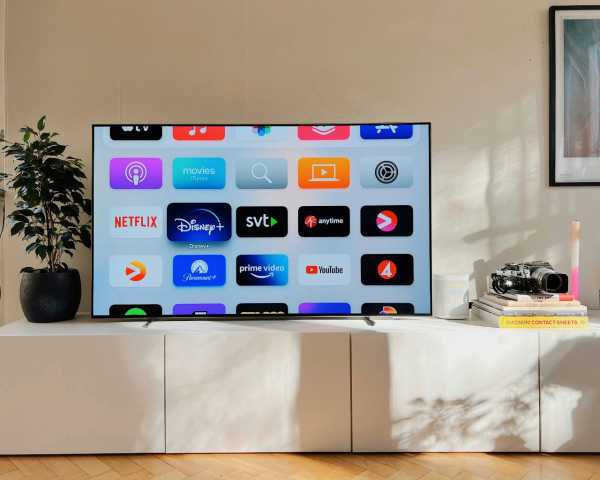
To fix buffering and lag on streaming apps, start by checking your internet connection speed and ensuring it’s stable. Restart your device, update the app, and clear cache to improve performance. Reducing video quality and closing background apps can also help enhance your streaming experience.
Buffering and lag can quickly ruin your favorite shows or movies, but the good news is that most issues are fixable with simple steps. Often, the problem stems from slow or unstable internet connections, outdated app versions, or device overload. By tweaking a few settings and ensuring your device and network are optimized, you can enjoy seamless streaming without interruptions. Whether you’re on a smart TV, tablet, or smartphone, these tips will help you troubleshoot common issues and get back to binge-watching your favorite content smoothly. Don’t let technical hiccups ruin your entertainment—let’s dive into effective solutions to fix buffering and lag fast.

How to fix buffering and lag on streaming apps
Buffering and lag can make watching your favorite shows frustrating. Luckily, there are simple steps to improve streaming quality. This guide will walk you through effective ways to fix buffering and lag on streaming apps.
Check Your Internet Connection
The first step in fixing buffering issues is ensuring your internet connection is strong. Slow or unstable internet is a common cause of streaming problems. Use a speed test tool to measure your connection speed and verify it meets the requirements for streaming.
Understand Internet Speed Requirements
Different streaming platforms have specific speed needs. For high-definition streaming, you typically need at least 5 Mbps speed. For 4K content, a minimum of 15 Mbps is recommended. Check your internet plan to see if it matches these needs.
How to Test Your Internet Speed
Use free online tools like Speedtest.net or Fast.com. Run the test multiple times during different parts of the day to get an accurate picture of your connection’s performance. If speeds fall below what is needed, consider upgrading your plan or troubleshooting your network.
Improve Wi-Fi Signal Strength
A weak Wi-Fi signal can cause buffering and lag. Make sure your streaming device is close enough to your Wi-Fi router. Obstacles like walls and furniture can weaken signals, so position your router in a central, open area.
Optimize Router Placement
Place your router at a higher position and away from electronic devices that may cause interference. Keep it off the floor and avoid placing it behind furniture. This can significantly boost Wi-Fi coverage.
Use a Wi-Fi Extender or Mesh System
If your home is large or has dead zones, consider adding a Wi-Fi extender or upgrading to a mesh Wi-Fi system. These devices can expand coverage, ensuring all streaming devices receive a strong signal.
Limit Other Devices and Activities
Bandwidth can be shared among multiple devices and activities like gaming, downloads, or video calls. These can slow down your connection and cause buffering.
Pause or Close Background Apps
Close apps or programs running in the background that use internet data. This frees up bandwidth for your streaming app, resulting in smoother playback.
Schedule Large Downloads
Download large files or updates during times when you are not streaming. This prevents bandwidth drain and keeps your streaming experience seamless.
Adjust Streaming Quality Settings
Many streaming apps let you change the quality of the video. Lowering the quality can help reduce buffering if your internet is slow.
How to Change Video Quality
In the app, go to settings or playback options. Select a lower resolution like 720p or auto mode to let the app adjust quality based on your connection.
Use Data Saver Mode
Some platforms offer data saver modes, which limit the quality to reduce buffering. Enable this feature to maintain continuous playback.
Update Your Devices and Apps
Outdated software can cause compatibility issues or bugs that lead to buffering. Regular updates ensure your device and streaming apps run smoothly.
Check for App Updates
Visit the app store on your device and install the latest version of your streaming app. Updates often include bug fixes and performance improvements.
Update Your Device’s Firmware
Manufacturers release firmware updates for devices like smart TVs, streaming boxes, and routers. Keep these up to date to optimize performance and fix bugs.
Clear Cache and Data
Over time, cached data can slow down your app. Clearing cache and data can resolve buffering and lag issues.
How to Clear Cache on Different Devices
- For Android devices, go to Settings > Apps > [Your Streaming App] > Storage > Clear Cache.
- On iOS, reinstalling the app can serve as a way to clear cache.
- On smart TVs and streaming devices, check the device settings for cache clearing options.
Restart Devices and Network Equipment
Sometimes, simply restarting your devices resets connections and clears temporary issues. Power off your streaming device, router, and modem for a few minutes before turning them back on.
Performing a Full Reset
This can resolve persistent lag or buffering problems. Unplug all devices, wait for 30 seconds, and then power them up in sequence. Test your streaming again.
Use a Wired Ethernet Connection
A wired connection provides a more stable and faster internet experience than Wi-Fi. If possible, connect your streaming device directly to your router with an Ethernet cable.
Benefits of Ethernet over Wi-Fi
- Less interference from other wireless devices
- More consistent speeds
- Reduced lag and buffering
Disable VPNs and Proxy Services
VPNs and proxies can slow down your connection or cause instability. Turn off these services when streaming to improve performance.
Check Your Network Settings
Some VPNs may conflict with streaming apps, leading to buffering issues. Disable them temporarily to see if your streaming quality improves.
Optimize Your Streaming App Settings
Many apps offer additional settings that can impact buffering. Tweak these options for better performance.
Adjust Buffering Preferences
Some apps allow you to set how much content to buffer before playback. Increasing this buffer can prevent interruptions during playback.
Enable Hardware Acceleration
If available, turning on hardware acceleration can improve playback quality by offloading processing tasks to your device’s hardware.
Related Topics
- How to upgrade your internet plan for better streaming
- Best routers for seamless streaming
- How to troubleshoot smart TV connectivity issues
- Using VPNs safely while streaming
- Choosing the right streaming device for your home
By following these steps, you can significantly reduce buffering and lag while streaming. Regular maintenance, proper setup, and optimizing your network will ensure a smooth viewing experience, letting you enjoy your favorite shows without interruptions.
Hate Live Streaming Buffering Problems? Use these 5 tricks to avoid it!
Frequently Asked Questions
What steps can I take to improve my internet connection for smoother streaming?
To enhance your internet connection, try switching to a wired Ethernet connection instead of relying on Wi-Fi, as it provides more stability. Ensure no other devices are consuming significant bandwidth during streaming, like downloads or online gaming. Restart your router regularly to refresh your connection and consider upgrading your internet plan if bandwidth remains insufficient for high-quality streaming.
How can adjusting video quality settings help reduce buffering?
Lowering the video quality setting on your streaming app decreases the amount of data needed, making it easier to load and reducing buffering issues. Opt for SD quality instead of HD or 4K, especially if your internet speed is limited. This adjustment provides a smoother viewing experience without constant pauses.
What role does device performance play in streaming quality, and how can I optimize it?
If your device is slow or running multiple background applications, it can cause lag during streaming. Close unnecessary apps, clear cache, and restart your device to improve performance. Keeping your device’s software updated also ensures compatibility and optimal functionality with streaming apps.
Are there specific troubleshooting steps for streaming apps frequently buffering despite a good internet connection?
If buffering persists, try reinstalling the app to fix potential software glitches. Check for app updates to ensure you have the latest version, which may contain performance improvements. Additionally, disable any VPNs or firewalls that might interfere with streaming and test your connection on different devices to identify whether the issue is device-specific.
How can I use network management tools to prioritize streaming traffic?
Many routers offer Quality of Service (QoS) settings, allowing you to prioritize bandwidth for your streaming devices. Access your router’s settings and assign higher priority to streaming traffic, ensuring smoother playback even when multiple devices are connected. This method helps minimize lag caused by other network activities.
Final Thoughts
To fix buffering and lag on streaming apps, first check your internet connection for speed and stability. Restart your device and router to clear minor glitches. Reducing the video quality can also improve playback smoothness. Lastly, close other applications that use bandwidth. Addressing these areas ensures a better streaming experience and reduces interruptions.



