


If your camera isn’t working on Snapchat Web, you’re not alone. This guide walks you through easy fixes like checking permissions, updating your browser, and troubleshooting common issues. Get your webcam up and running in minutes with these proven solutions.
Key Takeaways
- Check camera permissions: Snapchat Web needs browser permission to access your camera—make sure it’s enabled.
- Use a compatible browser: Chrome, Edge, and Firefox work best; Safari and older browsers may cause issues.
- Update your browser: Outdated versions often block camera access or cause glitches.
- Restart your device: A simple reboot can resolve temporary software conflicts affecting the camera.
- Test your camera elsewhere: Confirm it works in other apps like Zoom or your computer’s camera app.
- Clear cache and cookies: Corrupted data can interfere with Snapchat Web’s functionality.
- Disable conflicting extensions: Some browser add-ons block camera access—try disabling them temporarily.
Quick Answers to Common Questions
Tip/Question?
How do I know if my camera is blocked by my browser?
Look for a camera icon with a red line in your browser’s address bar. If you see it, click the icon and change the setting to “Allow.”
Tip/Question?
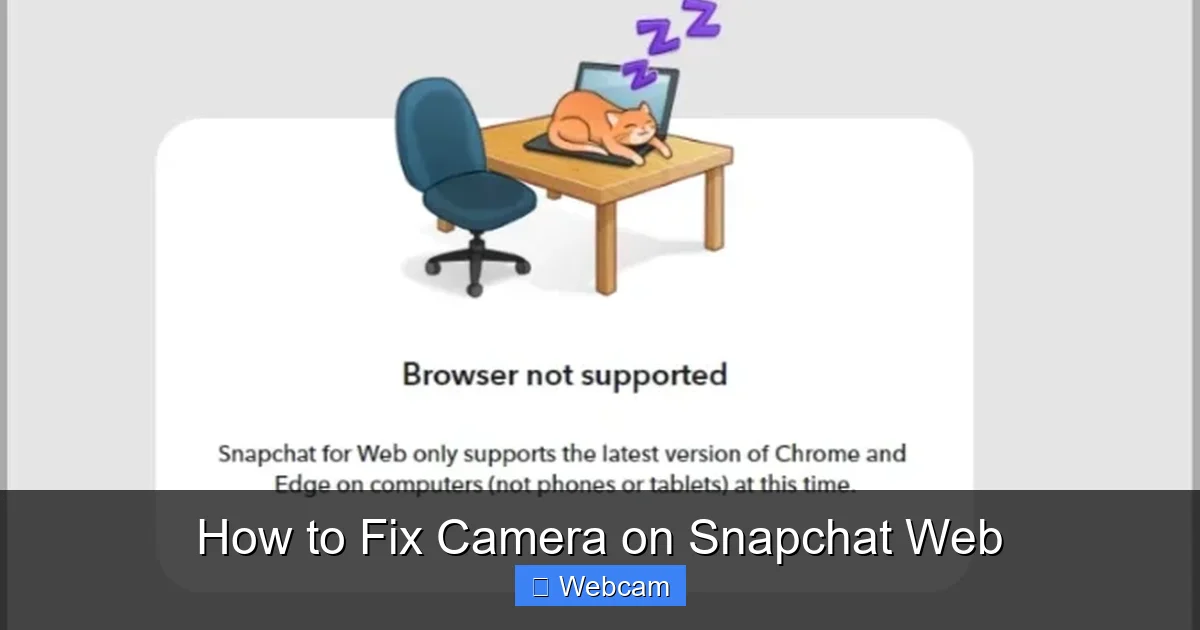
Can I use Snapchat Web on mobile?
No, Snapchat Web is designed for desktop and laptop computers only. Use the mobile app for phones and tablets.
Tip/Question?
Why does my camera work in Zoom but not Snapchat Web?
Different apps use different permission systems. Snapchat Web may not have been granted access—check your browser settings.
Tip/Question?
Should I use incognito mode to fix camera issues?
Yes! Try Snapchat Web in incognito or private browsing mode. It disables extensions and uses fresh settings, which can bypass conflicts.
Tip/Question?
What if my camera still doesn’t work after all steps?
Contact Snapchat Support or try using a different device. It could be a hardware issue or account-related problem.
How to Fix Camera on Snapchat Web
Snapchat Web lets you send snaps, chat, and video call right from your computer—no phone needed. But when your camera won’t turn on, it can be frustrating. Don’t worry! Most camera issues on Snapchat Web are easy to fix with a few simple steps. In this guide, we’ll walk you through everything you need to know to get your camera working again.
Whether you’re trying to take a quick selfie or join a video chat with friends, a functioning camera is essential. We’ll cover browser settings, permissions, troubleshooting tips, and more. By the end, you’ll know exactly how to fix camera on Snapchat Web—fast and hassle-free.
Step 1: Check Camera Permissions in Your Browser
The most common reason your camera isn’t working on Snapchat Web is that your browser hasn’t granted permission. Here’s how to fix it:

Visual guide about How to Fix Camera on Snapchat Web
Image source: saintlad.com
For Google Chrome
- Click the lock icon next to the Snapchat Web URL in the address bar.
- Select “Site settings.”
- Under “Camera,” choose “Allow” from the dropdown menu.
- Refresh the page and try using the camera again.
For Microsoft Edge
- Click the lock icon in the address bar.
- Go to “Permissions” and find “Camera.”
- Set it to “Allow.”
- Reload Snapchat Web and test the camera.
For Mozilla Firefox
- Click the camera icon in the address bar (it may show a red line if blocked).
- Select “Allow” when prompted.
- If no prompt appears, go to Settings > Privacy & Security > Permissions > Camera > Settings.
- Make sure Snapchat Web isn’t blocked in the list.
Pro tip: If you accidentally clicked “Block” before, you’ll need to manually change it back to “Allow.”
Step 2: Make Sure Your Browser Is Up to Date
Older browser versions may not support Snapchat Web’s camera features. Updating ensures compatibility and security.

Visual guide about How to Fix Camera on Snapchat Web
Image source: lifewire.com
How to Update Your Browser
- Chrome: Click the three dots > Help > About Google Chrome. It will auto-update if needed.
- Edge: Click the three dots > Help and feedback > About Microsoft Edge.
- Firefox: Click the menu button > Help > About Firefox. Updates install automatically.
After updating, restart your browser and revisit Snapchat Web. This often resolves camera glitches caused by outdated software.
Step 3: Test Your Camera in Another App
Before blaming Snapchat, check if your camera works elsewhere. This helps rule out hardware issues.
Visual guide about How to Fix Camera on Snapchat Web
Image source: techwiser.com
Quick Camera Test
- On Windows: Open the Camera app (search “Camera” in the Start menu).
- On Mac: Open Photo Booth (found in Applications).
- Try a video call on Zoom, Google Meet, or Facebook Messenger.
If the camera works in other apps, the issue is likely with Snapchat Web or your browser settings. If it doesn’t work anywhere, your camera may be disconnected, disabled, or faulty.
Step 4: Clear Browser Cache and Cookies
Corrupted cache or cookies can interfere with Snapchat Web’s ability to access your camera. Clearing them often fixes the problem.
How to Clear Cache and Cookies
- Chrome: Press Ctrl+Shift+Delete (Cmd+Shift+Delete on Mac), select “Cached images and files” and “Cookies,” then click “Clear data.”
- Edge: Same shortcut—Ctrl+Shift+Delete—then choose the same options.
- Firefox: Press Ctrl+Shift+Delete, check “Cookies” and “Cache,” then click “Clear Now.”
After clearing, restart your browser and log back into Snapchat Web. This refreshes the connection and often resolves access issues.
Step 5: Disable Browser Extensions
Some extensions—like ad blockers, privacy tools, or VPNs—can block camera access. Temporarily disabling them can help.
How to Disable Extensions
- Chrome/Edge: Click the puzzle icon (Extensions) > Manage extensions. Toggle off suspicious ones.
- Firefox: Click the menu > Add-ons and themes > Extensions. Disable non-essential ones.
Try Snapchat Web again with extensions off. If the camera works, re-enable them one by one to find the culprit.
Step 6: Try a Different Browser
If nothing works, switch to a different browser. Snapchat Web works best on Chrome, Edge, and Firefox.
For example, if you’re using Safari and the camera won’t turn on, try Chrome instead. Safari has stricter privacy settings that sometimes block camera access—even if permissions are set correctly.
Download and install a supported browser, log into Snapchat Web, and test the camera. This quick switch can save you time.
Step 7: Restart Your Device
Sometimes, a simple restart fixes hidden software conflicts. It refreshes your system, clears temporary glitches, and reinitializes hardware like your webcam.
Save your work, close all apps, and restart your computer. Once it boots up, open Snapchat Web and try the camera again. You’d be surprised how often this works!
Troubleshooting Common Issues
Still having trouble? Here are a few extra fixes for stubborn cases.
Camera Shows a Black Screen
- Make sure no other app is using the camera (like Zoom or a security app).
- Close all other browser tabs that might access the camera.
- Update your webcam drivers (Windows: Device Manager > Cameras > Update driver).
“Camera Not Supported” Error
- This usually means your browser or device doesn’t meet Snapchat Web’s requirements.
- Try using a different device or browser.
- Ensure your camera supports video streaming (most built-in and USB webcams do).
Snapchat Web Keeps Asking for Permission
- This happens if the permission wasn’t saved properly.
- Clear site data for Snapchat Web (in browser settings > Privacy > Clear browsing data > Advanced > select snapchat.com).
- Re-grant camera permission and check “Remember this decision” if prompted.
Final Tips for a Smooth Experience
To avoid future camera issues on Snapchat Web:
- Keep your browser and operating system updated.
- Use a reliable, high-quality webcam.
- Avoid using too many browser extensions.
- Log out of Snapchat Web when not in use to reduce background processes.
With these steps, you should be able to fix camera on Snapchat Web quickly and get back to snapping with friends.
Conclusion
Camera problems on Snapchat Web are common but rarely serious. Most issues stem from browser permissions, outdated software, or conflicting settings. By following this guide—checking permissions, updating your browser, testing your camera, and troubleshooting step by step—you can resolve the problem in minutes.
Remember, Snapchat Web is designed for convenience, and with the right setup, it works just as well as the mobile app. Don’t let a camera glitch stop you from staying connected. Try these fixes, and you’ll be back to sharing moments in no time.



