


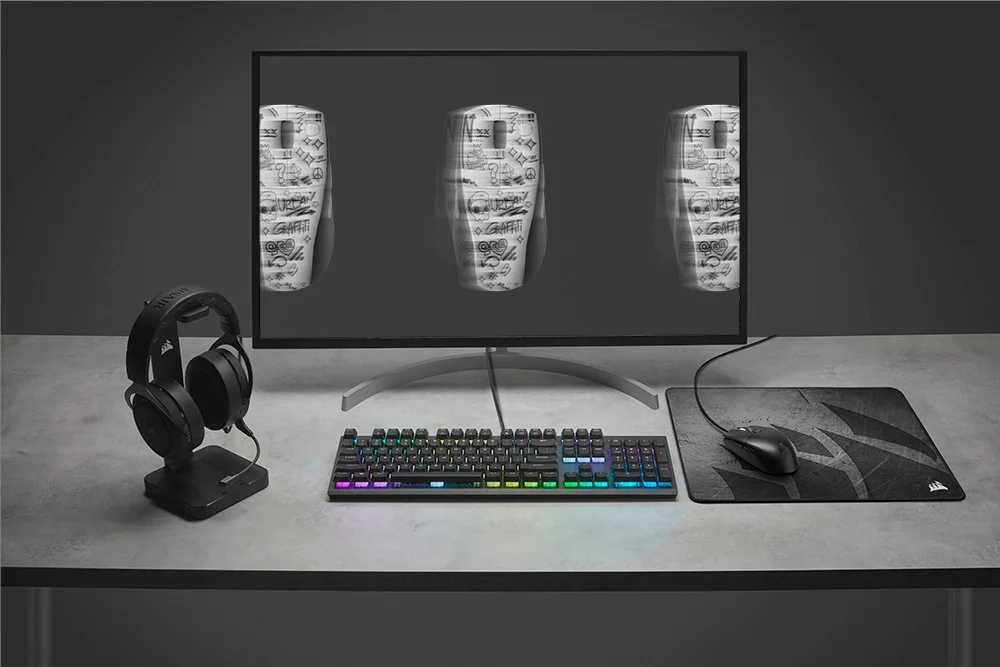
If you’re tired of blurry images and trailing effects ruining your gaming experience, fixing ghosting on a curved gaming monitor is easier than you think. The key is adjusting your monitor settings, updating graphics drivers, and optimizing your display for smoother visuals. In most cases, tweaking the response time settings or enabling overdrive can significantly reduce ghosting effects, making your gameplay sharper and more immersive.
To fix ghosting on a curved gaming monitor, start by adjusting the monitor’s response time settings or enabling overdrive mode. Updating your graphics card drivers and reducing motion blur can also help. Lastly, ensure your monitor’s refresh rate and resolution are set optimally for your system.
Ghosting on a curved gaming monitor can be a frustrating obstacle, especially when every millisecond counts in fast-paced games. This visual glitch, where trails and afterimages linger behind moving objects, can ruin your immersion and even impact your gameplay performance. Fortunately, most ghosting issues can be resolved with a few simple adjustments. From changing response time settings to updating drivers and calibrating your display, these tweaks can vastly improve your visual clarity. Understanding the cause of ghosting and knowing the right steps to address it will help you enjoy crisp, seamless visuals every time you play.

How to Fix Ghosting on Curved Gaming Monitor
Understanding Ghosting on Curved Gaming Monitors
Ghosting appears as a trail or blur behind moving objects on your screen, which can seriously affect your gaming experience. It happens when the monitor’s pixels do not update quickly enough during fast action scenes. Curved monitors, with their unique design, can sometimes make ghosting more noticeable due to their refresh rates and response times. Recognizing the cause of ghosting is the first step to fixing it.
Factors Contributing to Ghosting
Several elements can cause ghosting on a curved gaming monitor. These include:
- Response Time: The speed at which pixels change from one color to another.
- Refresh Rate: How many times per second the monitor updates the image.
- Overdrive Settings: The monitor’s setting to improve pixel response times.
- Graphics Card Performance: Your GPU’s ability to process high-speed visuals.
- Display Resolution: Lower resolutions may sometimes cause more ghosting in certain monitors.
Addressing these factors helps reduce or eliminate ghosting effectively.
Adjusting Monitor Settings to Minimize Ghosting
One of the easiest ways to fix ghosting involves tweaking your monitor’s internal settings. These adjustments can often produce quick improvements.
Set Response Time to Fast or Faster
Most curved gaming monitors come with response time settings such as Normal, Fast, or Fastest. Selecting the fastest option can significantly reduce ghosting.
Enable Overdrive Settings
Overdrive boosts pixel response times by accelerating voltage. Turn this setting on and select the highest available level, but avoid setting it too high, as it can cause artifacts or inverse ghosting.
Adjust Refresh Rate
A higher refresh rate (such as 120Hz or 144Hz) offers smoother motion, decreasing ghosting. Ensure your monitor is running at its maximum supported refresh rate via the display settings.
Calibrate Brightness and Contrast
Proper calibration enhances image clarity. Sometimes, adjusting brightness and contrast can make ghosting less visible, especially during fast-moving scenes.
Optimizing Graphics Card Settings for Better Performance
Your graphics card plays an essential role in display quality. Using GPU control panel settings can further fix ghosting issues.
Update Graphics Drivers
Ensure your GPU drivers are up to date to maximize compatibility with your monitor. Updated drivers often include performance improvements and bug fixes.
Adjust V-Sync and Frame Rate Limiters
Enabling V-Sync prevents screen tearing but can sometimes introduce input lag. Balancing V-Sync with a frame rate limiter can help improve motion clarity and reduce ghosting.
Configure Monitor Scale and Resolution
Running your game at native resolution ensures pixels are correctly mapped, reducing ghosting caused by scaling artifacts.
Hardware and Connection Checks for Ghosting Reduction
Sometimes, ghosting stems from hardware or connection issues that can be fixed physically.
Use High-Quality Cables
Ensure you’re using DisplayPort or HDMI cables that support high bandwidths. Damaged or low-quality cables can cause signal degradation leading to ghosting.
Check for Loose Connections
Secure all cable connections properly. Loose cables may cause flickering and ghosting effects.
Test Different Ports
Switching ports on your graphics card or monitor can resolve communication issues. Use the port supporting the highest bandwidth.
Evaluate the Monitor’s Condition
If ghosting persists despite settings adjustments, the monitor may have a hardware defect or aging components. Consult warranty options or consider professional repairs.
Advanced Techniques for Reducing Ghosting
For gamers seeking the best possible experience, some advanced steps can help further minimize ghosting.
Use Specialized Gaming Modes
Many monitors come with gaming presets that optimize response times and refresh rates. Enable these modes for better motion handling.
Apply Firmware Updates
Manufacturers periodically release firmware updates that can improve monitor performance and reduce ghosting. Check the manufacturer’s website regularly.
Modify Custom Settings with OSD (On-Screen Display)
Some monitors allow fine-tuning of overdrive and other settings beyond default options. Adjust these to find the optimal balance between responsiveness and image quality.
Adjusting External Lighting Conditions
Reduce ambient light or glare in your gaming setup. Excessive external light can make ghosting effects more noticeable and distracting.
Additional Tips and Best Practices
Besides adjustments, following these tips helps keep ghosting to a minimum during gameplay.
- Maintain Your Monitor: Keep the screen clean and dust-free to ensure clear visuals.
- Use Game Mode: Enable dedicated gaming modes on your monitor for optimized motion handling.
- Limit Background Applications: Reduce GPU load with unnecessary applications to prevent performance dips that could exacerbate ghosting.
- Play at Native Resolution: Always use your monitor’s native resolution for the clearest image and minimal ghosting.
Related Topics
If you want to improve your overall gaming setup, consider exploring topics like choosing the best graphics card for your monitor, upgrading to higher refresh rates, or optimizing your gaming environment for better visuals.
Summary
Fixing ghosting on a curved gaming monitor requires a combination of setting adjustments, hardware checks, and sometimes firmware updates. Start by optimizing monitor response and refresh rates, then fine-tune GPU settings and ensure your cables and connections are in perfect condition. With patience and proper calibration, you’ll enjoy clearer, smoother gaming visuals free of distracting trails.
What Is Ghosting In Monitors? Quickest Explanation! #shorts
Frequently Asked Questions
How can adjusting the monitor’s refresh rate reduce ghosting effects?
Lowering the monitor’s refresh rate can help decrease motion blur and ghosting by allowing the display to update images more frequently. Check your monitor settings or graphics card control panel to set a stable, high refresh rate compatible with your monitor. This adjustment can result in smoother motion portrayal and reduce lingering images during fast movements.
What role does overdrive or response time setting play in fixing ghosting?
Modifying the overdrive or response time setting in your monitor menu directly impacts ghosting. Increasing the overdrive typically speeds up pixel response times, minimizing trailing effects. However, setting it too high might cause inverse ghosting or artifacts. Experiment with different levels to find a balance that delivers sharp images without unwanted visual artifacts.
How can updating my graphics card driver improve ghosting issues?
Outdated or incompatible graphics card drivers can cause display problems, including ghosting. Updating your driver ensures compatibility with your monitor and can include performance improvements and bug fixes. Visit the manufacturer’s website or use your graphics card software to check for and install the latest driver version, which may resolve motion-related artifacts.
In what ways does enabling V-Sync influence ghosting on a curved gaming monitor?
Enabling V-Sync syncs your monitor’s refresh rate with your graphics card’s frame rate, reducing screen tearing and possibly ghosting during fast motions. However, if your system struggles to maintain a stable frame rate, V-Sync can introduce input lag. Adjusting or disabling V-Sync based on your performance may help in achieving clearer images during gameplay.
Should I consider calibrating my monitor to fix ghosting, and how does it help?
Calibrating your monitor’s settings, such as contrast, brightness, and color balance, can improve overall image clarity and reduce perceived ghosting. Proper calibration ensures that display settings are optimized for fast-moving visuals, making ghosting less noticeable. Use built-in calibration tools or third-party software for precise adjustments.
Final Thoughts
To fix ghosting on curved gaming monitor, start by adjusting the monitor’s refresh rate and response time settings. This can significantly reduce motion blur and ghosting effects. Additionally, ensure your graphics drivers are up to date for optimal performance. If ghosting persists, consider calibrating the display or testing with different input cables. Addressing these factors provides a clear, smoother gaming experience.
In conclusion, understanding how to fix ghosting on curved gaming monitor involves these simple steps that enhance display responsiveness and clarity. Applying these tips ensures better visual quality and reduces distractions during gameplay.



