


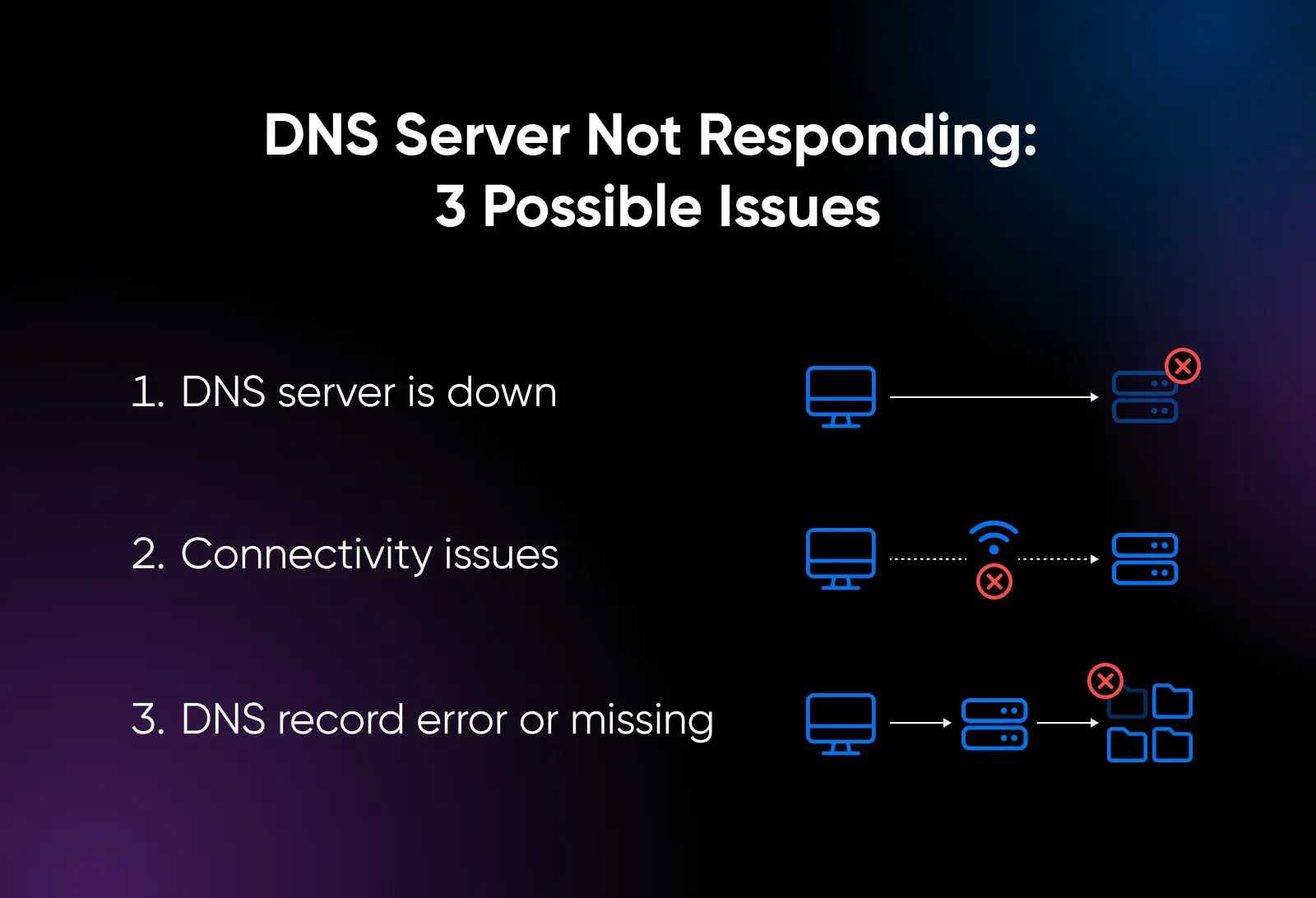
If your internet is acting up and your router’s DNS isn’t responding, don’t panic — this common issue has simple fixes. Restarting your router, changing DNS settings, or updating firmware can often do the trick to restore your connection quickly. In just a few steps, you can troubleshoot and fix the problem without calling tech support.
A quick solution involves restarting your router, switching to a public DNS like Google’s (8.8.8.8), or resetting your network settings. These steps usually resolve DNS response errors and get you back online fast.
When your router’s DNS stops responding, it can be frustrating, especially if you rely on the internet for work or entertainment. This issue often happens due to incorrect DNS settings, outdated firmware, or network glitches. Luckily, fixing it doesn’t require tech expertise; most problems are resolved with a few simple steps. In this article, we’ll guide you through practical solutions to get your internet running smoothly again, so you won’t have to spend hours figuring out what went wrong.

How to Fix Router DNS Not Responding: A Complete Guide
Understanding DNS and Why It Matters
DNS stands for Domain Name System. It is like the internet’s phonebook, translating website names into IP addresses. Without a proper DNS connection, your device cannot find websites, leading to errors like “DNS not responding”. Ensuring your DNS functions correctly is key to a smooth online experience.
Common Causes of DNS Not Responding Errors
Several issues can cause DNS problems. These include incorrect router settings, network congestion, outdated firmware, or problems with your internet service provider. Sometimes, malware or malware-related settings interfere with DNS responses. Knowing the cause helps you target the fix more effectively.
Step-by-Step Troubleshooting to Fix DNS Not Responding
1. Restart Your Router and Modem
A simple restart often resolves temporary glitches causing DNS errors. Turn off your router and modem, wait for 30 seconds, then turn them back on. Wait until all lights stabilize before testing your connection again. This process refreshes network settings and can clear minor issues.
2. Check Your Internet Connection
Verify that your internet service provider is not experiencing outages. You can do this by connecting another device or visiting your provider’s status page. If other devices also cannot connect, the issue might be outside your home network, and contacting your provider becomes necessary.
3. Change DNS Settings on Your Router
Adjusting DNS settings can fix issues caused by the default DNS server. Access your router’s admin panel through a web browser, usually by entering http://192.168.1.1 or a similar address. Locate DNS settings, then replace the existing DNS addresses with reliable ones like Google DNS (8.8.8.8 and 8.8.4.4) or Cloudflare DNS (1.1.1.1 and 1.0.0.1). Save changes and reboot your router.
4. Flush DNS Cache on Your Device
Clearing the DNS cache removes outdated or corrupted DNS entries. On Windows, open Command Prompt and type: ipconfig /flushdns. Press Enter and wait for confirmation. On Mac, open Terminal and enter: dscacheutil -flushcache; sudo killall -HUP mDNSResponder. This refreshes DNS information.
5. Update Router Firmware
Outdated firmware can cause connectivity issues, including DNS errors. Visit your router manufacturer’s website to find the latest firmware for your model. Download and follow their instructions to update your router firmware. Reboot your router after updating.
6. Disable or Enable DNS Client Service (Windows)
Sometimes, restarting the DNS client service helps resolve DNS responses. On Windows, open Services from the control panel, find “DNS Client,” right-click and select “Restart.” This can fix temporary DNS response issues caused by service glitches.
7. Reset Network Settings
Resetting network settings restores default configurations, often fixing persistent errors. On Windows, open Command Prompt and run:
netsh int ip reset
netsh winsock reset
Then restart your computer. On Mac, navigate to Network preferences and renew your DHCP lease.
8. Check for Malware or Security Software Conflicts
Malware or overly aggressive security software can interfere with DNS. Run a full system scan using trusted antivirus software. Temporarily disable security tools to see if DNS responses are restored before re-enabling them.
Advanced Solutions for Persistent DNS Problems
1. Use a Static IP Address
Assigning a static IP address to your device can sometimes bypass DNS errors. Access network settings, select your network connection, and set a manual IP address along with preferred DNS servers.
2. Change Your Router’s MTU Settings
Incorrect Maximum Transmission Unit (MTU) size can hinder DNS responses. Log into your router, locate MTU settings, and try setting it to 1500, which is standard for most connections. Reboot the router afterward.
3. Use Command Line Tools to Diagnose DNS Issues
Commands like ping, nslookup, and tracert help identify where the DNS problem occurs. For example, running nslookup google.com shows whether your device can resolve DNS queries.
Additional Tips to Maintain a Healthy DNS Connection
Regularly update your router firmware and device software. Keep your network secure by using strong passwords and avoiding suspicious links or downloads. Consider switching DNS providers if issues persist with your current setup.
Related Topics
- How to Improve Wi-Fi Speed
- Securing Your Wi-Fi Network
- Understanding IP Address and Subnets
- Best Router Settings for Enhanced Security
Summary of Key Actions
| Action | Description |
|---|---|
| Restart Router | Power cycle the device to fix temporary glitches |
| Change DNS Settings | Switch to reliable DNS servers like Google or Cloudflare |
| Flush DNS Cache | Remove outdated DNS entries on your device |
| Update Firmware | Ensure your router runs the latest software version |
| Check Internet Connection | Verify connectivity with your ISP or other devices |
Resolving DNS not responding issues involves a combination of simple steps and some advanced troubleshooting. Often, restarting your router and changing DNS settings will fix the problem quickly. If issues persist, check your network for malware or consider updating hardware and firmware for better stability. Staying proactive with regular maintenance helps prevent future DNS errors and keeps your internet browsing smooth and reliable.
I Keep Getting “DNS Server Not Responding” Errors. What Can I Do?
Frequently Asked Questions
What steps can I take if my router’s DNS settings are incorrect?
If your router’s DNS settings are incorrect, you should access the router’s admin panel and verify the DNS addresses. Use reputable DNS servers like Google’s (8.8.8.8 and 8.8.4.4) or Cloudflare’s (1.1.1.1). Save the changes and restart your router to apply the new settings. This often resolves DNS response issues caused by incorrect configurations.
How can I troubleshoot if my device is unable to obtain DNS server addresses?
Check your device’s network settings to see if it is set to obtain DNS server addresses automatically. If not, switch to automatic. Restart your device and your router. You can also try connecting with a different device to determine if the issue lies with the device or the network. Resetting network settings on your device can also help resolve any configuration issues.
What should I do if restarting my router doesn’t fix DNS responses?
If restarting doesn’t help, clear your DNS cache by entering specific commands in your device’s terminal or command prompt. Ensure your router’s firmware is up to date, as outdated firmware can cause connectivity problems. Checking for network interference or resetting your router to factory settings can also resolve persistent DNS issues.
Final Thoughts
To fix router DNS not responding, start by restarting your router and device to refresh connections. Check your network settings and switch to alternative DNS servers such as Google DNS or OpenDNS. Update your router firmware if needed, and ensure your cables are securely connected. These steps can resolve most DNS issues quickly and effectively. If problems persist, resetting your router to factory settings may help. Following these tips will help ensure reliable internet access and resolve the ‘how to fix router dns not responding’ issue efficiently.



