


If your router isn’t connecting to the internet, don’t panic—there’s usually a simple fix! Restarting your router, checking cable connections, or resetting network settings can often resolve the issue quickly. Sometimes, updating firmware or changing Wi-Fi channels helps, too.
In short, to fix a router that isn’t connecting, start by restarting or power cycling your device, verify all cables are secure, and ensure your internet service is active. If the problem persists, try resetting your router to factory settings or updating its firmware to fix bugs or compatibility issues.
Having a reliable internet connection is essential, whether you’re working from home or streaming your favorite shows. When your router won’t connect, it can be frustrating and disrupt your daily routine. Luckily, most connection problems are straightforward to troubleshoot. Common issues include loose cables, outdated firmware, or network outages. By following a few simple steps—like restarting your router, checking your connections, and updating software—you can get back online quickly. Understanding these basic troubleshooting techniques makes fixing your connection less stressful and more manageable, ensuring your digital life stays smoothly connected.

How to Fix Router Not Connecting to Internet
Understanding Why Your Router Isn’t Connecting
Many people face the frustrating issue of their router not connecting to the internet. This problem can happen for several reasons, such as incorrect settings, faulty hardware, or network outages. Knowing the common causes helps you troubleshoot effectively and resolve the issue faster.
Common Causes for Connection Problems
- Incorrect Wi-Fi or Ethernet cable connections
- Outdated router firmware
- ISP service outages or disruptions
- Incorrect network settings or IP configuration
- Router overheating or hardware malfunctions
- Interference from other electronic devices
Being aware of these causes allows you to focus on specific fixes and avoid unnecessary troubleshooting steps.
Checking Your Internet Connection
Before diving into router-specific fixes, confirm whether the internet service itself is working correctly. Use a device like your smartphone to connect directly to the modem via Wi-Fi or Ethernet. If the device cannot access the internet, the problem might be with your internet provider or modem.
Test Your Modem
Connect your computer or another device directly to the modem with an Ethernet cable. If you cannot access the internet, contact your ISP to check for outages or account issues. Sometimes, simply restarting or resetting the modem can resolve connectivity problems.
Inspect Internet Service Status
Many ISPs offer online status pages or customer service hotlines. Check these resources to see if there are ongoing outages in your area that might be affecting your internet connection.
Restarting Your Router and Modem
Often, the simplest fix is to restart your router and modem. Power cycling can clear temporary glitches that might be blocking your connection.
How to Restart Your Devices
- Turn off the router and modem by unplugging their power cables.
- Wait for at least 30 seconds to 1 minute.
- Plug the modem back in first and wait for all indicator lights to stabilize.
- Then, reconnect and turn on the router.
- Wait a few minutes for the devices to fully reboot and attempt to reconnect.
This process often restores the connection without further troubleshooting.
Verifying Physical Connections
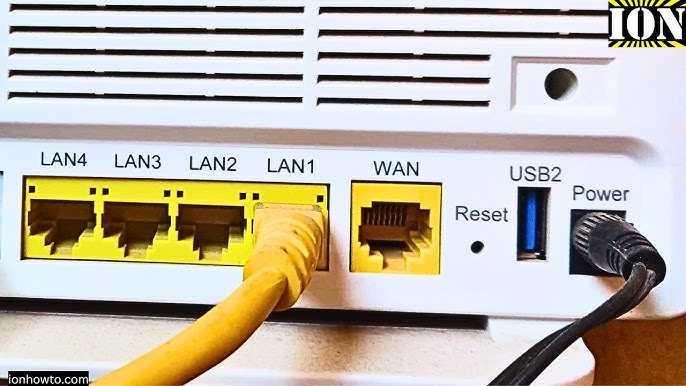
Ensure all cables between your modem, router, and devices are securely connected. Loose or damaged cables are a common cause of connectivity issues.
Checking Ethernet Cables
Inspect Ethernet cables for visible damage or wear. Sometimes, replacing a faulty cable can fix persistent connection problems. Make sure the cables are plugged into the correct ports on both the modem and router.
Inspecting Power Connections
Confirm that your router and modem are receiving power. Look for flashing or absent indicator lights, which can signal power issues or hardware failures.
Updating Router Firmware
Outdated firmware can cause compatibility issues and limit your router’s ability to connect to the internet. Keep your router’s firmware up to date to ensure optimal performance.
Steps to Update Firmware
- Log into your router’s admin interface through a web browser (usually by entering 192.168.1.1 or similar).
- Navigate to the Firmware or Software Update section.
- Check for available updates. If there are updates, follow the prompts to install them.
- After updating, restart the router to apply changes.
Regular updates can fix bugs and improve your router’s stability.
Checking Network Settings
Incorrect network settings can prevent your router from connecting to the internet. Verify that your router’s configuration matches your Internet Service Provider’s specifications.
Verify IP Settings
Ensure your router is set to obtain an IP address automatically unless your ISP provides static IP settings. In the router’s admin panel, check that DHCP is enabled.
Resetting to Factory Settings
If you’ve changed settings and are unsure about the correct configuration, reset the router to factory defaults. Usually, this involves pressing and holding a small reset button for about 10 seconds. Reconfigure your network afterward using your ISP’s instructions.
Addressing Hardware Issues
Hardware problems like overheating or physical damage can cause your router to stop working properly.
Physical Inspection
Check for any visible signs of damage or overheating. Move the router to a cooler, well-ventilated area if necessary.
Replacing Faulty Equipment
If you suspect your router is defective, try connecting with a different router if available. Newer routers often come with better hardware and features that enhance connectivity.
Advanced Troubleshooting
When basic steps do not resolve the issue, advanced troubleshooting techniques can help identify more complex problems.
Using Command Prompt or Terminal Commands
Run commands like ping or ipconfig to diagnose network connectivity.
- ping 8.8.8.8 tests your connection to Google’s DNS server. Timeouts indicate network issues.
- ipconfig /release and ipconfig /renew refresh your IP configuration, which can fix IP conflicts.
Checking for Interference and Signal Strength
Wireless signals can be affected by interference from other electronics or structural obstacles. Use Wi-Fi analyzers or apps to check signal strength and channel congestion.
Switching Wi-Fi Channels
Access your router’s admin panel and change the wireless channel to a less congested frequency to improve connectivity.
Seeking Professional Help
If all else fails, contact your ISP or a professional technician. They can diagnose hardware failures or issues beyond your control.
Professional Diagnostics
Technicians can run in-depth tests on your hardware and network to identify problems. Sometimes, replacing faulty components or upgrading equipment is the best solution.
Replacing Your Router
If your router is old or consistently failing, investing in a new, reliable router can prevent future outages and improve your internet experience.
Additional Tips for Better Internet Connectivity
To avoid future issues, consider these extra steps:
- Place your router in a central location away from electronics that cause interference.
- Regularly update firmware and device drivers.
- Secure your Wi-Fi network with a strong password to prevent unauthorized access.
- Limit the number of devices connected simultaneously if bandwidth is limited.
Related Topics
Explore other ways to improve your home network, such as:
- Using Wi-Fi extenders or mesh networks for larger homes
- Improving Wi-Fi signal strength through better placement
- Securing your network with WPA3 encryption
- Configuring parental controls and guest networks
Remember, troubleshooting your router can be straightforward with patience and systematic steps. Starting with simple fixes like restarting and checking cables often solves the problem. If not, updating firmware, verifying settings, and inspecting hardware provide further pathways to restore your internet connection.
How To Fix Your Internet: Quick Modem & Router Reset Guide Spectrum Outage
Frequently Asked Questions
Why does my router show it’s connected but I can’t access the internet?
When your router indicates a connection but you cannot access the internet, it could be due to an IP conflict, outdated firmware, or incorrect network settings. First, restart your router and modem to refresh the connection. Check that your device has obtained a proper IP address, and update your router’s firmware if necessary. Additionally, verify that your network settings are correctly configured, including DNS and default gateway settings. If the problem persists, contact your internet service provider to check for outages or service issues.
What steps can I take to reset my router and improve connectivity?
To reset your router, locate the reset button on the device, press and hold it for about 10-15 seconds, then release. This restores the router to factory settings. After resetting, reconfigure your network settings, including Wi-Fi name and password. Ensure your modem is functioning properly and reconnect all cables securely. Reboot both the modem and router, then test the connection on your device. Performing a reset can resolve conflicts or corrupted settings that hinder internet access.
How do I resolve issues caused by interference affecting my Wi-Fi signal?
Interference from other electronic devices or neighboring Wi-Fi networks can weaken your signal. To reduce interference, position your router away from cordless phones, microwaves, and large metal objects. Switch your Wi-Fi to a less congested channel by accessing the router’s settings. Using the 5 GHz band can also help since it’s less crowded than 2.4 GHz. Additionally, update your router’s firmware to the latest version for optimal performance. Regularly changing channels and improving placement can significantly enhance your connection stability.
Final Thoughts
Pour résoudre le problème de connexion Internet, commencez par vérifier que votre câble modem est correctement branché et fonctionne. Redémarrez votre routeur pour rafraîchir la connexion. Vérifiez aussi les paramètres réseau et assurez-vous que le firmware du routeur est à jour.
Si ces étapes ne suffisent pas, essayez de réinitialiser votre routeur aux réglages d’usine. Enfin, contactez votre fournisseur d’accès Internet pour diagnostiquer d’éventuels problèmes de ligne.
In conclusion, how to fix router not connecting to internet, should focus on checking la configuration, redémarrer l’équipement, et mettre à jour le firmware. Ces actions simples peuvent souvent résoudre le souci rapidement.



