


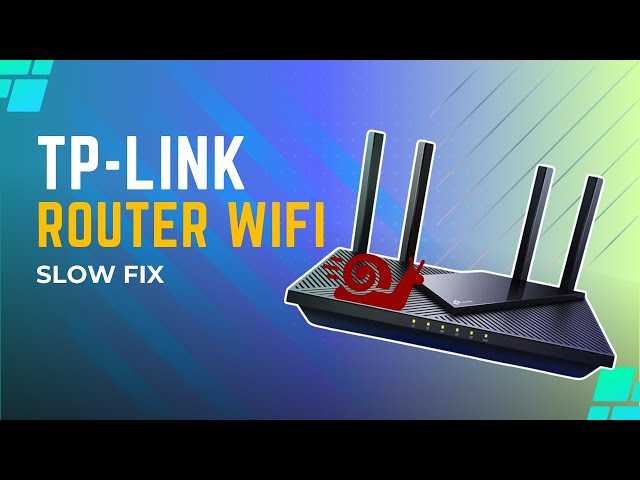
If your internet connection feels sluggish and frustrating, fixing your router’s slow speed might be simpler than you think. Restarting your router, updating its firmware, or moving it to a better location can often restore faster speeds. Also, reducing interference from other devices and limiting the number of connected gadgets can make a big difference.
In a nutshell, troubleshooting slow router speeds involves checking and updating your device, optimizing its placement, and managing connected devices for better performance. These quick and easy steps can significantly improve your internet experience without the need for technical expertise.
When your Wi-Fi slows down at crucial moments, it’s easy to get annoyed—but a few simple adjustments can bring your connection back to life. Sometimes, the root cause is as straightforward as interference or outdated software. In this article, we’ll explore practical tips to fix slow router speeds, helping you enjoy seamless browsing, streaming, and gaming again. Whether you’re dealing with buffer-heavy videos or slow downloads, these straightforward solutions will help you boost your network performance efficiently.

How to Fix Router Slow Speed: Easy Steps to Boost Your Internet Connection
Identify the Cause of Slow Internet Speed
Before fixing your router, find out why your internet is slow. Common causes include network congestion, outdated hardware, interference, or improper settings. Use online speed tests to measure your current speed and compare it with your internet plan. This helps determine whether the issue comes from your router or your internet service provider.
Check Your Internet Speed
Run a speed test using tools like Speedtest.net or Fast.com. Test at different times of the day to see if speeds fluctuate. If your speeds are consistently below what your plan offers, it’s time to troubleshoot your router. Remember, wired connections typically offer faster and more stable speeds than wireless ones, so test both if possible.
Reboot Your Router Properly
Rebooting your router is a simple but effective way to improve speed. Turn off the router, wait for at least 30 seconds, and turn it back on. This refreshes your network connection and clears temporary glitches. Regular reboots can help maintain smooth internet performance.
Update Router Firmware
Router manufacturers often release firmware updates that fix bugs and improve performance. Access your router’s admin panel through a web browser—usually by typing your router’s IP address—and look for firmware update options. Follow the instructions carefully to keep your router running efficiently.
Change Your Wi-Fi Channel
Wireless routers operate on different channels, and congestion on a channel can slow down your Wi-Fi. Use apps or router settings to identify the least crowded channel and switch to it. This reduces interference from nearby networks and improves speed.
Place Your Router in the Best Location
Router placement greatly affects speed and coverage. Place your router in a central, open spot away from thick walls, metal objects, and other electronics. Elevate the router on a shelf or high surface to minimize interference and maximize signal strength.
Secure Your Wi-Fi Network
Unauthorized users can consume your bandwidth, slowing down your connection. Protect your Wi-Fi with a strong password and WPA3 encryption if available. Regularly change your password and remove devices you no longer recognize to keep your network secure.
Limit Devices and Manage Bandwidth
Too many devices connected simultaneously can overload your network. Disconnect devices not in use and prioritize bandwidth for essential activities like work or streaming. Use Quality of Service (QoS) settings in your router to allocate bandwidth to critical devices or applications.
Upgrade Your Router Hardware
If your router is outdated or low-end, it might struggle with high-speed internet. Consider upgrading to a newer model that supports higher Wi-Fi standards like 802.11ac or 802.11ax (Wi-Fi 6). Modern routers offer better range, speed, and security features.
Adjust Wi-Fi Settings for Better Performance
Optimizing your router’s settings can improve speed. Enable features such as dual-band Wi-Fi (2.4 GHz and 5 GHz) to reduce congestion. Use the 5 GHz band for faster speeds and less interference, especially if you’re close to the router.
Use Ethernet Cables for Stable Connections
For the most reliable and fastest connection, connect devices via Ethernet cables. Wired connections are less prone to interference and provide consistent speeds, especially for gaming, streaming, or work from home.
Reduce Interference from Other Electronic Devices
Other electronics like cordless phones, microwave ovens, and baby monitors can interfere with Wi-Fi signals. Keep your router away from these devices and avoid placing it near large metal objects or mirrors that can disrupt signal propagation.
Disable Unnecessary Background Apps
Background applications on your devices can consume bandwidth without you knowing. Close or disable updates and sync services running in the background. This frees up bandwidth for your primary activities and improves speed.
Perform Regular Router Maintenance
Regularly check your router’s settings and update firmware. Reset your router periodically if you notice continued slow speeds. Keeping your router well-maintained ensures optimal performance over time.
Consult Your Internet Service Provider (ISP)
If none of the above solutions work, contact your ISP. They may have issues on their end or offer equipment upgrades. Sometimes, upgrading your internet plan or replacing faulty hardware can provide the speed boost you need.
Summary Table of Fixes for Router Slow Speed
| Fix | Description |
|---|---|
| Identify the Cause | Run speed tests and observe fluctuations to diagnose issues |
| Reboot Router | Simple restart to refresh connections and fix glitches |
| Update Firmware | Install latest software to improve performance and security |
| Change Wi-Fi Channel | Select less crowded channels to reduce interference |
| Optimal Placement | Position router centrally, elevated, and away from obstructions |
| Secure Network | Use strong passwords and encryption to prevent bandwidth theft |
| Limit Devices & Manage Bandwidth | Reduce connected devices and prioritize essential applications |
| Upgrade Hardware | Invest in a new router supporting higher standards such as Wi-Fi 6 |
| Adjust Settings | Enable dual-band Wi-Fi and optimize channel settings |
| Ethernet Connection | Use wired links for stability and high speed |
| Eliminate Interference | Keep router away from electronic interference sources |
| Limit Background Apps | Close unnecessary applications consuming bandwidth |
| Regular Maintenance | Perform resets and firmware updates periodically |
| Contact ISP | Seek professional support or plan upgrades if problems persist |
Additional Tips for Better Wi-Fi Performance
- Use a Wi-Fi Extender or Mesh Network: Expand coverage in large homes or areas with weak signal.
- Disable unused Wi-Fi bands or features: Turn off extras you don’t need for cleaner, faster operation.
- Set a Guest Network: Keep visitors on a separate network to protect your main bandwidth.
Related Topics
- Best Wi-Fi Routers for 2023
- How to Secure Your Wireless Network
- Understanding Wi-Fi Standards
- Common Wi-Fi Problems and Fixes
By following these detailed steps, you can significantly improve your router’s speed and enjoy a smoother internet experience. Whether it’s updating firmware, changing locations, or upgrading hardware, each tip moves you closer to faster, more reliable connectivity.
FIX your slow internet speed – the Ultimate WiFi troubleshooting guide!
Frequently Asked Questions
How can I improve my router’s Wi-Fi signal range?
Position your router in a central location away from walls and obstructions to maximize coverage. Elevate the router onto a shelf or mount it on the wall to reduce interference. Using a Wi-Fi extender or mesh system can also help expand the signal to hard-to-reach areas of your home.
What steps should I take to reduce network congestion?
Limit the number of devices connected simultaneously to your network, especially during high-traffic times. Prioritize important applications using Quality of Service (QoS) settings on your router. Switching to a less congested Wi-Fi channel can also decrease interference from nearby networks.
How do I update my router to improve its speed?
Access your router’s admin panel and check for firmware updates regularly. Updated firmware often includes performance improvements and security patches. Follow the manufacturer’s instructions to download and install the latest firmware version without disrupting your network.
What configuration changes can help boost my router’s performance?
Disable unused features like Wi-Fi Protected Setup (WPS) or guest networks to free up resources. Change from the default password to ensure security and reduce unauthorized usage. Adjust the wireless channel settings to avoid interference from neighboring networks, which can enhance speed and stability.
How can I identify if interference is slowing down my Wi-Fi?
Use Wi-Fi analyzer tools to scan for competing networks and signal interference in your area. Check if certain devices or appliances, like cordless phones or microwave ovens, operate on the same frequency and can interfere with your Wi-Fi signal. Reducing or relocating such devices can improve your connection speed.
Final Thoughts
To fix router slow speed, start by placing your router in a central location away from obstructions. Update your firmware regularly to improve performance and security. Reduce the number of connected devices to prevent network congestion.
Switching to a less crowded Wi-Fi channel can also boost speeds, especially in densely populated areas. Regularly restart your router to clear temporary glitches.
In conclusion, fixing router slow speed involves optimizing placement, updating firmware, managing device connections, and adjusting channels. Implement these steps to improve your network’s performance effectively.



