


Struggling with tiny or blurry icons and menus on your 4K monitor? Don’t worry—scaling issues are common but easily fixable. The key is to adjust your display settings or update your graphics driver to ensure everything looks sharp and readable.
In short, to fix scaling problems on a 4K monitor, start by adjusting the display scaling options in your operating system and ensure your graphics drivers are up to date. If needed, tweak individual application settings for better clarity. These simple steps will make your 4K experience smoother and more comfortable to use.
Using a 4K monitor can elevate your work and entertainment, but sometimes, the display can feel awkward with tiny text and icons. Many users face these challenges, especially when the default scaling isn’t optimized. The good news is, fixing these issues involves just a few tweaks—whether it’s changing DPI settings or updating your graphics driver. By doing so, you’ll enjoy a crisp, clear display without straining your eyes or sacrificing usability. Let’s explore some straightforward solutions to get your 4K monitor looking its best!

How to Fix Scaling Problems on a 4K Monitor
Understanding Why Scaling Issues Occur on 4K Monitors
Scaling problems happen because 4K monitors have a very high resolution, which makes interface elements like text, icons, and menus appear tiny on the screen. This issue is common when software and operating systems do not automatically adjust to the high pixel density. As a result, users often experience blurry images or unreadable text that can cause frustration.
Another reason scaling issues arise is because older applications are not optimized for 4K displays. These programs were made for lower resolutions and may not automatically adapt to larger screens. This leads to inconsistent sizes and a poor user experience. Understanding why these problems happen is the first step toward fixing them effectively.
Adjusting Display Settings in Windows
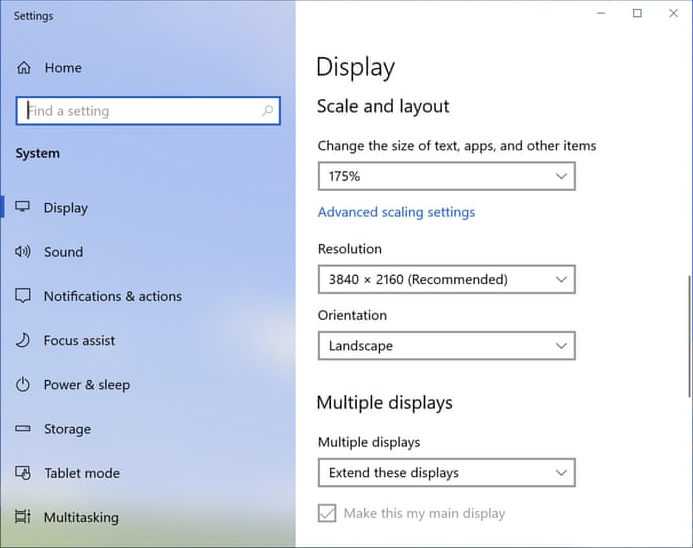
The easiest way to improve scaling on a 4K monitor is through the display settings in Windows. To start, right-click on the desktop and select “Display Settings.” Here, you’ll find options to change the size of text, apps, and other items.
Find the section labeled “Scale and Layout” and look for the dropdown menu labeled “Change the size of text, apps, and other items.” You can choose a percentage like 150% or 200%, depending on your preference. Higher percentages make things larger and easier to read.
For better clarity, you might want to set the scaling to a value that feels comfortable while still keeping the interface usable. Ensure that “Display resolution” is set to 3840 x 2160 to match your monitor’s native resolution for the best visual quality.
Customizing Scaling for Specific Applications
Sometimes, adjusting the overall scaling does not fix issues with particular apps. Windows allows you to set custom scaling options for individual programs. To do this, right-click the app icon and select “Properties.” Then, go to the “Compatibility” tab.
Click “Change high DPI settings” and check the box that says “Override high DPI scaling behavior.” From the dropdown menu, choose “Application” or “System.” This setting forces the app to scale properly, fixing blurry or tiny interfaces.
If you notice that some applications still do not display correctly, consider updating them or contacting the developer for high DPI support. This step helps ensure all your software runs smoothly on your 4K display.
Using Display Scaling Options in macOS
For Mac users, adjusting display scaling can resolve many size-related issues. Open “System Preferences” from the Apple menu and select “Displays.” Next, click on the “Scaled” option.
You’ll see options to increase or decrease the size of interface elements. Select “More Space” for sharper images or “Larger Text” for easier readability. These settings change how the desktop and apps appear without affecting the resolution itself.
MacOS also offers a “Default for display” setting, which automatically optimizes scaling based on the monitor’s capabilities. Experiment with different options to find the best fit for your needs.
Configuring Brightness and Resolution for Better Clarity
Sometimes, adjusting brightness and contrast can enhance the overall display quality, making scaled elements easier to see. Use your monitor’s on-screen display (OSD) menu to tweak these settings.
Ensure that the resolution remains at 3840 x 2160 for crisp visuals. If you notice blurriness, verify that your graphics driver is up to date, as outdated drivers may cause display artifacts. Maintaining optimal display settings helps in reducing eye strain and improving clarity.
Additionally, consider calibrating your monitor for color accuracy. Proper calibration ensures that images and text appear sharp and vibrant, especially when scaling is enabled.
Updating Graphics Drivers for Optimal Performance
Graphic drivers play a crucial role in how content appears on your 4K monitor. Outdated or incompatible drivers can cause scaling issues or display artifacts. To update your drivers, visit the manufacturer’s website like NVIDIA, AMD, or Intel.
Download and install the latest driver version compatible with your graphics card. After updating, restart your computer to apply changes. Proper driver updates often fix bugs related to high-resolution displays and improve overall scaling performance.
Regularly checking for driver updates ensures your system remains compatible with the latest software and hardware features, reducing scaling problems over time.
Utilizing Third-Party Scaling Software
If system settings do not fully resolve scaling issues, third-party software can help. Applications like DisplayFusion or WinSize2 offer precise control over display scaling, allowing you to customize how elements appear.
These tools enable you to set different scaling levels for multiple monitors or individual applications. They also provide options to enhance DPI settings beyond default options, producing sharper images and more readable text.
While third-party software provides advanced options, always choose reputable programs to avoid security risks. Testing different tools can help find the best solution for your specific setup.
Adjusting Browser Zoom Levels for Web Content
Web content often appears tiny on 4K monitors. Many browsers have built-in zoom features to address this. In Chrome, Firefox, or Edge, press “Ctrl” and “+” to zoom in or “Ctrl” and “-” to zoom out.
For a permanent solution, go into browser settings and set the default zoom level to a higher percentage like 125% or 150%. This adjustment ensures webpages are easier to read without affecting overall system scaling.
Remember, adjusting zoom levels is a simple way to improve your browsing experience on high-resolution displays.
Troubleshooting Common Scaling Problems
If you face persistent issues, consider troubleshooting with these tips:
- Restart your computer after changing display or scaling settings to apply changes fully.
- Check for monitor firmware updates that might improve compatibility.
- Ensure that your graphics card drivers are current, as outdated drivers can cause scaling bugs.
- Try different scaling percentages to find the most comfortable size for your eyes.
- Test different applications to see if scaling problems are widespread or isolated.
If problems continue despite these steps, it may be worth consulting with a professional technician. Proper diagnostics can identify hardware or software conflicts causing scaling issues.
Additional Tips for Better 4K Display Experience
To further improve your display experience, consider using monitor calibration tools. These tools help fine-tune color, contrast, and brightness for clearer visuals.
Using ergonomic accessories like adjustable stands and anti-glare filters can also reduce eye strain during extended use. Remember to take regular breaks, especially when working with small fonts or detailed graphics.
Finally, stay updated on software patches and system updates. Manufacturers often release fixes for resolution and scaling issues, especially for high-resolution screens.
—
Fixing scaling problems on a 4K monitor involves a combination of system settings adjustments, updating drivers, and possibly using third-party tools. By customizing these settings, you can enjoy a sharp, comfortable, and productive display experience. Regularly reviewing your setup and making small tweaks ensures your 4K monitor remains a joy to use every day.
How To Fix Screen Resolution Problem Windows 10 | Easy 2024 #shorts #screenresolution #windows10
Frequently Asked Questions
How can I adjust display scaling settings for better readability on a 4K monitor?
To improve readability, open your system’s display settings and locate the scaling option. Increase the scaling percentage gradually until text and icons appear clear and appropriately sized. On Windows, you can find this under Display -> Scale and Layout. On macOS, go to System Preferences -> Displays and select a scaled resolution that matches your preferred size. Adjusting these settings helps balance clarity and workspace without making items too small or oversized.
What steps should I take to update graphics drivers for optimal compatibility?
Ensure your graphics drivers are current to support high-resolution displays properly. Visit your GPU manufacturer’s website, such as NVIDIA, AMD, or Intel, and download the latest driver updates. Follow the installation instructions provided. Restart your system after updating to apply changes. Updated drivers often include bug fixes and enhancements that resolve scaling issues specific to 4K monitors, leading to smoother visual performance.
How can I modify application settings to fix scaling inconsistencies?
Some programs have their own scaling options that override system settings. Open the application’s preferences or options menu and look for display or interface scaling options. Adjust these settings to match the system’s scaling. For instance, in older software, enabling compatibility mode or setting high DPI awareness can help ensure that the application’s interface scales correctly on a 4K display, reducing blurry or misaligned elements.
What should I do if system-wide scaling causes interface elements to appear blurry?
If scaling makes interface elements blurry, disable or change the scaling settings temporarily. You can set a custom scaling level or revert to 100% to see if clarity improves. On Windows, right-click on the desktop, select Display Settings, and adjust scale to a different percentage. On macOS, choose a scaled resolution that balances size and sharpness. If blurriness persists, consider adjusting display resolution or enabling ClearType (on Windows) for sharper text rendering.
Are there specific resolution settings that help mitigate scaling issues on a 4K monitor?
Yes, selecting a resolution that offers a good balance between clarity and size can help. Instead of using the native 3840×2160 resolution, try scaled resolutions or lower settings temporarily to see if they alleviate scaling problems. On Windows, you can choose a custom scaled resolution from advanced display settings or use display scaling features to fine-tune how elements appear. Experiment with different configurations to identify the setup that provides the clearest visuals with proper sizing.
Final Thoughts
Pour résoudre les problèmes de mise à l’échelle sur un moniteur 4K, commencez par ajuster les paramètres de résolution dans les paramètres d’affichage. Vérifiez que la mise à l’échelle est configurée à 100 % ou à un pourcentage approprié.
Ensuite, mettez à jour vos pilotes graphiques pour assurer une compatibilité optimale. Enfin, utilisez les options avancées dans les paramètres de votre système pour affiner la mise à l’échelle.
how to fix scaling problems on 4k monitor ? En ajustant la résolution, en mettant à jour les pilotes, et en configurant la mise à l’échelle, vous pouvez résoudre ces problèmes efficacement.



