


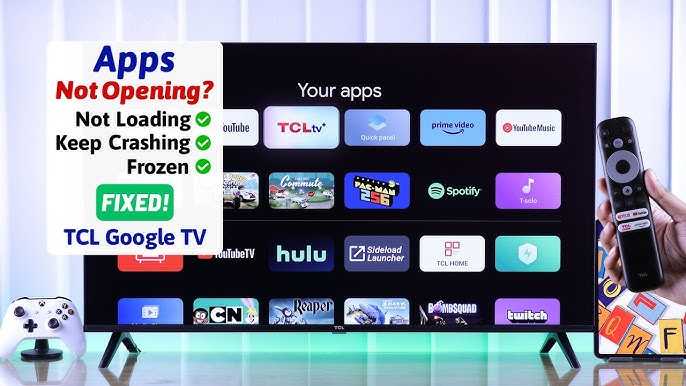
A quick restart can often solve the mystery of app crashes or loading issues on your smart TV. Sometimes, a simple update or clearing the cache is enough to bring your favorite apps back to life. If trouble persists, adjusting settings or reinstalling the app can make all the difference.
In short, troubleshooting smart TV app problems involves restarting your device, updating the app and firmware, clearing cache, and reinstalling if needed. These steps usually resolve most common crashes and loading issues quickly and easily.
When your smart TV apps start crashing or refuse to load, it can be incredibly frustrating, especially when you’re just trying to enjoy your favorite shows. These glitches can stem from a variety of problems like software bugs, outdated versions, or poor internet connectivity. Luckily, many of these issues are fixable with simple troubleshooting steps. Whether it’s a quick restart, software update, or clearing the app cache, resolving these problems can restore smooth streaming and elevate your viewing experience. This guide will walk you through practical solutions to get your smart TV apps running seamlessly again.

How to Fix Smart TV App Crashes or Loading Issues
Understanding Why Smart TV Apps Crash or Fail to Load
Smart TV apps can crash or not load for many reasons. Sometimes, it’s due to a problem with the app itself, and other times, it’s related to the TV’s software or internet connection. Knowing the main causes helps you identify solutions faster.
Common issues include outdated app versions, poor internet signals, and software bugs. Devices with limited storage space or conflicting apps can also cause crashes. Recognizing these causes makes troubleshooting easier and more effective.
Check Your Internet Connection
Since most apps require a steady internet connection, the first step is to verify your Wi-Fi or Ethernet connection. A weak or unstable internet signal often leads to loading issues or crashes.
You can test your internet speed using online tools or by streaming videos on other devices. If your connection is slow, try moving closer to the router or resetting your Wi-Fi. Restarting your modem or router often improves connection stability.
Steps to Improve Internet Stability
- Restart your router by unplugging it for 30 seconds and plugging it back in.
- Ensure no other devices are hogging your bandwidth, like large downloads or multiple streams.
- Use a wired Ethernet connection if possible, as it provides a more stable signal than Wi-Fi.
- Update your router’s firmware to ensure optimal performance.
Update Your Smart TV’s Software and Apps
Running outdated software or app versions can cause crashes or loading problems. Regular updates include bug fixes, security patches, and performance improvements.
To update your Smart TV:
- Navigate to your TV’s settings menu.
- Select the “Software Update” option.
- Follow on-screen instructions to download and install updates.
- Repeat for individual app updates through the app store or marketplace.
Check for updates frequently, especially after noticing issues. Keeping everything current ensures compatibility and smooth operation.
Clear Cache and Data of the Problematic App
Over time, app cache and data can accumulate and create conflicts that lead to crashes or slow loading. Clearing cache helps free up space and resolve minor glitches.
**How to clear cache:**
For Android-Based Smart TVs:
- Go to Settings.
- Select Apps or Applications.
- Find the problematic app in the list.
- Choose Clear Cache and Clear Data options.
- Restart the app and check if it works better.
For Other Smart TV Platforms:
Some TVs may not allow cache clearing directly. In such cases, uninstall and reinstall the app to achieve a similar effect.
Reinstall the App
If clearing cache doesn’t fix the issue, uninstalling and reinstalling the app can resolve deeper software conflicts. This process resets app settings and clears temporary files.
**Steps to reinstall:**
- Navigate to your TV’s app marketplace or store.
- Locate the problematic app.
- Select Uninstall or Remove.
- Restart your TV.
- Reinstall the app from the store.
- Open the app and check if it loads without crashing.
Check for TV Firmware Updates
Smart TV firmware updates often include improvements for app compatibility and performance. Outdated firmware can cause issues that affect app stability.
**How to update firmware:**
- Open Settings.
- Look for Software or Firmware Update section.
- Select Check for Updates.
- If an update is available, follow prompts to install it.
- Restart your TV after updating.
Keeping your TV’s software current enhances overall stability and app performance.
Close Background Apps and Restart Your TV
Running multiple apps simultaneously may strain resources and cause crashes. Closing background apps frees up memory.
**To do this:**
- Access the recent apps menu on your TV remote.
- Close all apps except the one you want to use.
- Turn off your TV completely and unplug it for a few minutes.
- Plug it back in and launch the troublesome app again.
A simple restart can often resolve temporary software glitches.
Check for Compatibility and App Restrictions
Some apps have compatibility issues with certain TV models or software versions. Verify your TV meets the app’s requirements.
Visit the app’s official website or app store description for minimum specifications. If your device isn’t compatible, consider alternatives or upgrade options.
Reduce Interference and Improve Signal Quality
Wireless signals can be disrupted by physical obstructions or other electronic devices, affecting app performance.
**Tips include:**
- Position your Wi-Fi router in a central location away from thick walls.
- Eliminate or reduce interference from microwaves, cordless phones, or baby monitors.
- Use Wi-Fi extenders or mesh networks to boost coverage in larger homes.
These steps help ensure your Smart TV maintains a strong and reliable connection to streaming services.
Utilize Built-in Troubleshooting Tools
Many Smart TVs feature diagnostic tools that can identify and resolve common issues.
Check your TV’s manual or settings menu for options like “Network Test” or “Troubleshooting.” Follow the on-screen prompts to diagnose and fix problems automatically.
Reset Your Smart TV to Factory Settings
If all else fails, a factory reset can restore your TV to its original state, fixing software glitches and app issues.
**Note:** This process erases all settings and installed apps. Back up any important data first.
**To reset:**
- Go to Settings.
- Select General or System.
- Find and choose Reset to Factory Defaults.
- Follow prompts to confirm and complete the reset.
- Set up your TV again and reinstall necessary apps.
Use this as a last resort after trying all other troubleshooting steps.
Related Topics: Enhancing Your Smart TV Experience
Explore options like using VPNs for geo-restriction issues, installing third-party apps for additional streaming choices, and adjusting display settings for better viewing quality. Regular maintenance and understanding your device’s features will help prevent future problems.
Taking these steps systematically helps fix most app crashes and loading issues on your Smart TV. Consistent updates, good internet connection, and mindful usage make your streaming experience smooth and enjoyable.
Samsung Smart TV: How To FIX Apps Not Working! [Crashing/Not Loading]
Frequently Asked Questions
What steps should I take if an app on my smart TV keeps crashing repeatedly?
If an app crashes frequently, first restart your smart TV to refresh the system. Ensure your TV’s firmware and the app are both updated to the latest versions. Clear the app’s cache and data through the TV’s settings menu. If the issue persists, uninstall and then reinstall the app. Additionally, check your internet connection, as unstable networks can cause apps to malfunction. If none of these steps work, contact the app’s support team for further assistance.
How can I improve app loading times on my smart TV?
To reduce app loading times, close any background applications that might be using resources. Keep your TV’s firmware up to date to benefit from performance improvements. Clear the cache of the specific app, which can help speed up loading. Use a wired internet connection if possible, as it provides a more stable and faster network. You can also try restarting your TV periodically to refresh its processes, leading to quicker app launches.
What should I do if an app becomes unresponsive when opening on my smart TV?
If an app stops responding upon launch, force close it through the TV’s menu. Restart your smart TV to clear temporary glitches. Make sure the app is compatible with your TV model and is updated to the latest version. Sometimes, resetting the TV to factory settings can resolve persistent unresponsiveness, but ensure you back up any important data beforehand. If problems persist, consult the app developer or TV manufacturer for additional help.
Final Thoughts
To fix smart TV app crashes or loading issues, start by restarting your device to clear temporary glitches. Ensure your TV software is up to date, as updates often fix bugs and improve stability. Clear the app cache or reinstall the problematic app to resolve persistent issues. Finally, check your internet connection, as weak or unstable networks can cause loading problems. By following these steps, you can effectively resolve most app crashes or loading issues on your smart TV.



