


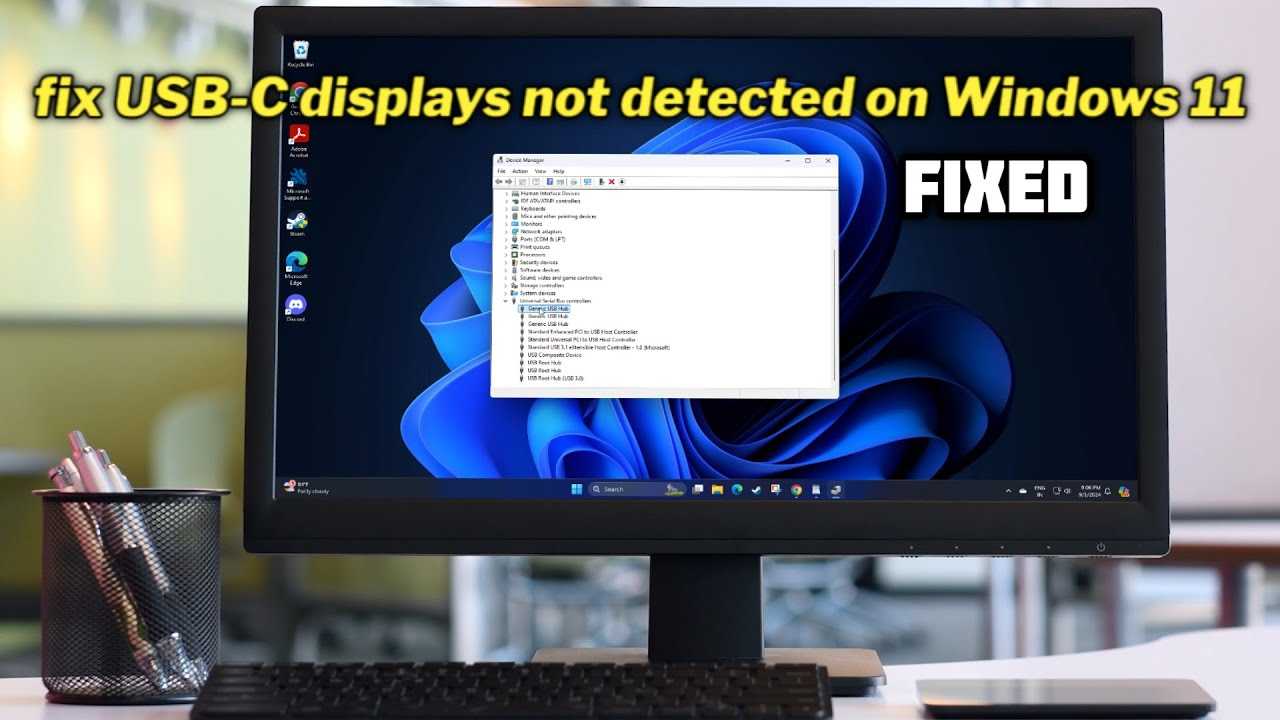
If your USB-C monitor isn’t being detected, don’t panic—there are simple steps you can take to restore your display quickly. First, ensure your cables are securely connected, update your device drivers, and try reconnecting the monitor or restarting your computer. Sometimes, tweaking display settings or testing with a different cable can make all the difference.
In brief, to fix a USB-C monitor not being detected, check all physical connections, update your system drivers, and try different cables or ports. These straightforward troubleshooting steps often resolve the issue without needing advanced tech help.
Struggling with a USB-C monitor that just won’t show up can be frustrating, especially when you need a seamless workspace. Many users face this problem due to loose connections, outdated drivers, or incompatible settings. The good news is that most issues can be resolved with some basic troubleshooting. Whether your monitor isn’t recognized on a new setup or suddenly stops working, understanding the common causes and solutions can help you get back on track quickly. This guide walks you through practical steps—checking connections, updating drivers, and adjusting display settings—so you can troubleshoot efficiently and restore your productivity without unnecessary stress.

How to Fix USB C Monitor Not Detected
Understanding the Common Reasons Why Your USB C Monitor Isn’t Detected
Before trying to fix the problem, it’s important to understand why your USB C monitor might not be showing up. Common reasons include faulty cables, incorrect settings, outdated drivers, or hardware issues.
Sometimes, the problem lies in the compatibility of the device or port. Knowing the cause helps you choose the right solution quickly.
Check the Physical Connections Carefully
The first step is to examine all physical connections. Ensure that the USB C cable is securely plugged into both your monitor and computer. Loose connections often cause detection issues.
Look for visible damage on the cable, such as fraying or bent connectors. Replace damaged cables immediately for better results.
- Verify that the monitor’s power cable is plugged in and turned on.
- Make sure you’re using a USB C port that supports video output. Not all USB C ports have this feature.
- Try disconnecting and reconnecting the cable to see if the monitor appears after a moment.
Test with a Different USB C Cable or Port
If your monitor isn’t detected, the cable might be faulty. Switch to a different USB C cable that is known to support video transfer.
Similarly, try connecting the monitor to another USB C port on your computer. Some ports are designated for data transfer, while others support power or display.
| Step | Action | Expected Result |
|---|---|---|
| 1 | Change the USB C cable | Monitor gets detected |
| 2 | Switch USB C ports | Monitor appears in display settings |
Update or Reinstall Display Drivers
Outdated or corrupted display drivers often cause detection issues. To fix this, update your graphics drivers through Device Manager or your manufacturer’s website.
Right-click on the Start button, select ‘Device Manager,’ locate ‘Display adapters,’ right-click your graphics card, and choose ‘Update driver.’ Follow prompts to install the latest version.
If updating doesn’t work, try uninstalling the driver. Restart your computer, and Windows will automatically reinstall the drivers.
- Visit the GPU manufacturer’s website for the latest drivers.
- Use Windows Update to check for driver updates.
Adjust Display Settings on Your Computer
If your monitor is detected but not displaying correctly, check your display settings. On Windows, right-click on the desktop and select ‘Display Settings.’
Ensure that the monitor appears under ‘Multiple Displays’ and set it to ‘Extend’ or ‘Duplicate’ as needed.
Sometimes, the monitor might be recognized but set to a resolution or refresh rate that it doesn’t support. Adjust those settings to compatible values.
Update Firmware and BIOS for Compatibility
Firmware updates for your monitor or BIOS updates for your laptop can fix compatibility issues. Visit your monitor manufacturer’s website to find firmware upgrade instructions.
For computers, check your motherboard or system manufacturer’s website for BIOS updates. Be cautious when updating BIOS; follow the instructions carefully.
These updates often improve device communication and fix bugs related to USB C connections.
Check for Hardware Compatibility and Limitations
Ensure your hardware supports video transfer through USB C. Some devices may only supply power or data and lack video output capabilities.
Review your device specifications and verify whether your USB C port is designed for display output. If not, consider using an alternative connection type.
Note that some monitors require specific hardware features or compatible drivers to function correctly with USB C.
Test the Monitor on Different Devices
Connect your monitor to another computer or device with a USB C port supporting video. If it works, the issue might be with your original computer.
If it doesn’t work on different devices, the monitor itself could be faulty and may need repair or replacement.
Testing helps narrow down whether the problem is with the monitor or your computer.
Reset Your Monitor and Computer Settings
Sometimes, resetting device settings resolves detection issues. Power off your monitor, unplug it, and then reconnect after a few minutes.
On your computer, reset display settings to default. This can clear up any misconfigured settings causing detection problems.
Reboot your system after resetting to ensure all changes take effect properly.
Utilize Additional Software Tools for Troubleshooting
Several third-party tools can help identify connection problems. Software like DisplayPilot or Easy Display Manager can manage multiple displays and troubleshoot issues.
These tools often provide diagnostics, which make it easier to spot problems with display detection or connection stability.
Always use reputable software from trusted sources to avoid security risks.
Check for External Interference or Power Issues
Electromagnetic interference from nearby devices can sometimes disrupt USB C connections. Try relocating your setup to reduce interference.
Also, verify that your power supply is stable enough to support both your computer and monitor, especially if they share the same outlet.
Unstable power or interference can cause your monitor to not be recognized properly.
Consult Technical Support or Professional Repair
If all else fails, contacting customer support can provide tailored solutions for your specific hardware.
Or visit a professional repair technician who can diagnose and fix hardware issues that might be causing the problem.
Sometimes, the most effective solution involves hardware replacement or internal repairs.
Summary of Key Troubleshooting Steps
- Ensure cables and connections are secure and undamaged.
- Test with a different USB C cable and port.
- Update or reinstall display drivers.
- Adjust display settings for resolution and output mode.
- Update firmware and BIOS for compatibility.
- Verify hardware support for video over USB C.
- Test the monitor on other devices.
- Reset monitor and system settings.
- Use troubleshooting software tools.
- Address external interference and power issues.
- Seek professional help if needed.
By following these methods carefully, you can often resolve the problem of a USB C monitor not being detected. Patience and systematic troubleshooting usually lead to success in restoring display functionality.
Troubleshooting Guide: USB C to HDMI Adapter Cable Not Working? Learn How to Fix It in 2023
Frequently Asked Questions
Why does my USB-C monitor not display any image even when connected?
If your USB-C monitor shows no image, check that the cable is firmly connected and not damaged. Ensure that your device supports video output through USB-C and that the monitor is set to the correct input source. Restart your device and the monitor to refresh the connection. Updating your graphics drivers and firmware can also resolve compatibility issues.
How can I verify if my USB-C port supports video transmission?
Consult your device’s specifications to confirm that the USB-C port supports Alternate Mode (DisplayPort or Thunderbolt). You can also test the port with another device or cable known to carry video signals. If other devices also fail to display video, the port may lack the necessary functionality or require hardware repair.
What steps should I take if my monitor is recognized but shows a blank screen?
First, check your display settings to ensure the correct output source is selected. Try adjusting the resolution and refresh rate to match your monitor’s capabilities. Disconnect and reconnect the USB-C cable, and try a different port if available. Updating graphics drivers can help your system properly detect and display content on the monitor.
How do I troubleshoot power issues with my USB-C monitor?
Verify that your monitor is receiving power properly by checking the power cable and outlet. Use a different power adapter or cable if possible. If your monitor relies on USB-C for both data and power, ensure the port supplies adequate power. Try connecting the monitor to a different USB-C port with higher power delivery capabilities.
What should I do if my monitor is not recognized after software updates?
Rollback your graphics drivers to a previous version if the problem started after an update. Confirm that your operating system recognizes your device by checking device manager or system settings. Reinstall or update your graphics drivers and monitor firmware to ensure compatibility. Restart your system after making these changes.
Final Thoughts
To fix usb c monitor not detected, start by checking the cable connections and ensuring they are secure. Update your device drivers and firmware to improve compatibility. Test the monitor on another device to rule out hardware issues. These steps will help resolve common detection problems efficiently.



