



Webcam lag can ruin video calls and streaming. This guide shows you how to fix webcam lag with simple steps like updating drivers, adjusting resolution, and optimizing your internet connection.
Key Takeaways
- Update your webcam drivers: Outdated drivers are a common cause of lag—keep them current for best performance.
- Lower video resolution and frame rate: High settings strain your system; reducing them can eliminate lag.
- Close background apps: Free up CPU and RAM by shutting down unnecessary programs.
- Check your internet speed: A slow connection causes streaming delays—test and upgrade if needed.
- Use a wired connection: Ethernet is more stable than Wi-Fi for lag-free video.
- Adjust lighting and positioning: Poor lighting forces the camera to work harder, increasing lag.
- Restart your device: A simple reboot can resolve temporary glitches affecting webcam performance.
Quick Answers to Common Questions
Should I use Wi-Fi or Ethernet for video calls?
Use Ethernet whenever possible. It’s faster and more stable than Wi-Fi, reducing lag and dropped frames.
Can my computer’s age cause webcam lag?
Yes. Older computers with weak CPUs or low RAM struggle with high-resolution video. Lower your webcam settings to match your system’s limits.
Does lighting really affect webcam performance?
Absolutely. Good lighting reduces the camera’s need to process dark areas, cutting down on lag and improving image quality.
Why does my webcam lag only at night?
Low light forces the camera to use slower shutter speeds or higher ISO, increasing processing time. Add a soft light source to fix this.
Can antivirus software cause webcam lag?
Yes, some real-time scanners slow down your system. Temporarily disable them during important calls—but re-enable afterward for security.
How to Fix Webcam Lag
If your webcam is lagging during video calls, online classes, or live streams, you’re not alone. Webcam lag—delayed or choppy video—is frustrating but fixable. Whether you’re using Zoom, Teams, or OBS, this guide will walk you through proven steps to fix webcam lag quickly and effectively.
We’ll cover software fixes, hardware tips, and network optimizations so you can enjoy smooth, real-time video. Let’s get started!
Step 1: Update Your Webcam Drivers
Visual guide about How to Fix Webcam Lag
Image source: altercam.com
Outdated or corrupted drivers are one of the top causes of webcam lag. Drivers act as translators between your camera and computer. When they’re old, performance suffers.
How to Update Drivers on Windows
- Press Windows + X and select Device Manager.
- Expand Cameras or Imaging devices.
- Right-click your webcam and choose Update driver.
- Select Search automatically for drivers and follow the prompts.
How to Update on macOS
macOS usually updates drivers automatically with system updates. Go to Apple Menu > System Settings > General > Software Update to check for updates.
Tip: Use Manufacturer’s Website
For best results, visit your webcam brand’s website (like Logitech or Microsoft) and download the latest driver manually.
Step 2: Adjust Webcam Settings
Visual guide about How to Fix Webcam Lag
Image source: altercam.com
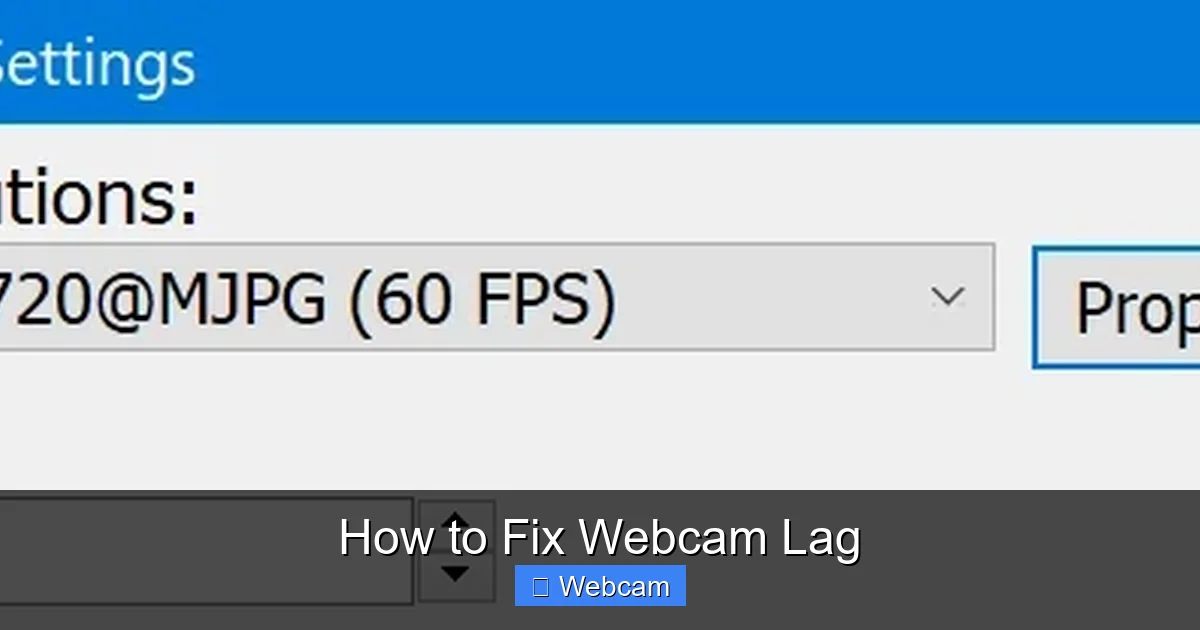
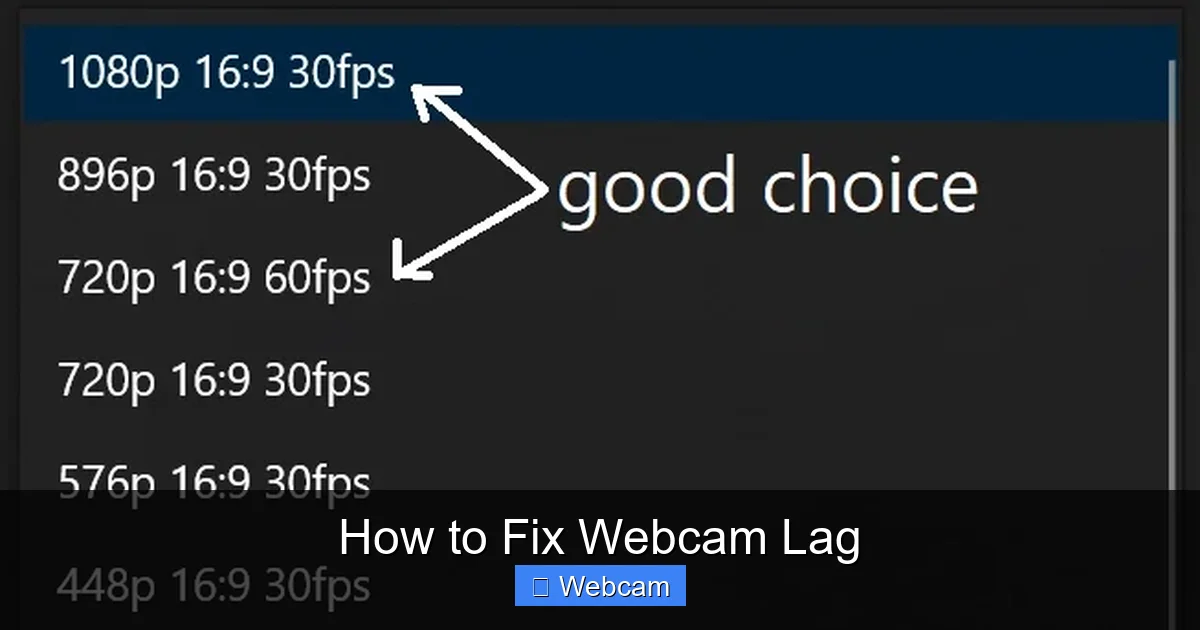
High resolution and frame rates look great but can overload your system, causing lag. Lowering these settings often fixes the issue.
Reduce Resolution and Frame Rate
Most webcams default to 1080p at 30fps or higher. Try switching to 720p at 30fps or even 30fps at 480p for older devices.
- In Zoom: Go to Settings > Video > Camera Settings and adjust resolution.
- In OBS: Right-click your webcam source > Properties > change resolution and FPS.
Disable Auto-Focus and Auto-Exposure
These features constantly adjust, which can cause stuttering. Turn them off in your camera software or app settings for smoother video.
Step 3: Close Background Applications

Visual guide about How to Fix Webcam Lag
Image source: altercam.com
Too many apps running at once eat up CPU and RAM, slowing down your webcam.
Check Task Manager (Windows) or Activity Monitor (Mac)
- On Windows: Press Ctrl + Shift + Esc to open Task Manager. Sort by CPU or Memory and close heavy apps like browsers, games, or video editors.
- On Mac: Open Activity Monitor from Applications > Utilities. Quit apps using high CPU.
Tip: Disable Startup Programs
Prevent apps from launching at startup to keep your system light. On Windows, use Task Manager > Startup tab. On Mac, go to System Settings > General > Login Items.
Step 4: Optimize Your Internet Connection
Even with a great webcam, a slow internet connection causes lag—especially during video calls.
Test Your Internet Speed
Use free tools like Speedtest.net or Fast.com. For smooth HD video, you need at least 3–5 Mbps upload speed.
Switch to a Wired Connection
Wi-Fi is convenient but unstable. Plug in an Ethernet cable for a faster, more reliable connection.
Reduce Bandwidth Usage
- Ask others on your network to pause streaming or downloads during calls.
- Lower video quality in your conferencing app (e.g., turn off HD in Zoom).
- Use QoS (Quality of Service) settings on your router to prioritize video traffic.
Step 5: Improve Lighting and Camera Position
Poor lighting forces your webcam to boost ISO or slow shutter speed, increasing processing time and lag.
Use Natural or Soft Artificial Light
Sit facing a window during the day. At night, use a ring light or soft lamp in front of you—not behind.
Avoid Backlighting
Never sit with a bright window or lamp behind you. It confuses the camera and causes lag as it tries to adjust.
Position Your Camera Correctly
Place the webcam at eye level, about 2–3 feet away. This reduces the need for digital zoom or cropping, which can slow performance.
Step 6: Restart Your Device
Sometimes, the simplest fix works best. A restart clears temporary files, resets drivers, and frees up memory.
When to Restart
- After installing updates.
- If lag starts suddenly with no clear cause.
- Before important calls or streams.
Troubleshooting Common Webcam Lag Issues
Webcam Works in One App but Not Another?
Some apps don’t support certain cameras well. Try using your webcam in Windows Camera or Photo Booth (Mac) to test. If it works there, the issue is app-specific. Update the app or check its camera permissions.
Lag Only During Streaming?
Streaming uses more resources than video calls. Lower your stream resolution in OBS or Streamlabs, and close other apps. Consider using a capture card if you’re gaming.
External Webcam Still Lagging?
Try a different USB port—preferably USB 3.0 (blue). Avoid USB hubs. If the problem persists, test the camera on another computer to rule out hardware issues.
Conclusion
Webcam lag doesn’t have to ruin your video experience. By updating drivers, adjusting settings, closing background apps, and optimizing your internet and lighting, you can fix webcam lag fast. Start with the basics—like a restart and driver update—then move to network and hardware tweaks if needed.
With these steps, you’ll enjoy smooth, responsive video for work, school, or fun. Remember, small changes often make a big difference.



