


If your webcam is not detected, don’t panic—this common issue is often fixable with simple steps like checking connections, updating drivers, or adjusting privacy settings. This guide walks you through easy, effective solutions to get your camera working again in minutes.
Key Takeaways
- Check physical connections first: Loose or faulty USB cables are a top cause of webcam detection issues—always test with another port or device.
- Update or reinstall webcam drivers: Outdated or corrupted drivers prevent your system from recognizing the camera—use Device Manager or manufacturer tools.
- Enable camera access in privacy settings: Both Windows and macOS block camera access by default for security—make sure apps have permission.
- Test the webcam in multiple apps: Sometimes the issue is app-specific—try Zoom, Camera app, or Skype to isolate the problem.
- Restart your computer after changes: Many fixes only take effect after a reboot—don’t skip this step.
- Try the webcam on another device: This helps determine if the problem is with the camera hardware or your computer.
- Use built-in troubleshooters: Windows and macOS offer automated tools that can detect and fix common webcam issues.
Quick Answers to Common Questions
Is your webcam showing a black screen instead of not being detected?
This could mean the camera is detected but not functioning properly. Try closing other apps that might be using the camera, or check for lens covers or physical switches.
Can you hear the camera click when you plug it in?
Yes—this usually means the hardware is receiving power. If it’s still not detected, focus on software fixes like drivers and permissions.
Does the webcam work in one app but not another?
Yes—this points to app-specific settings. Check the app’s video preferences and ensure it’s set to use the correct camera.
Should you buy a new webcam if it’s not detected?
Not yet. Try all troubleshooting steps first. If the camera fails on multiple devices, then consider replacement.
Can Windows Update fix webcam issues?
Yes—Windows Update often includes driver and system fixes. Make sure your OS is up to date under Settings > Windows Update.
How to Fix Webcam Not Detected – A Complete Guide
Is your webcam not detected by your computer? Whether you’re trying to join a video call, record a tutorial, or stream online, a missing webcam can be frustrating. The good news? Most “webcam not detected” issues are easy to fix with a few troubleshooting steps. In this guide, we’ll walk you through practical, step-by-step solutions for both built-in laptop cameras and external USB webcams on Windows and Mac systems.
You’ll learn how to check hardware connections, update drivers, adjust privacy settings, and use built-in tools to restore your camera functionality. By the end, you’ll have a working webcam—no technical expertise required.
Step 1: Check Physical Connections
The first and simplest step is to make sure your webcam is properly connected. For external USB webcams, a loose or damaged cable is often the culprit.

Visual guide about How to Fix Webcam Not Detected
Image source: fineshare.com
Inspect the USB Cable and Port
- Unplug the webcam and plug it back into a different USB port.
- Try using a different USB cable if possible.
- Avoid using USB hubs—connect directly to the computer.
Test on Another Device
Plug the webcam into another computer or laptop. If it works there, the issue is likely with your original device. If it doesn’t, the camera itself may be faulty.
Step 2: Restart Your Computer
Sometimes, a simple restart can resolve detection issues. Restarting refreshes system processes and reinitializes hardware connections.
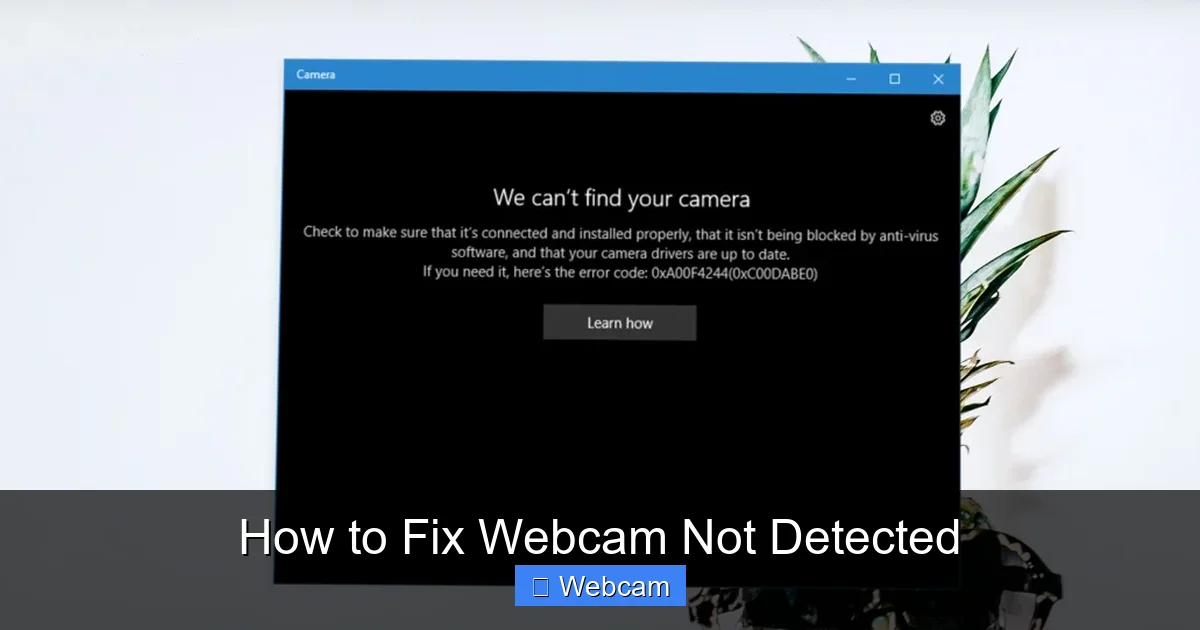
Visual guide about How to Fix Webcam Not Detected
Image source: fineshare.com
- Save your work and restart your computer.
- After rebooting, check if the webcam is now detected in your preferred app (like Zoom or the Camera app).
Step 3: Check Camera Privacy Settings
Modern operating systems restrict app access to the camera for privacy. If permissions are disabled, your webcam won’t be detected by apps.

Visual guide about How to Fix Webcam Not Detected
Image source: fineshare.com
On Windows 10/11
- Go to Settings > Privacy & Security > Camera.
- Make sure Camera access is turned on.
- Scroll down and ensure your apps (e.g., Zoom, Chrome, Teams) are allowed to use the camera.
On macOS
- Open System Settings > Privacy & Security > Camera.
- Check the box next to each app that needs camera access.
- You may need to restart the app after enabling permissions.
Step 4: Update or Reinstall Webcam Drivers
Outdated or corrupted drivers are a common cause of webcam detection problems. Updating them can restore functionality.
On Windows
- Press Windows + X and select Device Manager.
- Expand Cameras or Imaging devices.
- Right-click your webcam and select Update driver.
- Choose Search automatically for drivers.
- If that doesn’t work, right-click again and select Uninstall device. Then restart your PC—Windows will reinstall the driver automatically.
On macOS
macOS handles drivers automatically, but you can reset system management controllers to refresh hardware detection.
- Shut down your Mac.
- Press and hold Shift + Control + Option on the left side of the keyboard, then press the power button. Hold all four keys for 10 seconds.
- Release and turn on your Mac.
Step 5: Use Built-in Troubleshooters
Both Windows and macOS offer automated tools to detect and fix hardware issues.
Windows Camera Troubleshooter
- Go to Settings > System > Troubleshoot > Other troubleshooters.
- Find Camera and click Run.
- Follow the on-screen instructions to detect and fix issues.
macOS Diagnostics
- Shut down your Mac.
- Turn it on and immediately press and hold D until diagnostics begin.
- Follow prompts to check for hardware issues, including camera problems.
Step 6: Test the Webcam in Different Apps
Sometimes the issue isn’t the camera—it’s the app. Test your webcam in multiple programs to isolate the problem.
- Open the built-in Camera app (Windows) or Photo Booth (Mac).
- If the camera works here, the issue is likely with your video conferencing app (e.g., Zoom, Skype).
- Update the app or check its camera settings under Preferences > Video.
Step 7: Check for Conflicting Software
Antivirus programs, VPNs, or other security software can block camera access.
- Temporarily disable your antivirus or firewall.
- Check if the webcam is now detected.
- If it works, adjust the software settings to allow camera access or add exceptions for trusted apps.
Step 8: Try a Different User Account
Sometimes user profile corruption can cause hardware detection issues.
- Create a new user account on your computer.
- Log in and test the webcam.
- If it works, the problem is with your original profile—consider migrating settings or using the new account.
Troubleshooting Tips
- External webcams not working? Try a different USB port—some ports provide more power.
- Laptop camera still not detected? Some laptops have a physical camera switch or function key (e.g., Fn + F10) to enable/disable the camera.
- Still no luck? Visit the manufacturer’s website for firmware updates or contact support.
Conclusion
A webcam not detected error doesn’t have to ruin your day. With the steps above—checking connections, updating drivers, adjusting privacy settings, and using built-in tools—you can resolve most issues quickly. Start with the basics like restarting and checking cables, then move to software fixes. If all else fails, testing the camera on another device will help determine if it’s a hardware problem.
Remember, most webcam issues are software-related and fixable. Stay patient, follow the steps in order, and you’ll be back to video calls and recordings in no time.



