


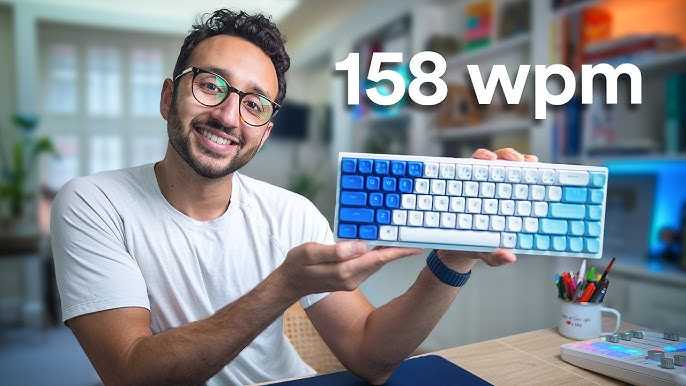
Mastering keyboard shortcuts is like unlocking a secret superpower for your computer skills. Once you get the hang of them, you’ll breeze through tasks and significantly boost your typing speed. The key is to start with the most common shortcuts, practice regularly, and gradually incorporate new ones into your daily routine. Consistency and patience are your best friends on this journey.
To learn keyboard shortcuts for faster typing, focus on the most frequently used commands first, such as copy, paste, undo, and save. Use online tutorials or cheat sheets to familiarize yourself, and practice them consistently until they become second nature. Over time, you’ll find yourself navigating your computer more efficiently and with less reliance on the mouse.
If you want to speed up your workflow, mastering keyboard shortcuts is essential. Start small, practice often, and you’ll be surprised how quickly your efficiency improves. Embracing these shortcuts can transform the way you work on your computer, making tasks quicker and more enjoyable.

How to learn keyboard shortcuts for faster typing
Understanding the Importance of Keyboard Shortcuts
Keyboard shortcuts save time and make work easier by allowing quick access to commands. They help you stay focused without needing to switch between mouse and keyboard constantly. The faster you memorize shortcuts, the more efficient your computer use becomes.
Start Small with Basic Shortcuts
Begin by learning simple shortcuts like Copy (Ctrl+C), Paste (Ctrl+V), and Undo (Ctrl+Z). These are used throughout most programs. Practicing these often can boost your confidence and build a good foundation.
Focus on the Applications You Use Most
Identify which programs you spend the most time in, such as Word, Excel, or browser apps. Learn their most common shortcuts first. For example, in browsers, Refresh (F5) or Open a new tab (Ctrl+T) are helpful.
Use Visual Aids to Memorize Shortcuts
Create cheat sheets listing essential shortcuts. Keep them near your workspace or save digital copies on your device. Visual reminders help reinforce memory and make it easier to recall shortcuts during work.
Practice Regularly and in Context
Practice shortcuts as you work on tasks. Instead of defaulting to menus, try using shortcuts to perform the same actions. Repetition helps turn these commands into instinctive responses.
Integrate Shortcut Practice into Daily Tasks
Set aside a few minutes each day to review and rehearse new shortcuts. Incorporate them into your routine so they become natural. Over time, muscle memory will develop, increasing your typing speed.
Use Shortcut Training Tools and Apps
Utilize free online tools and apps designed for learning shortcuts. Programs like KeyCombiner or ShortcutFoo provide interactive exercises. These tools track your progress and help you learn systematically.
Organize Shortcuts by Categories
Group shortcuts into categories like editing, navigation, and formatting. For example, in Word, Bold (Ctrl+B) and Italic (Ctrl+I) belong to formatting. Categorizing helps you learn related shortcuts together.
Customize Shortcuts for Your Needs
Many programs allow you to customize or create new shortcuts. Adjusting shortcuts to fit your workflow can make your work more seamless. Be sure to remember your custom mappings for quick access.
Leverage Keyboard Shortcuts for Navigation
Navigation shortcuts like Scroll (arrow keys), Jump to the beginning or end (Ctrl+Home / Ctrl+End), and Switch between tabs (Ctrl+Tab) help you move quickly within documents. Mastering these reduces unnecessary mouse use.
Incorporate Shortcut Learning into Your Learning Routine
If you’re new to shortcuts, set small goals. For example, learn five new shortcuts each week. Consistent, incremental learning prevents overwhelm and builds your skills steadily.
Track Your Progress and Celebrate Achievements
Keep a record of shortcuts you’ve learned. Celebrate milestones, like mastering all essential shortcuts for a program. Recognizing progress motivates continued practice.
Utilize Shortcut Reference Menus and Tooltips
Many applications display shortcut hints when you hover over buttons or in menu options. Use these as reminders while you’re still memorizing. Over time, reliance on these hints decreases.
Participate in Shortcut Challenges and Games
Look for online quizzes and games focused on shortcut memorization. These fun activities make learning enjoyable and engaging. They also help reinforce your knowledge through repetition.
Review and Refresh Your Knowledge Periodically
Revisit your list of shortcuts every few weeks. Refreshing your memory ensures you don’t forget useful commands. Continuous review keeps shortcuts ingrained in your workflow.
Set Practical Goals for Speed Improvement
Aim to increase your typing speed gradually by incorporating shortcuts. For example, challenge yourself to complete tasks 10% faster each week. Goals keep you motivated and focused.
Explore Advanced Shortcuts and Customizations
Once comfortable with basic shortcuts, explore more complex combinations. Many programs allow macros or custom keys. Learning these can significantly boost your efficiency.
Practice with Real-World Scenarios
Simulate tasks like editing a document or organizing data. Use shortcuts exclusively during these exercises. Applying shortcuts in real scenarios cements your skills and saves time.
Encourage a Shortcut-Friendly Environment
Share your goals with colleagues or friends. Practice together or exchange tips. An environment that supports shortcut use increases motivation and accountability.
Stay Patient and Persistent
Learning shortcuts takes time and regular practice. Don’t get discouraged if progress seems slow. Consistent effort leads to automatic use, making you faster in the long run.
Related Topics: Ergonomics and Keyboard Use
Using ergonomic keyboards and proper hand placement can make practicing shortcuts more comfortable. Proper setup reduces fatigue and enhances learning efficiency.
Additional Resources for Shortcut Learning
Explore online tutorials, YouTube videos, and downloadable guides. Many creators offer step-by-step instructions tailored for beginners. These resources are valuable for visual learners.
Track Your Speed and Accuracy
Use typing tests to measure your progress. Focus on both speed and correctness. As your accuracy improves, your overall typing speed will benefit.
Incorporate Shortcuts into Creative Projects
Use shortcuts when creating presentations, editing images, or designing layouts. The more you practice in diverse tasks, the more natural shortcuts become.
Summary
Learning keyboard shortcuts is a gradual process that pays off with increased productivity. Start simple, practice often, and challenge yourself to learn new commands regularly. Remember, consistency and patience are key to making shortcuts a natural part of your workflow.
How to Type Faster
Frequently Asked Questions
What are some effective ways to memorize keyboard shortcuts quickly?
To memorize keyboard shortcuts efficiently, practice regularly by incorporating them into your daily tasks. Create quick reference guides or cheat sheets that you can review frequently. Group similar shortcuts together, such as those for formatting or navigation, to build associations. Using apps or flashcards designed for shortcut memorization can also help reinforce your learning. Consistent usage and repetition make these shortcuts become second nature over time.
How can I incorporate learning shortcuts into my workflow without causing frustration?
Start by focusing on a few commonly used shortcuts and apply them during your work. Break down your learning into small, manageable steps to avoid feeling overwhelmed. Use prompts or sticky notes near your workspace as reminders. As you become comfortable with initial shortcuts, gradually add more to your routine. Frequent practice in real tasks helps solidify your knowledge and makes using shortcuts feel natural rather than frustrating.
Are there any specific tools or resources that can aid in learning keyboard shortcuts?
Yes, many tools and resources assist in mastering shortcuts. Interactive tutorials and online courses provide guided practice tailored to different software. Browser extensions and apps like shortcut cheat sheets or keyboard training programs offer quick reference and practice exercises. Additionally, software-specific help sections often include lists of shortcuts, which you can customize and review regularly to enhance retention.
Final Thoughts
How to learn keyboard shortcuts for faster typing is simple when you practice consistently. Start by focusing on commonly used shortcuts like copy, paste, and undo. Use cheat sheets or reminder notes to reinforce your memory.
Practice regularly to build muscle memory and reduce reliance on menus. Gradually, shortcuts become second nature, helping you work more efficiently. Incorporate these tips into your daily routine for best results.



