


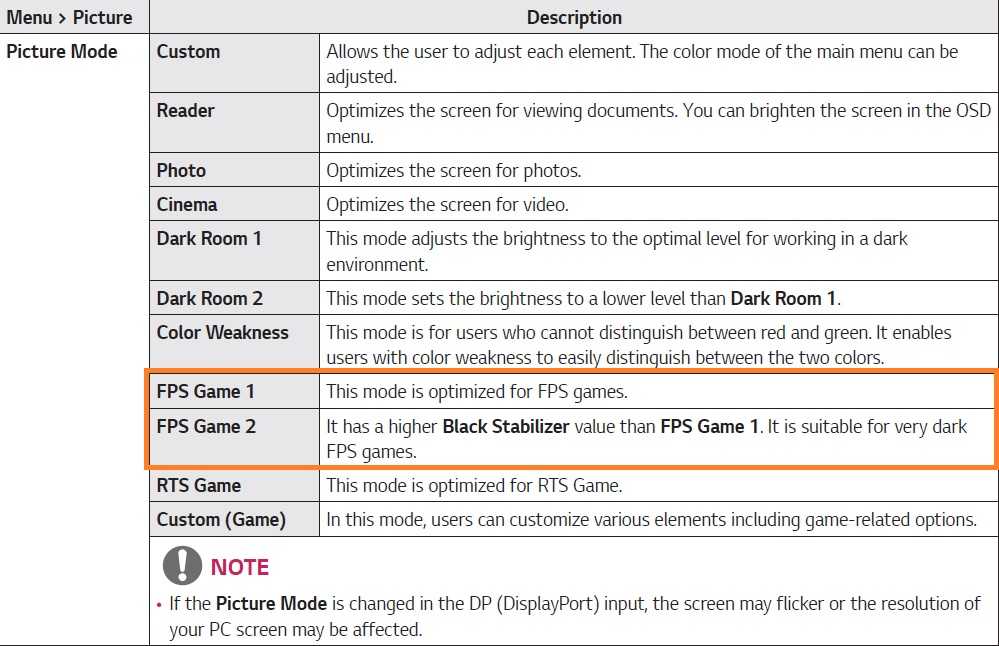
To get that competitive edge in first-person shooters, optimizing your monitor settings is essential. The right adjustments can make your targets sharper, reduce lag, and improve overall responsiveness, giving you the advantage you need in high-stakes battles. Start by setting your monitor’s refresh rate to the highest possible, enabling faster image updates for smoother gameplay. Next, tweak the contrast and brightness for clear visuals, and disable any unnecessary post-processing features that can introduce lag. Using a low response time mode and enabling free-sync or G-Sync can also minimize ghosting and tearing, ensuring a seamless experience. By fine-tuning these settings, you’ll be able to aim more precisely and react quicker, giving you that crucial edge in your gaming sessions.
Optimizing your monitor settings for first-person shooters involves adjusting refresh rates, response times, and visual enhancements to reduce lag and improve clarity. This ensures smoother gameplay, sharper visuals, and faster reactions, which are crucial for winning in competitive gaming. Proper setup can turn a good player into a great one by making every movement more accurate and game responses more immediate.
If you want to excel in first-person shooters, paying attention to your monitor setup is key. Start by maximizing your refresh rate, turning off unnecessary processing, and choosing settings that favor minimal input lag and crisp visuals. This straightforward adjustment process can significantly improve your accuracy and reaction time, giving you a competitive advantage. Whether you’re a casual gamer or aiming to go pro, fine-tuning your monitor settings is an investment that pays off with better performance and more immersive gameplay.

How to optimize monitor settings for first person shooters
Understanding the importance of monitor settings in FPS games
Choosing the right monitor settings can significantly impact your gaming performance. Proper adjustment of brightness, contrast, and refresh rate helps you see enemies more clearly and react faster. These tweaks can give you a competitive edge and make gameplay more enjoyable.
Adjusting the refresh rate for smoother gameplay
The refresh rate, measured in Hertz (Hz), determines how often your monitor updates the image each second. For FPS games, a higher refresh rate, such as 144Hz or 240Hz, provides smoother motion and reduces motion blur. To improve responsiveness, set your monitor to its maximum refresh rate through your graphics card settings or monitor menu.
How to change refresh rate on your PC
- Open your Display Settings or Graphics Control Panel
- Navigate to Advanced Display Settings
- Select the monitor and click on Display Adapter Properties
- Go to the Monitor tab and choose the highest available refresh rate from the dropdown menu
Ensuring your monitor runs at its highest refresh rate helps you spot fast-moving targets more easily.
Optimizing resolution and aspect ratio
Setting the correct resolution improves clarity, allowing you to see enemies and environmental details clearly. Use your monitor’s native resolution for the best image quality. Common resolutions include 1080p (Full HD), 1440p (Quad HD), and 4K (Ultra HD).
Why resolution matters for FPS gaming
A clear, high-resolution display reduces eye strain and enhances your ability to distinguish enemies from the background. Keep in mind that higher resolutions demand more from your graphics card, so ensure your hardware can handle the desired setting.
Adjusting aspect ratio for better field of view
Standard aspect ratio is 16:9, but some gamers prefer ultrawide screens (21:9) for a broader view. While ultrawide monitors can provide immersive visuals, ensure your game supports this aspect ratio. Maintaining an aspect ratio that matches your monitor’s native setting avoids distortion and stretching.
Fine-tuning brightness and contrast for clarity
Adjust these settings to maximize visibility without causing eye strain. Brightness should be set so dark areas are visible without washing out bright objects. Contrast highlights differences between light and dark areas, making enemies stand out more clearly.
Best practices for brightness and contrast
- Start with default or mid-range settings
- Test in-game scenes with varied lighting
- Adjust until dark areas are visible but not overly bright
Properly balanced brightness and contrast help you spot enemies hiding in shadows or behind cover.
Configuring response time and overdrive settings
Response time measures how quickly your monitor pixels change colors, affecting motion clarity. Lower response times reduce motion blur, which is crucial for fast-paced FPS gameplay. Use your monitor’s overdrive settings to further reduce ghosting, but avoid overshoot that can cause artifacts.
How to set response time for optimal performance
- Access monitor OSD (On-Screen Display) menu
- Locate response time or overdrive options
- Select the fastest setting that does not introduce visual artifacts
Adjusting response time can make moving targets appear sharper, giving you better aiming accuracy.
Calibrating color settings for better target recognition
Proper color calibration enhances contrast and makes objects and enemies easier to identify. Use calibration tools or presets to nudge colors toward a natural and sharp appearance. Avoid overly saturated or washed-out settings that could hinder visibility.
Using calibration tools
- Many monitors have built-in calibration options or presets like ‘FPS’ mode
- Use online calibration tools or software for precise adjustments
- Focus on contrast, brightness, and color balance
Accurate color settings ensure you see the game environment as intended, aiding quick decision-making.
Managing motion blur and adaptive sync features
Motion blur can diminish clarity during rapid movements, so disable it if possible. Features like G-Sync or FreeSync reduce screen tearing and provide smoother gameplay, which is vital in FPS titles. Turning off unnecessary post-processing effects can further improve responsiveness.
How to disable motion blur and enable adaptive sync
- Access your monitor’s OSD menu
- Disable motion blur or ‘overdrive’ overshoot settings
- Enable G-Sync or FreeSync in your GPU software
These adjustments help maintain image clarity during high-speed action, improving your reaction times.
Customizing crosshair and overlay settings
Adjusting crosshair color and size can improve visibility against different backgrounds. Some games and monitors allow overlays that help align shots accurately. Use these tools to enhance targeting precision without distracting from gameplay.
Practical tips for crosshair customization
- Select high-contrast colors like bright green or red
- Choose a size that’s visible but not obtrusive
- Place overlays in areas of the screen where you often aim
A well-chosen crosshair setup assists in quick target acquisition and improves overall accuracy.
Additional tips for optimizing your monitor for FPS games
Keeping your monitor clean of dust and ensuring it’s properly connected reduces screen artifacts. Regularly update your graphics drivers for compatibility and performance improvements. Experimenting with different settings can help you find what works best for your specific game and hardware setup.
Monitoring and adjusting in-game settings alongside monitor tweaks
In-game settings such as sensitivity, field of view, and graphics quality also impact your ability to aim and react quickly. Combining these with optimized monitor settings yields the best results.
Utilizing game-specific profiles and presets
Some monitors and graphics cards let you save profiles tailored for FPS gaming. Use these profiles to quickly switch between settings optimized for different games or scenarios.
Final notes on monitor setup for FPS gaming
Spend time experimenting with different configurations to find your personal sweet spot. Remember, small adjustments can lead to noticeable improvements in gameplay. Consistent calibration and setup help you perform at your best every time you play.
Optimizing monitor settings for first person shooters involves balancing visual clarity, motion responsiveness, and comfort. Focus on high refresh rates, low response times, proper resolution, and clear visibility. These tweaks can make a real difference in your gaming results.
MONITOR SETTINGS TO *INSTANTLY* LOWER INPUT DELAY
Frequently Asked Questions
How can I adjust my monitor for better responsiveness during gameplay?
To improve responsiveness, set your monitor to its highest refresh rate supported by your graphics card and ensure V-Sync or G-Sync/FreeSync are configured appropriately. Enable overdrive settings if available to reduce motion blur and input lag. Additionally, keep your graphics drivers updated to ensure optimal performance and compatibility.
What display settings help reduce eye strain during extended gaming sessions?
Reduce eye strain by adjusting the monitor’s brightness to match ambient lighting, avoiding overly bright screens. Use a lower blue light setting or enable blue light filters if your monitor offers this feature. Set the contrast to ensure clear visibility of in-game elements and take regular breaks to rest your eyes. Adjusting color temperature to warmer tones also helps reduce eye fatigue.
Which aspect ratio and resolution settings are best suited for first-person shooters?
Select a resolution that matches your monitor’s native resolution for sharp visuals. For aspect ratio, most players prefer 16:9 or 16:10, which provide a wide field of view without distortion. Some competitive players opt for lower resolutions like 1280×720 or 1080p to increase frame rates and reduce input lag, which can enhance overall gameplay responsiveness.
How should I configure color and contrast settings for optimal visibility?
Adjust your color and contrast settings to ensure enemies and environmental details are clearly visible without causing eye strain. Increase contrast slightly if necessary to distinguish objects better, and tweak color saturation to enhance visual clarity. Avoid overly saturated or overly bright settings, which can cause fatigue or reduce contrast clarity during intense moments.
What role does monitor calibration play in gaming accuracy?
Calibrating your monitor ensures colors, brightness, and contrast are accurate, helping you identify opponents and environmental cues more precisely. Use calibration tools or built-in monitor settings to set the display to a standard profile. Proper calibration reduces visual discrepancies, allowing for better decision-making and reaction times in fast-paced gameplay.
Final Thoughts
To optimize monitor settings for first person shooters, start by adjusting the refresh rate to the highest possible value. Set the response time to fast for smoother visuals and reduced motion blur. Calibrate brightness and contrast to ensure clarity in dark and bright areas.
Disable any unnecessary graphical enhancements that may introduce input lag. Focus on reducing lag and increasing responsiveness to gain an advantage in gameplay. Properly configuring your monitor ensures you can perform at your best.
In conclusion, how to optimize monitor settings for first person shooters involves fine-tuning refresh rate, response time, and visual clarity. Prioritize settings that reduce input lag and enhance smoothness. This approach boosts your overall gaming experience and reaction time.



