


Want to share your gaming, tutorials, or vlogs live while also keeping a high-quality recording for later? The trick is to set up your tools to record and stream with your webcam at the same time seamlessly. With the right software and hardware, you can make this happen effortlessly, giving you the best of both worlds—live interaction and a polished recording.
In short, you need a reliable streaming platform like OBS Studio or Streamlabs, which allows you to capture your webcam feed and output it to both your streaming service and a local recording simultaneously. Make sure your hardware is capable of handling both tasks, and adjust your settings for optimal quality. This way, you get your live audience engaged while preserving a clear, professional recording for future use.
Getting started with recording and streaming at the same time might seem daunting, but it’s easier than you think. Whether you’re a gamer, educator, or content creator, mastering this setup opens up new opportunities for interaction and content creation. By carefully choosing your software, ensuring your hardware meets the demands, and configuring your settings correctly, you can deliver high-quality live streams without sacrificing the quality of your recordings. Ready to elevate your content game? Let’s dive into how you can do it effortlessly.

How to Record and Stream with Webcam Simultaneously
Many content creators want to record and stream with their webcam at the same time. This allows for more dynamic videos that connect better with viewers. Knowing how to do this properly can improve your overall content quality and help you grow your audience.
Understanding Why Record and Stream Simultaneously Matters
Recording and streaming at the same time creates a backup of your content. It also provides a local copy for editing or future use. Plus, viewers appreciate seeing you live while you are also saving your footage for later.
Essential Equipment for Recording and Streaming with Webcam
Before diving into the setup, ensure you have the right equipment. This includes a good webcam, a reliable microphone, and a computer powerful enough to handle both tasks.
- Webcam: Invest in a high-definition webcam, preferably 1080p or higher.
- Microphone: Use a quality microphone for clear audio, such as a USB condenser mic.
- Computer: Ensure your PC or Mac has a fast processor, sufficient RAM, and a dedicated graphics card if possible.
- Internet connection: Use a wired connection for stability during streaming.
Choosing the Right Software for Recording and Streaming
Many applications allow you to record and stream simultaneously. Selecting the right software is crucial to achieving seamless content creation.
Popular Software Options
| Software | Features | Ideal For |
|---|---|---|
| OBS Studio | Free, open-source, customizable overlays, multiple sources | All skill levels, professional streaming |
| Streamlabs OBS | User-friendly interface, built-in alerts, themes | Beginners and casual streamers |
| XSplit Broadcaster | Easy setup, scene switching, effects | Streamers who want simplicity and quick setup |
Configuring Your Recording and Streaming Setup
Proper configuration ensures your content is clear, professional, and free of lag. The setup process differs slightly depending on your chosen software.
Step-by-Step: Setting Up OBS Studio
- Download and install OBS Studio from the official website.
- Open OBS and go to Settings.
- Navigate to the Stream section; select your streaming platform (Twitch, YouTube, etc.) and enter your stream key.
- Go to Output settings; choose the recording path and quality settings.
- In Video settings, set your base resolution and output resolution.
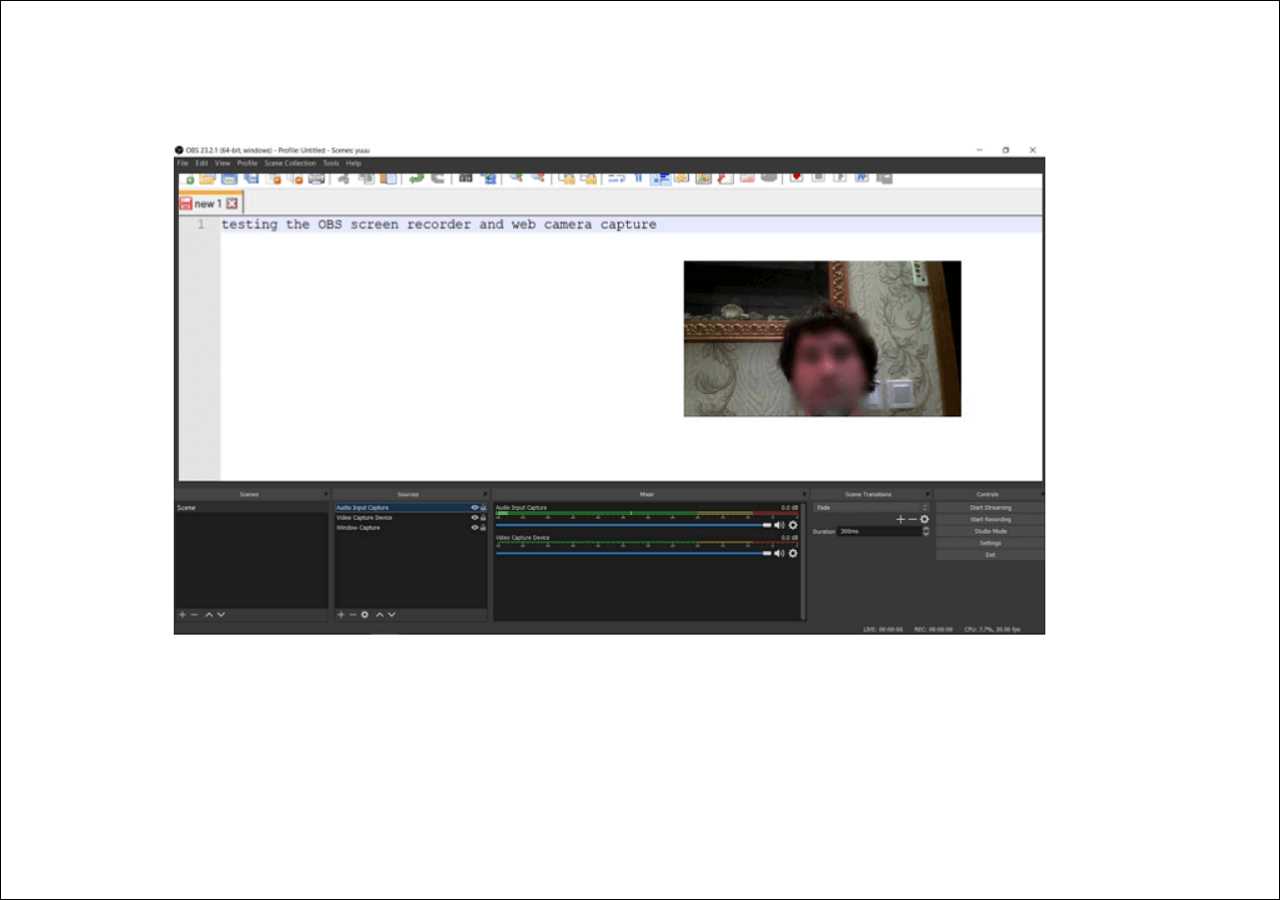
- Add your webcam as a source by clicking the “+” icon under Sources and selecting Video Capture Device.
- Adjust your webcam’s size and position within the scene.
- Start streaming and recording by clicking “Start Streaming” and “Start Recording.”
Optimizing Video and Audio Quality
Clear video and crisp audio can significantly improve viewer experience. Adjust your settings for the best balance between quality and performance.
Video Settings Tips
- Use a resolution of at least 720p for decent clarity.
- Set the frame rate to 30 or 60 frames per second for smooth motion.
- Adjust bitrate according to your internet upload speed—higher bitrate equals better quality.
Audio Settings Tips
- Use a sample rate of 44.1kHz or 48kHz.
- Set the audio bitrate to 160kbps or higher for clear sound.
- Test your microphone levels before going live to avoid distortion or low volume.
Additional Tips for a Seamless Recording and Streaming Experience
Maximize your setup with these extra tips to ensure smooth recording and streaming sessions.
Use Scene Transitions and Overlays
Adding overlays and smooth transitions makes your streams look professional. Practice switching between scenes for different content segments.
Monitor Your Stream and Recording
Use a second monitor or device to keep an eye on your stream health. This helps in catching issues immediately and adjusting on the fly.
Employ Virtual Cam and Other Enhancements
Software like OBS supports virtual camera output, allowing you to use your stream in video conferencing apps. Use plugins to enhance your stream’s visual appeal.
Handling Common Challenges and Troubleshooting
Technical issues can arise, but most are fixable with some quick troubleshooting.
Lag and Performance Issues
Lower your video resolution or bitrate if your stream or recording stutters. Close unnecessary programs to free up resources.
Audio Echo or Noise
Use headphones to prevent microphone feedback. Adjust microphone positioning and settings to reduce background noise.
Webcam Not Displaying Properly
Ensure your webcam drivers are updated. Restart your software or PC if necessary and check if the device is correctly selected.
Integrating Your Webcam with Other Streaming Tools
Enhance your live content by integrating overlays, alerts, and chat widgets. These tools engage viewers and create a more interactive experience.
Using Stream Deck or Remote Controls
Control scene changes, mute microphones, or trigger overlays with simple buttons using a stream deck or remote control apps.
Adding Interactive Elements
- Enable live chat overlays to interact with viewers.
- Use donation alerts, subscriber notifications, and polls to boost engagement.
Final Checks Before Going Live
Do a quick pre-livestream test to verify audio, video, and overlay positioning. Make sure your internet connection is stable and all equipment functions properly.
Setting up to record and stream with your webcam at the same time involves careful planning and configuration. With the right tools and practices, you can produce professional-quality content that captures your personality and engages your viewers effectively. Remember to optimize your settings, troubleshoot issues quickly, and keep experimenting with new features and layouts to continuously improve your streams and recordings.
How to Record a WEBCAM and SCREEN at the same time with OBS
Frequently Asked Questions
What software can I use to record and stream with my webcam at the same time?
Popular options include OBS Studio, Streamlabs OBS, and XSplit. These programs allow you to record your webcam feed and broadcast live simultaneously. They offer features to customize your layout, add overlays, and manage video and audio sources effectively.
How do I configure my settings to ensure smooth recording and streaming with my webcam?
Start by setting appropriate output resolutions and bitrates in your streaming software. Use a stable and fast internet connection to prevent lag. Adjust your webcam’s resolution and frame rate for optimal quality. Also, allocate enough system resources by closing unnecessary applications to prevent performance issues during recording and streaming.
Can I record locally while streaming with my webcam without affecting the stream quality?
Yes, most streaming software allows you to record locally without impacting your live broadcast. To do this, enable the recording feature and select a dedicated storage location. Keep an eye on system performance since simultaneous recording and streaming can strain your hardware, so adjusting encoding settings might help maintain smooth performance.
What hardware should I consider to ensure high-quality webcam recording and streaming?
Invest in a high-definition webcam with good low-light performance, a reliable microphone, and a strong internet connection. Additionally, a dedicated processor and sufficient RAM help handle multiple tasks, ensuring your recording and streaming stay smooth and clear without lag.
Are there any tips for managing audio and video sources effectively during live recording and streaming?
Use separate audio channels for your microphone and system sounds, and control their volume levels carefully. Keep your webcam feed crisp by adjusting focus and lighting. Preview your setup before going live to ensure all sources are synchronized and working correctly. Regularly check for any glitches during the session to make immediate adjustments if needed.
Final Thoughts
To record and stream with webcam simultaneously, choose compatible software like OBS Studio or Streamlabs. Configure your video and audio settings to ensure high quality and synchronization. Use hotkeys for quick switching between recording and streaming modes.
Adjust your webcam positioning and lighting to keep your video clear and engaging. Test the setup beforehand to avoid technical issues during the live session.
In conclusion, understanding how to record and stream with webcam simultaneously becomes straightforward with the right tools and preparation. Following these steps ensures smooth, professional broadcasts every time.



