


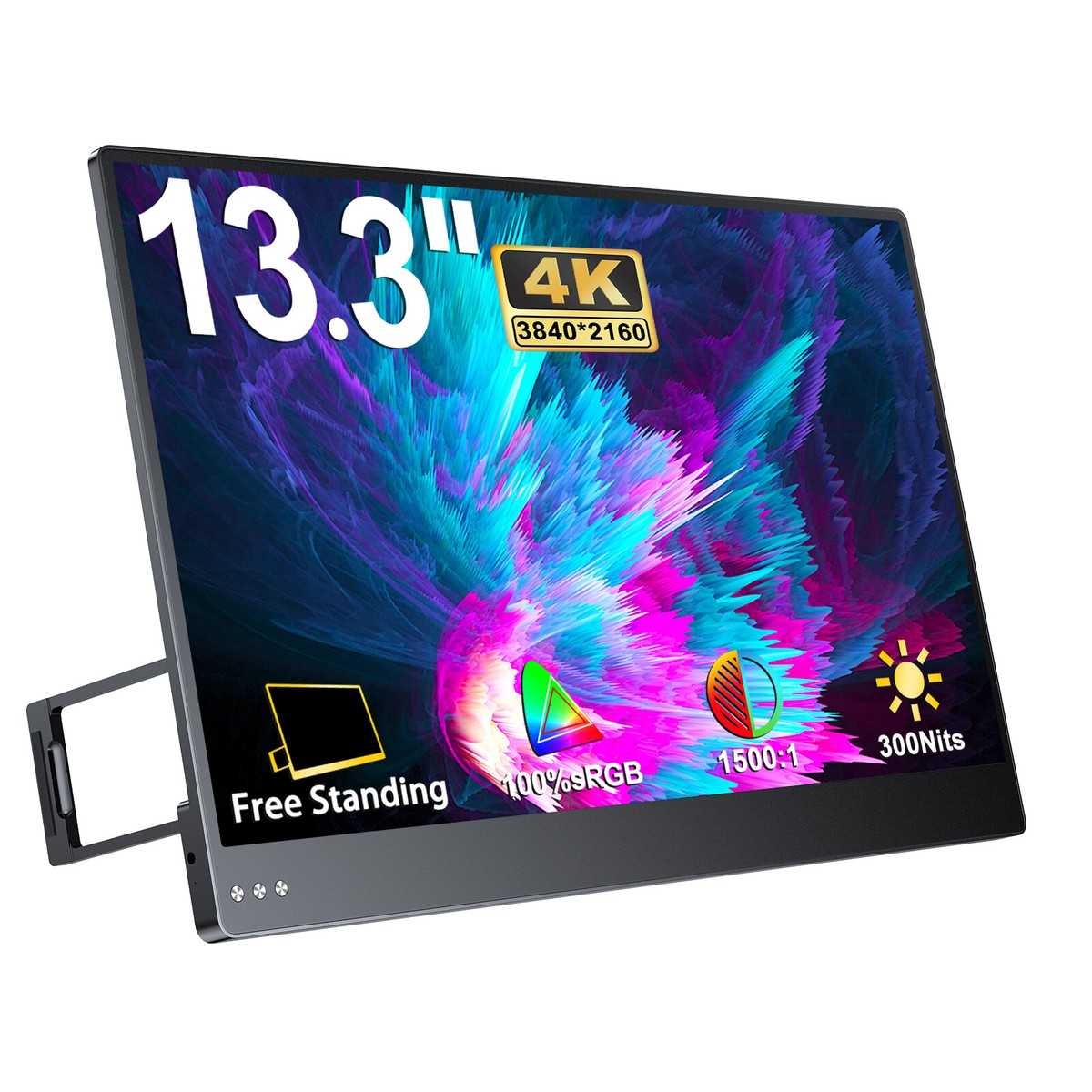
To reduce eye strain on a 4K monitor, adjust your display settings, take regular breaks, and optimize your workspace lighting. Using blue light filters and maintaining proper viewing distance can also make a big difference. These simple steps can help you enjoy your high-resolution screen comfortably and without fatigue.
Reducing eye strain on a 4K monitor is all about making your viewing experience more comfortable through smart adjustments and habits. By fine-tuning your display settings, employing helpful accessories, and practicing good eye care, you can prevent discomfort and enjoy your screen for longer periods without issues. This article offers practical tips to keep your eyes healthy while making the most of your ultra-clear display.
Eye strain has become a common problem with the rise of high-resolution screens like 4K monitors, especially for those who spend hours working, gaming, or browsing. The crisp detail and vibrant colors of 4K displays are fantastic, but they can also cause fatigue, headaches, and dry eyes if you’re not careful. Fortunately, there are straightforward solutions to ease this discomfort and make your screen time more enjoyable. Whether you’re adjusting your monitor settings or adopting healthier eye habits, these tips will help you maintain your eye health while maximizing the benefits of your ultra-high-definition display.

How to Reduce Eye Strain on 4k Monitor
Understanding Why Eye Strain Happens on 4k Monitors
Using a 4k monitor offers stunning image clarity and sharp details, but it can also lead to eye discomfort. Eye strain occurs when your eyes work harder to focus on high-resolution screens for prolonged periods. Factors like screen brightness, glare, and viewing distance can all contribute. Recognizing these causes helps you take targeted steps to protect your eyes during long work sessions.
Adjusting Brightness and Contrast for Comfort
One of the easiest ways to reduce eye strain is by matching your monitor’s brightness to your surroundings. When your screen is too bright or too dim, your eyes have to strain to see clearly. Set the brightness so that the screen doesn’t overpower your environment. Similarly, adjusting contrast levels ensures that text and images are clear without causing unnecessary eye fatigue. Use the monitor’s settings or enable automatic brightness adjustments if available.
Optimizing Your Screen Resolution and Scaling Settings
While 4k resolution provides detailed visuals, it can sometimes make text and icons appear very small, forcing your eyes to strain. Adjust the scaling settings on your computer to enlarge interface elements without losing image quality. On Windows, go to Display Settings and select a scaling percentage that makes content easily readable. Keeping text and icons appropriately sized reduces eye effort and improves comfort.
Implementing the 20-20-20 Rule
Every 20 minutes of screen time, look away from your monitor for at least 20 seconds. Focus on an object about 20 feet away. This simple habit relaxes your eye muscles and decreases fatigue. It also encourages blinking, preventing dryness and irritation. Using timers or reminders can help you stick to this routine during extended work sessions.
Adjusting Viewing Distance and Monitor Position
Position your monitor so that the top of the screen is at or just below eye level. Maintain a distance of about 20 to 30 inches from your eyes to the screen. Sitting too close or too far can cause unnecessary strain. Use an adjustable monitor stand or arm to achieve the perfect height and distance, ensuring comfortable viewing angles that reduce neck and eye strain.
Reducing Glare and Reflections
Glare from windows or overhead lights increases eye effort by creating bright spots on your screen. Use anti-glare screen protectors or matte screen finishes to minimize reflections. Position your monitor perpendicular to windows or light sources. Adjusting blinds or curtains also helps control ambient lighting and reduces glare.
Utilizing Blue Light Filters and Screen Tints
Blue light emitted from high-resolution monitors can cause eye fatigue and disrupt sleep patterns. Enable blue light reduction features on your device, especially during evening hours. Many monitors come with built-in settings, or you can use software apps like f.lux or night mode. Wearing calibrated blue light blocking glasses provides additional protection during long sessions.
Applying Proper Lighting Techniques in Your Workspace
The lighting in your room impacts how your eyes perceive your monitor. Use soft, indirect lighting rather than harsh, direct lights. Position light sources behind or beside your monitor, avoiding direct light aimed at the screen. Consistent ambient lighting reduces contrast and minimizes eye strain.
Choosing the Right Monitor Settings
Most 4k monitors have pre-set modes like Reader, Darkroom, or Custom. Experiment with these to find the most comfortable setting for your eyes. Reducing screen glare, tweaking gamma, and adjusting sharpness can also enhance visual comfort. Regularly calibrate your monitor to keep colors and brightness in balance, preventing unnecessary eye stress.
Taking Breaks and Incorporating Eye Exercises
Regular breaks are essential for reducing eye strain. Besides the 20-20-20 rule, practice eye exercises like blinking rapidly for a few seconds or rolling your eyes. These exercises refresh your eyes and keep them moist, preventing dryness and discomfort. Schedule short breaks every hour to stretch and rest your eyes and body.
Using Ergonomic Accessories
Invest in ergonomic tools like adjustable monitor stands, ergonomic keyboards, and chairs. These help maintain proper posture, reducing neck and eye strain. An ergonomic workspace promotes natural eye alignment and minimizes fatigue. Remember, comfort in your workspace directly impacts eye health.
Managing Screen Refresh Rates and Flickering
A high refresh rate reduces flickering, which can cause eye fatigue over time. Choose a monitor with a refresh rate of at least 60Hz, preferably higher if possible. Enable any flicker reduction features your monitor offers. This makes visual movements smoother and less stressful on your eyes.
Incorporating Eye-Friendly Lighting and Color Temperature Settings
Adjust your monitor’s color temperature to warmer tones, especially during evening hours. Warmer colors are gentler on your eyes and reduce fatigue. Many monitors have adjustable settings for color temperature; select one that feels most natural and comfortable.
Creating an Eye-Healthy Routine for Long-Term Comfort
Establish habits that prioritize eye health, like maintaining proper screen distance and regular breaks. Keep your workspace organized and well-lit. Practice eye exercises daily and remain aware of your eye comfort levels. Consistency ensures sustained eye health and reduces long-term strain.
Related Topics for Further Reading
- Best ergonomic chairs for long-term comfort
- How to choose the right monitor for eye health
- Importance of regular eye check-ups
- Top software tools for screen eye protection
- Tips for reducing digital eye strain during gaming or creative work
Ensuring your 4k monitor setup prioritizes eye health involves a combination of proper adjustments, workspace organization, and healthy habits. Regularly reviewing and updating your environment can significantly decrease discomfort, allowing you to enjoy your high-resolution display comfortably. With these practical steps, you can work longer and smarter without sacrificing your eye health.
The BEST Desk Setup to Reduce Eye Strain
Frequently Asked Questions
What lighting adjustments can help reduce eye strain when using a 4K monitor?
Adjust the ambient lighting in your workspace to match the brightness of your monitor. Avoid direct glare on the screen by positioning lights away from your view and using softer, indirect lighting. Dimming overhead lights or using desk lamps with warm tones can create a more comfortable environment, reducing the strain on your eyes over extended periods.
How does monitor positioning influence eye comfort during extended use?
Position your 4K monitor so that the top of the screen is at or slightly below eye level. Keep the monitor about an arm’s length away and ensure the screen is directly in front of you to minimize neck and eye movements. Proper positioning reduces the strain caused by improper posture and helps your eyes focus more comfortably.
What role does screen settings play in minimizing eye fatigue?
Adjust the brightness and contrast settings on your monitor to match the ambient lighting conditions. Enable blue light filters or night mode features, especially during evening hours, to reduce eye fatigue. Additionally, setting the display to a warmer color temperature decreases the harshness of bright whites, making viewing more pleasant over long sessions.
How can taking regular breaks help prevent eye strain on a 4K display?
Practice the 20-20-20 rule: every 20 minutes, look at something 20 feet away for at least 20 seconds. Regular breaks give your eye muscles a chance to relax and reduce fatigue. Incorporating brief eye exercises during these breaks can further alleviate strain and improve overall comfort.
Are there any accessories or tools that aid in reducing eye strain?
Using an anti-reflective screen protector minimizes glare and reflections that can cause eye discomfort. Consider adjustable monitor stands or arms to customize viewing angles and reduce neck strain. Additionally, specialty glasses with blue light filtering lenses can help lessen eye fatigue during prolonged screen time.
Final Thoughts
Pour réduire l’œil fatigué sur un moniteur 4K, ajustez la luminosité et le contraste pour correspondre à votre environnement. Utilisez également le mode nuit ou filtre de lumière bleue pour réduire la fatigue oculaire. Faites des pauses régulières et pratiquez la règle 20-20-20 pour reposer vos yeux. En suivant ces astuces, vous pouvez minimiser la tension oculaire et profiter d’une meilleure expérience visuelle.



