


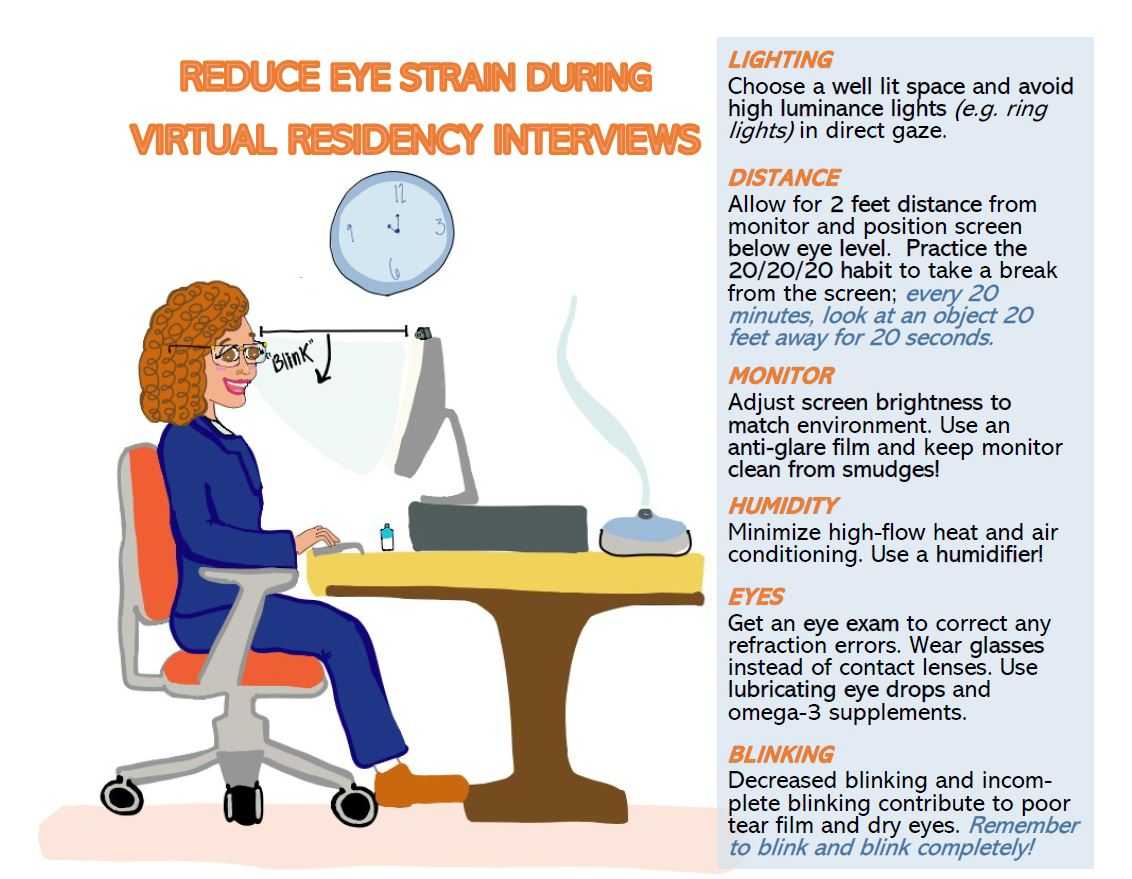
To instantly ease eye strain from your office monitor, try adjusting your screen brightness to match your environment, take regular breaks following the 20-20-20 rule, and ensure proper ergonomic positioning. These simple steps can significantly reduce discomfort and protect your eyesight.
In just a few quick actions—like reducing glare, maintaining the right distance, and taking periodic breaks—you can keep your eyes comfortable and healthy during long hours at your desk. Eye strain is a common problem for many office workers, but with some practical adjustments, it’s entirely manageable and even preventable. Staying mindful of your monitor habits can make a huge difference in maintaining your eye health while staying productive. So let’s explore some easy, effective ways to lessen eye fatigue and create a more comfortable workspace.

How to Reduce Eye Strain on Office Monitor
Understanding Eye Strain in the Office Setting
Eye strain, also known as digital eye fatigue, happens when your eyes get tired from long hours of looking at a screen. It’s common among office workers who spend most of their day in front of a computer monitor. Recognizing the signs early helps prevent discomfort and long-term vision problems. Symptoms include headaches, blurred vision, dry eyes, and sore eyes. Knowing these signs allows you to take timely steps to protect your eyesight.
Proper Monitor Positioning
Correct monitor placement plays a major role in reducing eye strain. Position your monitor so that the top of the screen is at or just below eye level. Keep the screen about an arm’s length away—usually 20 to 30 inches from your eyes. The monitor should be directly in front of you to avoid twisting your neck and to maintain a natural head position.
Adjusting Monitor Height and Distance
Use monitor stands or adjustable desks to set the height properly. An ideal distance reduces the effort your eyes need to focus. If your screen is too close or too far, it strains your eye muscles. Regularly check your setup during the day to ensure ergonomic alignment.
Optimizing Screen Brightness and Contrast
Too much brightness can create glare and lead to eye fatigue, while too little diminishes visibility. Adjust your monitor brightness so that it matches the lighting in your workspace. Focus on maintaining contrast levels that make text easy to read without causing eye strain.
Using Screen Settings for Comfort
Most monitors have settings for brightness, contrast, and color temperature. Use these to create a comfortable visual environment. For example, lowering the blue light emissions reduces eye discomfort, especially during evening hours.
Managing Ambient Lighting
Proper lighting reduces glare and reflections that can strain your eyes. Avoid harsh fluorescent lights directly above or behind your monitor. Instead, aim for soft, diffuse lighting that evenly illuminates your workspace.
Controlling Glare and Reflections
Position your monitor perpendicular to windows to minimize glare from sunlight. Use window blinds or curtains to control incoming light during daylight hours. Consider anti-glare screen protectors if ambient lighting cannot be adjusted.
The 20-20-20 Rule and Breaks
Following simple rules helps prevent eye fatigue. Every 20 minutes, look at an object 20 feet away for at least 20 seconds. Breaks give your eye muscles a chance to relax and reduce strain caused by continuous focusing.
Implementing Regular Eye Breaks
Set timers or use apps to remind you to take breaks regularly. During breaks, stand, stretch, and look away from your screen. Incorporating these habits into your routine can drastically cut down on eyestrain and improve overall comfort.
Using Proper Lighting and Color Temperature
Adjusting your screen’s color temperature to warmer tones can ease eye fatigue, especially in the evening. Use built-in features or third-party software to reduce blue light emission, which is harsher on the eyes after sunset.
Choosing the Right Screen Brightness and Tone
Customize your display settings to match your environment. A darker room calls for lower screen brightness, while a well-lit workspace may require brighter settings. Experiment to find the most comfortable balance.
Implementing Eye-Friendly Software Settings
Many operating systems offer night mode or blue light filters designed to protect your eyes. Enable these features during extended work sessions or after hours. They help reduce eye strain and improve sleep quality.
Utilizing Built-in Monitors’ Eye Comfort Features
Explore your monitor’s settings for eye care modes such as Flicker-Free technology and Low Blue Light. Activating these can make long hours in front of the screen more comfortable.
Maintaining Proper Hydration and Blink Rate
Dry eyes are a common result of reduced blinking on screens. Make a conscious effort to blink frequently—about every 4 seconds—to keep eyes moist. Staying well-hydrated by drinking plenty of water also helps reduce dryness and discomfort.
Practicing the Blink Exercise
Set reminders to blink intentionally during work sessions. Consider using artificial tears or eye drops if dryness persists. Keeping your eyes lubricated minimizes irritation and fatigue.
Choosing Appropriate Eyewear
If you wear glasses, ensure your lenses are suitable for computer use. Anti-reflective coatings reduce glare, while blue light filtering lenses specifically help lessen eye strain caused by screens. Consult an optometrist for personalized recommendations.
Importance of Regular Eye Checkups
Regular eye examinations ensure your prescription is up-to-date and that no underlying issues contribute to eyestrain. Eye care professionals can suggest specific tools or treatments tailored to your needs.
Creating an Eye-Friendly Workspace
Design your workspace to promote comfort. Incorporate ergonomic furniture, have good lighting, and keep your workspace organized. An environment conducive to proper posture and lighting directly impacts eye health.
Additional Tips for Eye Comfort
– Keep your workspace free of clutter that might reflect light or cause glare.
– Use a matte screen finish to reduce reflections.
– Position your monitor to minimize reflections from windows or lamps.
– Take short breaks to stretch your neck and shoulders, reducing overall fatigue.
By combining proper ergonomics, screen adjustments, lighting management, and healthy habits, you can significantly reduce eye strain while working on your office monitor. Regularly reviewing and adjusting these strategies keeps your eyes comfortable and your vision clear.
5 Tips and Eye Exercises for EYE STRAIN Relief
Frequently Asked Questions
What screen settings can help reduce eye fatigue during long work hours?
Adjust your monitor’s brightness to match the surrounding lighting to prevent excessive contrast. Use a cooler color temperature to reduce blue light emission, which can cause eye strain. Increasing text size and contrast can also make reading easier and lessen the effort your eyes need to exert. Regularly calibrating your monitor ensures consistent clarity and minimizes eye discomfort over time.
How does proper positioning of the monitor limit eye strain?
Place your monitor about an arm’s length away from your eyes, with the top of the screen at or slightly below eye level. Keep the monitor directly in front of you to avoid twisting your neck, and make sure there is minimal glare from windows or overhead lights. Proper positioning reduces the need for your eyes to constantly refocus or strain, easing overall discomfort.
What are some practical habits to prevent eye fatigue during work?
Follow the 20-20-20 rule: every 20 minutes, look at something 20 feet away for at least 20 seconds. Blink frequently to keep your eyes moist, preventing dryness and irritation. Take short breaks from your screen to give your eyes a rest and stretch your neck and shoulders. These habits help maintain eye health and reduce strain during extended periods of screen use.
Final Thoughts
To reduce eye strain on office monitor, start by adjusting your screen brightness to match the lighting in your workspace. Use the 20-20-20 rule: every 20 minutes, look at something 20 feet away for at least 20 seconds. Position your monitor about arm’s length away and keep the top of the screen at eye level. Incorporate frequent breaks and consider using blue light filters or glasses. These steps will help minimize eye fatigue and promote healthier viewing habits.



