


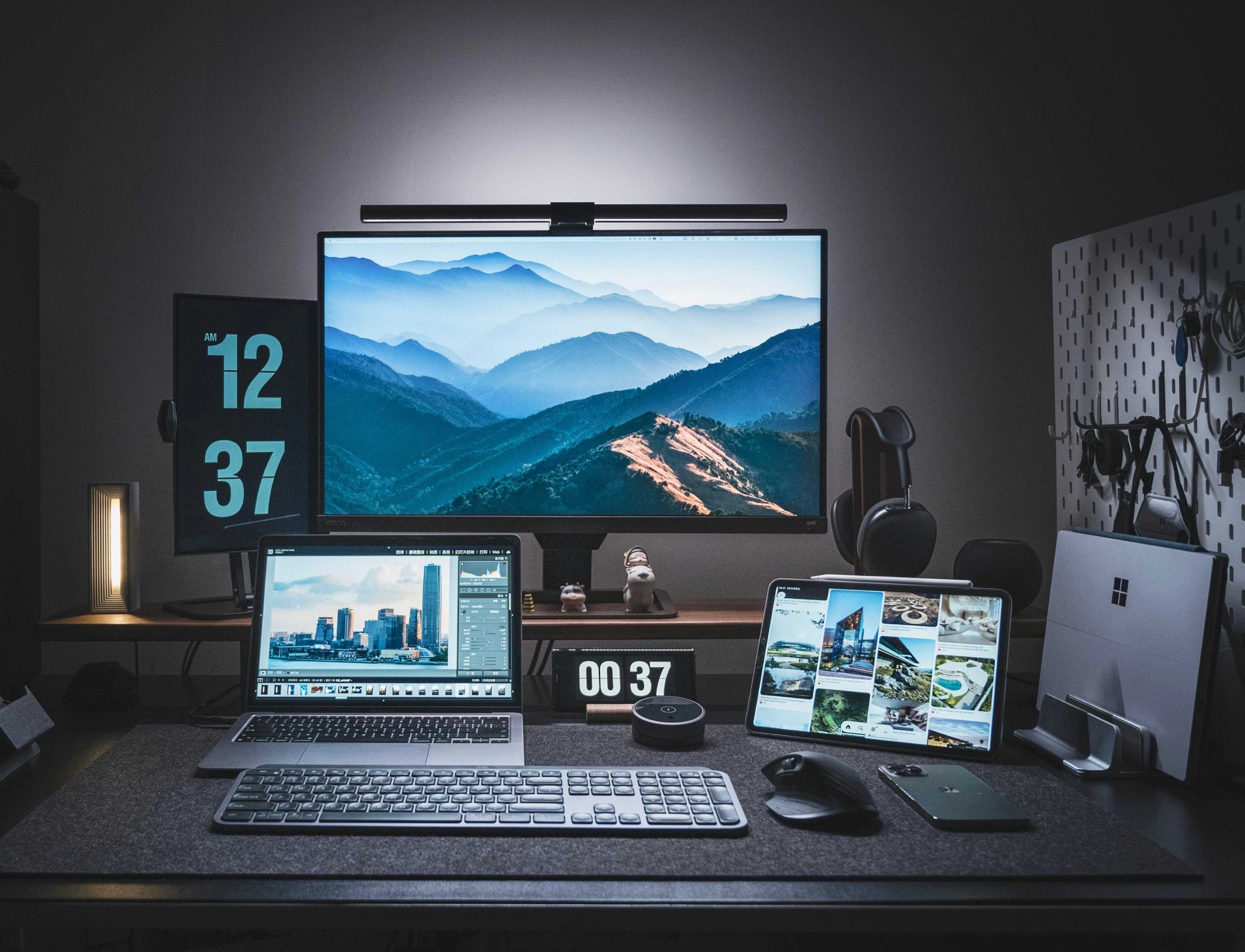
To minimize glare on your video editing monitor, start by adjusting your monitor’s angle and position to avoid direct reflections, and consider using an anti-glare screen protector. Reducing ambient light or switching to softer, indirect lighting can also make a huge difference. Investing in a matte finish monitor or using tinted screen filters can further cut down on reflections, helping you work more comfortably and accurately.
If glare on your monitor is making editing difficult, the key is to manage both your workspace lighting and your monitor’s settings. Simple adjustments like repositioning your screen, controlling ambient light, and utilizing anti-glare accessories can significantly improve visibility. These proactive steps are easy to implement and can make your editing sessions more productive, reducing eye strain and enhancing color accuracy.
Bright, reflective screens can quickly cause eye fatigue and hinder your editing precision. If you find yourself squinting or struggling to see details clearly, reducing glare becomes essential. Proper positioning, lighting adjustments, and the right accessories can transform your workspace into a glare-free zone, allowing your work to shine with clarity and comfort.

How to Reduce Glare on Video Editing Monitors
Understanding Glare and Its Impact on Video Editing
Glare on video editing monitors occurs when light sources reflect off the screen, making it difficult to see details clearly. It can cause eye strain, fatigue, and reduce the accuracy of color grading. Recognizing how glare affects your workflow is the first step toward creating a comfortable editing environment.
Identify Common Light Sources Causing Glare
Bright windows, overhead lights, and nearby lamps are typical offenders. These light sources can create reflections and wash out the display. To minimize glare, you should assess your workspace and note where direct light hits your monitor.
Positioning Your Monitor to Minimize Reflection
One of the simplest ways to reduce glare is to position your monitor correctly. Place your screen perpendicular to windows or light sources, so reflections don’t directly hit your eyes. Adjusting your monitor’s height and angle can also help avoid unwanted reflections.
Tips for Optimal Monitor Placement
- Align your monitor with the room’s natural light sources instead of facing them directly.
- Angle the screen slightly downward or upward based on your seating position.
- Use an adjustable monitor stand to find the best viewing angle.
Controlling Ambient Lighting in Your Workspace
Controlling ambient light is essential for reducing glare. Soft, diffused lighting creates a balanced environment, making the monitor easier to view. Avoid harsh, direct lighting or bright overhead fixtures that cause reflections.
Best Lighting Practices for Video Editing Rooms
- Use dimmable lights to control brightness levels easily.
- Install wall-mounted light fixtures with diffusers to spread light evenly.
- Use task lighting instead of bright ceiling lights near your workspace.
- Utilize blinds or curtains to block sunlight during daytime editing sessions.
Choosing the Right Monitor for Reduced Glare
Selecting a monitor with specific features can significantly lessen glare issues. Look for screens designed to handle reflective environments and provide a clear, accurate display.
Features to Consider
- Matte Finish Screens: Reduce reflections compared to glossy screens.
- High Brightness and Contrast Ratios: Improve visibility in bright conditions.
- Anti-Reflective Coatings: Minimize light reflection on the screen surface.
- High Resolution and Color Accuracy: Ensure detailed and true-to-life visuals for editing.
Using Screen Filters and Anti-Glare Accessories
Applying physical filters can further diminish glare. These accessories are affordable and easy to install, providing an extra layer of protection against reflections.
Types of Screen Filters
- Anti-Glare Filters: Reduce reflections and diffused light across the display surface.
- Privacy Screens: Also impact glare, while adding privacy.
- Matte Screen Protectors: Provide a textured surface that diminishes glare and fingerprints.
Adjusting Display Settings for Better Visibility
Tweaking your monitor’s settings can make a significant difference in glare management. Proper calibration helps maintain clarity and reduce eye strain.
Key Settings to Modify
- Increase contrast to make details pop without straining your eyes.
- Adjust brightness to match ambient lighting; avoid overly bright screens.
- Use color profiles optimized for video editing, such as sRGB or Adobe RGB.
- Enable anti-glare modes, if available, on your monitor.
Additional Tips for Reducing Glare During Editing
Implementing small habits can also help reduce glare and improve overall comfort.
Useful Practices
- Take regular breaks to prevent eye fatigue from screen reflections.
- Maintain a clean screen to prevent additional glare from dust or fingerprints.
- Use a monitor hood or shade to block stray light.
- Wear anti-reflective glasses if you regularly work in bright environments.
Balancing Aesthetics and Functionality
While reducing glare is vital, ensure your workspace remains visually appealing and functional. Choose lighting and accessories that blend well with your environment while maximizing comfort.
Designing a Comfortable Workspace
- Keep clutter minimal to avoid unnecessary reflections.
- Use neutral-colored walls and furniture to prevent color casts that exacerbate glare.
- Incorporate adjustable lighting to adapt to different times of day or task requirements.
Considering Long-Term Solutions
Investing in quality equipment and workspace modifications can provide sustainable relief from glare issues.
Long-Term Strategies
- Upgrade to a high-quality monitor with anti-glare coatings and adjustable settings.
- Redecorate your workspace to optimize natural light placement.
- Use window films that block or diffuse sunlight to prevent harsh reflections.
Summary of Essential Tips
In summary, reducing glare involves a combination of proper monitor placement, workspace lighting control, selecting suitable equipment, and using accessories. Small adjustments can make your editing sessions more comfortable and improve your work quality. Consistently applying these strategies helps create an environment that minimizes glare and supports your creativity.
A Simple LIGHTING TRICK Used by All the PROS! 🔥📷
Frequently Asked Questions
What are practical ways to reduce reflections on a video editing monitor?
To minimize reflections, position your monitor away from direct light sources like windows or lamps. Use matte screen protectors or anti-glare filters to diffuse incoming light. Adjust the monitor’s angle so that reflections are less prominent and avoid placing objects or lights behind you that can cast glare onto the screen.
How can ambient lighting improve the visibility of your video editing monitor?
Using soft, indirect lighting in your workspace reduces contrast between the screen and surroundings, decreasing glare. Avoid harsh overhead lights or bright fixtures that cause reflections. Instead, opt for adjustable desk lamps with diffusers to create a balanced lighting environment that enhances screen clarity.
Are there monitor settings that can help reduce glare during editing sessions?
Yes, adjusting your monitor’s brightness and contrast settings can reduce eye strain and glare. Enable any built-in anti-glare modes or blue light filters if available. Calibrate the display to match your ambient lighting conditions, ensuring that the screen appears comfortable and clear without excessive reflections.
What role do monitor placement and positioning play in glare reduction?
Position your monitor perpendicular to windows and light sources to prevent direct reflections. Keep the screen at eye level and at a comfortable distance to minimize glare and reflections. Adjust the angle of the monitor slightly downward or upward to find the optimal position that reduces glare and enhances visibility.
Final Thoughts
Reducing glare on video editing monitors enhances visual clarity and reduces eye strain. Adjust monitor brightness and contrast settings to suit your environment. Use an anti-glare screen protector or matte finish monitor to minimize reflections. Position your monitor away from direct light sources and consider adding curtains or adjustable blinds. Proper lighting setup and monitor adjustments make editing more comfortable and efficient.



