


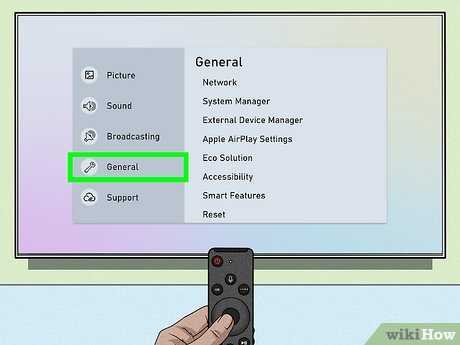
To reset your smart TV to factory settings quickly, navigate to the settings menu, select the reset option, and confirm your choice. This process restores your TV to its original state, fixing glitches or clearing personal data. Make sure to back up any important information before proceeding.
If your smart TV is acting up or you want to wipe all your settings clean, performing a factory reset is your best bet. It’s a straightforward process that can resolve various issues, from lagging performance to software glitches. Usually, you can access the reset option through the settings menu, but the exact steps may vary depending on your TV brand and model. Don’t worry—resetting your TV is simple and quick, and it can give your device a fresh start. Just be aware that doing so will erase custom settings, apps, and saved preferences, so it’s worth backing up any important data beforehand. Ready to refresh your smart TV? Let’s walk through the steps!

How to Reset Your Smart TV to Factory Settings
Resetting your smart TV to factory settings can be a simple way to fix issues or prepare it for a new user. This process restores all settings to original defaults, erasing personal data and customizations. Knowing how to do this correctly helps ensure your TV functions smoothly and optimally.
Understanding Why You Might Need to Reset Your Smart TV
Over time, your smart TV may become sluggish or unresponsive. Software glitches or apps causing crashes can also be fixed by resetting. Additionally, if you’re selling or giving away your TV, a factory reset protects your personal information.
Another reason is after a firmware update if unexpected errors happen. Resetting can resolve compatibility issues and restore stability. Recognize these signs to decide if a reset is the best solution for your smart TV.
Preparing Your Smart TV for Reset
Before resetting, save important settings or login information. Take note of your Wi-Fi password and app preferences. Ensure your TV is connected to power and, if possible, connected to the internet.
Check your remote control batteries to avoid interruptions during the reset. Some models display on-screen instructions that you will need during the process. Preparing these details makes the reset smoother and prevents data loss from unintended resets.
Finding the Reset Option in Your Smart TV’s Settings
Most smart TVs house reset options within the Settings menu. Navigate to the main menu using your remote control. Look for sections labeled “Support,” “System,” or “General” depending on your brand.
In some cases, the reset options are called “Factory Reset,” “Reset to Default,” or “Initialize.” Making sure you locate the correct menu prevents accidental reset of other settings. If unsure, consult your TV’s user manual or official website for model-specific instructions.
How to Factory Reset Common Brands of Smart TV
Samsung Smart TV
Start by pressing the Home or Menu button on your remote. Navigate to Settings > Support > Self Diagnosis. Select the option labeled “Reset” or “Reset TV.” Enter your PIN if prompted—default is usually 0000 or 1234. Confirm the reset and wait for the TV to restart.
LG Smart TV
Press the Settings button on your remote. Navigate to All Settings > General. Choose “Reset to Initial Settings” or “Factory Reset.” You might be prompted to enter a password—use 0000 if you haven’t changed it. Confirm your choice and wait for your TV to reset.
Sony Smart TV
Press the Home button, then go to Settings. Select Storage & Reset > Factory Data Reset. Confirm with your password if necessary. The TV will turn off and restart after completing the reset process.
Vizio Smart TV
Press the Menu button on your remote. Navigate to System > Reset & Admin. Select “Reset TV to Factory Defaults.” Confirm your choice. The TV will turn off and restart with default settings.
Performing a Reset via Hardware Buttons
If your TV’s remote is unresponsive or the menu isn’t accessible, hardware buttons can help. Check your TV model for specific button combinations. Usually, pressing and holding certain buttons during power-on initiates a factory reset.
This method varies by brand and model, so consulting your manual is essential. Hardware resets can be more abrupt but effective if the software menu is inaccessible.
Resetting Your Smart TV When the Screen Is Frozen or Won’t Turn On
If your TV is frozen or not responding, a power cycle might help. Turn off the TV and unplug it from the power source. Wait for at least 60 seconds before plugging it back in.
For persistent issues, perform a remote control reset if available. Some TVs have a reset pinhole that can be pressed with a paperclip. This hard reset clears temporary data and often restores functionality.
Post-Reset Steps and Troubleshooting
After completing the reset, your TV will restart with default settings. Reconnect to Wi-Fi and update your apps as necessary. You may need to re-enter your login information for streaming services.
If your TV still exhibits problems after reset, check for firmware updates. Reinstalling software can fix bugs that a reset alone doesn’t resolve. Consult your manufacturer’s support if issues persist beyond basic troubleshooting.
Additional Tips for Maintaining Your Smart TV
- Regularly update your firmware to keep the system secure and efficient.
- Clear cache and app data periodically to prevent slowdown.
- Use a surge protector to protect your TV from electrical surges.
- Keep the firmware and apps up to date for optimal performance.
Proper maintenance helps ensure your smart TV stays responsive and reliable long-term. Also, avoid installing untrusted apps that could cause conflicts or errors.
Related Topics
- How to update your smart TV firmware
- Best ways to optimize your smart TV performance
- How to troubleshoot common smart TV issues
- How to factory reset your streaming device (like Roku or Fire TV)
Understanding and correctly executing a factory reset on your smart TV can solve many issues and prepare your device for future use. Always follow manufacturer guidelines and ensure you have backups of important data before proceeding with the reset.
How to Factory Reset (Back to Original Settings) on Samsung Smart TV
Frequently Asked Questions
What are the steps to perform a factory reset on a smart TV model?
To perform a factory reset, navigate to your TV’s settings menu. Find the section labeled ‘Reset’ or ‘Factory Reset.’ Select this option and confirm your choice when prompted. The TV will then restart and restore all settings to their original state, erasing personalized configurations and data.
Can I reset my smart TV remotely through a mobile app?
Some smart TVs allow you to reset settings remotely via their official mobile apps. Open the app associated with your TV, go to the device management section, and look for the reset or restore options. Follow the on-screen instructions to initiate the reset process without needing to access the TV physically.
What should I do if my smart TV doesn’t respond during the reset process?
If your TV becomes unresponsive during a reset, unplug it from the power source and wait for about 60 seconds. Plug it back in and attempt the reset process again. If issues persist, consult the user manual or contact customer support for specific troubleshooting guidance.
Will a factory reset delete all my installed apps and saved data?
Yes, performing a factory reset removes all installed applications, user settings, preferences, and saved data. It reverts the TV to its original factory state, so make sure to back up any important information before proceeding with the reset.
How long does the reset process typically take on a smart TV?
The duration of a reset varies depending on the TV model and the amount of data stored. Usually, it takes between a few minutes to about 10 minutes. During this time, avoid disconnecting the power or turning off the TV to ensure the process completes successfully.
Final Thoughts
To reset your smart TV to factory settings, navigate to the settings menu and locate the reset option. Follow the on-screen instructions, and confirm your choice when prompted. This process clears all personalized data and restores the device to its original state.
In conclusion, understanding how to reset your smart TV to factory settings helps you troubleshoot issues effectively. It provides a clean slate, ensuring optimal performance and resolving persistent problems.



