


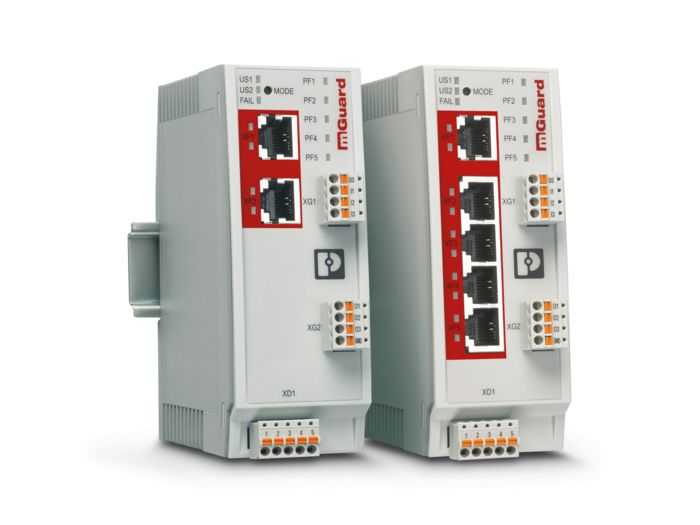
To keep your home Wi-Fi safe from intruders, change your default passwords, enable network encryption, and keep your firmware updated regularly. These simple steps significantly reduce the risk of unauthorized access to your router and personal data.
Securing your router is essential in today’s digital world where cyber threats are constantly evolving. By implementing basic security measures such as strong passwords, encryption protocols, and firmware updates, you create a robust barrier against hackers trying to exploit vulnerabilities. This guide will walk you through practical steps to safeguard your network, ensuring your online activities remain private and protected from unauthorized users. Whether you’re a tech novice or a seasoned user, taking these proactive measures is key to maintaining a secure and reliable home internet environment.

How to Secure Router Against Unauthorized Access
Understanding the Importance of Router Security
Securing your router is essential to protect your home network from unauthorized users. Hackers often try to access unprotected routers to steal personal information or cause network disruptions. By taking the right measures, you can keep your network safe and ensure your data remains private.
Change Default Login Credentials
Most routers come with default usernames and passwords that are easy to find online. Hackers know these default settings and often use them to access your device. Updating your login credentials with a strong, unique password is the first step to securing your router.
Creating a Strong Password
Use a mix of uppercase and lowercase letters, numbers, and special characters. Avoid common words or phrases that are easy to guess. Make your password at least 12 characters long for better security.
Changing Default Credentials
Access your router’s admin panel through your web browser. Navigate to the settings or administration section. Enter your new username and password, then save the changes to prevent others from accessing your router.
Update Router Firmware Regularly
Router manufacturers frequently release firmware updates to fix security vulnerabilities. Keeping your firmware up to date ensures your device has the latest security patches.
How to Check for Firmware Updates
Log into your router’s admin panel, usually by entering its IP address in a browser. Locate the firmware or software update section. Follow the instructions to download and install any available updates.
Benefits of Firmware Updates
Updated firmware improves your router’s security, fixes bugs, and sometimes adds new features. Regular updates help protect against newly discovered threats.
Use WPA3 or WPA2 Encryption
Wireless encryption prevents unauthorized users from connecting to your Wi-Fi network. WPA3 is the latest and most secure standard, but if your router doesn’t support it, WPA2 remains effective.
Configuring Wireless Security
Access your router’s wireless settings in the admin panel. Select WPA3 or WPA2 as your encryption method. Enter a strong password for your Wi-Fi network, then save the settings.
Why Encryption Matters
Encryption turns your Wi-Fi signal into a coded message that only your devices can decode. This makes it extremely difficult for outsiders to access your network traffic.
Disable WPS (Wi-Fi Protected Setup)
WPS is designed for easy device connection but can be a security risk. Many hackers exploit WPS vulnerabilities to gain access to networks quickly.
How to Disable WPS
Log into the router’s settings and locate the WPS option. Turn it off and save your settings. This simple step greatly reduces the risk of unauthorized access.
Enable Network Firewall
Most routers have a built-in firewall that shields your network from external threats. Ensure this feature is activated to add an extra layer of security.
Checking Firewall Settings
Within the router’s admin interface, find the firewall settings section. Make sure it is enabled and configured correctly to protect against malicious traffic.
Additional Firewall Tips
You can customize firewall rules to restrict access to certain IP addresses or ports. Regularly review these settings to maintain security.
Hide Your SSID (Network Name)
Your Wi-Fi network broadcasts a name (SSID) that others can see. Hiding your SSID makes it less obvious to potential intruders.
How to Hide SSID
Access your router’s wireless settings and turn off SSID broadcasting. Note that this is not a foolproof security measure but adds an extra obstacle for hackers.
Pros and Cons
Hiding your network reduces visibility, but it might make device setup more complicated. Ensure you remember your network name and password for future connections.
Set Up Guest Networks
Creating a separate guest network allows visitors to access the internet without gaining access to your main devices and files.
Advantages of a Guest Network
Segregating your network minimizes security risks. It ensures your sensitive data stays protected while guests enjoy internet access.
Configuring a Guest Network
In the router’s admin panel, find the guest network section. Enable it, assign a different SSID, and set a secure password. Limit access to your main network resources.
Implement MAC Address Filtering
MAC filtering allows you to specify which devices can connect to your Wi-Fi based on their MAC addresses. This whitelisting method blocks unauthorized devices.
Enabling MAC Filtering
Locate the MAC filtering option in your router’s security settings. Add the MAC addresses of your trusted devices and enable filtering. Remember to update this list as needed.
Limitations of MAC Filtering
MAC addresses can be spoofed by advanced hackers. Use this feature in combination with other security measures for better protection.
Monitor Connected Devices Regularly
Keeping an eye on who is connected to your network helps identify unauthorized users early. Many routers display connected devices in the admin panel.
How to Check Device List
Log into your router and navigate to the device management section. Review the list of connected devices and note any unfamiliar entries.
What to Do About Unknown Devices
If you see devices you don’t recognize, change your Wi-Fi password immediately. Consider blocking or removing suspicious devices from the network.
Implement Additional Security Measures
Beyond basic steps, consider advanced security tools like VPNs and network monitoring software for enhanced protection.
Using a VPN
A Virtual Private Network encrypts your internet traffic, adding a layer of security. Use VPNs on your devices for safe browsing outside your home network.
Network Monitoring Software
Tools that monitor network activity can alert you to unusual or malicious behavior. Regularly review logs and activity reports to spot potential threats.
Best Practices for Maintaining Router Security
Keep your router in a secure location, away from windows and accessible places. Regularly review your security settings and update passwords periodically.
Additional Tips
Avoid sharing your Wi-Fi password publicly. Use complex passwords and enable two-factor authentication if available. Remember, staying vigilant is key to safeguarding your network.
Enacting these security measures significantly reduces the risk of unauthorized access to your router. Combining multiple techniques creates a layered defense that keeps your home network safe and your data protected. Regularly review and update your security settings to stay ahead of emerging threats.
5 EASY Ways to Secure Your Home WiFi Network (& protect your devices!)
Frequently Asked Questions
What steps can I take to change my router’s default login credentials?
To enhance your router’s security, access the router’s admin interface using the default IP address, typically found on the device or in its manual. Log in with the default username and password and immediately change these credentials to strong, unique ones. Avoid common passwords and consider using a password manager to generate and store secure login details. This prevents unauthorized users from easily accessing your router’s settings.
How can I ensure my wireless network remains protected from unauthorized access?
Create a strong Wi-Fi password that combines uppercase and lowercase letters, numbers, and symbols. Enable WPA3 or WPA2 encryption on your router to secure your wireless communications. Disable WPS, which can be exploited by attackers, and consider hiding your network name (SSID) to make it less visible. Regularly update your router’s firmware to patch security vulnerabilities that could be exploited by intruders.
What are effective ways to monitor and detect suspicious activity on my network?
Access your router’s logs regularly to look for unusual activity or unfamiliar devices connected to your network. Enable network monitoring features if available, which can alert you to potential threats. Consider installing network security tools or software that can scan for vulnerabilities and unauthorized access attempts. Staying vigilant helps you identify and respond to potential security issues swiftly.
How should I configure my router’s firewall settings for maximum security?
Access your router’s settings and enable the built-in firewall to block unauthorized inbound and outbound traffic. Customize the firewall rules to restrict access to trusted devices and ports only. Disable services and features that you do not use, such as remote management, to reduce potential attack vectors. Regularly review and update your firewall settings to adapt to emerging network threats.
What additional precautions can I take to protect my network from physical threats?
Place your router in a secure, central location away from windows and accessible areas where it could be tampered with. Disable remote management features unless necessary, and if enabled, limit access to specific IP addresses. Keep your router in a secure environment and consider physical locks or enclosures to prevent unauthorized physical access, which could lead to hardware manipulation or theft.
Final Thoughts
Securing your router against unauthorized access is essential for protecting your online data. Start by changing the default admin password to a strong, unique one. Enable network encryption like WPA3 to safeguard your Wi-Fi connection. Regularly update your router’s firmware to patch security vulnerabilities. Implementing these steps ensures your network remains secure and private. How to secure router against unauthorized access involves consistent vigilance and the right settings. Taking these proactive measures keeps your network safe from intruders and unauthorized users.



