


Choosing the right office monitor can dramatically boost your productivity and reduce eye strain. To select the best one, focus on size, resolution, ergonomic features, and connectivity options that suit your work style. A well-chosen monitor makes multitasking smoother and your workspace more comfortable.
In short, prioritize a monitor with the right size, high resolution, adjustable features, and good connectivity to enhance your efficiency. Consider your work tasks and workspace layout to find the perfect fit that keeps you comfortable and focused throughout the day.
Staying productive in an office environment isn’t just about having a powerful computer; your monitor plays a crucial role too. The right monitor can make your daily tasks easier, whether you’re drafting documents, analyzing data, or handling multiple applications. But with so many options available, it can be overwhelming to know what to look for. By understanding key features like size, resolution, ergonomics, and connectivity, you can choose a monitor that not only boosts your output but also minimizes fatigue and discomfort. Making an informed decision ensures your workspace is optimized for comfort, efficiency, and long-term productivity.

How to Select Office Monitor for Productivity
Choosing the right office monitor can significantly boost your work efficiency. The perfect monitor enhances visual comfort, reduces fatigue, and helps you stay focused longer. Let’s explore the key factors to consider when selecting a monitor that supports your productivity.
Understanding Your Work Needs
Before diving into specific features, identify the primary tasks you’ll perform on your monitor. Are you editing photos, working with spreadsheets, coding, or attending virtual meetings? Different tasks demand different monitor features.
Determine Your Work Style
– Do you prefer multitasking with multiple windows open simultaneously? If yes, a larger screen or multiple monitors might be best.
– Do you spend hours editing high-resolution images or videos? Look for monitors with high color accuracy and resolution.
– Are your tasks mostly document-based? A monitor with good text clarity and comfortable viewing angles is ideal.
Size Matters: Choosing the Right Screen Size
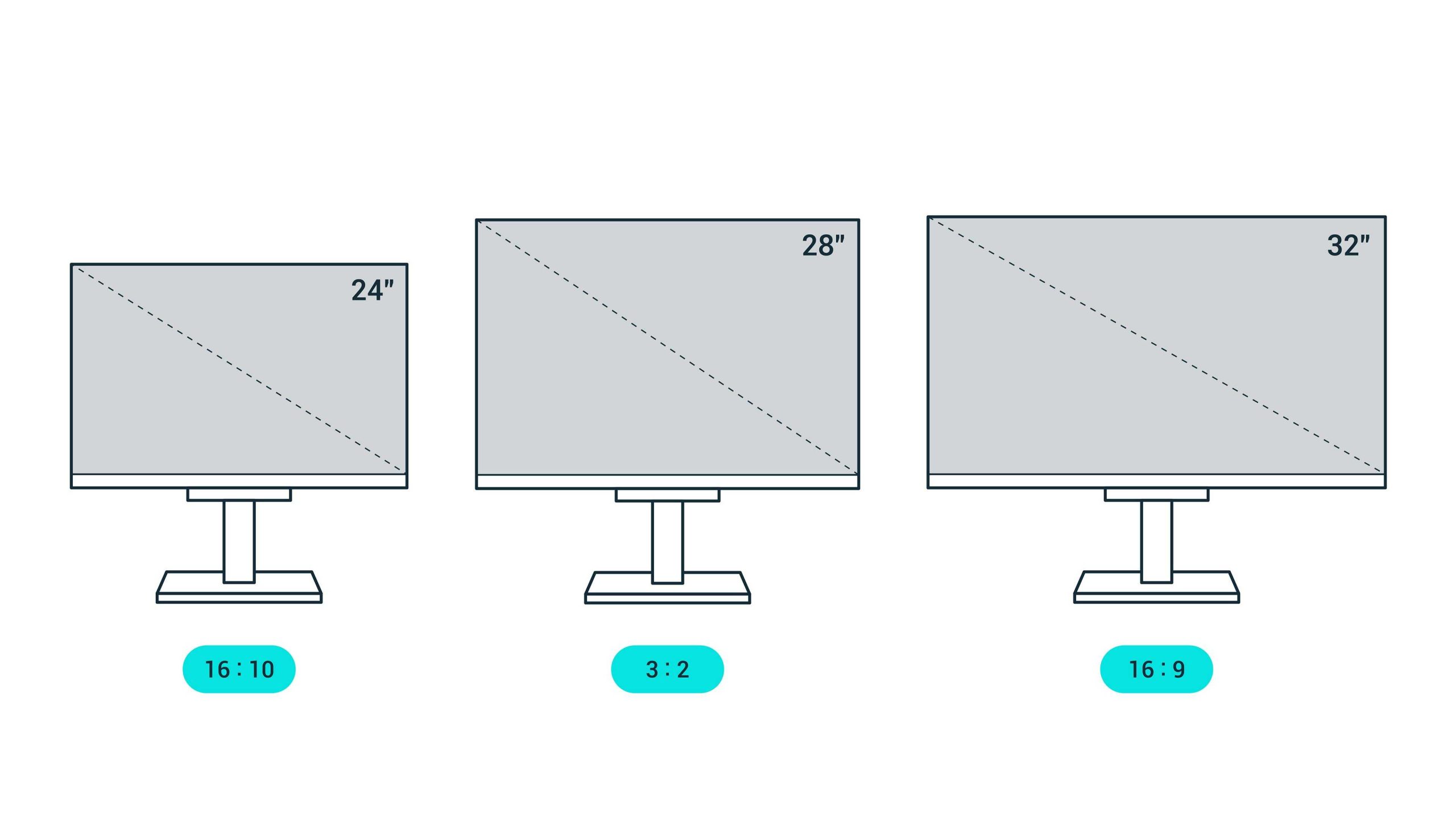
The size of your monitor directly influences productivity. A screen that’s too small can cause eye strain and limit workspace, whereas a very large screen may be overwhelming or require extensive desk space.
Common Monitor Sizes for Offices
| Size (Inches) | Best For |
|---|---|
| 24 to 27 | General office work, multitasking, content creation |
| 32 and above | Advanced multitasking, detailed graphic work, multiple window setups |
A 24 to 27-inch monitor fits most desks comfortably and provides ample workspace without requiring major adjustments.
Resolution and Display Quality
High resolution ensures clear, sharp images and text, which can lessen eye strain and boost productivity.
Key Resolution Options
- Full HD (1920×1080): Standard and affordable, suitable for general tasks
- QHD (2560×1440): Better detail, ideal for multitasking and professional work
- 4K (3840×2160): Exceptional clarity, best for detailed design or video editing
Choosing higher resolution models can increase your workspace and make it easier to view multiple applications side by side.
Color Accuracy and Panel Type
Accurate color representation benefits creative professionals, while panel type affects viewing angles and response times.
Panel Types Explained
- TN (Twisted Nematic): Fast response times but limited color accuracy and viewing angles
- IPS (In-Plane Switching): Superior color accuracy and wider viewing angles, ideal for creative work
- VA (Vertical Alignment): High contrast ratios, good for multimedia consumption and general office use
For most office tasks, IPS panels offer a good combination of accuracy and viewing comfort.
Ergonomics and Build Quality
A monitor with adjustable height, tilt, swivel, and pivot features helps maintain proper posture.
Why Ergonomics Matter
Poor setup can lead to neck and eye strain. Adjustable monitors help position screens at eye level, promoting comfort during long hours.
Additional Ergonomic Tips
- Use monitor stands or mounts for flexible positioning
- Maintain a comfortable distance, about an arm’s length away
- Ensure the top of the screen is slightly below eye level
Investing in a well-built, adjustable monitor supports health and productivity.
Connectivity Options
Your monitor should connect easily to your computer and other devices.
Common Ports to Look For
- HDMI: Standard for most modern devices
- DisplayPort: Offers high resolution and refresh rates for advanced setups
- USB-C: Combines power delivery and video output, ideal for newer laptops
- USB hubs: Allow connecting peripherals directly to the monitor
Verify your computer’s available ports to choose a compatible monitor with sufficient connectivity.
Refresh Rate and Response Time
For most office tasks, these specifications are less critical but still worth considering.
What to Know
- 60Hz refresh rate suffices for productivity and general use
- Higher refresh rates (75Hz or more) benefit faster-paced tasks or if you switch between work and casual gaming
- Response time affects how quickly pixels change color; lower response times reduce motion blur
Opt for standard refresh rates for office work, but prioritize other features if gaming or video editing is involved.
Additional Features Enhancing Productivity
Some extra features can make your work easier and more comfortable.
Blue Light Filters and Flicker-Free Technology
These features reduce eye strain during long working sessions, protecting your eyesight.
Picture-in-Picture and Split-Screen Functions
Enable viewing multiple applications simultaneously, boosting multitasking efficiency.
Built-In Speakers and Webcam
Convenient for video calls without cluttering your desk.
Energy Efficiency and Environmental Impact
Choosing an ENERGY STAR certified monitor reduces power consumption and environmental impact.
Reasons to Choose Energy-Efficient Models
– Lower electricity bills
– Better for the environment
– Often come with features like automatic brightness adjustment
Look for monitors with good reviews on energy savings and eco-friendly certifications.
Budget Considerations and Value for Money
Set a realistic budget that balances features and affordability.
Cost vs. Features
– Basic models (<$200): Suitable for simple tasks, minimal features - Mid-range ($200-$500): Better resolution, ergonomics, and connectivity - Premium ($500+): Top-tier display quality, advanced features, and durability Prioritize features that directly impact your productivity rather than overspending on unnecessary extras.
Final Tips for Selecting Your Office Monitor
– Read reviews and user feedback for real-world insights
– Test monitors in person if possible, to assess size, image quality, and comfort
– Consider future needs; choose a model that can grow with your work requirements
– Keep your desk space and setup in mind to avoid cramped or awkward positions
By paying attention to these details, you can select a monitor that keeps you comfortable, focused, and efficient all day long.
BEST Monitors for Productivity GUIDE (2025)
Frequently Asked Questions
What display size should I choose for enhanced productivity in my office setup?
Select a monitor size that suits your workspace and task requirements. Generally, a 24 to 27-inch screen offers ample space for multitasking and detailed work without overwhelming your desk. Larger screens, such as 32 inches or more, benefit users handling complex projects or those who prefer a more immersive viewing experience. Consider your sitting distance as well; a screen that is too large may cause eye strain if viewed from a close distance. Choose a size that balances comfort and efficiency, allowing you to view multiple windows simultaneously without constant switching.
How important is screen resolution for office work productivity?
Screen resolution directly impacts clarity and the amount of information you can view at once. Higher resolutions like 1440p or 4K provide sharper images and allow you to display more content on the screen, which can improve workflow. For detailed tasks such as graphic design or data analysis, a higher resolution helps reduce eye strain and increases precision. For general office tasks like document editing and browsing, a standard 1080p resolution usually suffices. Opt for a resolution that matches your editing needs and helps maintain a clear, comfortable viewing experience.
Why should I consider ergonomic features when selecting an office monitor?
Ergonomic features ensure that you maintain a comfortable and healthy working posture. Adjustable height, tilt, and swivel options allow you to position the monitor at eye level, reducing neck and back strain. A monitor with an anti-glare screen minimizes eye fatigue caused by reflections and harsh lighting. Additionally, screens with curved designs can provide a more natural viewing angle, decreasing eye movement and discomfort. Prioritizing ergonomic features helps prevent discomfort during long working hours and supports overall productivity.
Final Thoughts
Choosing the right office monitor is essential for enhancing productivity. Focus on screen size and resolution to ensure clear visuals and ample workspace. Consider ergonomic features to reduce strain and increase comfort during long work hours. Prioritize adjustable stands and flicker-free technology for better usability.
In conclusion, how to select office monitor for productivity involves assessing size, resolution, ergonomic options, and overall comfort. Making informed choices helps create a workspace that encourages focus and efficiency.



