


Setting up a guest network on your router is a smart way to keep your main devices secure while providing visitors with internet access. Just a few simple steps can help you create a separate Wi-Fi network for guests in minutes. This way, you safeguard your personal data and enjoy hospitality at its best.
To set up a guest network on your router, access your admin panel through a web browser, navigate to the wireless settings, and activate the guest network option. Customize your network’s name and password, then save the changes. That’s it — your guest network is ready to use!
If you want to share your Wi-Fi with visitors without risking your main network’s security, creating a guest network is the perfect solution. It’s an easy process that keeps your devices safe while letting guests browse freely. Now, let’s walk through how to do this step-by-step, so you can enjoy peace of mind and seamless connectivity for everyone.

How to Setup Guest Network on Router
Understanding the Purpose of a Guest Network
A guest network allows visitors to access your internet without gaining access to your main devices or private files. It provides a separate Wi-Fi connection that keeps your personal data safe. Setting up a guest network helps you maintain security and manage bandwidth effectively.
Benefits of Creating a Guest Network
- Protects your main network from potential threats
- Prevents guests from accessing private files or devices
- Controls bandwidth for guest users
- Offers a professional look for business environments
A well-setup guest network improves security and keeps your Wi-Fi experience smooth for everyone.
Prerequisites for Setting Up a Guest Network
Before starting, ensure you have:
- A working router with admin access
- Login credentials for your router’s admin panel
- A device connected to the router (computer, smartphone, or tablet)
Having these ready makes the setup process quicker and easier.
Accessing Your Router’s Admin Panel
To start, you need to log into your router’s admin dashboard. Usually, this is done via a web browser. Type your router’s IP address into the address bar, which commonly is 192.168.0.1 or 192.168.1.1. Enter your username and password, often found on the router or in its manual.
Steps to Access Your Router’s Admin Page
- Open a web browser on your connected device
- Type the IP address into the address bar
- Press Enter
- Log in with your admin credentials
If you don’t know your login details, check the router’s sticker or manual. You can also reset the router if needed.
Locating the Guest Network Settings
Once logged in, navigate through the menu to find “Wireless” or “Wi-Fi” settings. Different routers have different interfaces, but the option for guest networks is usually labeled as Guest Network or Guest Access. It might be under a “Wireless Settings” tab.
Identifying the Correct Section
- Look for menu options like “Wireless,” “Wi-Fi,” or “Network Settings”
- Find the “Guest Network” subsection
- Click or select it to view the setup options
If your router UI isn’t clear, consult the manual or manufacturer’s website for specific instructions.
Enabling the Guest Network
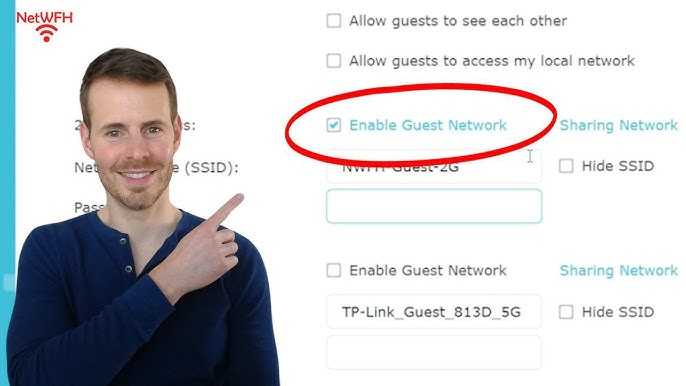
To activate the guest network, toggle the switch or check the box that says “Enable” or “Turn On.” This makes the guest Wi-Fi available for your visitors.
Configuring Basic Guest Network Details
- Name your guest network (SSID): Make it distinct, such as “HomeGuest” or “CafeGuests”
- Set a strong password: Avoid common words; use a mix of characters
- Choose security type: Prefer WPA3 or WPA2 for maximum security
Always use a secure password to prevent unauthorized access.
Customizing Advanced Guest Network Settings
Beyond basic setup, many routers offer additional options for fine-tuning the guest network.
Bandwidth Management
Set limits on how much bandwidth guest users can consume. This prevents their activity from slowing down your main network. You can often find this under “Bandwidth Control” or “QoS Settings.”
Access Restrictions
Control which devices can connect and set time limits for guest access. Some routers allow scheduling when the guest network is available, adding an extra layer of security.
Separating Guest Traffic
Ensure your guest network is isolated from your main network. This prevents guests from accessing your private devices and files. Look for options labeled Network Isolation or Client Isolation and enable them.
Saving and Testing the Guest Network
After completing the setup, click “Save” or “Apply” to activate changes. Then, test the guest network by connecting a device with the new SSID and password. Check if you can access the internet without being able to see your main network devices.
Verifying Proper Isolation
Ensure that devices connected to the guest network cannot access shared folders, printers, or main devices. Run a quick security check to confirm your primary network remains protected.
Optimizing Guest Network Performance
For best results, position your router in a central location. Reduce interference from other electronic devices. Limit the number of devices connected simultaneously to keep speeds stable.
Updating Firmware for Security and Stability
Regularly update your router’s firmware to fix bugs and security vulnerabilities. Check your manufacturer’s website or admin panel for updates.
Monitoring Guest Network Usage
Use your router’s admin tools to keep track of connected devices and data usage. This helps identify any unusual activity or excessive bandwidth consumption.
Additional Tips for Managing Your Guest Network
- Change your guest network password periodically
- Disable guest access once it’s no longer needed
- Provide clear instructions to guests for connecting safely
- Consider creating a separate network for confidential devices
Good management keeps your Wi-Fi safe, fast, and reliable.
Related Topics to Explore
- How to improve Wi-Fi signal strength at home
- Understanding different Wi-Fi security protocols
- Best practices for securing your home network
- How to update router firmware manually
Exploring these areas helps you make your entire network more secure and efficient.
Setting up a guest network on your router is a simple yet vital task for maintaining your online security. By following these steps, you can give visitors internet access while protecting your private information. Customizing settings like bandwidth and access restrictions ensures a smooth experience for everyone involved. Regular updates and monitoring keep your network secure and running efficiently.
Guest Wifi Network Setup & Why you NEED to Use Them!
Frequently Asked Questions
What steps should I follow to access my router’s admin settings for guest network setup?
To access your router’s admin settings, connect your device to the router via Ethernet or Wi-Fi. Open a web browser and enter the router’s IP address, typically 192.168.1.1 or 192.168.0.1, in the address bar. Log in using the username and password provided in the router’s manual or on a label attached to the device. Once logged in, navigate to the wireless or guest network section to set up your guest access.
How do I create a separate network for guests without affecting my main Wi-Fi connection?
Within your router’s settings, locate the area dedicated to guest networks. Enable the guest network feature and assign it a unique SSID (network name). Configure security settings, such as password protection, and specify bandwidth or access limitations if available. This setup isolates guest users from your main network, keeping your primary devices secure while providing internet access to visitors.
What security measures should I implement when setting up a guest network?
Ensure you enable WPA3 or WPA2 encryption for the guest network to protect data transmission. Use a strong, unique password for guest access and avoid sharing it publicly. Limit guest users’ access to local network resources to prevent unauthorized access to your personal devices. Regularly update your router’s firmware to patch security vulnerabilities and monitor connected devices for any suspicious activity.
Can I customize the bandwidth allocation for the guest network on my router?
Many modern routers allow you to prioritize or limit bandwidth for specific networks, including guests. Access the Quality of Service (QoS) settings within the router’s admin panel to assign bandwidth quotas or prioritize traffic for the guest network. This feature helps ensure your main devices retain optimal performance while guests enjoy stable internet access.
How do I manage or disable my guest network when needed?
To manage your guest network, revisit the router’s settings and navigate to the guest network section. You can disable the network by turning off the guest feature or hide its SSID to prevent devices from detecting it. To allow or restrict access later, simply enable or disable the guest network as required through the router’s interface. Remember to change passwords periodically for added security.
Final Thoughts
To set up a guest network on your router, access your router’s admin panel through a web browser. Navigate to the wireless or guest network settings. Enable the guest network option and assign a unique network name and password.
Ensure the guest network is isolated from your main devices to protect your privacy. Save the settings and reconnect your devices to the new network.
In conclusion, knowing how to setup guest network on router helps you maintain security while offering internet access to visitors efficiently.



