


Troubleshooting your WiFi connection can feel like trying to fix a constantly flickering light—you want stability but keep getting interruptions. The good news is, most frequent disconnections can be resolved with simple steps. First, check your router’s placement and reboot it regularly; these often do the trick. Ensuring your firmware is updated and reducing interference from other devices can also make a big difference.
In short, start by optimizing your router’s position, update its software, and minimize interference from other electronics. If issues persist, consider upgrading your equipment or contacting your Internet Service Provider for support. These quick fixes can restore a reliable WiFi connection so you can surf, stream, and work without frustration.
When your WiFi keeps disconnecting, it’s not just annoying—it can disrupt your entire day. Many people experience frequent interruptions due to factors like poor router placement, outdated firmware, or too much interference from other gadgets. Fortunately, resolving these issues is often straightforward. By making a few adjustments—such as repositioning your router, updating its software, or changing channels—you can significantly improve your connection stability. If simple fixes don’t work, upgrading your equipment or consulting with your provider could be the next step. Staying connected at home should be hassle-free, and these tips will help you achieve a more reliable WiFi experience.

How to solve frequent WiFi disconnections at home
Understanding Why WiFi Disconnects Often
Many households experience interruptions in their WiFi connection. These disconnections can be caused by various issues, ranging from technical problems to interference from other devices. Recognizing the root causes helps in applying the right solutions effectively.
Common Causes of WiFi Disconnections
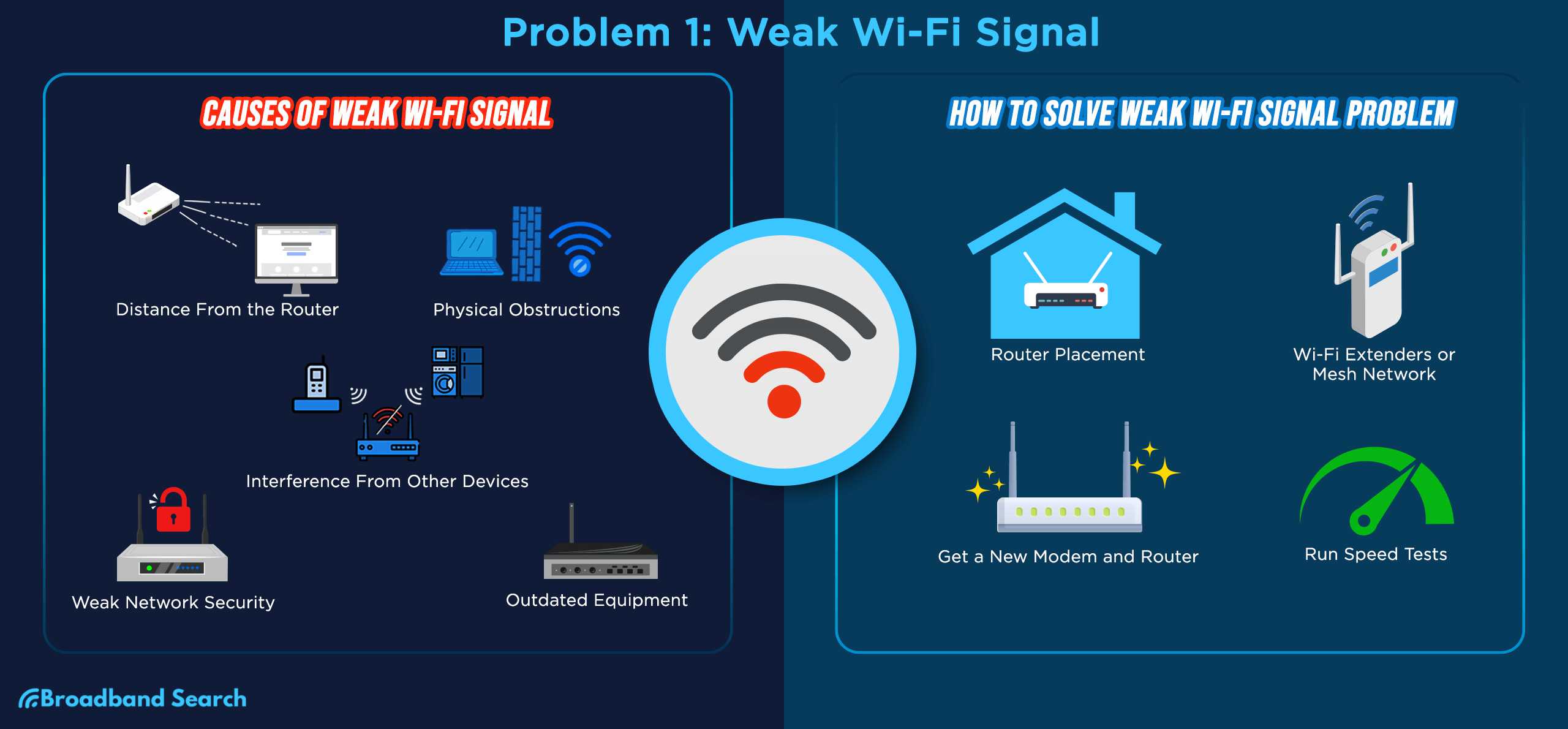
WiFi disconnections can stem from several factors such as outdated router firmware, signal interference, network congestion, or physical obstructions. Environmental factors like thick walls or appliances that emit electromagnetic signals also play a role in weakening WiFi signals.
Router Issues
An outdated or faulty router may simply not perform well. Over time, routers can become less efficient or develop hardware issues, leading to frequent disconnections. It’s important to check and update router firmware regularly.
Interference from Other Devices
Radio signals from microwaves, cordless phones, baby monitors, or Bluetooth devices can interfere with WiFi signals. Such interference disrupts data flow, causing disconnections or slow speeds.
Physical Obstacles
Walls, furniture, and appliances can block WiFi signals, especially if they contain metal or dense materials. Placing the router in a central, open location minimizes physical barriers that weaken the connection.
Network Traffic
Too many devices connected to the same network can overload it, resulting in dropped connections. Streaming, gaming, or extensive downloading can exhaust bandwidth, causing WiFi interruptions.
How to Improve Your WiFi Signal at Home
Optimizing the placement and configuration of your router can significantly reduce disconnections. Consider these steps to improve your WiFi signal strength.
Position Your Router Correctly
Place your router in a central location away from walls and large metal objects. Elevate it to a higher shelf or mount it on the wall for better coverage. Keep it away from electronic devices that emit interference.
Ensure Proper Router Settings
Access your router’s admin panel to verify that it uses the best WiFi channel for your environment. Switching channels can reduce interference from neighboring networks.
Update Firmware Regularly
Check the router manufacturer’s website for firmware updates. Updated firmware can fix bugs and improve performance, reducing disconnection issues.
Use WiFi Extenders or Mesh Systems
If your home spans a large area, consider adding WiFi extenders or adopting a mesh WiFi system. These devices extend coverage and improve signal stability throughout your house.
Managing Interference and Signal Quality
Interference can be a major cause of WiFi issues. Learn how to manage it effectively.
Identify Sources of Interference
Locate devices like microwaves or cordless phones that may interfere with your WiFi signals. Turn them off temporarily to test if they cause disconnections.
Switch to the 5GHz Band
Most routers support dual bands: 2.4GHz and 5GHz. The 5GHz band offers faster speeds and is less prone to interference, making it ideal for streaming or gaming.
Limit the Number of Connected Devices
Disconnect unused devices or prioritize critical connections. A congested network can cause frequent disconnections and slow speeds.
Additional Tips for Stable WiFi
Implementing extra steps can further enhance WiFi stability at home.
Restart Your Router Regularly
Power cycling your router helps clear temporary glitches. Restart your device weekly to maintain optimal performance.
Secure Your Network
Use strong passwords and WPA3 encryption to prevent unauthorized access, which can overload your network and cause disconnections.
Disable Unused Features
Turn off features like WPS or QoS if they are not needed. These can sometimes interfere with stable connections.
Use Quality Equipment
Invest in a high-quality, modern router designed to handle multiple devices streaming simultaneously. Low-quality or outdated routers often struggle under heavy use.
When to Seek Professional Help
If you’ve tried all the above steps and still face frequent disconnections, consult a technician. Persistent issues could indicate hardware failure or complex network problems requiring expert diagnosis.
Testing Your Internet Connection
Use speed tests to check your internet speed and stability. Consistently low speeds or high latency may point to external provider issues or faulty equipment.
Contact Your Internet Service Provider
Sometimes the problem originates outside your home. Contact your ISP to verify if there are outages or issues with the service in your area.
Replacing Faulty Hardware
If your router is old or malfunctioning, replacing it with a new model can resolve ongoing disconnection problems. Newer routers typically offer better range and stability.
Frequent WiFi disconnections at home can be frustrating, but many solutions are simple and effective. By optimizing router placement, updating firmware, managing interference, and employing additional hardware if needed, you can enjoy a more stable, reliable internet connection. Taking these steps ensures your online activities are smooth and uninterrupted, making your home network a dependable tool for work, entertainment, and communication.
Why Does Your Internet Connection Randomly Stop Working?
Frequently Asked Questions
How can I identify if my WiFi router is causing disconnections?
Check if your WiFi router’s indicator lights are stable or blinking irregularly. You can also monitor the connection on multiple devices to see if disconnections occur across all or just specific ones. Resetting your router and observing if the issue persists helps determine if the router is faulty. Additionally, using network diagnostic tools can pinpoint hardware or firmware issues affecting your connection.
What steps should I take to reduce interference from other electronic devices?
Place your router away from devices like cordless phones, microwave ovens, and Bluetooth gadgets, which can disrupt WiFi signals. Use a different WiFi channel through your router settings to avoid crowded frequencies. Switching from the 2.4 GHz band to the 5 GHz band can also minimize interference, providing a more stable connection for your devices.
How can I improve WiFi coverage within my home?
Position your router centrally in your home, elevated on a shelf or high mount, to broadcast signals more evenly. Remove physical obstructions like thick walls or large furniture that block WiFi signals. If needed, extend your network with WiFi range extenders or mesh systems to reach distant rooms and eliminate dead zones.
What software or firmware updates can help stabilize my WiFi connection?
Regularly check your router manufacturer’s website for firmware updates and install them promptly. Firmware updates often include bug fixes and improvements that enhance stability. Additionally, update network drivers on your devices to ensure compatibility and optimal performance with your WiFi network.
Are there any router settings I should optimize for better connection stability?
Set your WiFi network to use WPA3 or WPA2 security for secure and reliable connections. Enable Quality of Service (QoS) settings to prioritize bandwidth for essential devices like work computers or streaming devices. Disabling unused features and changing the default WiFi channel can further improve stability and reduce interference.
Final Thoughts
To solve frequent WiFi disconnections at home, start by restarting your router and modem. Ensure your device is within range and free from obstructions. Update your router firmware regularly for optimal performance.
Check for interference from other electronic devices and switch to a less congested channel if needed. Position your router in a central location to maximize coverage. These simple steps help maintain a stable connection and improve your internet experience.



