


A weak WiFi signal can be incredibly frustrating, especially when you need reliable internet for work, streaming, or staying connected with loved ones. Luckily, there are simple steps you can take to boost your WiFi strength in trouble spots around your home or office. Start by repositioning your router to a central location, free from obstructions, and consider upgrading your equipment or adding a WiFi extender if needed. These quick fixes can significantly improve your connection and keep you smoothly connected wherever you are.
To quickly solve weak WiFi signals in specific areas, optimize your router’s placement, reduce interference from other electronic devices, and consider using range extenders or mesh networks. These methods help extend coverage and improve performance in problem zones.
If you’re struggling with poor WiFi in certain parts of your space, don’t worry — there are straightforward ways to enhance your connection. Repositioning your router to a more open, central spot can make a huge difference. Keep it away from thick walls, large metal objects, and electronic devices that emit interference, like microwave ovens or cordless phones. If that’s not enough, adding a WiFi extender or switching to a mesh network can distribute the signal more evenly across your space. Regularly updating your router’s firmware and checking for device overload can also help maintain strong WiFi where you need it most. With these tips, you’ll be able to enjoy a stronger, more reliable internet connection in every corner of your home or office.

How to solve weak WiFi signal in certain areas
Understanding Why WiFi Signal Weakens in Specific Zones
Weak WiFi signals in certain areas happen due to various obstacles and interference sources. Walls, furniture, and electronic devices can block or weaken wireless signals. Additionally, distance from the router plays a big role in signal strength decline. Recognizing these factors helps in finding the right solution for each problem spot.
Identify Dead Zones and Weak Spots
Before fixing the issue, locate the parts of your home or office where WiFi drops or slows down. Use your device’s WiFi settings or a dedicated WiFi analyzer app to measure signal strength in different areas. Mark these zones to prioritize for improvement. Collecting this data makes it easier to choose the most effective solutions.
Rearranging Your Router for Better Coverage
Positioning your router correctly can greatly improve WiFi coverage. Place the router in a central, open location away from thick walls and metal objects. Elevate the router on a shelf or mount it higher on a wall. Avoid placing it near appliances or devices that emit electromagnetic interference. A well-placed router offers a more even signal across your space.
Optimize Router Settings for Improved Performance
Access your router’s admin panel to tweak settings that affect WiFi strength. Change the channel to a less congested frequency, especially if many nearby networks are active. Enable Quality of Service features to prioritize essential devices or activities. Updating your router’s firmware regularly can also fix bugs that cause signal issues.
Use WiFi Range Extenders and Repeaters
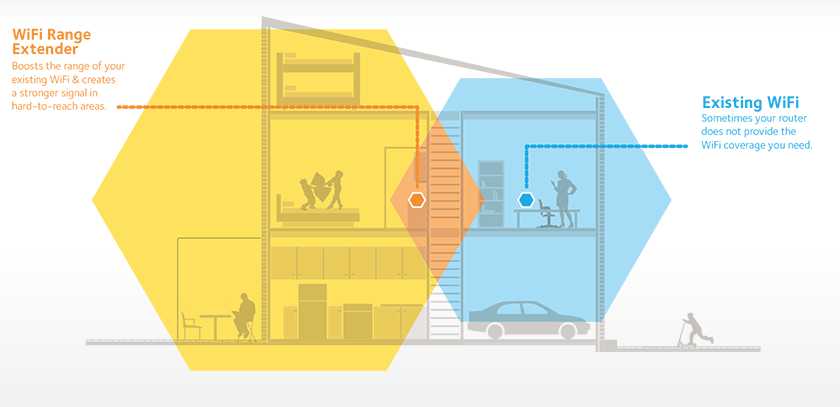
Range extenders or repeaters can boost WiFi signals to dead zones. Plug these devices at a midpoint between your router and weak area. They repeat or amplify the existing signal, creating a broader coverage zone. Ensure they are placed where the signal is still strong enough to be extended effectively.
Implement Mesh WiFi Systems for Seamless Coverage
Mesh networks consist of multiple nodes that work together to blanket your entire space with WiFi. Unlike range extenders, mesh systems provide consistent speeds and reduce dead spots. Installing a mesh system is ideal for large homes or offices with complex layouts. They are easy to expand and manage via smartphone apps.
Upgrade Your Router for Better Signal Strength
Older routers may not support the latest WiFi standards, leading to weaker signals. Invest in a modern router that supports WiFi 5 (802.11ac) or WiFi 6 (802.11ax). Look for models with multiple antennas, beamforming capabilities, and higher transmission power. These features improve range and stability across multiple devices.
Minimize Interference from Other Electronics
Electronic devices like cordless phones, microwave ovens, and baby monitors can interfere with WiFi signals. Keep your router away from these electronics. Switch to a different WiFi channel to avoid overlapping signals. Using 5 GHz band instead of 2.4 GHz can also reduce interference, as it’s less crowded.
Secure Your WiFi Network to Prevent Bandwidth Drain
A secured network prevents unauthorized users from hogging your bandwidth. Use WPA3 or WPA2 encryption with a strong password. Regularly change your password and hide your network’s SSID if needed. Keeping your network secure not only protects your data but also maintains good WiFi performance.
Consider Powerline or Wired Connections
For the most reliable internet in weak signal zones, use Ethernet cables or Powerline adapters. Powerline adapters transmit internet signals through your home’s electrical wiring, reaching areas WiFi cannot. Ethernet connections offer the most stable and fastest internet, ideal for streaming or gaming.
Regular Maintenance and Updates
Keep your router’s firmware updated for optimal performance and bug fixes. Restart your router periodically to clear temporary glitches. Check for firmware updates on the manufacturer’s website. Maintaining your equipment prolongs its lifespan and keeps your WiFi running smoothly.
Advanced Solutions for Persistent Weak WiFi
In cases where basic fixes fail, consider installing professionally designed WiFi networks. Consulting with a network specialist can help identify unforeseen problems. Custom solutions might include installing additional access points or using specialized antennas. These steps ensure comprehensive coverage even in challenging environments.
Related Topics for Better WiFi Experience
- How to choose the right WiFi router: Tips for selecting a device suited to your needs and space.
- Understanding WiFi frequency bands: The differences between 2.4 GHz and 5 GHz and when to use each.
- How to increase internet speed: Simple adjustments to improve overall network performance.
Summary of Key Strategies
| Solution | Best For |
|---|---|
| Router repositioning | Large open spaces |
| WiFi extenders | Small dead zones |
| Mesh system | Large, complex layouts |
| Upgrading router | Older hardware |
| Wired connections | High-bandwidth needs |
| Reducing interference | Congested environments |
Taking these steps, from simple repositioning to advanced hardware upgrades, can greatly enhance your WiFi coverage. Focus on identifying weak spots and applying tailored solutions for each one. Achieving stronger, more reliable WiFi in all areas will make your internet experience smoother and more enjoyable.
How to Fix and Upgrade a Weak WiFi Signal | Ask This Old House
Frequently Asked Questions
What are effective ways to reduce WiFi interference from other electronic devices?
To minimize interference, keep your router away from devices like cordless phones, microwaves, and Bluetooth gadgets. Ensure your router is positioned centrally and elevated, avoiding placement behind thick walls or metal objects. Switching to less crowded WiFi channels can also help reduce interference, providing a clearer signal in problem areas.
How can adjusting the router’s placement improve signal strength in specific zones?
Placing your router at a higher point and in an open space boosts coverage and minimizes obstructions. Position the router away from thick walls, large metal objects, and appliances that can block signals. Moving it closer to areas where the WiFi drops frequently ensures a stronger and more consistent connection in those zones.
What steps can I take to optimize my WiFi settings for better coverage in certain parts of my house?
Access your router’s settings to select the best frequency band, typically switching between 2.4 GHz and 5 GHz based on your needs. Enable features like Quality of Service (QoS) to prioritize traffic for devices or activities in weak signal zones. Updating your router’s firmware can also improve performance and signal stability across your home.
How do WiFi extenders or mesh networks help in improving signal in problematic areas?
WiFi extenders amplify the existing signal to reach distant or obstructed areas, creating a broader coverage zone. Mesh networks, on the other hand, consist of multiple nodes that work together seamlessly, providing consistent WiFi throughout your home. Both options effectively eliminate dead spots and ensure reliable connectivity across every room.
Are there any specific router features or technologies that can enhance signal coverage in certain areas?
Routers equipped with beamforming focus the signal directly toward connected devices, improving speed and reliability. Dual-band and tri-band routers offer more options to reduce congestion and interference. Additionally, routers with multiple antennas and MU-MIMO technology better handle multiple connections simultaneously, resulting in improved coverage and stability in challenging zones.
Final Thoughts
To solve weak WiFi signal in certain areas, start by moving your router to a central location. Avoid placing it near thick walls or metal objects that block signals. Use WiFi extenders or mesh networks to boost coverage in problem zones.
Updating your router’s firmware can improve performance and stability. Consider switching to a less congested channel for clearer signals. With these steps, you can enhance your WiFi coverage and enjoy a stronger connection throughout your home.



