


To stop dual monitors from mirroring in Windows 11, simply access your display settings and select the extend option for your second monitor. This quick tweak will ensure each monitor displays different content, enhancing your productivity. For a more detailed step-by-step, read on!
In Windows 11, dual monitors can be a game-changer, but sometimes they default to mirror each other, which can be frustrating if you need separate displays. Luckily, fixing this is straightforward. All you need to do is dive into the display settings and switch from duplicate to extend mode. This way, your monitors will function independently, giving you extra space for multitasking or presenting different windows on each screen. Whether you’re working, gaming, or streaming, stopping the mirroring can significantly boost your experience. Keep reading to learn exactly how to change this setting and make your dual monitor setup work seamlessly for you.

How to Stop Dual Monitors from Mirroring Windows 11
Many users find themselves frustrated when their dual monitors display the same content, making it difficult to multitask efficiently. Mirrored displays can be confusing and limit your productivity. Luckily, Windows 11 offers simple ways to change this setting so each monitor shows different windows. This guide will walk you through all the steps to stop dual monitors from mirroring Windows 11 effectively.
Understanding Display Modes in Windows 11
Before diving into solutions, it’s important to understand the different display modes available. Windows 11 provides three main options for external monitors:
- Duplicate: Shows the same screen on both monitors.
- Extend: Extends your desktop across both monitors, giving you more space.
- Second screen only: Displays content only on the second monitor.
To stop mirroring, you need to select the Extend mode. This mode allows each monitor to display different content, enhancing your multitasking capabilities.
How to Change Display Settings to Stop Mirroring
Step 1: Open Display Settings
Click the Start button or press Windows key, then select Settings. Navigate to System and click on Display. You will see all your connected monitors listed here.
Step 2: Identify Your Monitors
Click on the Identify button to see which number corresponds to each monitor. This helps you know which display you are adjusting.
Step 3: Adjust the Multiple Displays Settings
Scroll down to find the Multiple displays section. Use the dropdown menu to select Extend these displays. This option disables mirroring and allows each screen to show unique content.
Step 4: Apply the Changes
Click the Apply button to confirm the changes. Your monitors will now function as extended displays instead of mirroring each other.
Using Shortcut Keys for Quick Adjustment
Shortcut: Windows + P
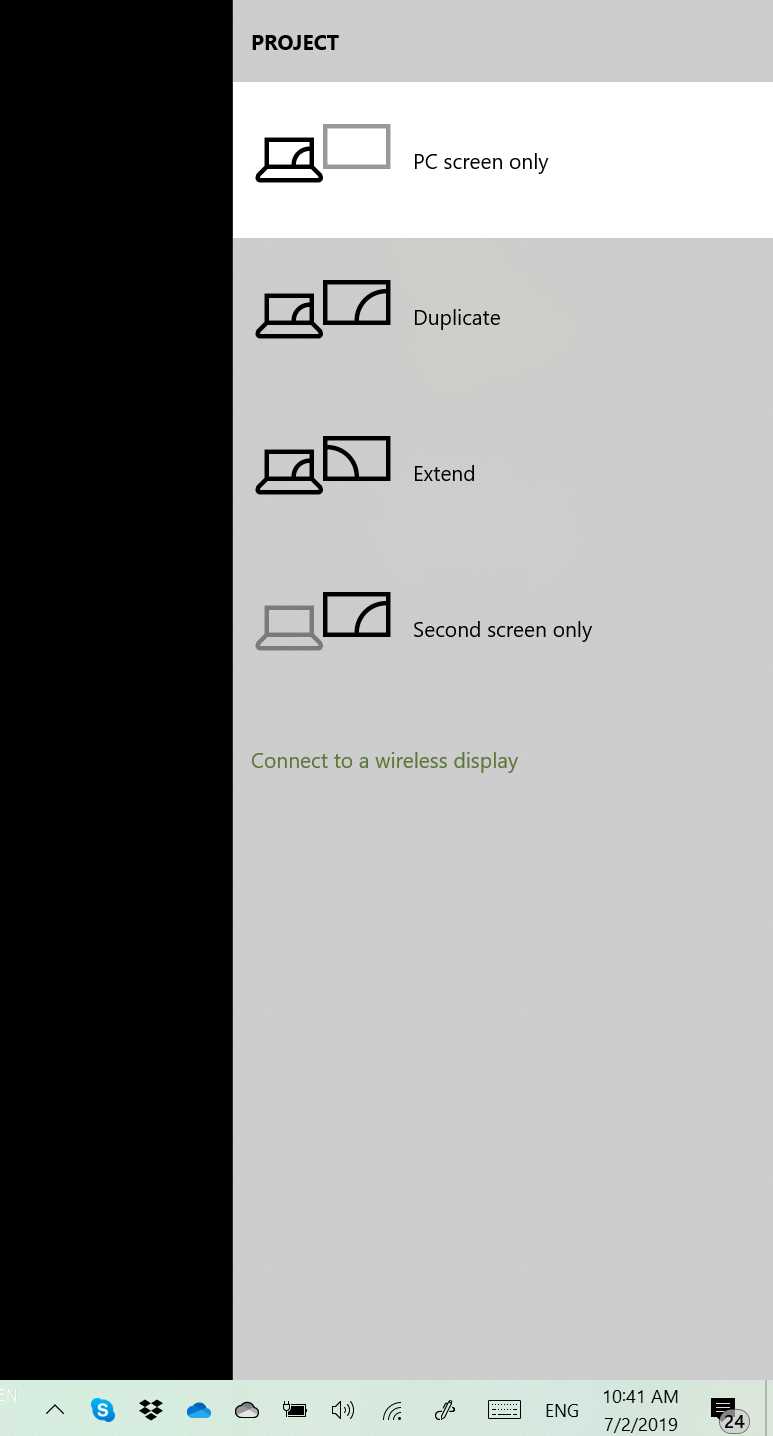
Press Windows + P simultaneously. A sidebar appears with display options:
- Duplicate
- Extend
- Second screen only
- PC screen only
Use the arrow keys or mouse to select Extend. This quick method saves time when switching between display modes.
Resolving Common Issues When Changing Display Modes
Monitor Not Detaching from Mirroring Mode
If your second monitor still mirrors the first after changing settings, try unplugging and reconnecting the monitor. Restarting your computer can also help apply the new configuration.
Display Driver Problems
Outdated or corrupted display drivers can cause issues. Visit the monitor or graphics card manufacturer’s website to download the latest drivers and install them.
Updating Graphics Drivers for Better Compatibility
Using Device Manager
Open Device Manager by right-clicking the Start button. Expand Display adapters, right-click your graphics card, and select Update driver. Choose Search automatically for updated driver software.
Using Manufacturer Software
Many graphics card manufacturers, like NVIDIA or AMD, offer dedicated software for managing display settings. Open their utility and look for options to configure multiple displays.
Advanced Tips for Better Multi-Monitor Management
Configuring Monitor Arrangement
In the display settings, you can drag and position monitors to match their physical placement. Proper arrangement helps in moving the cursor smoothly between screens.
Adjusting Resolution and Scaling
Ensure each monitor’s resolution and scaling settings are optimized for best display. Mismatched resolutions can sometimes cause display issues.
Using Third-Party Software
If Windows 11’s native options are insufficient, software like PowerToys or DisplayFusion can offer more advanced multi-monitor management, including custom profiles and hotkeys.
Additional Troubleshooting Steps
Check Cable Connections
Loose or faulty cables might prevent monitors from functioning correctly. Make sure all cables are securely connected and undamaged.
Test with Different Ports
If your graphics card has multiple outputs, try connecting your monitors to different ports to rule out port-specific issues.
Reset Display Settings
If problems persist, reset your display settings by reverting to default configurations and applying the desired extended mode again.
Summary of Best Practices
- Always identify monitors before changing settings.
- Use Windows + P for quick switching between modes.
- Regularly update your display drivers.
- Arrange monitors correctly in display settings for optimal workflow.
- Consider third-party tools for enhanced multi-monitor control.
By following these steps, you can easily stop dual monitors from mirroring Windows 11 and create a more productive multi-display environment. Adjusting display modes, updating drivers, and managing hardware connections are all key to ensuring your monitors work seamlessly as extended screens.
Extend Displays (Dual Monitor)
Frequently Asked Questions
How can I prevent my second monitor from displaying the same content as my primary monitor?
To stop your monitors from mirroring each other, open the Display settings by right-clicking on the desktop and selecting ‘Display settings.’ In this window, locate the multiple display options and choose ‘Extend these displays’ instead of ‘Duplicate these displays.’ This action allows you to use each monitor independently with different content. Confirm the changes, and your dual monitors will no longer mirror each other.
What steps should I follow to disable screen duplication in Windows 11?
First, press Windows + P to open the Project menu. From the options, select ‘Extend.’ This switches your setup from a mirrored display to an extended desktop across both screens. Alternatively, you can navigate to Settings > System > Display, where you can adjust the configurations for each monitor individually. Make sure to set the appropriate display mode to avoid duplication.
How can I customize the display arrangement to prevent automatic mirroring?
Go to Settings > System > Display. Here, you can drag and position your monitors to match their physical arrangement. Ensure that the ‘Multiple displays’ dropdown is set to ‘Extend these displays.’ This setup not only prevents mirroring but also helps you organize your workspace effectively. Save your layout to maintain these preferences during future use.
Is there a way to set a monitor as an independent workspace in Windows 11?
Yes, after connecting your monitors, open Display Settings and select the monitor you want to use independently. Scroll down to the ‘Multiple displays’ section and choose ‘Extend desktop to this display.’ You can also set different backgrounds or apps on each monitor to reinforce their independence, providing a customized multi-screen environment.
What troubleshooting steps can I take if my monitors keep mirroring despite adjustments?
If your monitors continue to mirror, verify your graphics driver is up to date by visiting the manufacturer’s website and installing the latest version. Restart your computer after updating. You should also double-check your cable connections and ensure your display settings are correctly configured for extended mode. Using the Windows + P shortcut to re-select the ‘Extend’ option can sometimes resolve lingering mirroring issues.
Final Thoughts
To stop dual monitors from mirroring windows 11, adjust display settings directly. Right-click on your desktop and select ‘Display settings.’ Under ‘Multiple displays,’ choose ‘Extend these displays’ instead of ‘Duplicate these displays.’
Ensure your graphics driver is up to date for optimal performance. If issues persist, check the advanced display options or use the graphics control panel. These steps will help you configure your setup precisely.
In conclusion, understanding how to stop dual monitors from mirroring windows 11 involves changing display modes and updating drivers. Following these steps provides a straightforward solution to customize your multi-monitor experience effectively.



