


Is your TV refusing to turn on right when you’re about to relax or catch up on your favorite show? Don’t panic—sometimes it’s a simple fix! The first step is to check the power source, connections, and remote controls to identify common issues. If these basic checks don’t work, troubleshooting might involve inspecting the internal components or resetting the TV.
In short, start by ensuring the power cord is plugged in securely and the outlet works. Then, test the remote and power button. If your TV still won’t turn on, look into resetting it or checking for any blown fuses or internal faults. These quick steps can often solve the problem without needing professional help.
If your TV won’t turn on, it can be frustrating, especially when you’re eager to unwind. The good news is that many issues are straightforward to diagnose and fix. Power problems are the most common cause—such as a loose connection, faulty outlet, or a dead remote battery. Sometimes, the issue might be more technical, involving internal circuit faults or power supply failures, but these are less frequent. By systematically checking the basics and ruling out simple problems first, you can often get your TV working again quickly and easily. Whether it’s a recent outage, a hardware glitch, or just a forgotten switch, diagnosing the issue step-by-step helps demystify the process and puts you back in control of your viewing experience.

How to troubleshoot a TV that will not turn on
Check the Power Source First
The first step in troubleshooting your TV is to make sure it’s plugged in properly. Sometimes, the power cord may become loose or disconnected. Confirm that the outlet is working by plugging in another device like a lamp or charger. If the outlet isn’t working, try a different one or reset your circuit breaker.
Test the Power Cord
Inspect the power cord for any visible damage like cuts or frays. If you see any damage, replace the cord immediately. Use a different compatible power cord if possible to see if the TV turns on with it. Remember, a faulty cord can prevent the TV from receiving power.
Check the Power Outlet
Use a voltage tester or plug in a different device to verify the outlet’s functionality. If the outlet isn’t providing power, identify and fix the issue before continuing. Avoid plugging your TV into a surge protector directly unless you know it is working correctly.
Investigate the Power Button and Remote Control
Sometimes, the issue isn’t with the power source but with the power button or remote control. Press the power button firmly and ensure it isn’t stuck. If you use a remote, replace the batteries and ensure it’s pointing directly at the TV’s sensor.
Try Turning On Using the Power Button
Use the physical power button on your TV to turn it on rather than the remote. Sometimes, remote controls can malfunction or lose sync. If the TV turns on manually, check the remote for issues.
Reset the Remote Control
Remove the batteries from the remote control, press any button for a few seconds, then reinsert the batteries. If it still doesn’t work, try using a universal remote or a mobile app if your TV supports it.
Inspect the TV for Visible Damage
Look for any signs of physical damage such as cracks, bulges, or scorch marks. Damage like this can prevent the TV from turning on and might require professional repair. If your TV was recently dropped or exposed to water, it’s likely to have internal damage.
Check for Internal Power Issues
If everything looks fine externally, the problem might be inside. Sometimes, internal power boards fail, preventing the TV from powering on. In such cases, specialized repair services can diagnose and fix the issue.
Perform a Power Cycle
A power cycle can often reset minor glitches. Unplug your TV from the wall outlet and wait at least 60 seconds. Press and hold the power button on the TV for about 30 seconds to discharge any residual power. Plug it back in and try turning it on again.
Use the Power Button Combos
Some TVs have specific button combinations to reset or troubleshoot. Refer to your user manual for instructions about resetting the TV or performing a hard reboot. Following these steps can sometimes resolve internal issues.
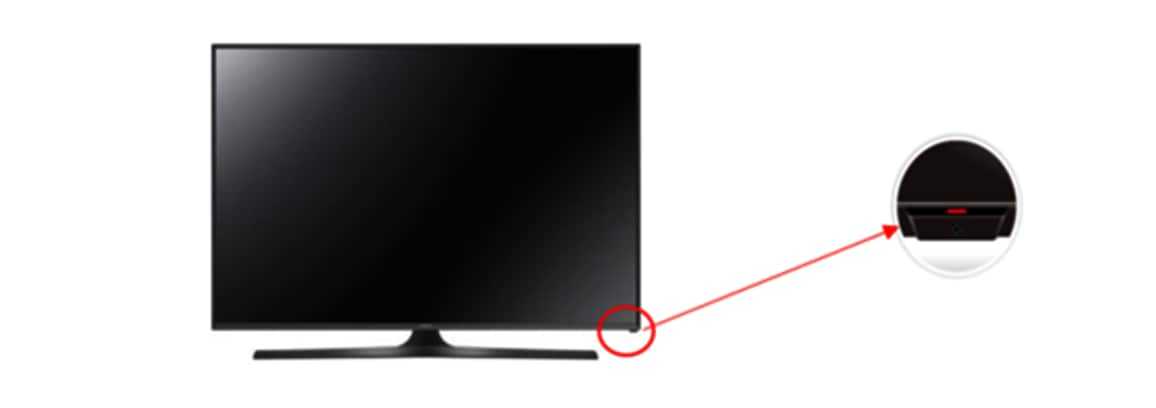
Check the TV’s Power Indicator
Most TVs have a small LED light indicating power status. Observe this light when you try to turn on the TV. If it remains off, the issue could be with the power supply or the main board. If the light blinks or shows a different color, consult the user manual for specific codes.
Look for Firmware or Software Issues
If your TV’s indicator light shows normal but the screen stays black, it might be a firmware problem. Try updating the TV’s software via the menu options if possible. Sometimes, firmware glitches can prevent the screen from displaying even if the power is on.
Test with External Devices
Connect a DVD player, gaming console, or streaming device to your TV. If these devices are recognized but the screen remains black, the issue might be with the TV’s display panel or internal components. If external devices work fine, the problem might be with your TV’s internal hardware.
Check the HDMI and Input Connections
Ensure all input cables are securely connected. Remove and reconnect HDMI or other cables to confirm they aren’t loose. Try switching to different ports or cables to rule out faulty connections.
Examine the Display and Backlight
If the screen appears completely dark but you hear sound, the backlight might be defective. Shine a flashlight on the screen at an angle; if you see faint images, the backlight is likely the issue. This problem should be repaired by a professional technician.
Test for Audio Without Image
Turn on the TV and listen carefully. If you hear sound but see no picture, the display or its backlight could be malfunctioning. This helps localize the problem to the display area rather than the entire TV system.
Consider Professional Repair or Replacement
If none of the above steps work, it’s time to consult a professional. Internal hardware issues like power supply failure or main board problems usually require expert diagnosis. Sometimes, replacing the entire TV might be more cost-effective than repairs.
Gather Important Details for Repair
When seeking repair services, note down the TV model, brand, and any error codes or indicator light behaviors. This information helps technicians quickly identify common issues and parts needed.
Prevention Tips to Avoid Future Problems
Ensure your TV is plugged into a surge protector to guard against power surges. Keep the TV in a well-ventilated space to prevent overheating. Regular cleaning and updates can also extend its lifespan and keep it functioning properly.
Maintain Proper Ventilation
Avoid placing the TV in direct sunlight or near heat sources. Make sure vents aren’t blocked by dust or objects. Proper airflow reduces internal damage and overheating that could prevent your TV from turning on later.
Use Safe Power Sources
Always plug your TV into a stable power outlet. Use surge protectors to protect against voltage spikes, especially during thunderstorms or electrical storms. Consistent power supply is critical for your TV’s health.
Summary of Troubleshooting Steps
| Step | Action |
|---|---|
| Check Power Connection | Ensure the power cord is plugged correctly and outlet works. |
| Test Power Button | Try turning on using the physical button and remote control. |
| Inspect for Damage | Look for physical damage or internal issues. |
| Perform Power Cycle | Unplug, hold power button, then plug in and restart. |
| Test with External Devices | Connect other devices to verify input ports and display. |
| Check Indicator Lights | Observe LED status for clues on operation or error codes. |
| Seek Professional Help | If all else fails, contact a repair technician or consider replacement. |
Troubleshooting a TV that will not turn on can seem challenging at first, but following these systematic steps can often identify the problem. Whether it’s a simple power source issue or internal hardware failure, understanding the basics helps you make informed decisions. With patience and methodical checks, you can often restore your TV to working order or determine if professional repair is necessary.
How To Fix Your TV if it Won’t Turn On
Frequently Asked Questions
What steps should I take if my TV does not respond when I press the power button?
If your TV doesn’t respond, start by unplugging it from the power outlet. Wait for about 60 seconds to allow any residual charge to dissipate. Then, plug it back in and press the power button again. If it still doesn’t turn on, check if the power cord is securely connected and inspect for any visible damage. Try pressing the power button on both the remote and the TV itself to rule out remote issues.
How can I verify if the power outlet is functioning correctly?
Plug another electronic device, like a lamp or phone charger, into the same outlet to see if it works. Alternatively, try plugging your TV into a different outlet that you know is working. If the outlet is faulty, you may need to reset your circuit breaker or consult an electrician to fix the issue.
What should I do if the TV’s standby light is on but the screen remains blank?
A steady standby light indicates the TV is receiving power but not displaying any image. First, ensure all cables are securely connected, especially the HDMI or AV cables. Next, test different input sources or disconnect external devices to see if the issue persists. If the problem continues, perform a reset by unplugging the TV for several minutes, then plugging it back in and turning it on.
Could a blown fuse inside the TV be causing the power issue?
Yes, internal fuses can blow and prevent the TV from turning on. If you feel comfortable, unplug the TV and open the back panel to inspect the fuses. Replace any blown fuses with ones of the same type and rating. If you’re unsure or uncomfortable opening your TV, consult a professional technician to handle internal repairs.
What should I do if my TV still doesn’t turn on after trying all troubleshooting steps?
If you’ve exhausted all basic troubleshooting, contact the manufacturer’s customer support or a professional repair service. Your TV might require a deeper electrical or hardware diagnosis that professionals can perform. Avoid attempting complex repairs yourself to prevent further damage or voiding the warranty.
Final Thoughts
In conclusion, troubleshooting a TV that will not turn on involves checking power connections and ensuring the outlet functions properly. Test the remote control batteries and press the power button firmly. If the TV still doesn’t respond, disconnect it from power for a few minutes before trying again. By following these steps, you can often resolve the issue quickly. Remember, understanding how to troubleshoot a TV that will not turn on helps you save time and avoid unnecessary repairs.



